Why Kiosk skips most files when scanning my iPhone?
Certain modern iOS versions enforce stricter permissions and access rules for external connections. When the Kiosk configuration is not aligned with these requirements, MetaDefender Kiosk may not fully scan all the files in the iPhone.
iPhone Scanning Prerequisite
Use a data-capable USB cable. Charging-only cables will not work.
Unlock the device before connecting it to the Kiosk.
Confirm access on the device (for example, tap “Trust this computer” or similar prompts).
Keep the device awake during the scan to avoid connection drops.
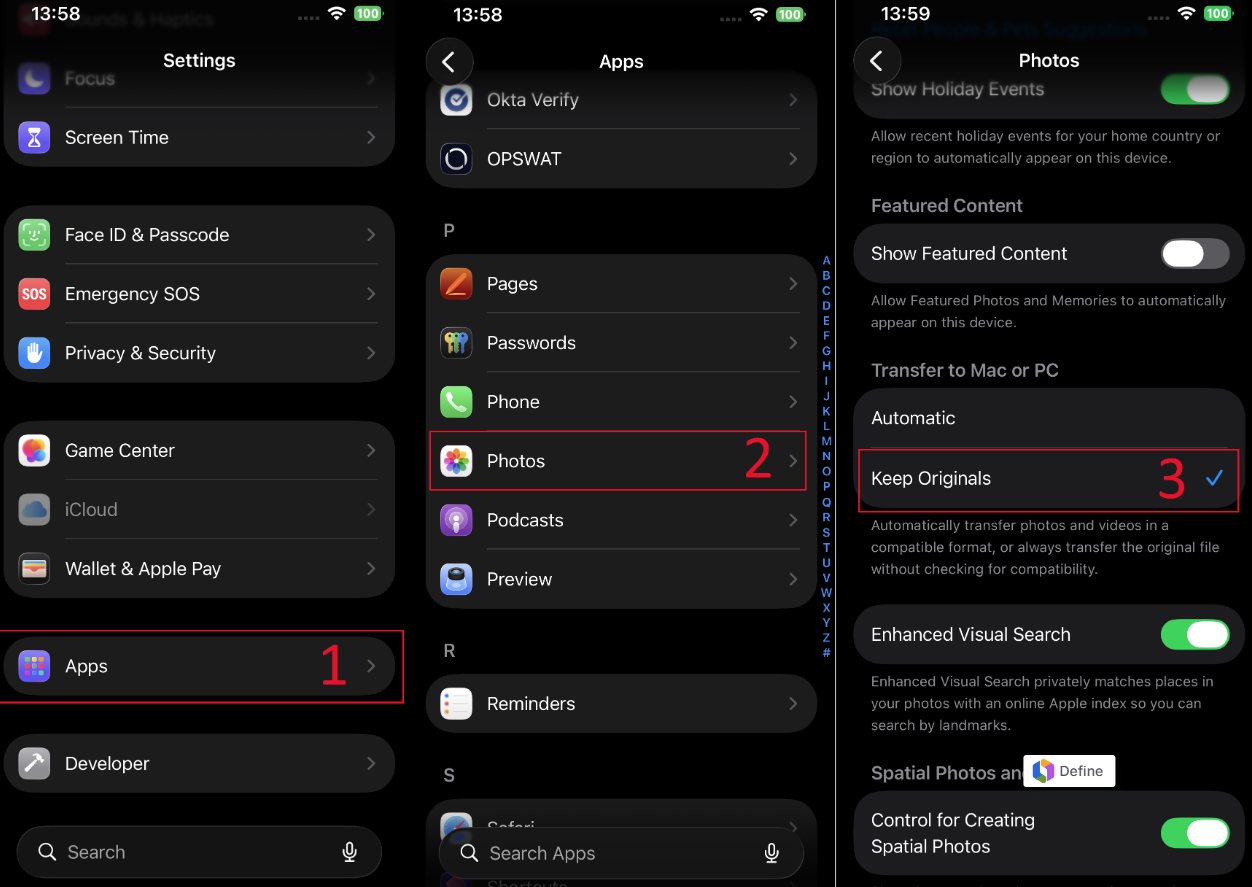
Besides, it is recommended to configure the settings for Photos as "Keep Originals" in Transfer to Mac or PC
Open Settings on the iPhone.
Navigate to Photos.
Under "Transfer to Mac or PC", select "Keep Originals".
If this setting is not configured, Kiosk may fail to scan all files — resulting in skipped files and error logs.