
Check Your Version:
This article applies to all MetaDefender ICAP Server releases deployed on Windows and Linux systems.
Overview
If you notice MetaDefender ICAP Server reports a recurring "Archive Extraction Failure" with the verdict "Failed to extract archive" on files that share a consistent naming and size pattern, the affected traffic could be Windows Delivery Optimization content.
The files are partial chunks of larger Microsoft update payloads, not complete archives. Because MetaDefender receives only a fragment of the original file per ICAP request, extraction cannot succeed and the engine returns "Failed to extract archive."
This is expected behavior - there is no product defect. The recommended resolution is to add a top-priority whitelist workflow for the Microsoft update hosts so this trusted traffic is passed without extraction.
How to identify this issue
Review the affected requests in the ICAP server log (for example mdicapsrv.log-YYYYMMDD.log). This issue is present when all of the following are true:
The affected entries are RESPMOD (response modification) requests - a file being downloaded by the client.
The requests originate from one of the Delivery Optimization hosts:
tlu.dl.delivery.mp.microsoft.com
msedge.b.tlu.dl.delivery.mp.microsoft.com
The affected file sizes at MetaDefender Core follow a fixed chunk pattern: 64 KB, 128 KB, 256 KB, 512 KB, and 1 MB.
The verdict is a "failed" / blocked result with the reason "Failed to extract archive," not a malware block.
What these hosts are
tlu.dl.delivery.mp.microsoft.com and msedge.b.tlu.dl.delivery.mp.microsoft.com are used by Windows Delivery Optimization (DO), Microsoft's peer-to-peer and CDN content distribution service. These hosts serve Windows Update, Windows feature and app updates, Microsoft Store apps, Microsoft Edge, and other Microsoft product content.
Delivery Optimization changes how update content reaches the client, and this directly explains the extraction failures:
Content is split into chunks. Instead of downloading a whole file at once, DO breaks content into many small pieces. This is why the file sizes seen at MetaDefender Core are 64 KB, 128 KB, 256 KB, 512 KB, and 1 MB.
Chunks are pulled from multiple sources. Some chunks come from the Microsoft CDN via these hosts using HTTP range requests (HTTP 206 Partial Content). Others come from peer machines on the same LAN or ISP over TCP port 7680, coordinated by a Microsoft cloud service.
Reassembly and verification happen on the client. Once all chunks are downloaded, the client reassembles them into the complete file and verifies its digital signature before use.
Why extraction fails (root cause)
The request is blocked with a "failed" verdict because the CAB or SFX file cannot be extracted for scanning. The file delivered per ICAP request is only a single Delivery Optimization chunk - a fragment of the complete update payload, not a complete archive.
Each file received per ICAP request is only part of a larger file. A partial archive cannot be extracted, so extraction fails by design.
The chunk cannot be scanned as a standalone file because the complete file is never received in a single request, and the individual chunks cannot be reassembled into one file for scanning at the ICAP layer.
MetaDefender ICAP Server / MetaDefender Core receives every chunk (64 KB to 1 MB) exactly as the ICAP client sends it. This is the expected input, so there is no product issue.
Resolution: add a whitelist workflow
Delivery Optimization content originates from Microsoft for the purpose of updating Windows and Microsoft applications, and is validated by the client on reassembly. This traffic is trusted. The recommended action is to configure the ICAP client (e.g. A10 Thunder, F5) to filter this traffic, and not send the traffic from those hosts to MetaDefender ICAP server.
If the ICAP client still sends this traffic, then the alternative below is to allowlist on MetaDefender ICAP these Microsoft update domains, so the chunks are passed without scanning and without triggering extraction failures.
Important:
Whitelisting removes scanning for the matched traffic. Review the scope against your organization's security policy before applying in production, and prefer the tightest scope that resolves the issue.
Workflow matching runs from top to bottom, so the new whitelist workflow must sit above all other workflows to take effect first.
Create a new workflow (for example, name it WhiteList microsoft.com).
Move the new workflow to the top of the workflow list so it is evaluated first.

Open the filter configuration and add a Host IP / Domain filter matching the Microsoft update domain(s).
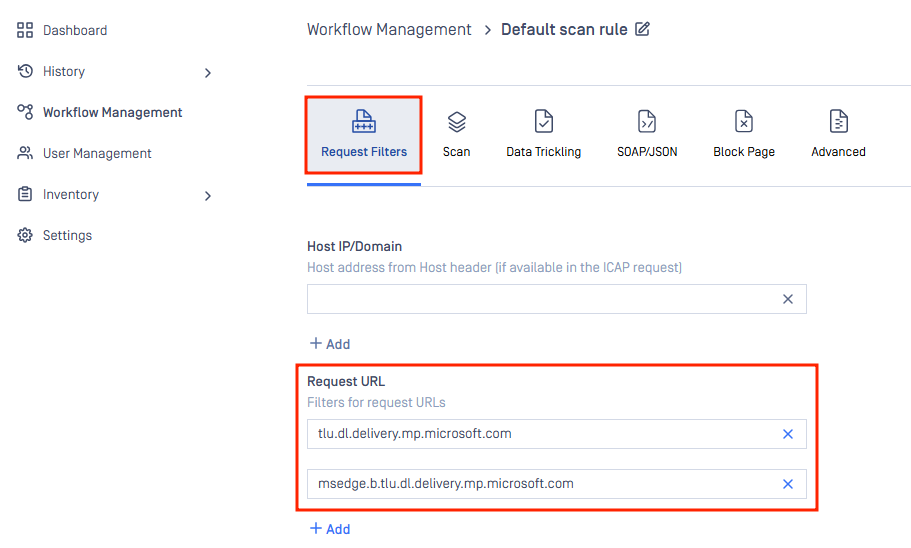
In the Scan tab, uncheck "Allow scan" so matching traffic is passed without scanning or extraction.
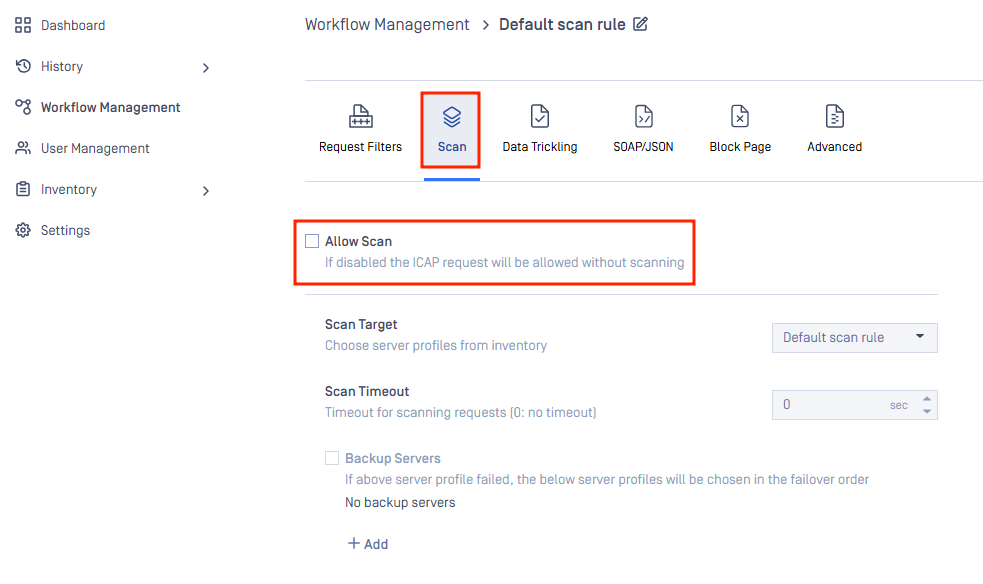
Save and apply the configuration, then confirm the workflow order places the whitelist workflow first.
Filter summary
Setting | Value |
|---|---|
Workflow name | WhiteList microsoft.com |
Workflow order | Top of the list (evaluated first) |
Filter type | Host IP / Domain |
Filter value | *.microsoft.com (broad) or the specific DO hosts (tight) |
Scan tab | Allow scan = unchecked |
Choosing the scope
Scope | Filter value | When to use |
|---|---|---|
Broad | *.microsoft.com | Covers the reported hosts and other Microsoft services in one rule |
Tight | tlu.dl.delivery.mp.microsoft.com and msedge.b.tlu.dl.delivery.mp.microsoft.com | Whitelist only the specific Delivery Optimization hosts and nothing else (i.e. other files downloaded from *.microsoft.com can still match other ICAP workflow with scanning) |
Verification
After applying the workflow, confirm the recurring "Failed to extract archive" verdicts for the Delivery Optimization hosts no longer appear in the ICAP log once traffic matches the whitelist workflow and bypasses scanning.
Notes and recommendations
Whitelisting removes scanning for the matched traffic. This is acceptable for trusted, signature-verified Microsoft update content, which the client validates on reassembly, but the scope should be reviewed against your security policy.
Clearing this recurring noise also makes it easier to spot genuine extraction failures in the ICAP log that warrant investigation.
Support:
If further assistance is required, please log a support case or chat with our support engineer.