
This article applies to upgrade attempts to MetaDefender ICAP Server from v5.6.0 or older to v5.7.0 or later (including current releases) on Windows, where the PostgreSQL database password or the underlying OS locale contains non-ASCII characters
Issue
MetaDefender ICAP may fail during the upgrade process with the following error:

This kind of error typically means that the password being used to establish the database connection is incorrect.
Cause
If the password has not been changed, the error is most likely due to the password containing non-ASCII characters (for example, Japanese, Turkish, or other non-Latin characters).
A related but distinct cause is a Windows OS locale that contains non-ASCII characters (for example, a Turkish-language Windows install). PostgreSQL 16 cannot initialize a database cluster under either condition, which blocks the PostgreSQL 12 → 16 migration that runs during upgrade.
A fix was introduced in v5.9.0 to handle non-ASCII passwords automatically during upgrade. However, this failure may recur in some cases, upgrading directly from v5.5.0/v5.6.0 on later releases, and the OS-locale variant is only resolved automatically for fresh installs from v5.11.0 onward.
In-place upgrades from older versions may still hit this issue on the current release and may require the manual remediation below or an OPSWAT Support-assisted session.
If your database password or OS locale contains non-ASCII characters, we recommend contacting Support before starting the upgrade.
Remediation Steps
Depending on the status of your deployment, you can follow either of these two methods to remediate this issue:
Method 1: MetaDefender ICAP is on a failed state after an upgrade failure
This method assumes that MetaDefender ICAP has just failed the upgrade process with the error mentioned above. No other remediation actions taken.
Paths provided are a reference only. Please make sure to use the path where you have installed MetaDefender ICAP.
Uninstall ICAP version 5.7.0 or 5.8.0
Remove the following folders and files:
Folder
postgres(C:\<INSTALATION_PATH>\postgres),Folder
postgres-old(C:\<INSTALATION_PATH>\postgres-old)Folder
pg_data(C:\<INSTALATION_PATH>\data\pg_data)File
pg16.dat(C:\<INSTALATION_PATH>\pg16.dat) if existsFile
ngx126.dat(C:\<INSTALATION_PATH>\ngx126.dat) if exists
Rename folder
pg_data-old(C:\<INSTALATION_PATH>\data\pg_data-old) ->pg_data(C:\<INSTALATION_PATH>\data\pg_data)Install ICAP version 5.6.0(or the version of ICAP you had previously installed). Wait for ICAP to be ready ( when you can login to the Web Management Console)
Stop the ICAP Service. You can do this from the Windows Services window.
Open
cmdwith Admin privileges and cd to the ICAP installation folder (cd C:\<INSTALATION_PATH>)Run
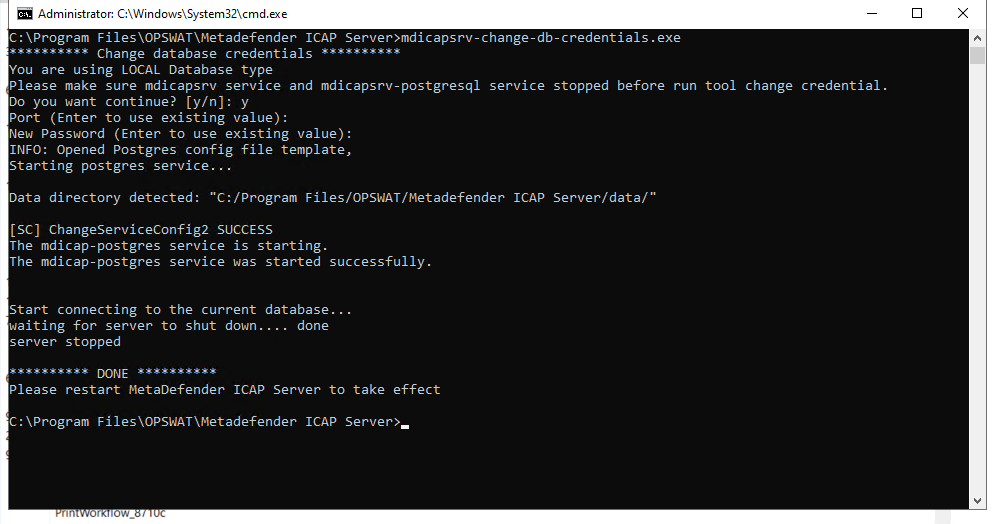
mdicapsrv-change-db-credentials.exeand temporarily change the password to contain ASCII characters ONLY.
Start ICAP service again and test to make sure you can login to the Web Management Console
Upgrade to your target MetaDefender ICAP version
Method 2: MetaDefender ICAP is in a working state and on version 5.6.0 or lower
This method assumes that you have a running MetaDefender ICAP version 5.6.0 or older and you know that the password set for the database contains non-ASCII characters.
Or, you have reverted back to an snapshot of the system.
Path provided are a reference only. Please make sure to use the path where you have installed MetaDefender ICAP.
Stop ICAP service. You can do this from the Windows Services window.
Make a backup of pg_data folder (
C:\<INSTALATION_PATH>\data\pg_data).Remove file
pg16.dat(C:\<INSTALATION_PATH>\pg16.dat) if exists.Remove file
ngx126.dat(C:\<INSTALATION_PATH>\ngx126.dat) if exists.Run
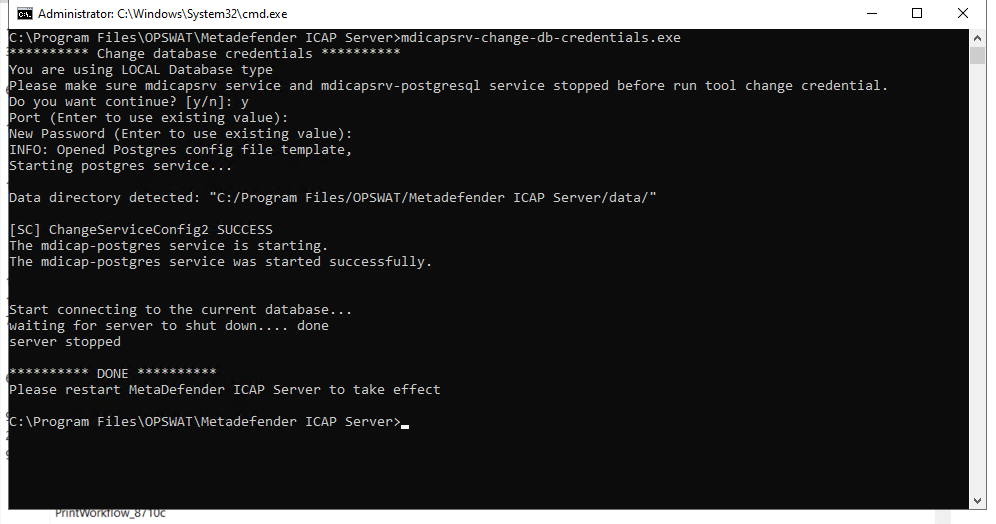
mdicapsrv-change-db-credentials.exeand temporarily change the password to contain ASCII characters ONLY.
Start ICAP service and check the ICAP Server can connect to the database. Verify correct functioning.
Attempt the upgrade to your target version
If you wish to change your password again to the initial password you were using, before following Method 1 or Method 2 described above, please follow Method 2 steps.
After following any of the methods above, you can set a password with special characters.
If Further Assistance is required, please proceed to log a support case or chatting with our support engineer.