
Create SAML directory in MetaDefender ICAP
Sign in to MetaDefender ICAP.
In the dashboard, click on
User Managementin the left sidebar.On
User Managementpage, selectDirectoriestab and clickAdd Directoryin the top right corner.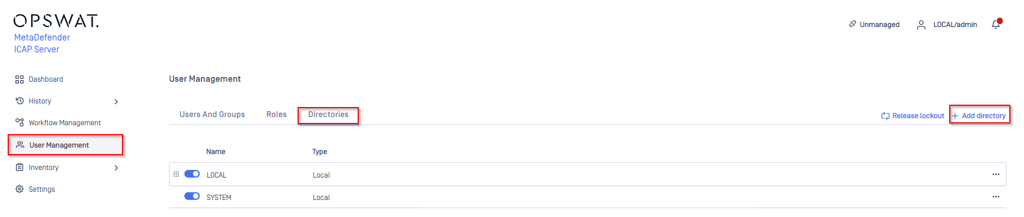
In
Add Directorypage, selectSAMLasDirectory type, and enter a name for the new directory, such as MDICAP-SAML.In
Service Providersection, enableUse custom entity IDoption and enter the ID, such as MDICAP-PINGONE-SAML, then store it in entity_id.Enter
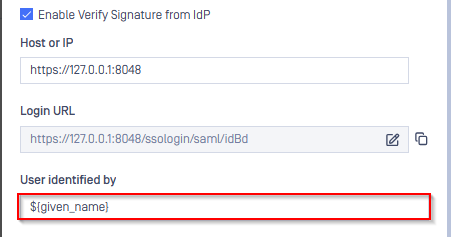
Host or IPwhere MD ICAP is hosted, for this example use https://127.0.0.1:8048Copy the string generated under
Login URLand store it as reply_uri.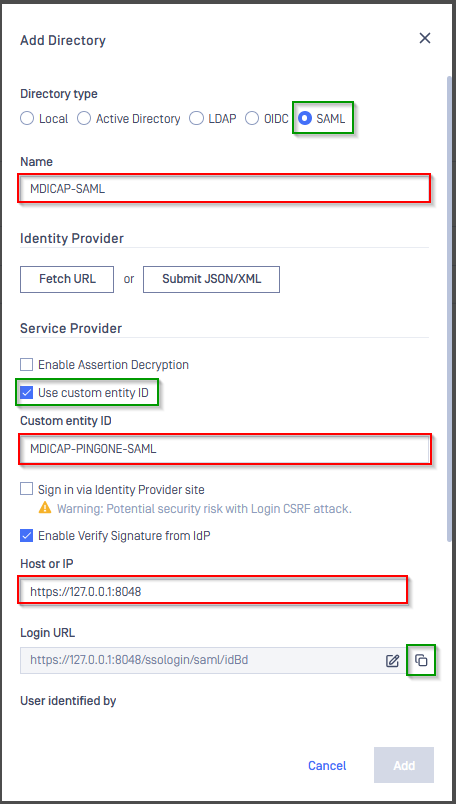
Create and configure SAML application in PingOne
In the PingOne Overview page, navigate to
Applicationson the sidebar.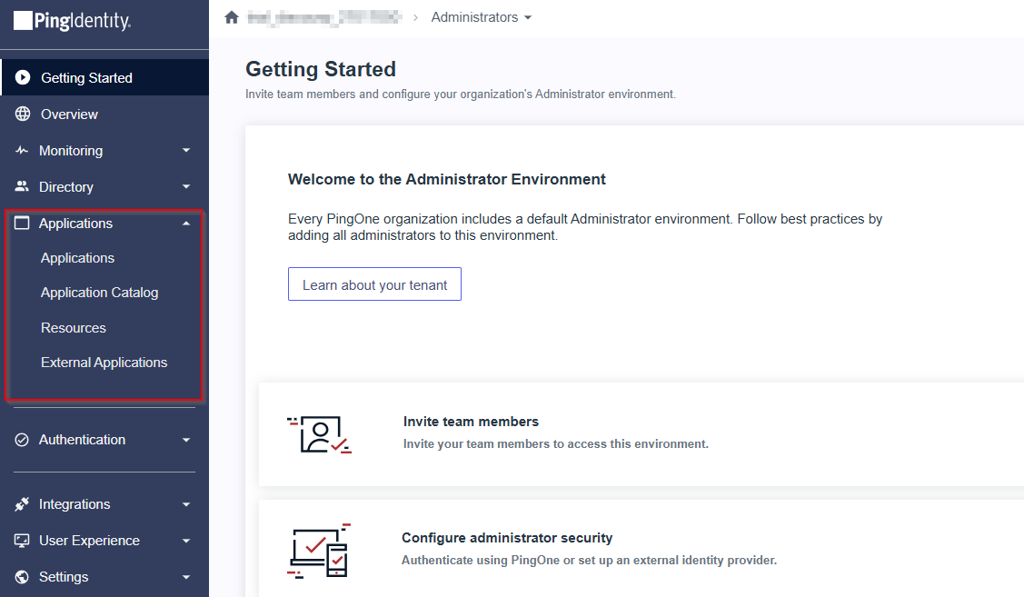
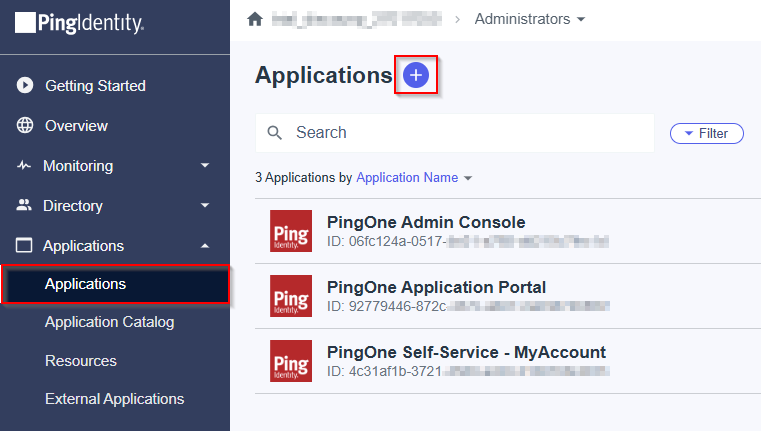
Click the plus button to add a new application.
Enter the application name, MDICAP-SAML as an example, choose
SAML ApplicationforApplication Type, and clickConfigure.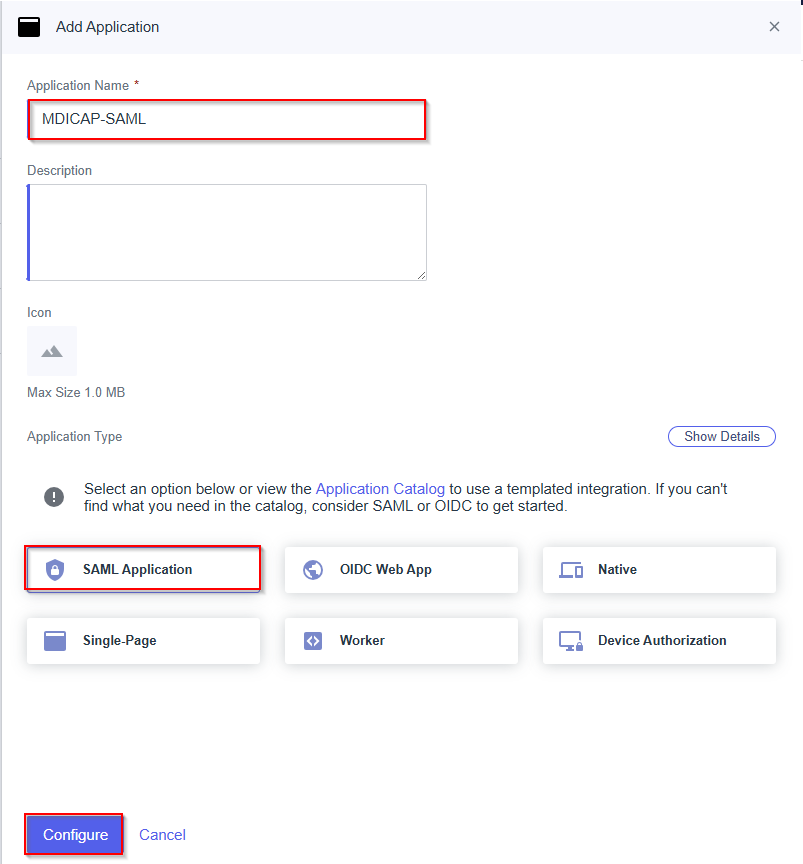
Select
Manually Enterfor SAML Configuration, fill inACS URLswith reply_uri,Entity IDwith entity_id, and clickSave.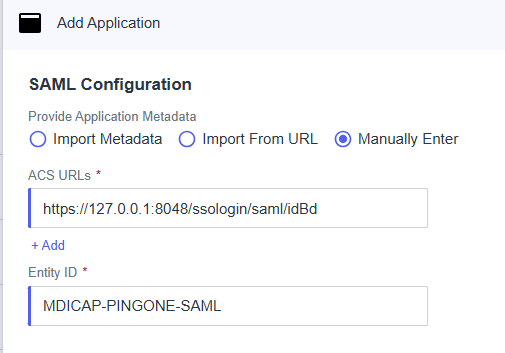
Select
Overviewtab, navigate toIDP Metadata URL, copy the link below, and store it in metadata_url.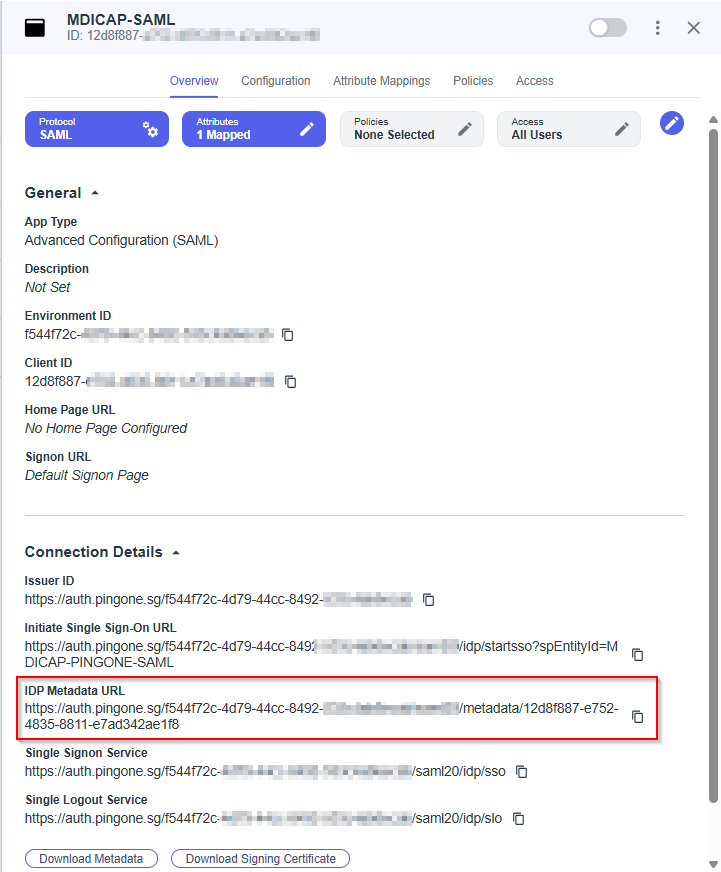
Select
Attribute Mappingstab and click Edit button.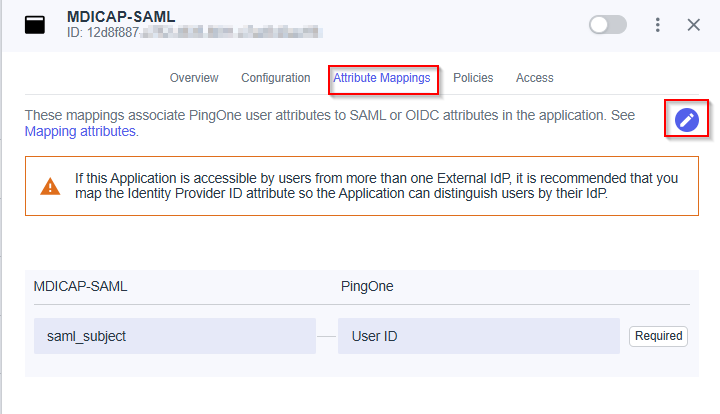
On
Edit Attribute Mappingspage, clickAddto create a new mapping.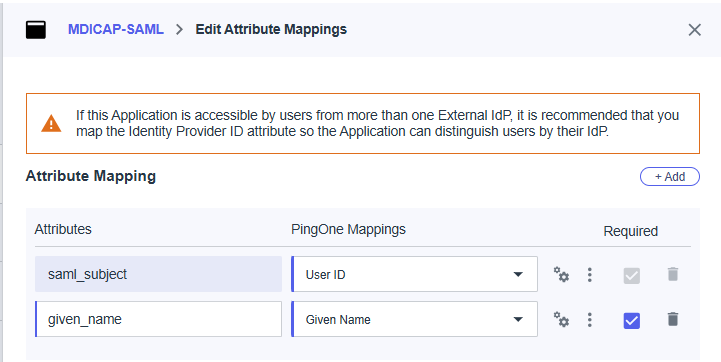
In this step, we create a mapping from the key name used by MetaDefender ICAP to the one exported by PingOne. For example, we set given_name mapped to Given Name from PingOne. Later, given_name is utilized by MetaDefender ICAP to identify the logged-in user..
Enter the attribute name,
given_namein this example, select the itemGiven NameinPingOne Mappings, enableRequiredoption, and clickSaveto complete.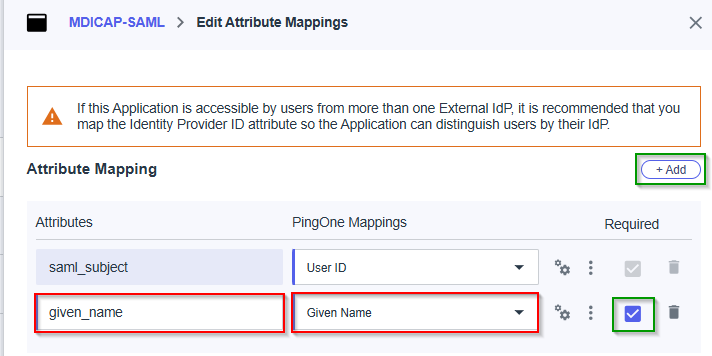
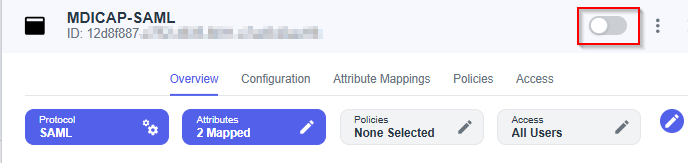
Enable the new application in PingOne.
Complete configuration in MetaDefender ICAP
Switch back to MetaDefender ICAP. Under
Identity Provider, clickFetch URL, paste the value of metadata_url into the box below, clickOK, and wait a moment for MetaDefender ICAP to check and set PingOne as its IdP.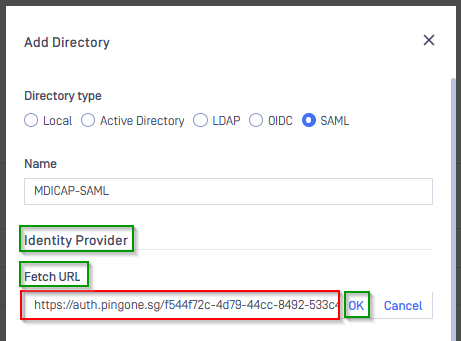
Under
Service Provider, fill in ${given_name} in the box labeledUser identified by.
Select
Default roleoption, choose the appropriate role to assign to users underUser Role, and clickAddto complete the settings in MetaDefender ICAP.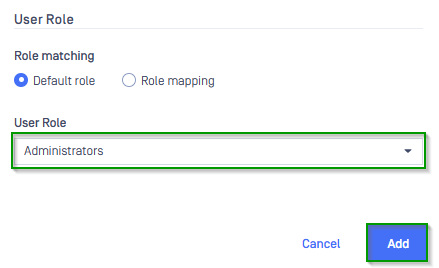
On
User Managementpage, toggle the new directory, MDICAP-SAML in this example. A dialog box will appear to confirm the action. OnceEnableis clicked , all sessions will expire immediately.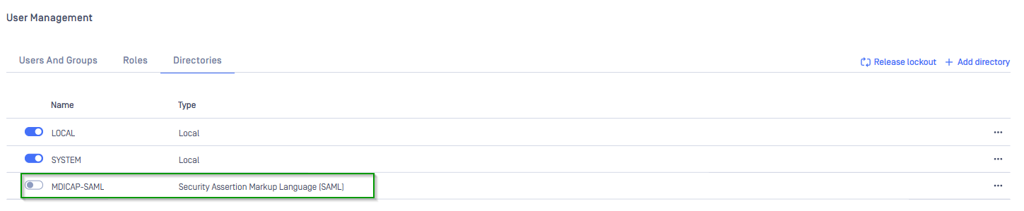
Test the integration
On the home screen of MetaDefender ICAP, click
Login; the user is redirected to PingIdentity login page.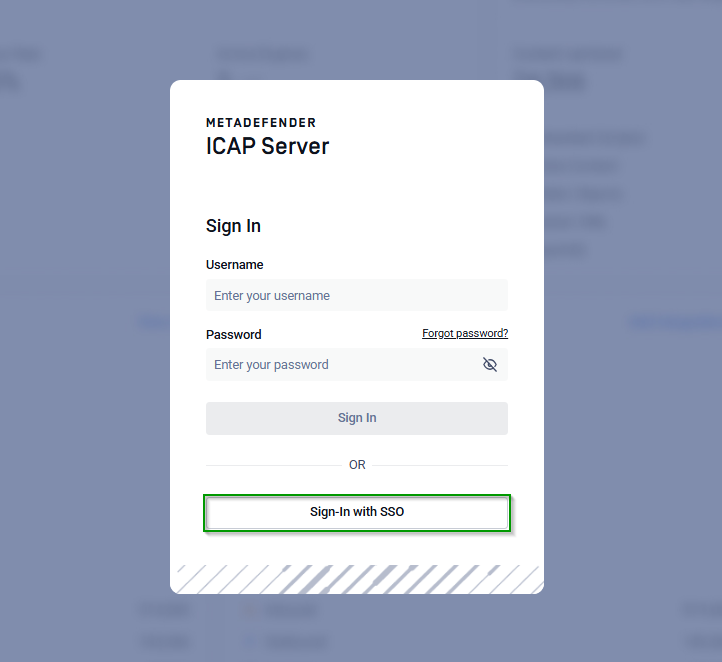
Select the Directory to Login
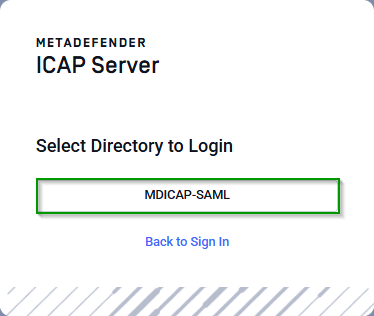
Sign in using the account registered with PingIdentity.
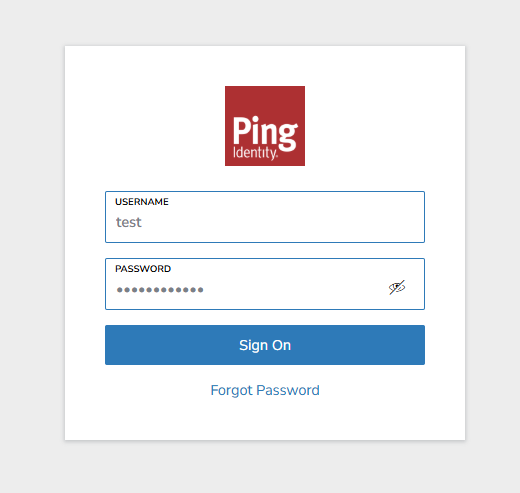
If everything goes well, MetaDefender ICAP dashboard is displayed with the user identity in the top right corner

Otherwise, access backup login page at
<mdicap-host>#/public/backuploginfor troubleshooting.
Test IdP-initiated login
Sign in to PingOne management page.
In the left sidebar, click on
Applications, thenApplications.Select the SSO directory from which IdP-initiated login is enabled, such as MDICAP-SAML in this example.
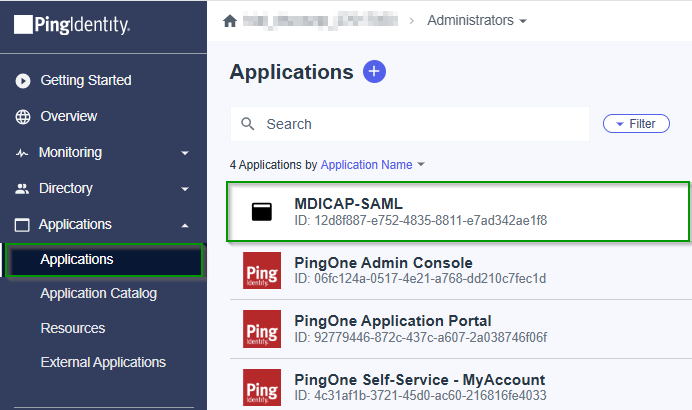
In the right sidebar, click on
Overviewtab. Copy the URL underInitiate Single Sign-On URL.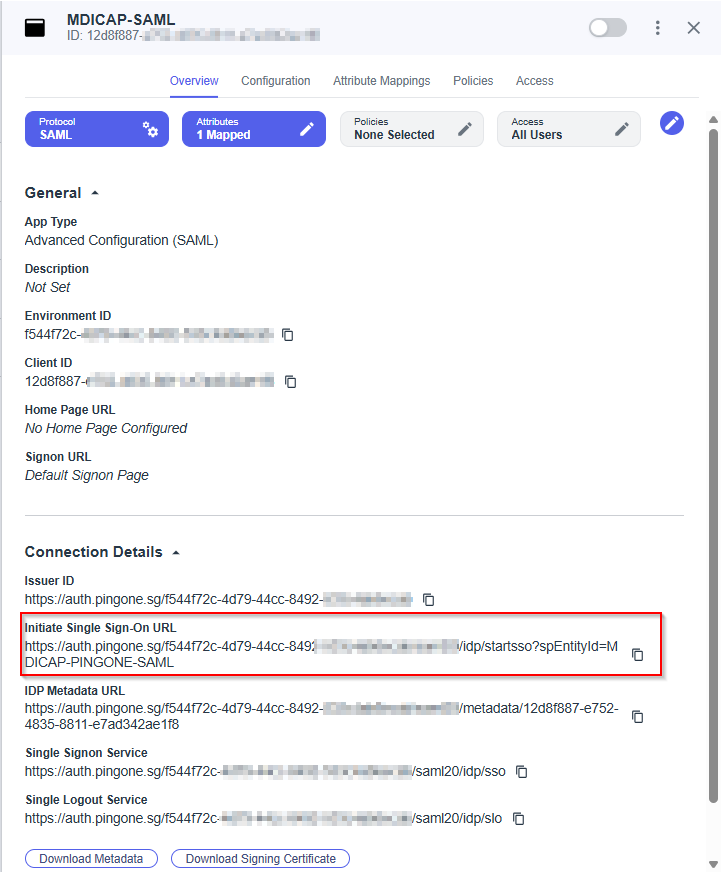
Paste the URL into your browser and try to sign in.
If everything goes well, MetaDefender ICAP dashboard is displayed with the user identity in the top right corner.
