
Description
To prevent large files or files containing multiple objects from causing performance bottlenecks and affecting system performance, users can now dedicate specific scan servers to handle such scan requests. Users can specify the file attribute: file size, file type, or both.
Steps to configure
If you want to split the traffic between multiple MetaDefender Core servers based on the file size, you can simply configure 2 different server profiles, Scan Files for all the files, as a default and the Scan Large Files.
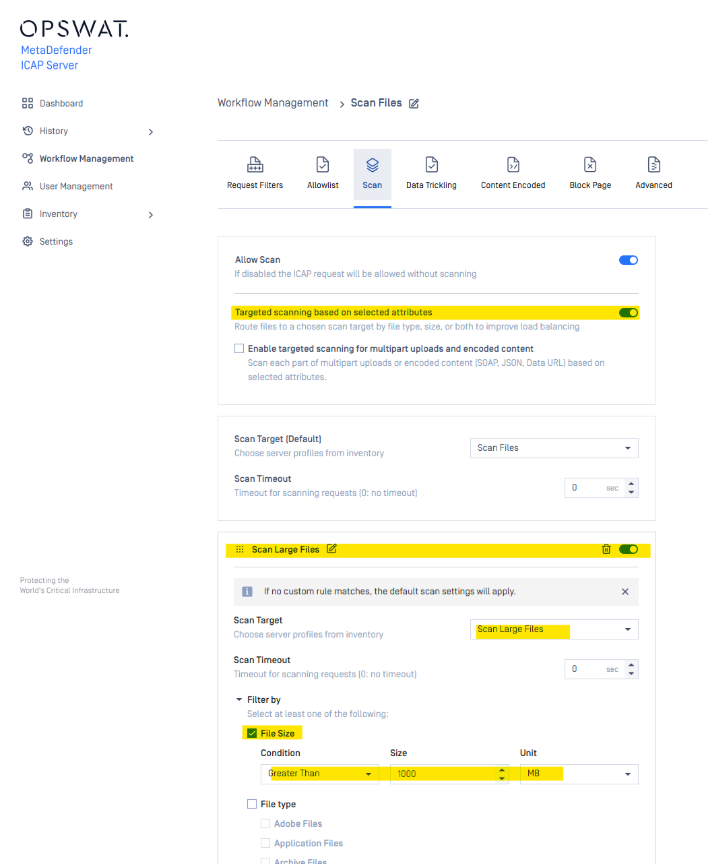
Once the server profiles are configured, we can create a new workflow, that we can define as Large Files Workflow, where we can configure the file size from the Scan Tab.
From there we need to enable the option “Targeted scanning based on selected attributes”, and then go to “Add scan target”, and change the configuration as below:
- Change the name
- Change the scan target to “Scan Large Files”
- Enable the filter by File Size
- Select the type of filter to “greater than” and then select the threshold we like.
- Save changes.
How a Workflow Is Selected
Workflows are evaluated in priority order, from top to bottom. When a request arrives, MetaDefender ICAP Server compares it against the matching conditions of each workflow, starting with the workflow at the top:
1. Check the topmost workflow.
2. If the request matches all conditions, select it and stop.
3. If not, move to the next workflow.
4. Continue until a match is found.
In other words, the first matching workflow wins, even if lower workflows also match.
Because of this, workflow order matters: place more specific workflows higher and general or catch-all workflows lower.
---
ℹ️ Support: If Further Assistance is required, please proceed to log a [support case or chat with our support engineer](https://my.opswat.com/support).