
How to Local whitelist a file using AllowList?
This article applies to all MD Core versions
Purpose:
This article provides a step-by-step guide on how to whitelist a file using the allowlist feature in MetaDefender Core.
When to Use:
Local whitelisting is recommended when the user has verified and fully trusts the file, even if it is flagged by antivirus engines. This method is especially useful in environments where trusted internal tools or utilities are mistakenly identified as potentially harmful.
Scenario:
In this use case, we will use a text file containing the EICAR test string as the sample file.
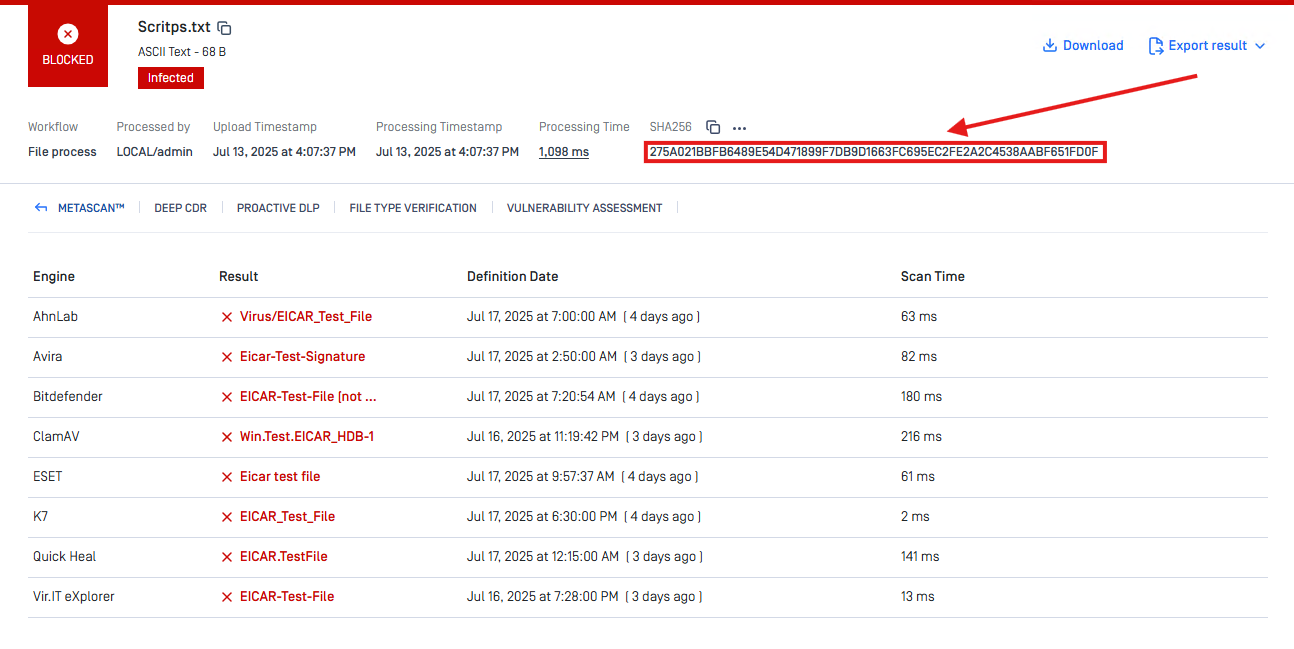
Steps to Allowlist a File
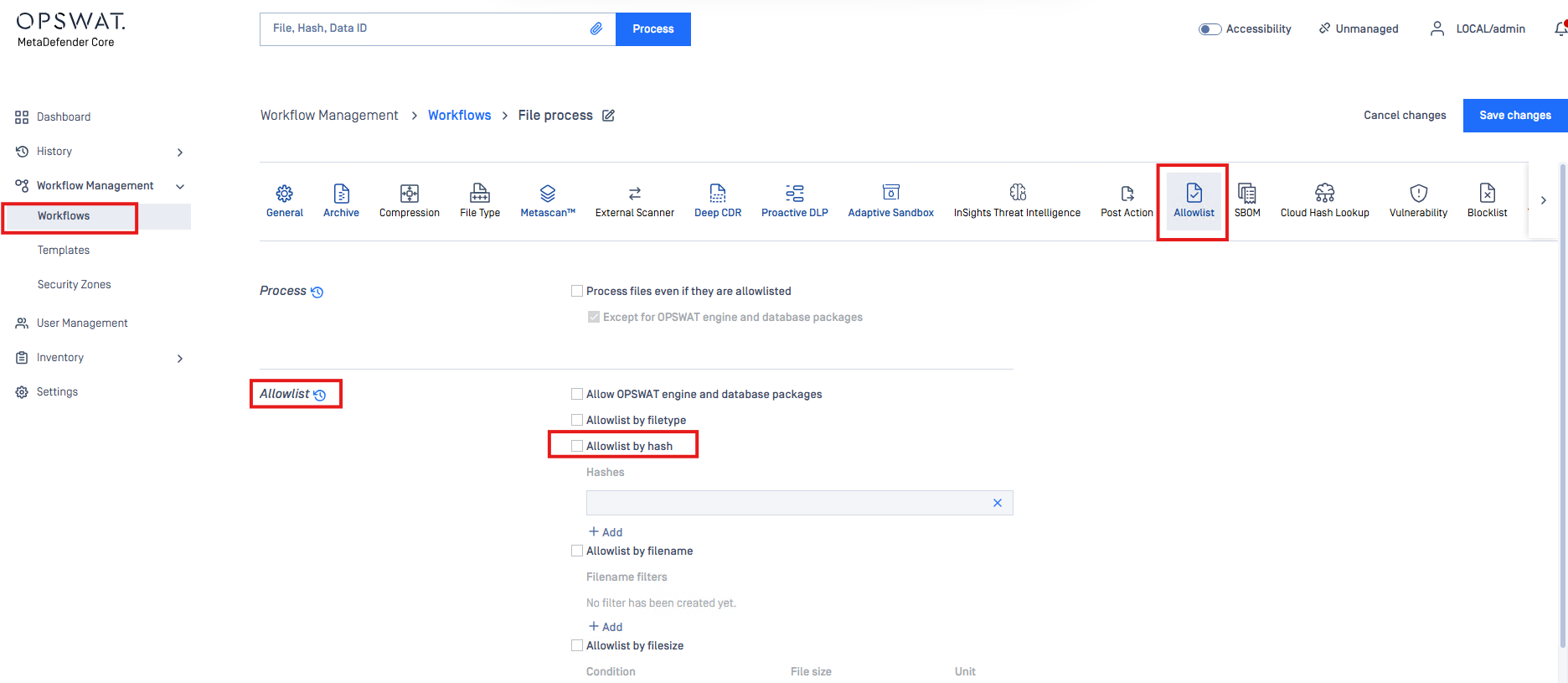
Access Your Workflow: Navigate to the workflow used for your scanning session in MetaDefender Core.
Open the Allowlist Tab: Select the Allowlist section from the workflow settings.
Allow by Hash: Add the hash value of your trusted file to the Allowlist by Hash section.
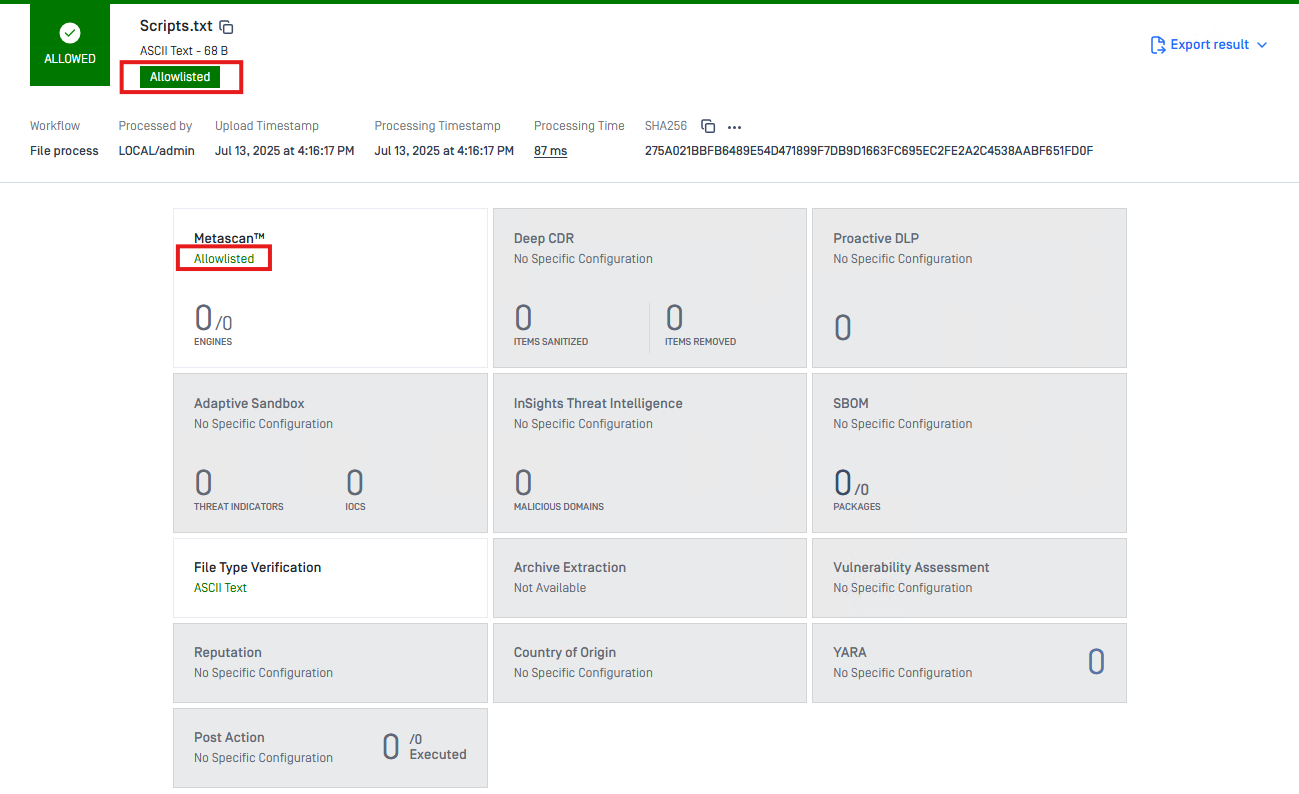
Result:
Once added, the file will be recognized as allowlisted during future scans and will not be flagged by AV engines configured in your workflow.
If the file is confirmed to be malicious or poses a potential risk according to AV vendors, use the allowlist at your own discretion. Local whitelisting bypasses standard detection and should only be used when absolutely certain the file is safe.
If Further Assistance is required, please proceed to log a support case or chat with our support engineer.