
You can easily restore instances to their previous version using a Rollback job.
Note This feature is currently limited to MetaDefender Kiosk Windows and MetaDefender Kiosk Harden Image and supports reverting to the immediately previous version.
Before you begin:
Verify that the previous version is available. See the Importing Target Versions guidelines for details.
Check instance connectivity; all instances must be online and connected
This capability applies only to instances previously updated via My OPSWAT Central Management
Creating Rollback Job
Configurations for Rollback are mostly similar to Update Job. This section outlines the primary steps, for in-depth breakdown of each setting, refer to the guideline.
Note Rollback will revert all settings to the previous version's defaults. Ensure you have configuration backups.
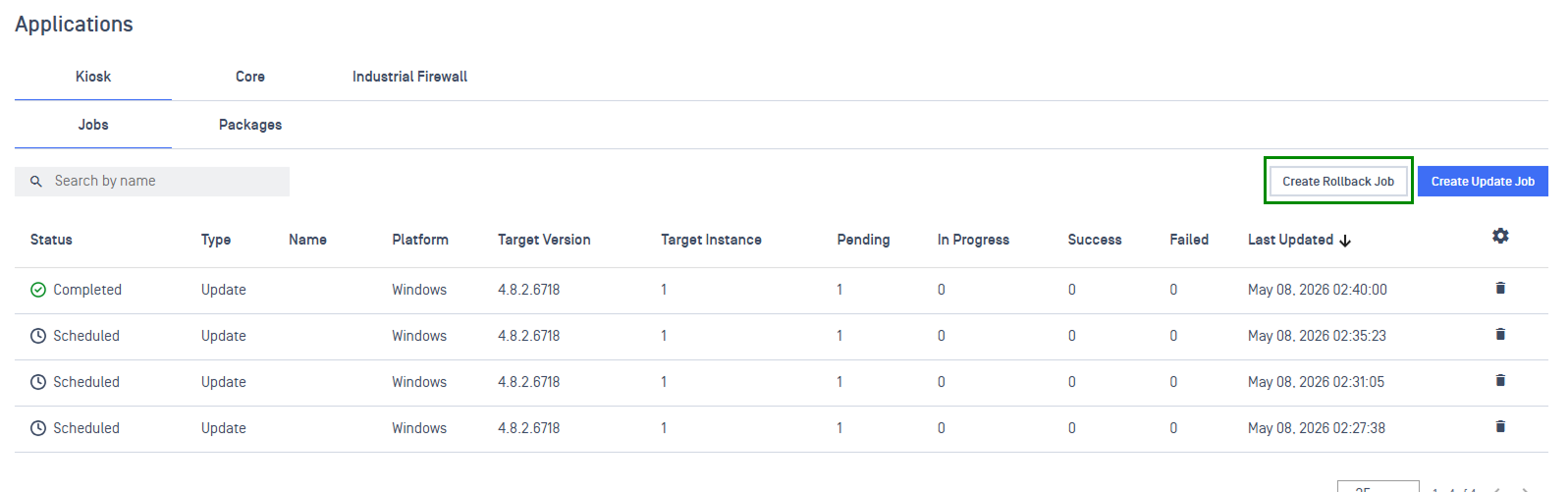
Step 1: To create a rollback, go to Updates > Applications > Jobs. Click Create Rollback Job.
Step 2: Define the job settings across the following core sections:
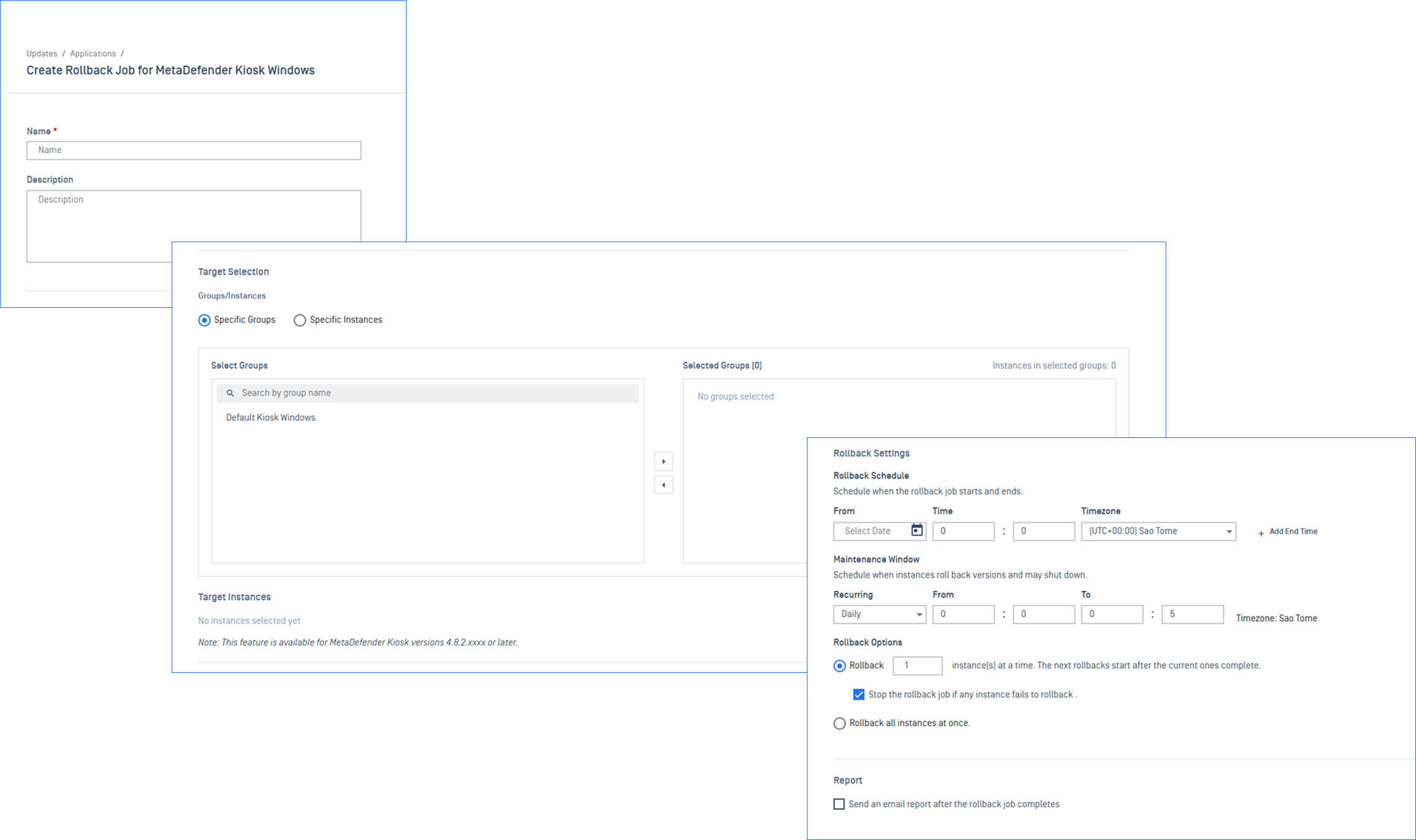
Job Information: Enter a unique name and detailed description for the task
Target Selection: Select the target instance groups or individual instances, then specify the target software version for the rollback.
Rollback Settings: Configure timezones, execution frequency, and designated maintenance windows to execute the rollback.
Rollback Options:
Concurrency: Update all instances simultaneously, or cap the number updated at a time. For fleets of 100 or more, a concurrency limit of 10–20 is recommended to reduce network load.
Stop On Failure: When enabled, the entire job halts if any single instance fails.
Auto Reboot: Automatically restarts Kiosk instance after a successful installation.
Report: Add one or more email addresses to receive automated alerts when the job completes or any individual instance fails.
Monitoring Rollback Job
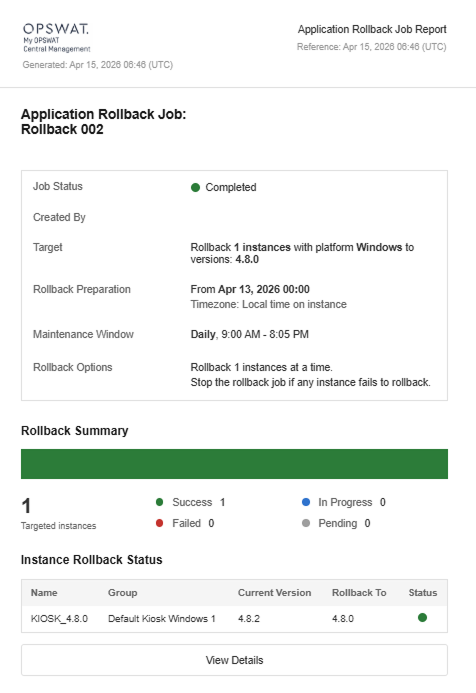
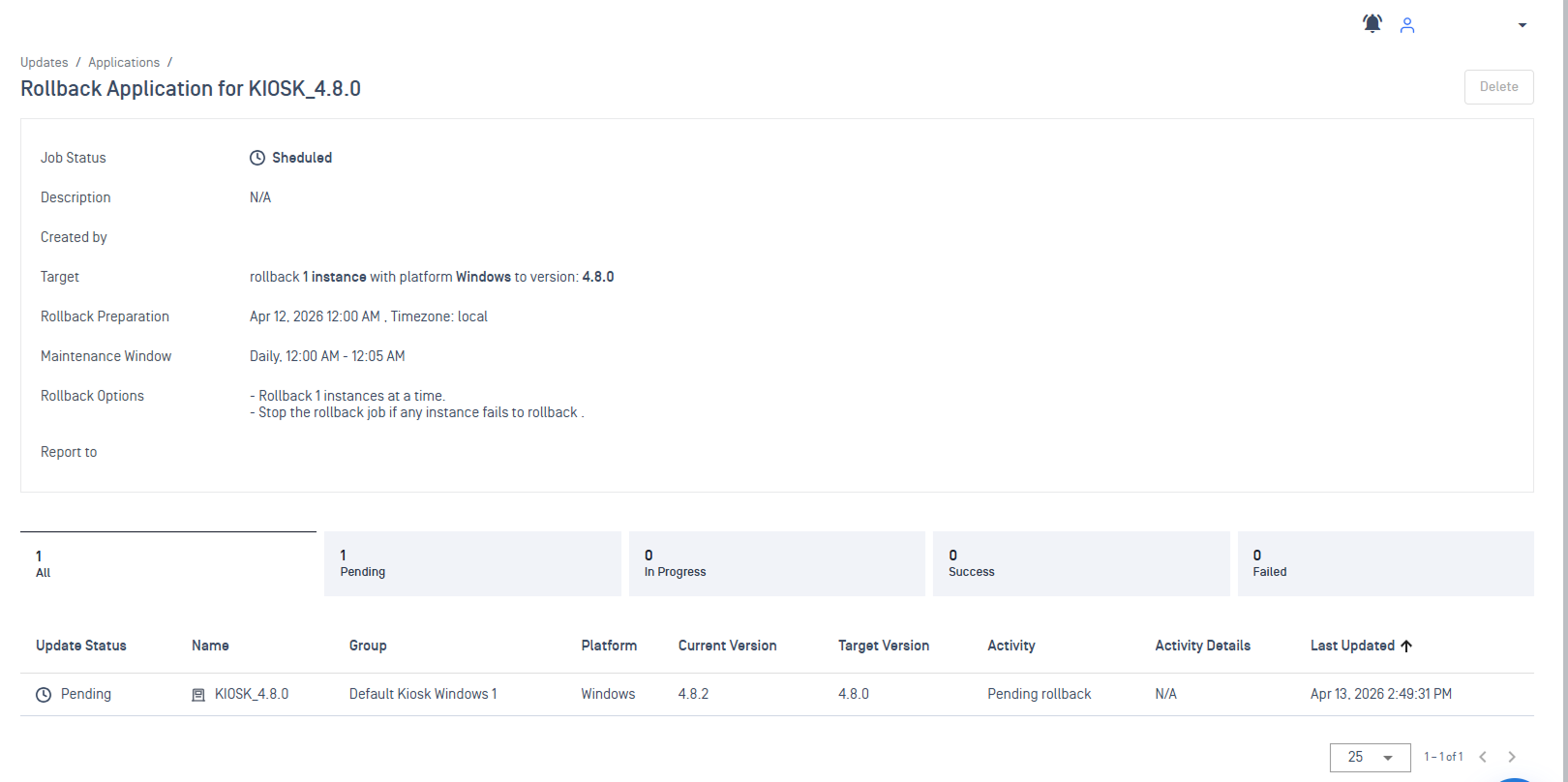
Click any rollback job in the table to open its detailed view, where you can track overall progress and the status of each individual instance.
Rollback Status
Pending: Job is scheduled and waiting to run.
Downloading: Actively downloading the target version.
Waiting for Rollback: Download complete; waiting for the Maintenance Window.
Rolling Back: Rollback is actively in progress.
Rollback Success: Rollback completed successfully.
Download Failed: Target version could not be downloaded.
Rollback Failed: Rollback did not complete.