
Password Storage is a feature in My OPSWAT Central Management that lets you manage MetaDefender Core archive passwords centrally, across your entire Core fleet, instead of maintaining them on each Core instance individually.
Feature Availability
This feature supports MetaDefender Core version 5.23.0 or later.
To access the feature, navigate to File Security > Password Storage.
On this page
Before You Begin
Keep the following in mind before creating password storages:
Supported products | Password Storage currently only applies to MetaDefender Core version 5.23.0 or later |
Permissions | Your user role must include the Password Storage permission. Users with write permission have full control. Users without it can view and search, but cannot create, edit, delete, or assign storages. See Role Management for configuration details |
Assign to policy | A password storage takes effect only after it is assigned to a Core policy. Creating a storage and adding passwords to it has no effect on any instance until you assign it. See Assigning a Storage to Policies |
Passwords cannot be retrieved | Once you save a password, you cannot view it again, not even as an administrator. You can only replace it with a new value or delete it. Keep your own record of any password you may need to reference elsewhere |
Storage capacity | Each password storage holds up to 10 passwords |
Password length | Up to 64 characters for standard Latin characters; fewer if the password contains accented or non-Latin characters |
Audit log | Every create, edit, delete, assign, and unassign action is logged with the user and timestamp, giving you a full trail for compliance or troubleshooting. |
Main Screens
Navigation | Details |
|---|---|
File Security > Password Storage | This page lists all password storages in your account. Each row displays:
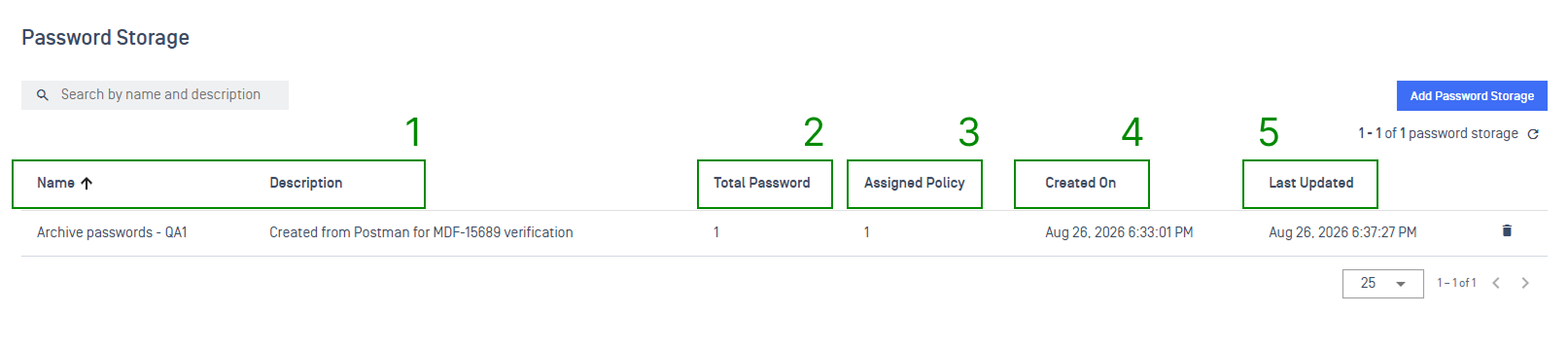 |
Select a storage from the list to open its detail page | The page shows two sections:
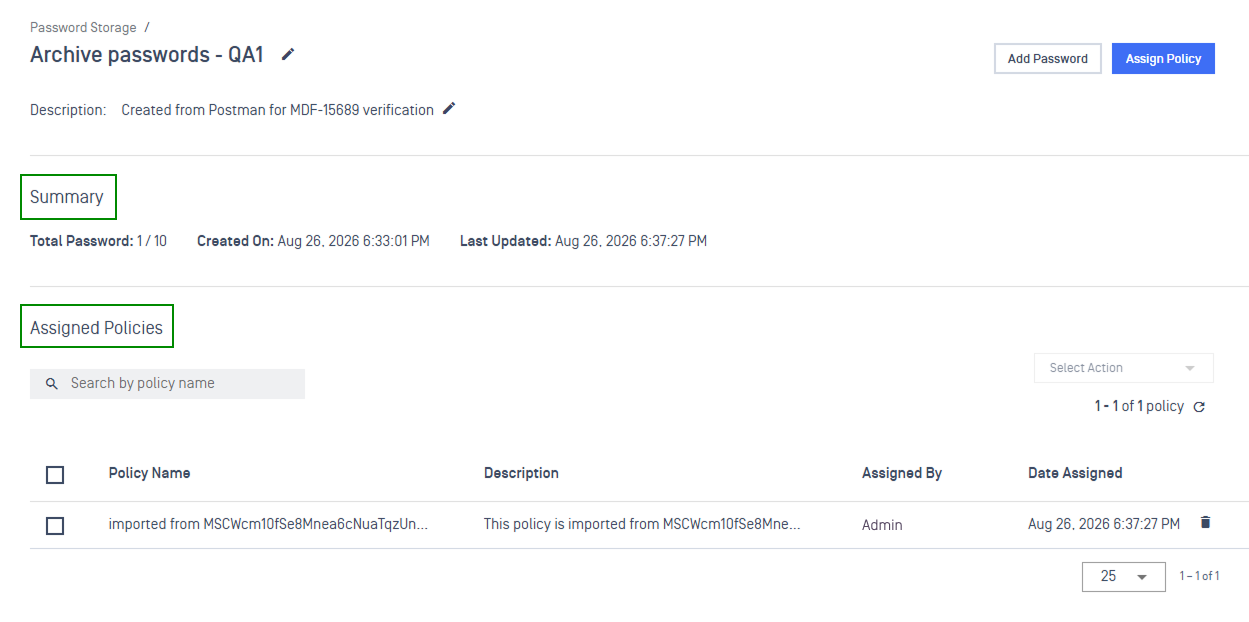 |
Creating a Password Storage
On the Password Storage page, select Add Password Storage
In the dialog that appears, fill in the following fields:
Enter a Name and Description
Type password value. Click Add Password to add one or more passwords
Click Add to save
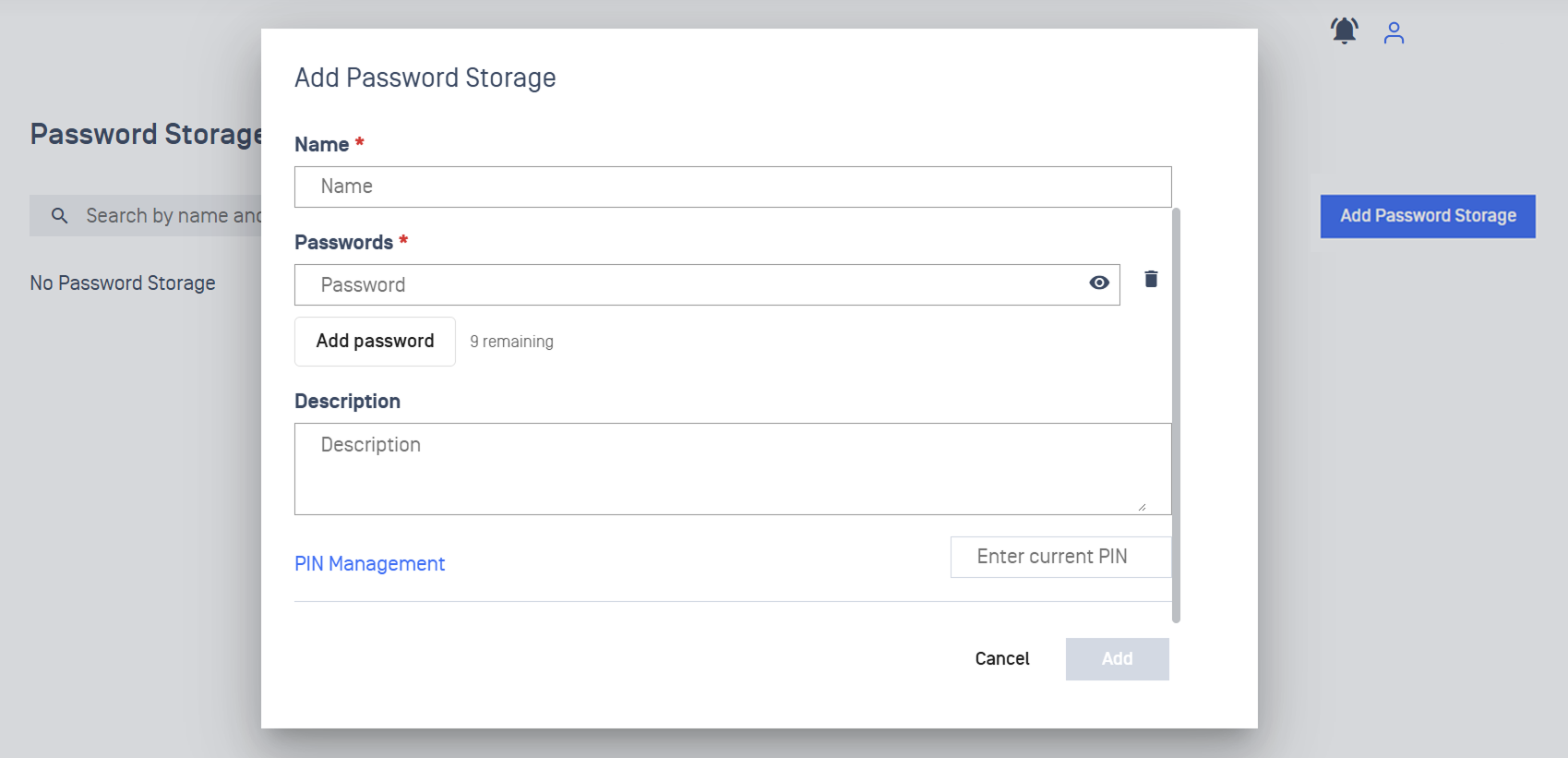
After creation, the storage is unassigned. Assign it to one or more policies to make the passwords available to Core instances. See Assigning a Storage to Policies.
Managing Passwords
Open a storage to manage the passwords it holds. Each password entry shows when it was added and when it was last changed. The password value itself is never displayed after it is saved.
Adding a Password to Storage
Open a storage
Select Add password
Type the password value. Select Add Password to add one or more passwords
Click Add to save
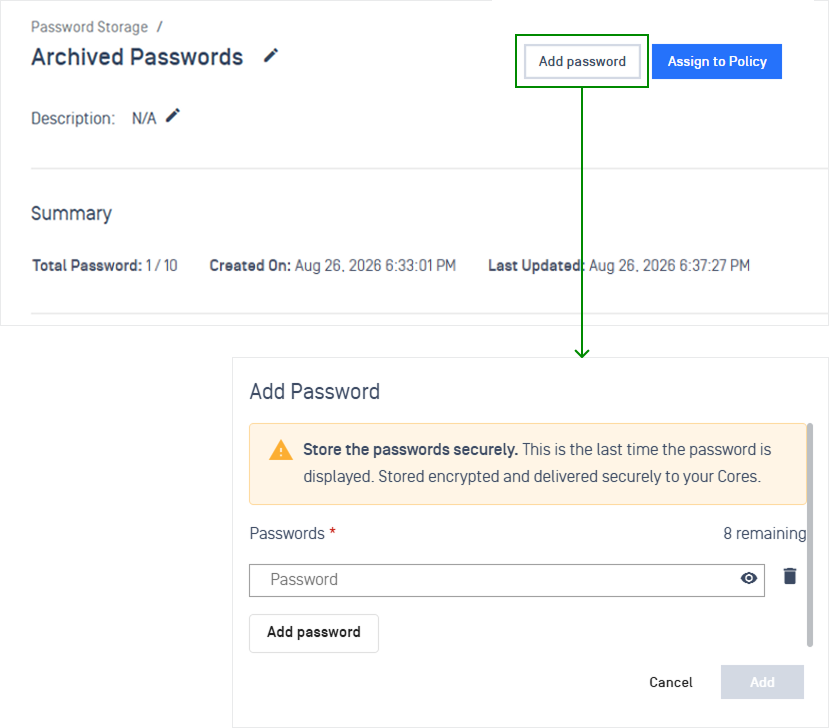
Delete a Password Storage
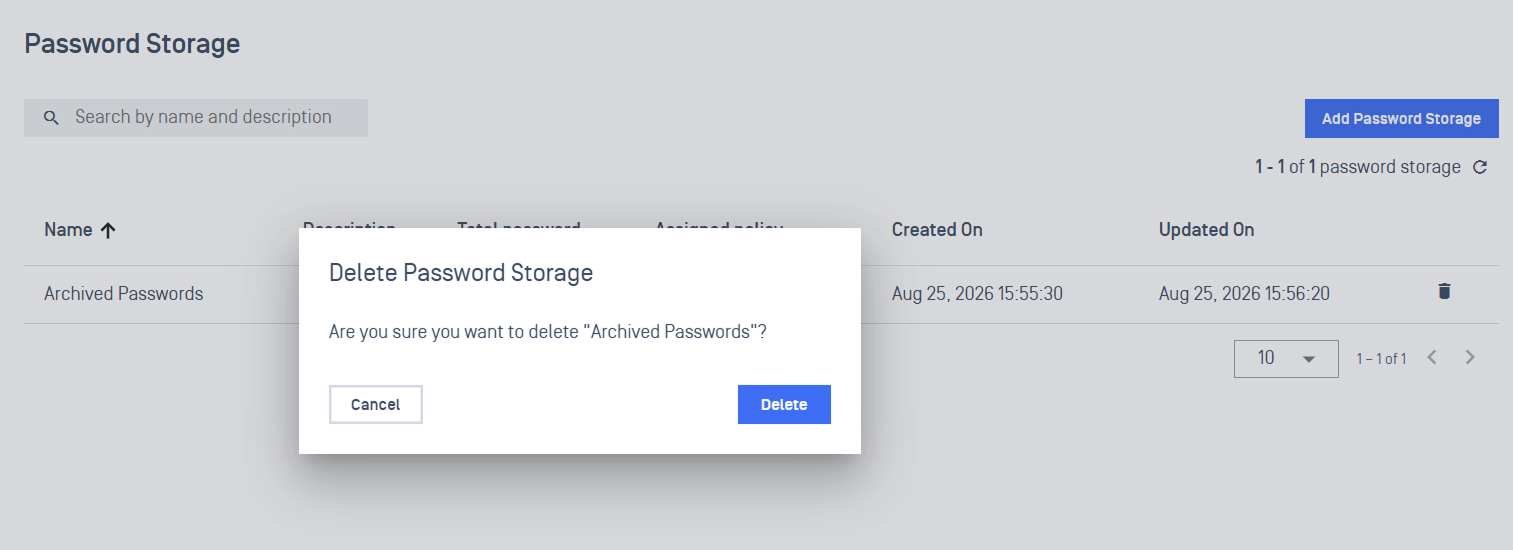
On the Password Storage page, click the icon on the row of the storage you want to delete. Click Delete to confirm, or Cancel to go back.
Assigning a Storage to Policies
Password storages take effect through MetaDefender Core policies. A storage can be assigned to multiple policies, and a policy can hold multiple storages at the same time.
How synchronization works
Once a storage is assigned to a policy, every Core instance under that policy receives updates whenever passwords are added, changed, or removed. Offline instances pick up changes the next time they reconnect.
Assign a storage to a policy
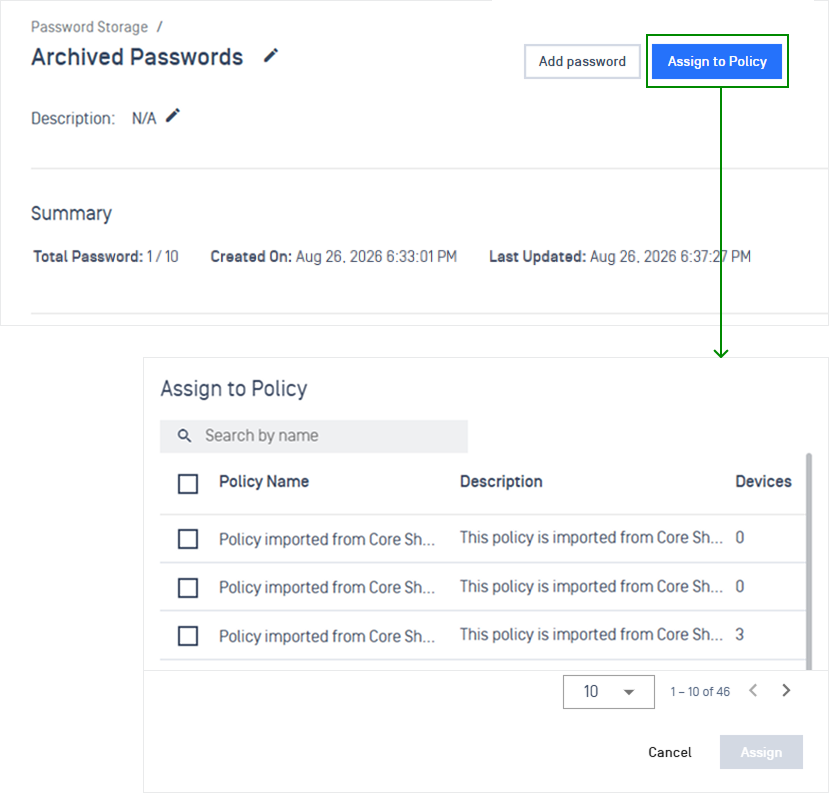
On the storage detail page, click Assign to Policy
In the dialog that appears, search by name or browse the list of Policies
Select one or more policies using the checkboxes
Click Assign
Note Assignments are additive, assigning a new storage to a policy never removes an existing one.
Remove an assignment
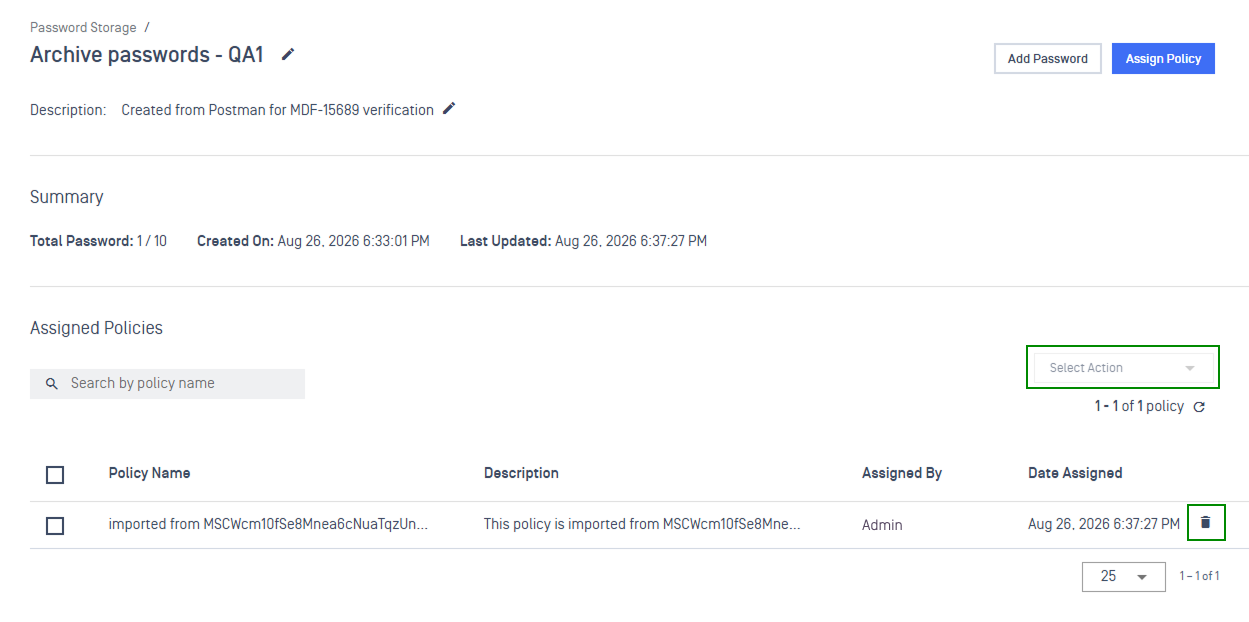
Click the delete icon on the policy row you want to unassign
Use the Select Action dropdown to perform a bulk action on selected rows
Note Removing an assignment clears that storage from all Core instances under the policy. Other assignments are unaffected.
Verify Password Storage has been assigned to Policies
Navigate to File Security > Policies.
Select the policy that password storage has been assigned to
Open Password Storage tab to verify
Using a Password Storage in a Workflow Rule
When configuring a MetaDefender Core policy's Archive workflow rule, the password picker lists only the storages assigned to that policy. If it is empty or missing the storage you expect, go to the Password Storage page and assign it to the policy first.
Troubleshooting
Issues | Causes | Solutions |
|---|---|---|
Policy sync fails with "Significant Issues" across MetaDefender Core instances | The policy references an archive password created locally on a single Core instance rather than in My OPSWAT Central Management. Other Core instances do not recognize the password reference and reject the workflow configuration. | Option 1 (Recommended): Add the password to My OPSWAT Central Management, assign it to the policy, and select it in the Archive workflow rule so it syncs fleet-wide. |