
Administrators can allocate one or more groups to a license, preventing one group from using license capacity intended for another.
Note Group-based license allocation does not apply to MetaDefender Endpoint and MetaDefender Kiosk L-Series as these products use independent licensing models.
Assign Group to License
Follow these steps to dedicate license slots to a specific set of instances during activation.
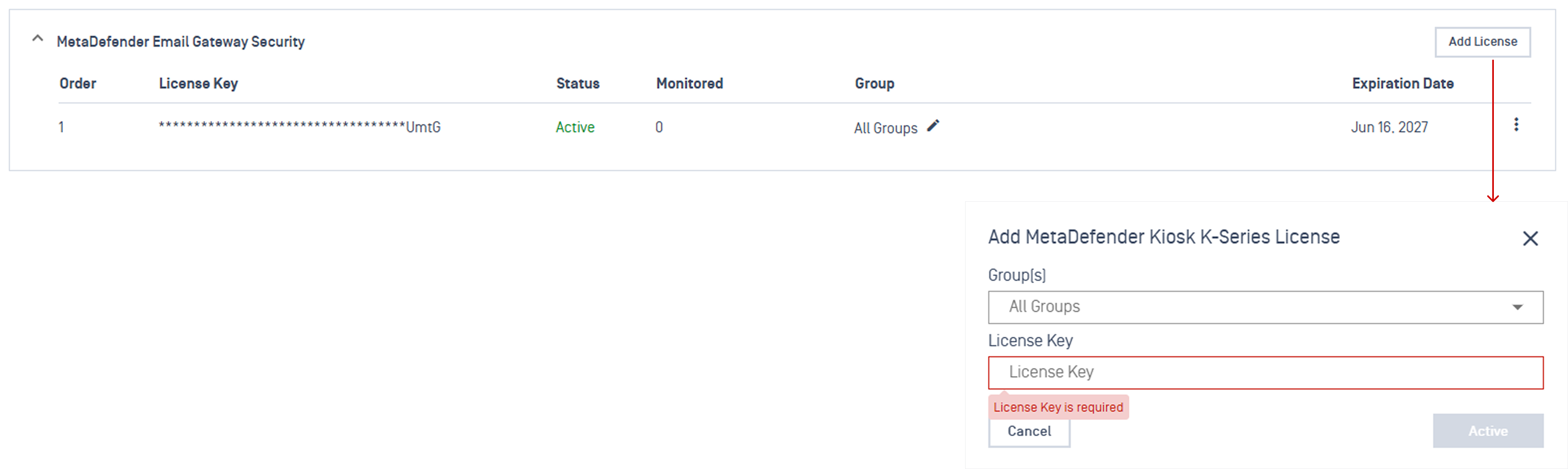
Navigate to the License page and click Add License within the target product section.
In the popup, choose one or more groups from the multi-select dropdown menu, or select All Groups to make the license global.
Enter your unique license key into the designated field and click Activate.
Update Group to License
Administrators can add or remove group assignments for existing licenses provided the license still has unallocated slots available.
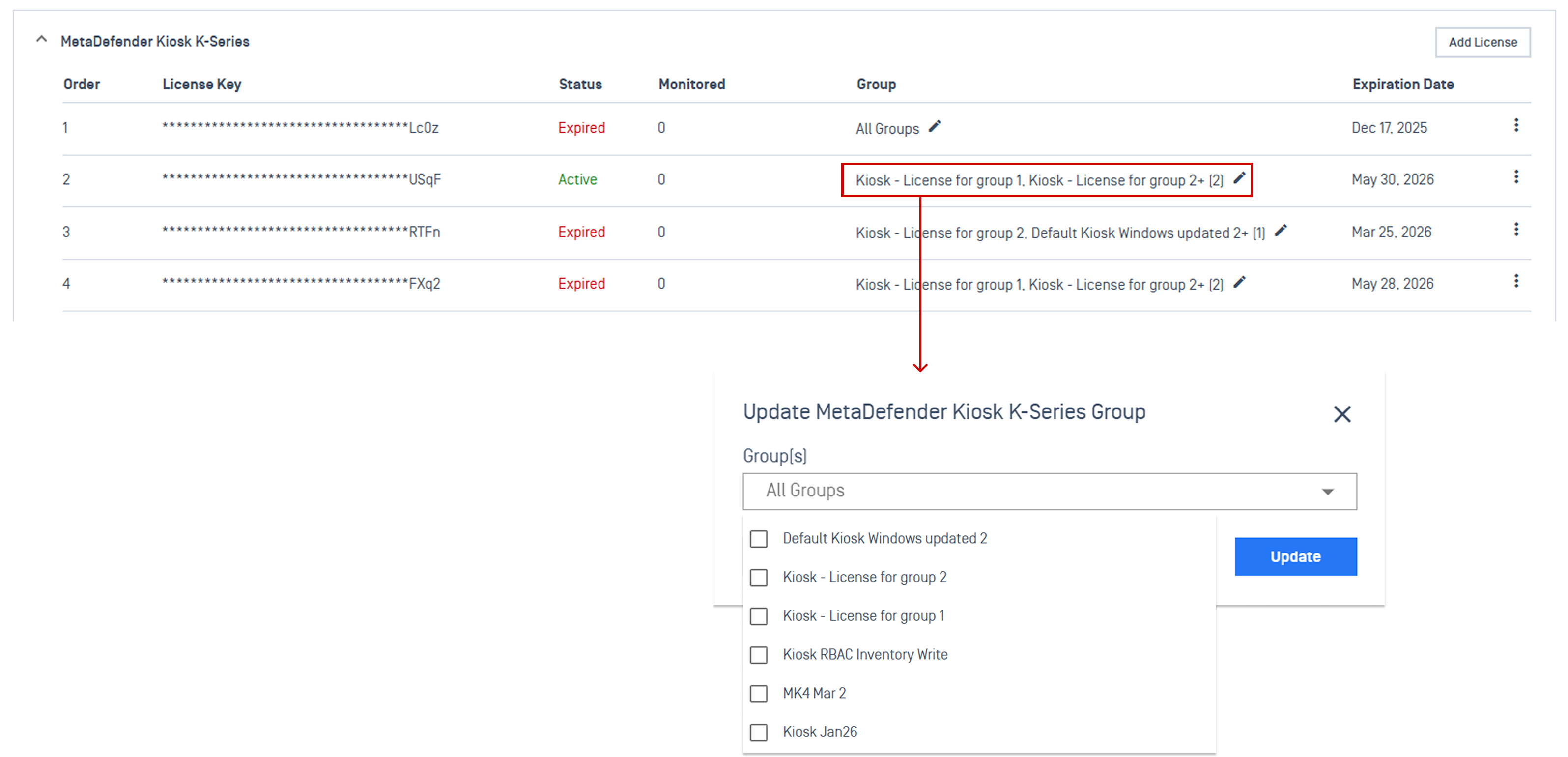
Open the License page and find the specific product license you want to modify.
Click the Update Group button located next to the group name.
Add or remove groups using the dropdown, then click Update to apply the changes.
When a group is removed, it is no longer associated with the license, and My OPSWAT Central Management will stop managing licenses for instances in that group.
Note Group modifications only affect future slot allocations. Active instances using currently allocated slots remain unaffected by this change.
License Allocation Rules
The allocation engine follows strict rules to prevent cross-group license conflicts:
Group-Based License: Only instances belonging to the groups can consume slots.
All Groups License: Allows any instance to consume available slots. If a group-specific license runs out of capacity, the system automatically pulls slots from this global pool.
No Cross-Group Borrowing: When both group and global pools run out of available slots, licenses are not shared or borrowed from other groups.
Newest License Wins: If a group has multiple matching licenses, the most recently added license is selected first.
Immediate Re-evaluation: When a new group license is added, instances with no license or expired license in that group immediately pick up the license.
Audit Logs
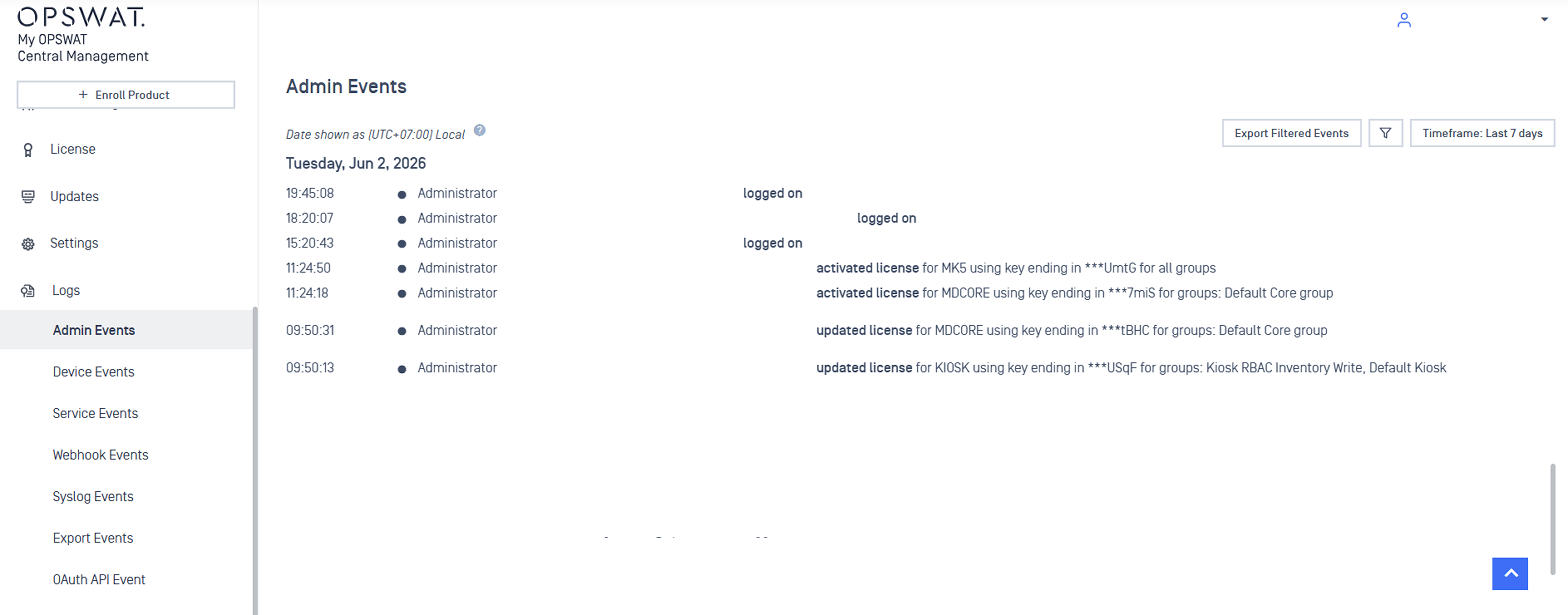
The central console logs all licensing activities automatically. Each entry records the following specific data points:
The unique Group ID and individual Instance or Deployment ID.
The system timestamp and the Admin User ID responsible for the change.
The action type (such as activation, deactivation, or group assignment changes).