
Check your version:
This article applies to MDSS 4.x (Windows) and later.
Overview
This guide covers the installation of RabbitMQ 4.1.8 as an external service for MDSS (MetaDefender Storage Security) on Windows. It includes Erlang installation, RabbitMQ configuration, known issues and their resolutions, and the final MDSS customer.env configuration.
Prerequisites
Windows Server with administrative access
PowerShell (run as administrator for all steps)
Only one Erlang version installed at a time
Installation paths must use ASCII characters only — no spaces in directory names
Firewall access to ports: 5672, 15672, 4369, 25672
Part 1 — Install Erlang
RabbitMQ 4.1.8 requires Erlang 26.2 minimum. Erlang 27.x is recommended and fully supported.
Step 1. Download the latest Erlang 27.x Windows 64-bit installer from:
https://erlang.org/download/otp_versions_tree.html
Step 2. Right-click the installer and select Run as administrator.
Step 3. Follow the installation wizard. Install to a path with no spaces, e.g.:
C:\Erlang
Step 4. Verify the installation. Open PowerShell as administrator and run:
Important: If erl -version fails in cmd.exe but works in PowerShell, this is a PATH caching issue in cmd. Use PowerShell for all remaining steps. A full system reboot will fix cmd permanently.
Part 2 — Install RabbitMQ 4.1.8
Step 5. Download the RabbitMQ 4.1.8 Windows installer:
https://github.com/rabbitmq/rabbitmq-server/releases/download/v4.1.8/rabbitmq-server-4.1.8.exe
Step 6. Right-click the installer and select Run as administrator.
Step 7. Follow the wizard. RabbitMQ will install and register itself as a Windows Service.
Step 8. Verify the service is running:
Part 3 — Configure RabbitMQ for MDSS
3.1 Create the MDSS User
Open PowerShell as administrator and navigate to the sbin directory:
Create a dedicated user (replace <username> and <password> with your credentials):
Example:
3.2 Enable the Management Plugin
3.3 Configure Consumer Timeout
MDSS requires consumer timeout to be disabled to support long-running processing consumers. This must be done using advanced.config — NOT rabbitmq.conf, which does not support the undefined value for this setting.
Critical: Do not add consumer_timeout to rabbitmq.conf. The values "undefined" and "false" are invalid in the sysctl config format and will cause RabbitMQ to fail on startup with: "undefined cannot be converted to a(n) integer".
Create or edit the advanced.config file:
Powershell command:
Add the following content exactly, including the trailing dot:
3.4 Restart the Service
Restart RabbitMQ to apply all configuration changes:
Part 4 — Open Firewall Ports
Run the following in an admin PowerShell to add the required firewall rules:
Port reference:
|
|
Port | Purpose |
5672 | AMQP — used by MDSS |
15672 | Management UI and HTTP API |
4369 | Erlang peer discovery (epmd) |
25672 | Inter-node and CLI communication |
Part 5 — Configure MDSS (customer.env)
On the MDSS host, edit the customer.env file (typically at /etc/mdss/customer.env) and add the following, replacing <rabbitmq-host> with the IP or hostname of the RabbitMQ server and the credentials from Part 3:
Part 6 — Verification
Step 1. Confirm RabbitMQ is listening on the expected ports:
Step 2. Check node status from the sbin directory:
Step 3. Access the management UI in a browser:
Log in with the credentials created in Part 3.
Step 4. Once MDSS is running, monitor the key queue:
Troubleshooting
RabbitMQ process fails to start — exit code 1
Service exited with code 1.
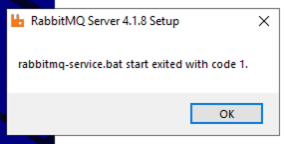
Check if RabbitMQ ports are not in use by another application or instance:
RabbitMQ node fails to start — consumer_timeout error
Symptom: Boot failure with message:
"undefined" cannot be converted to a(n) integer
Cause: consumer_timeout = undefined was added to rabbitmq.conf.
Fix: Remove consumer_timeout from rabbitmq.conf entirely. Set it in advanced.config instead:
rabbitmqctl.bat cannot connect to the node
Symptom:
Error: unable to perform an operation on node rabbit@<HOSTNAME>
TCP connection succeeded but Erlang distribution failed
Cause: The Erlang cookie used by the CLI tool does not match the one used by the Windows Service.
Fix: Copy the service cookie to the current user profile:
Then restart the service and retry.
erl -version not found in cmd.exe
Symptom: erl is not recognized as an internal or external command in cmd.exe, but works in PowerShell.
Cause: cmd.exe caches the PATH at launch and does not pick up new entries until a reboot.
Fix: Use PowerShell (as administrator) for all steps. A full system reboot will resolve cmd.exe permanently.
Management UI not accessible at localhost:15672
Check that the management plugin is enabled:
Look for [E*] rabbitmq_management. If not enabled:
Then restart the service. If the plugin is enabled but the port is still not listening, confirm the node itself started successfully (see consumer_timeout issue above).
Further Assistance is required, please proceed to create a support case or chat with our support engineer.