
Before proceeding with the Lambda function creation, ensure the following requirements are met:
The IAM user you are using for Lambda creation must have the following permissions, if you are using an admin user then ignore this:
Create Lambda functions
Assign IAM roles
Configure S3 triggers
Access the target S3 buckets
Confirm there are no account-level naming restrictions that would prevent your chosen Lambda function name
Verify your AWS account has sufficient permissions and service quotas to create new Lambda functions in the desired region
Ensure you have access to the target AWS region where the Lambda function will be deployed
Verify that S3 bucket policies are configured to allow access from the Lambda function's execution role
Required S3 permissions may include:
s3:GetObject - to read objects from the bucket
s3:PutObject - to write objects to the bucket (if applicable)
s3:DeleteObject - to delete objects from the bucket (if applicable)
Ensure you have a pre-configured IAM role with:
Lambda execution permissions
S3 access permissions for your target bucket(s)
CloudWatch Logs permissions for function monitoring
Create IAM execution role for Lambda
First create a policy that will be used by the LAMBDA execution role.
Go to IAM → Policies → Create Policy. Give it a name, for example: MDSSLambdaS3AccessPolicy and use the following JSON
Now we need to create an IAM role that will be used by the Lambda function
Got to
IAM → Roles → Create Role
Trusted entity: AWS Service → Lambda
Attach policy: Attach the policy you created above MDSSLambdaS3AccessPolicy
Role name: Give it a name, for example MDSSLambdaExecutionRole
Create Lambda Function
Now navigate lambda in AWS management console
Click "Create function"
Select "Author from scratch"
Function name: Example: MetaDefenderStorageSecurityProcessor
Runtime: Select Python (choose the latest compatible version)
Under change default execution role : Execution role → Use another role → select the role you created for lambda
Configure Advanced Settings (Optional but Recommended)
Expand "Advanced configuration"
Enable "Tags"
Add relevant tags for resource organization:
Key: Purpose | Value: MetaDefenderScan
Key: Environment | Value: Production/Development
Key: Owner | Value: [Your Team/Department]
Click create function
Configure S3 trigger
In the newly created lambda Lambda go to → Configuration → Triggers → Add Trigger
Under trigger configuration -> select a source, choose S3 from the drop down
Select your bucket from the drop down
Under Event types: Choose the appropriate event type (Default is "All object create events” which will work for the Lambda). Alternative options: Object create, delete, or restore events based on your requirements.
Prefix (Optional): Specify a prefix to filter objects by path. Example: uploads/ to only trigger on objects in the uploads folder
Suffix (Optional): Specify a suffix to filter objects by file extension. Example: .pdf to only trigger on PDF files
Recursive invocation: Check this option to acknowledge potential recursive invocations
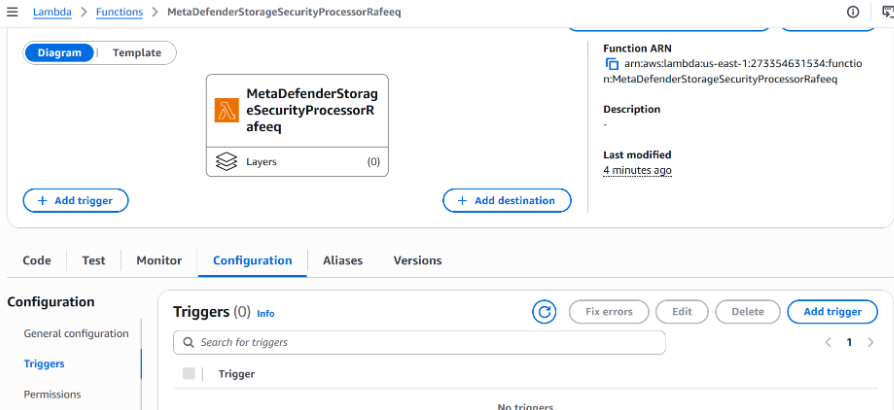
Click Add
Deploy Lambda Code
Now we need to update Lambda with the code that it should execute when it gets triggered
For that, go to code section of your lambda function
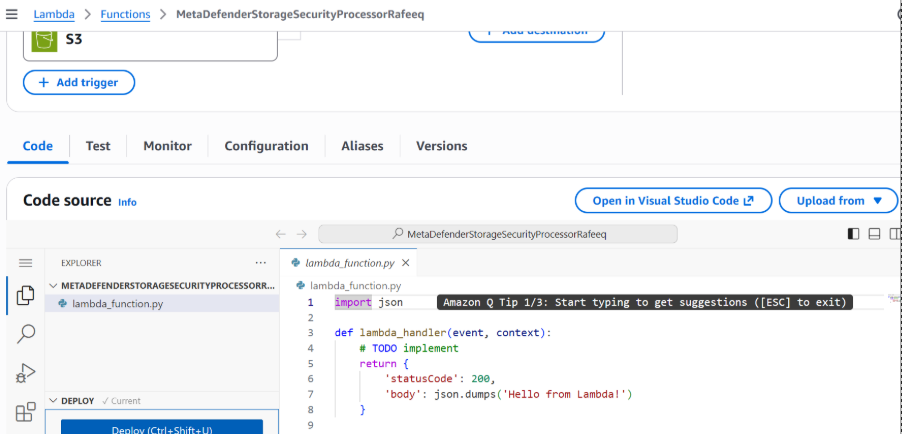
Delete the default code in there and copy paste the following code
Click deploy to save your code
Configure environment variables for Lambda
Now we need to set environment variables for the lambda function so that we can configure MDSS endpoint with lambda
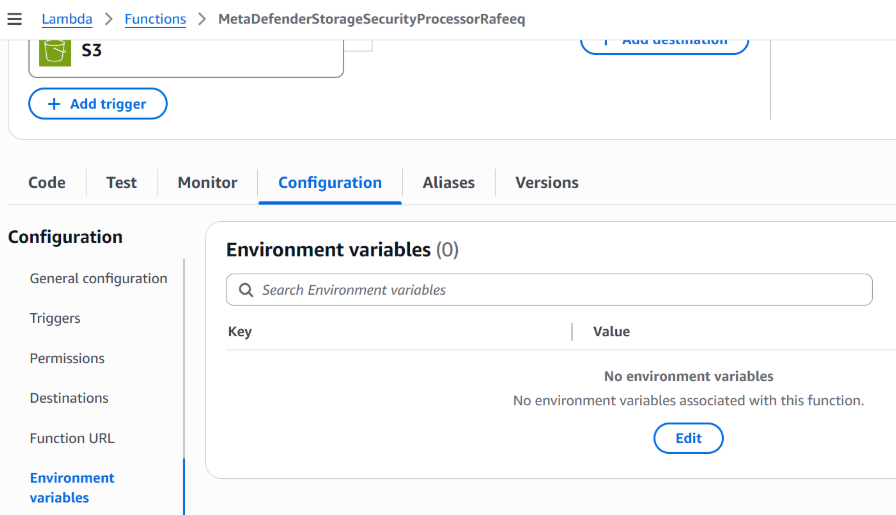
Go to environment variables under your lambda function
Add the following environment variables
APIENDPOINT – Your MDSS URL + /api/webhook/realtime Example: https://mdss-example.com/api/webhook/realtime
APIKEY – An api key generated from MDSS (Go to MDSS -> click on the dropdown next your profile -> click on profile information -> select configure api key -> click on generate api key -> click on copy and save)
STORAGECLIENTID -> Your storage client ID from MDSS. To obtain: Navigate to your desired storage configuration and copy the storageClientId (Click on storage units option in MDSS -> under listed storage units you will be able to see storage client ID and a copy button next to it)
Setup RTP scan on MDSS
Once lambda setup is done, we need to configure a new RTP scan on MDSS
Open MDSS web console → configure scan → select Real time processing → Type: Event based → select the storage unit → set priority → set optional scan name and partition → choose the workflow → Start RTP
Test
Upload a file to the s3 bucket and you should be able to see the file getting processed MDSS