
Affected product: MDSS 4.0.0 and newer
Overview:
MetaDefender Storage Security (MDSS) requires a PostgreSQL database to store configuration data, scan results, and operational metadata. This guide walks administrators through the complete process of provisioning a PostgreSQL instance on AWS (using Aurora or RDS), configuring the required database and permissions, and establishing the connection with MDSS.
Prerequisites
• An active AWS account with permissions to create RDS or Aurora PostgreSQL instances.
• Access to the target PostgreSQL server via pgAdmin or psql.
• MDSS 4.0.0 or newer installed, with access to its configuration files (customer.env).
• Network connectivity between the MDSS host and the AWS RDS/Aurora endpoint (security groups and firewall rules must allow traffic on port 5432).
Steps to configure:
Create the PostgreSQL instance in AWS
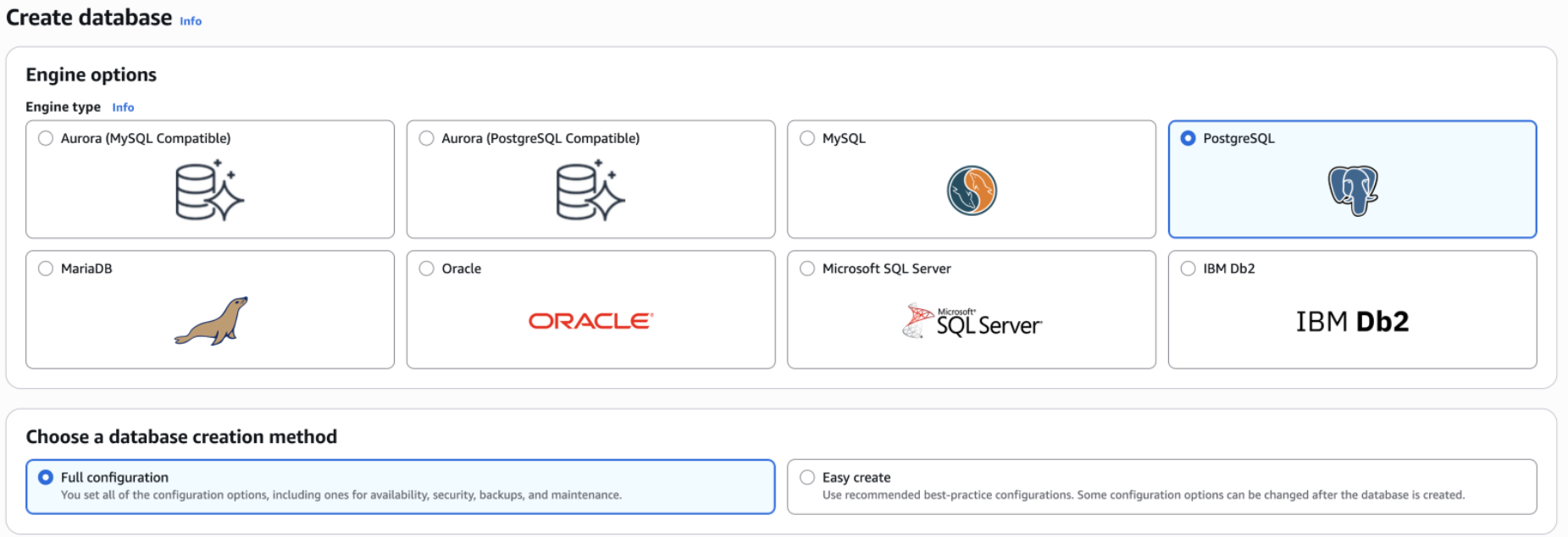
In AWS, search for Aurora and RDS.
Select Create and choose full configuration.
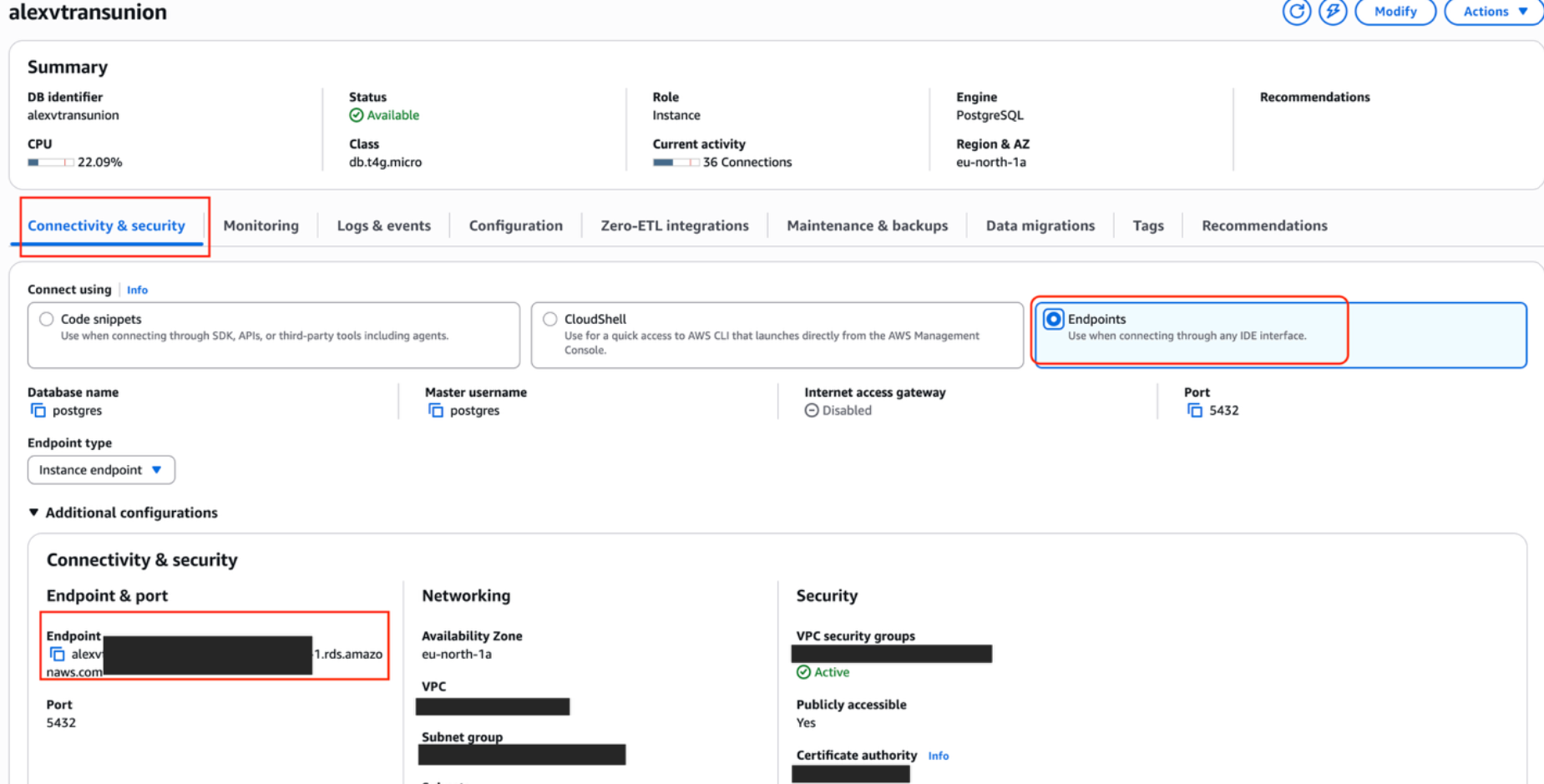
After the instance is created, open the database details and copy the endpoint. This will be the PostgreSQL host. The default port is 5432. If the port has been changed, copy that value as well.
Create the MDSS database and assign permissions
Option A: Using pgAdmin
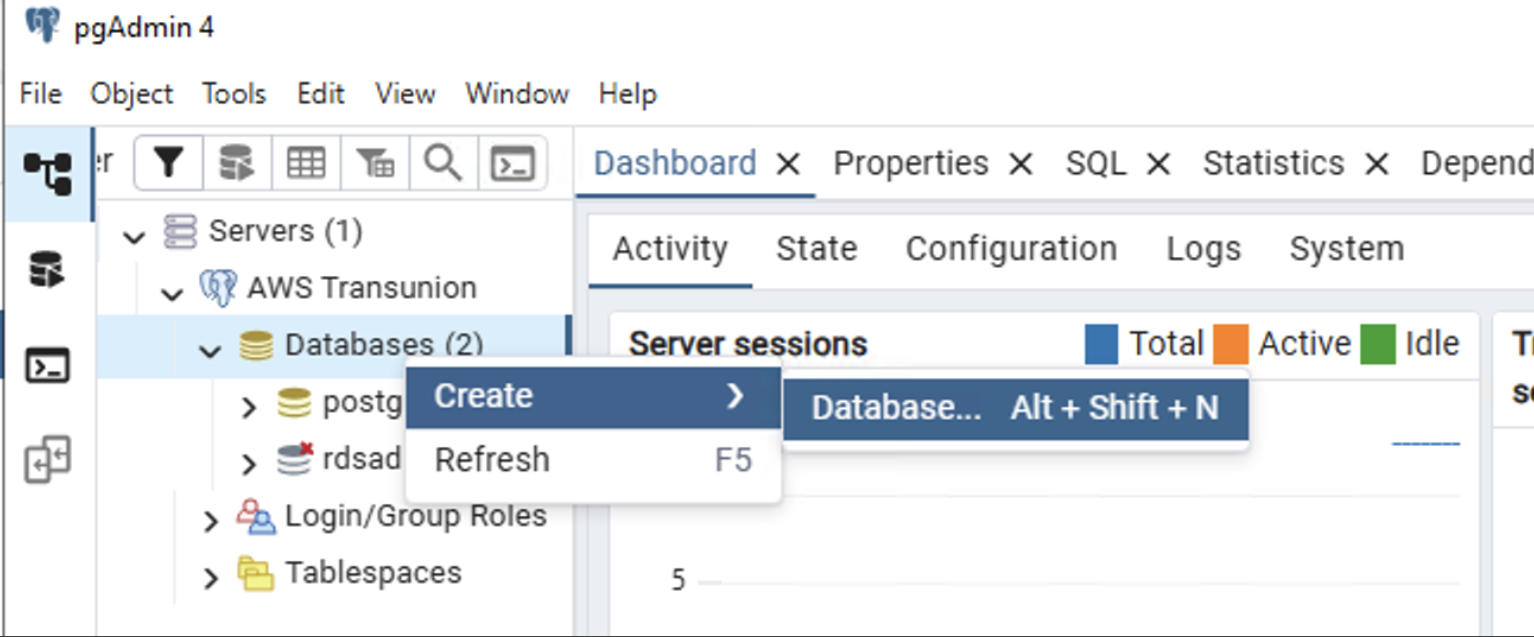
In pgAdmin, connect to the target PostgreSQL server.
Right-click Databases, then select Create > Database....
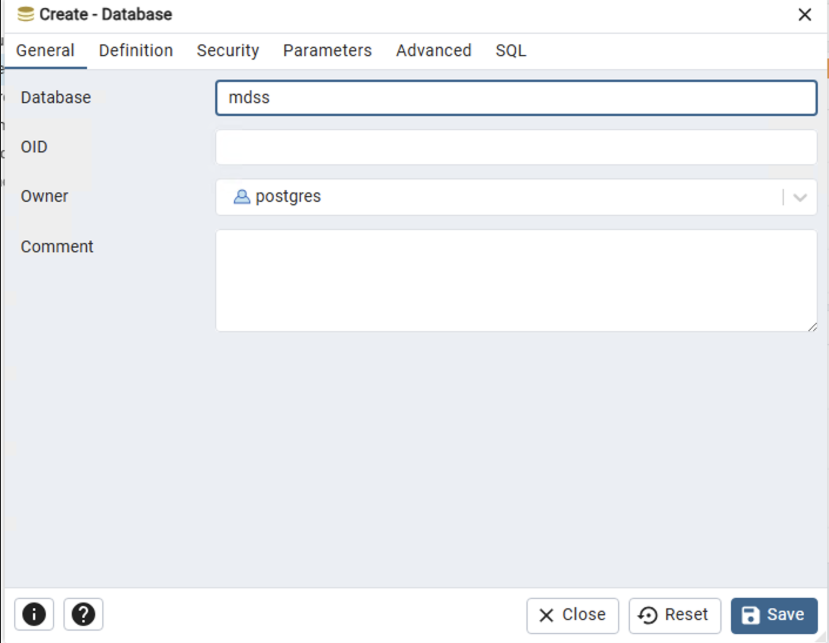
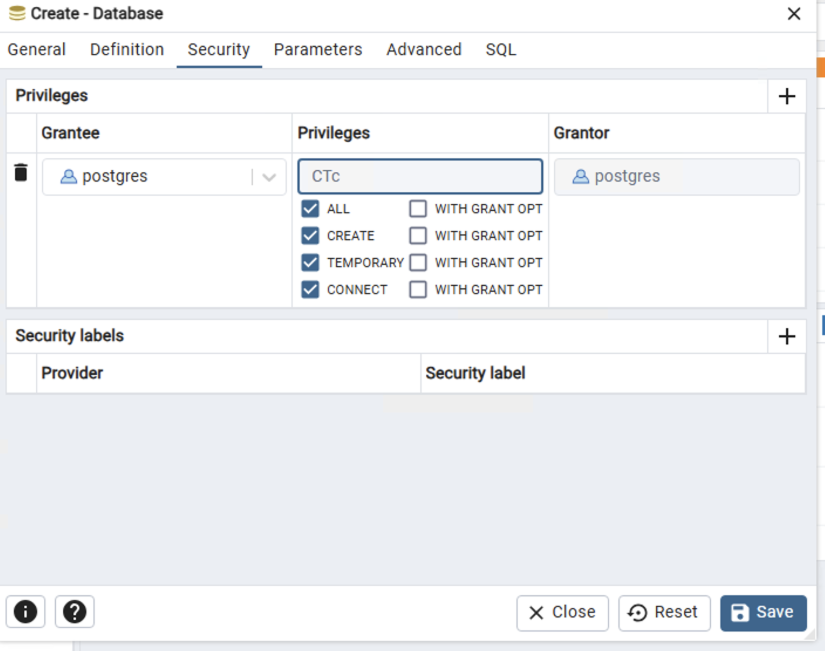
On the General tab, enter “mdss” as the database name. On the Security tab, assign the required privileges to the target user, then click Save.
Option B: Using psql
Use the following commands to connect, create the database, and grant the required permissions.
Configure the new PostgreSQL server in MDSS
Add the connection details to customer.env.
Save the file and start the MDSS service.
Verify functionality:
Once the MDSS service has started, use the following checks to confirm that the database connection is working correctly.
Check the database connection directly from the MDSS server
From the MDSS host or any machine with network access to the RDS/Aurora endpoint, run the following command to verify that the database is reachable and the credentials are valid:
A successful response will display the connection details, confirming that the user, host, port, and database are all correct. If the connection fails, verify that the endpoint, credentials, and AWS security group rules are configured correctly.
Verify the MDSS web interface
Open a browser and navigate to the MDSS management interface. If the database connection is healthy, you will see the user configuration wizard. Any database connectivity issues will typically surface as a page showing errors connecting to the database.
If Further Assistance is required, please proceed to create a support case or chat with our support engineer.