
This article applies to all MetaDefender Managed File Transfer releases deployed on Windows and Linux systems.
Overview
When configuring an S3-compatible storage connection in MetaDefender Managed File Transfer, you must choose an addressing style which will be used to communicate with the S3-compatible storage.
You have two styles to choose from:
Path-Style
Virtual-Host Style
Selecting the incorrect style may result in connection, SSL, or signature errors.
S3 compatible storage cannot be used for Temporary file storage
Path-Style Addressing
URL Format:
https://endpoint.example.com/bucket-name/object-name
Example:
https://s3.amazonaws.com/my-bucket/file.txt
In this style, the bucket name appears in the URL path.
When to Use
Use Path-Style if:
You are using an IP address as the endpoint
Your SSL certificate does not support wildcard subdomains
Your storage vendor documentation specifies Path-Style access to the storage solution
How to Use
To configure S3 compatible storage:
Go to "Settings" → "Global Settings" → "File Storage"
Choose the purpose (Permanent, Processed, Archive) and click "Add New Storage"
Fill out the required information (input values are case sensitive)
To enable Path-Style communication make sure to check the “Force path style” option
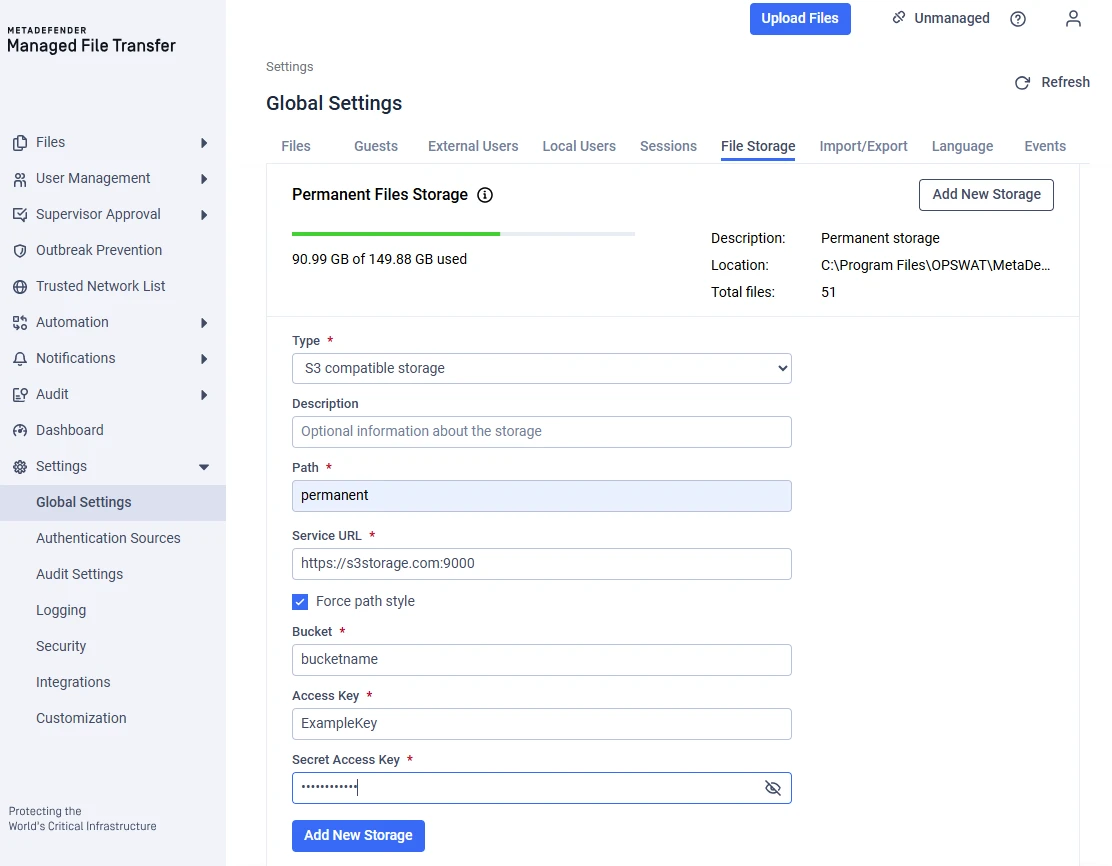
If you have any connection errors or issues check the Common Errors section below.
Virtual-Host Style Addressing
URL Format:
https://bucket-name.endpoint.example.com/object-name
Example:
https://my-bucket.s3.amazonaws.com/file.txt
In this style, the bucket name appears as part of the hostname (subdomain).
When to Use
Use Virtual-Host Style if:
Your provider requires subdomain-based bucket routing
Your SSL certificate supports wildcard or SAN entries
How to Use
To configure S3-compatible storage:
Go to "Settings" → "Global Settings" → "File Storage"
Choose the purpose (Permanent, Processed, Archive) and click "Add New Storage"
Fill out the required information (input values are case sensitive)
Virtual-Host Style is the default, so ensure the “Force path style” option is unchecked.
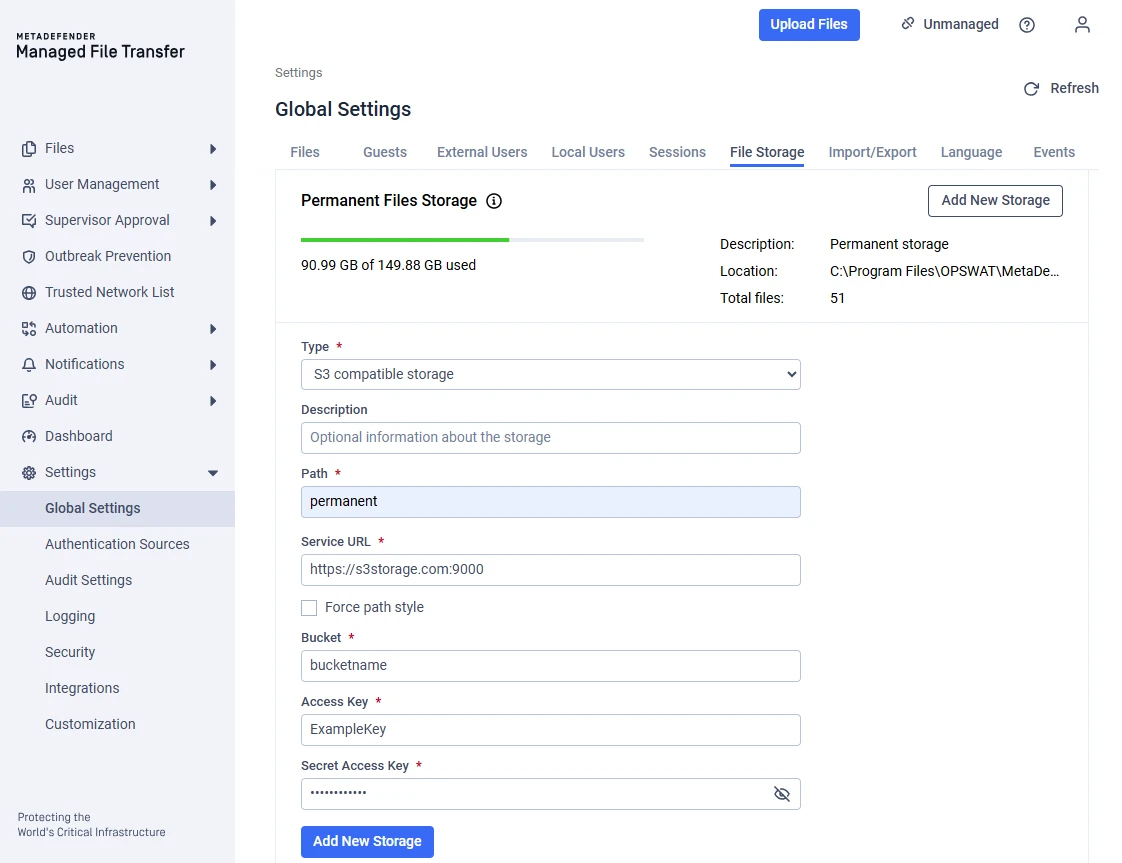
If you have any connection errors or issues check the Common Errors section below.
Key Differences between the two styles
Feature | Path-Style | Virtual-Host Style |
|---|---|---|
Bucket location | In URL path | In subdomain |
Requires wildcard SSL certificate | No | Yes |
Requires bucket DNS resolution | No | Yes |
Common Errors
When using Virtual-Host Style, the bucket-specific hostname must be resolvable.
For example, in the request:
https://my-bucket.endpoint.example.com/file.txt
DNS must successfully resolve:
my-bucket.endpoint.example.com
If the bucket subdomain is not resolvable, the connection will fail.
Virtual-Host Style may fail if the SSL certificate does not include a wildcard entry covering the subdomain of the bucket.
An example for this wildcard entry could look like this:
*.s3endpoint.example.com
If the incorrect style is selected, you may see:
Update errors
Connection refused errors
If the connection succeeds but files do not upload after processing, this may indicate incorrect addressing style selection, DNS issues, or certificate problems.
If unsure which style to use, consult your storage provider documentation or test both styles in a non-production environment.
If Further Assistance is required, please proceed to log a support case or chatting with our support engineer.