
Check Your Version:
This article applies to MetaDefender Endpoint for Linux
Overview
Linux endpoints may be unable to authenticate through Secure IT Access or establish an SDP tunnel when in-app SSO is enabled or when the client has an expired cached authentication token.
Symptoms
Users may be unable to complete SSO authentication for SDP access on Linux.
SSO sign-in attempts may fail silently without opening a browser or displaying an error message.
Affected users may be blocked from accessing corporate resources through the SDP/VPN connection.
Root Causes
The MOCM policy option Use in-app browser to prompt for Secure IT Access credentials is enabled, but in-app sign-in is not supported on Linux yet, OPSWAT MDE will enhance this for future release. The Linux fallback remains in backlog, so this option should stay off for Linux endpoints. This issue does not indicate a problem with the user's SSO configuration or account.
Workaround
Step 1: Disable In-App Browser for Linux Endpoints
In your MetaAccess / Central Management Admin Console:
Go to Device Group Settings (you may create a dedicated group for Linux endpoints if desired).
Uncheck "Use in-app browser to prompt for Secure IT Access credentials".
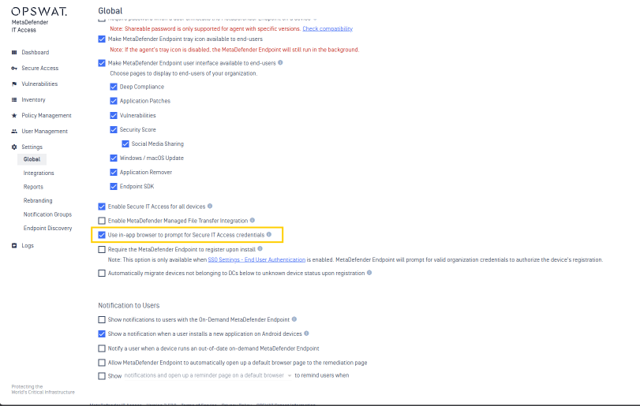
Effect: Clicking "SSO Sign In" on Linux will launch your default system browser (Firefox/Chrome) for SAML authentication, which is the supported path for Linux.
Step 2: Clear Stale Credentials on Colleague's Machine
Once Step 1 is in place, clear the expired cached token on your colleague's device:
Open terminal and stop the client service:
Rename the stale token file:
Restart the service:
Launch MetaDefender Endpoint UI and click SSO Sign In to re-authenticate via the system browser.
Support:
If you require further assistance, please follow these instructions on Export Logs, before creating a support case or chatting with our support engineer.