
This article applies to all MetaDefender Endpoint releases deployed on Windows.
Download Protection is controlled by the Secure Downloads setting in the endpoint policy. When Secure Downloads is disabled, the Download Protection section will no longer appear in the sidebar.
Steps
Go to Home - My OPSWAT and log in.
Click Central Management.
Navigate to Policies → Endpoint Security.
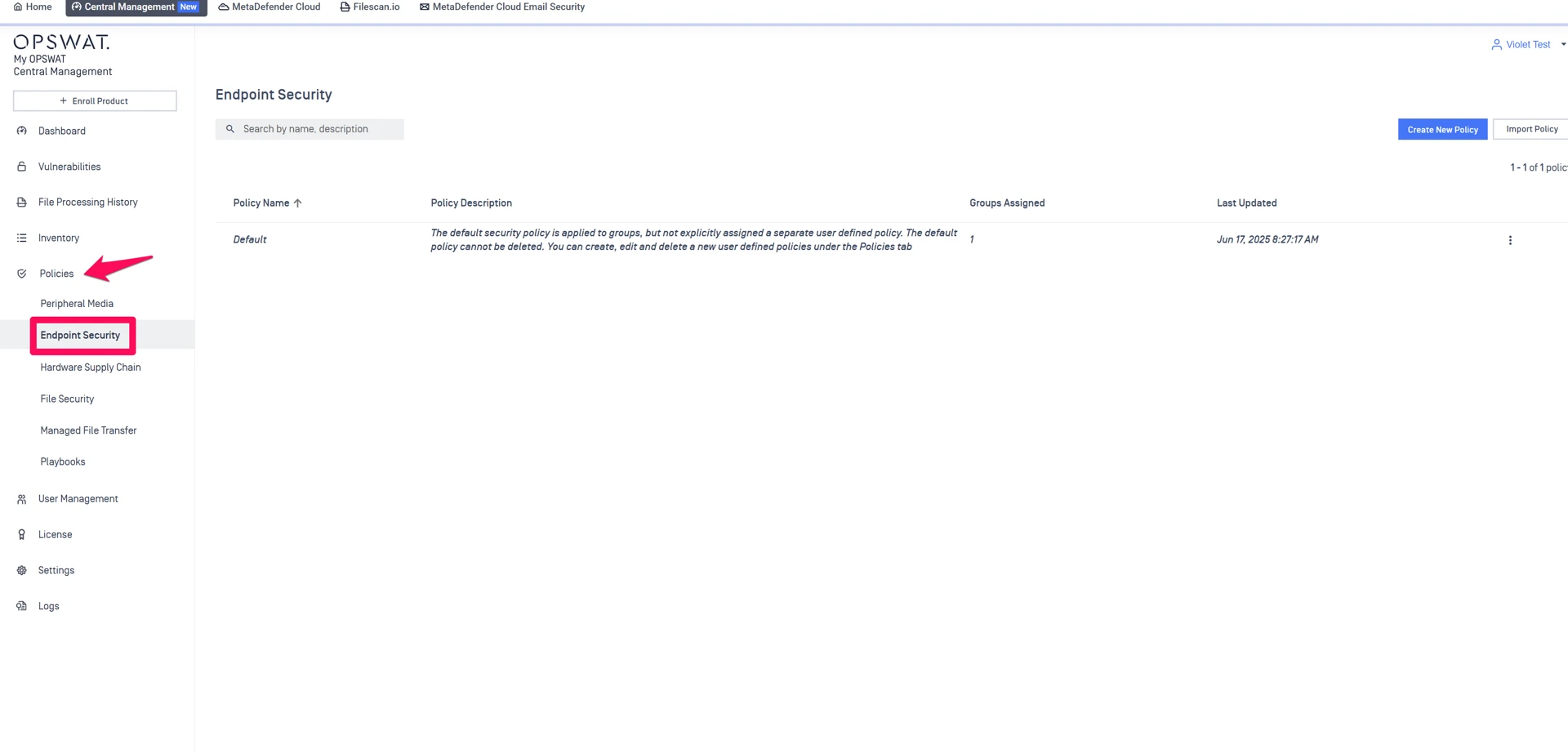
Open the policy that is assigned to the affected endpoint:
If it uses the Default Policy, open that policy.
Otherwise, open the custom policy assigned to the endpoint.
Go to Advanced Endpoint Protection → Enable Threat Detection for Windows.
Locate Secure Downloads and make sure it is disabled (unticked).
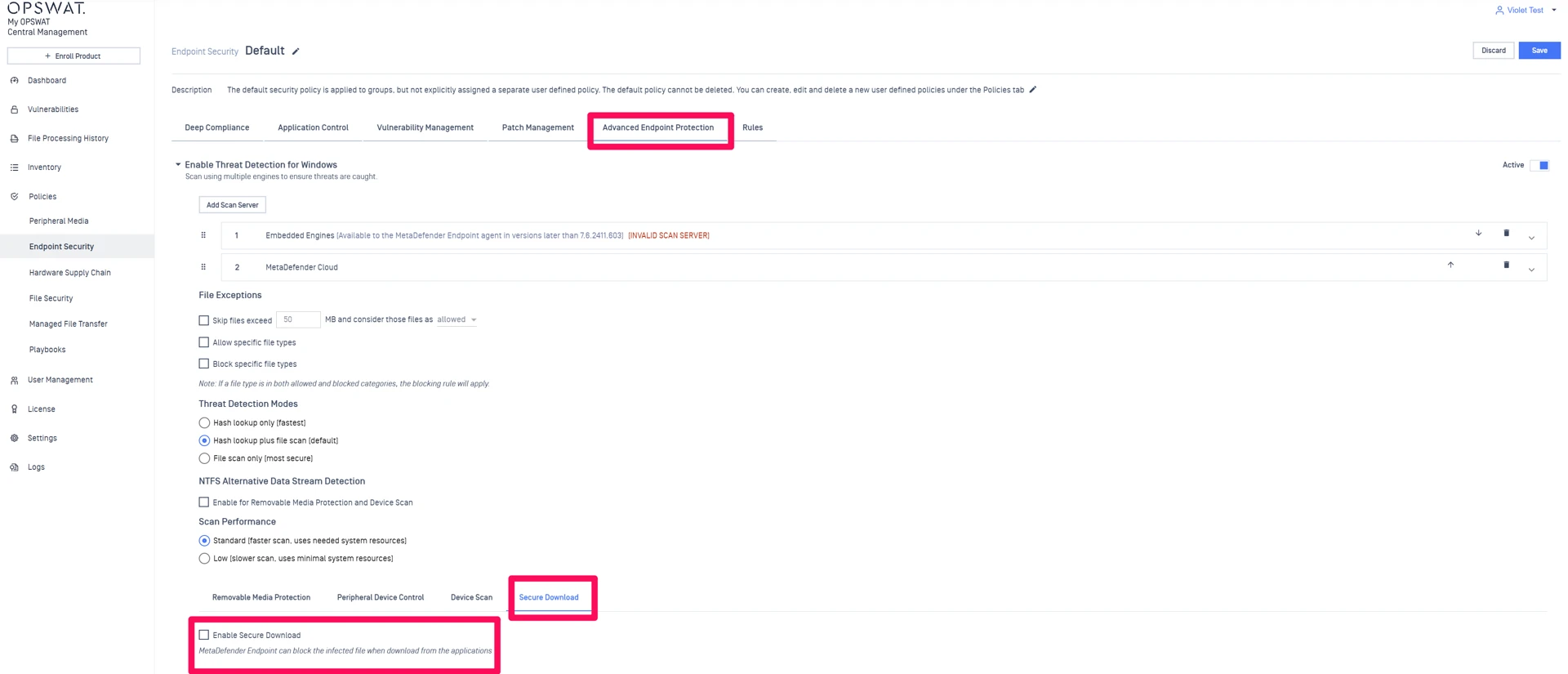
Save the policy and allow it to sync to the endpoint.
Verification
After the policy is applied:
The Download Protection section should disappear from the sidebar.
No service restart is required, but the policy must finish syncing.
Troubleshooting
If the section still appears:
Confirm the endpoint is assigned to the policy you modified.
Double-check that Secure Downloads is disabled in that policy.
Trigger a manual policy refresh on the endpoint if needed.
If Further Assistance is required, please proceed to create a support case or chat with our support engineer.