
This article applies to all MDE versions
Overview
MetaDefender Endpoint (MDE) detects downloaded and newly created files by monitoring Windows file system create events at the operating system level. When a file is written to disk, the endpoint agent automatically triggers a security inspection before the file can be accessed or executed.
How Does the Detection Mechanism Work?
MetaDefender Endpoint continuously listens for file activity events generated by the Windows operating system. Any newly created file is evaluated based on the configured security policies.

On Windows, a file create or open notification can occur before all data is fully written to disk. MetaDefender Endpoint correlates multiple file system events (for example, create/open, write, close, and in some cases rename or move) together with the process that created the file and application-specific behaviors to determine when a download has completed before enforcing the configured policy. MetaDefender Endpoint uses a kernel-level file system monitoring mechanism to observe these events in real time and collect file metadata, including:
File path and name
File size and file type
Process responsible for creating the file

Additionally, the Download Protection feature also installs a browser extension to collect information about the download event, such as the download URL.
Steps to Configure Secure Download Protection
Before configuring Secure Download Protection, ensure that the Advanced Endpoint Security license is active. If the license has not been purchased or activated, please contact the OPSWAT Sales team. Once the Advanced Endpoint Security license is enabled, the Download Protection feature will be available in MetaDefender Endpoint.
Log in to My OPSWAT Central Management.
Navigate to Policies > Endpoint Security.
Select the desired policy.
Go to Advanced Endpoint Protection.
Enable Threat Detection for Windows/macOS/Linux.
Enable Secure Download.
Select the application(s) for which MDE should block infected files during download (for example, Edge or Chrome).
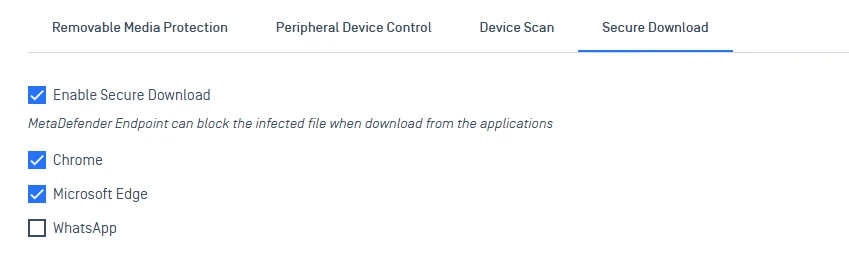
Save the policy.
Verify the Change
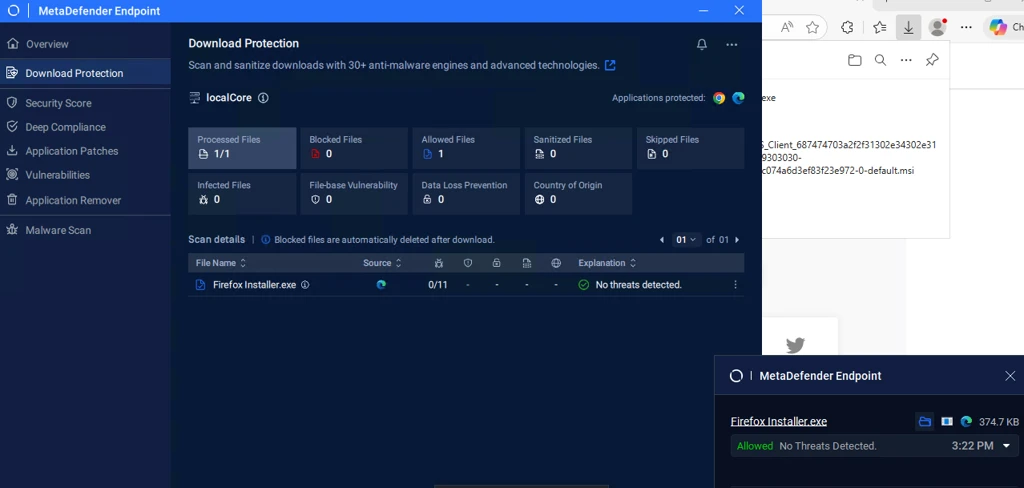
On a protected Windows endpoint, download a test file using any browser (for example, Microsoft Edge or Chrome).
Verify that the file status is updated to Allowed, Blocked, or Sanitized based on policy configuration.
If you require further assistance, please follow these instructions on How to Create Support Package?, before creating a support case or chatting with our support engineer.