
MetaDefender Drive with Smart Touch
Scan Files in Secure File Storage with MetaDefender Kiosk
To scan file with MetaDefender Kiosk:
- Tap Scan With MetaDefender Kiosk
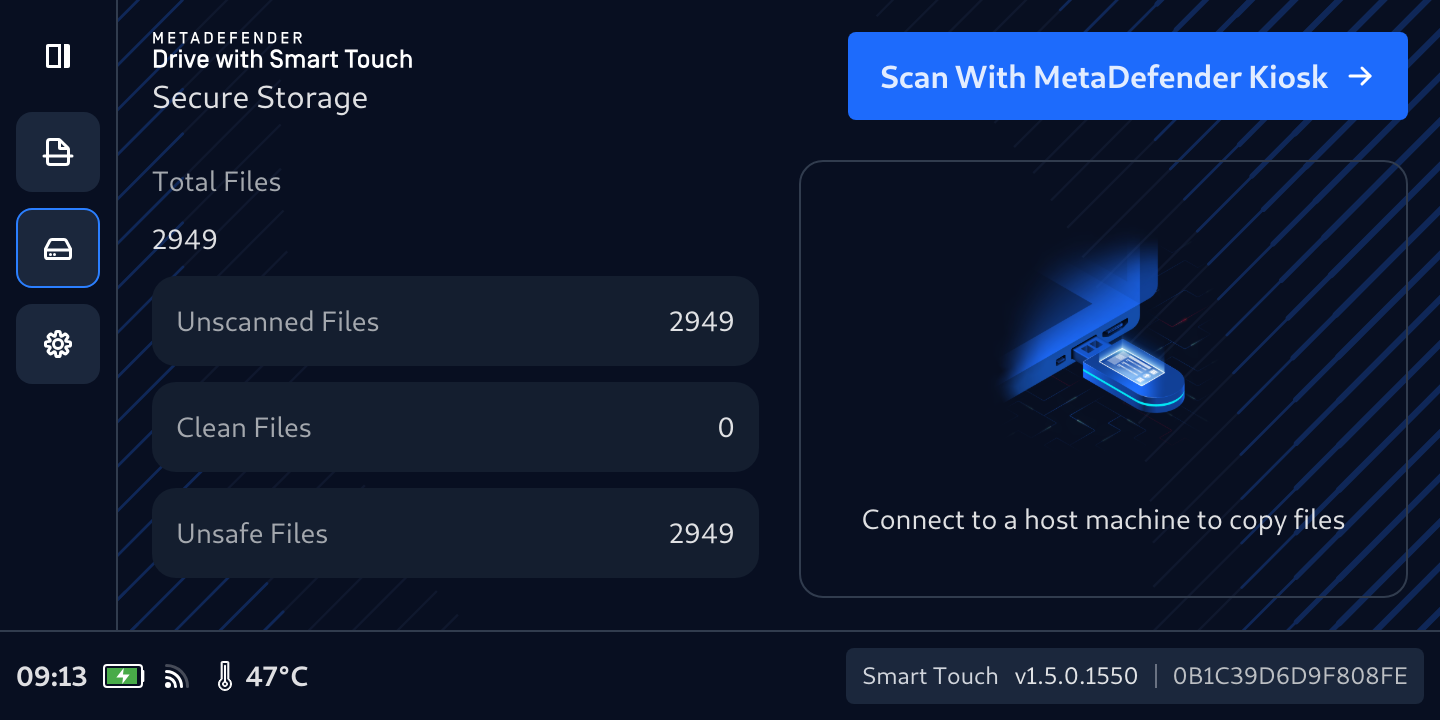
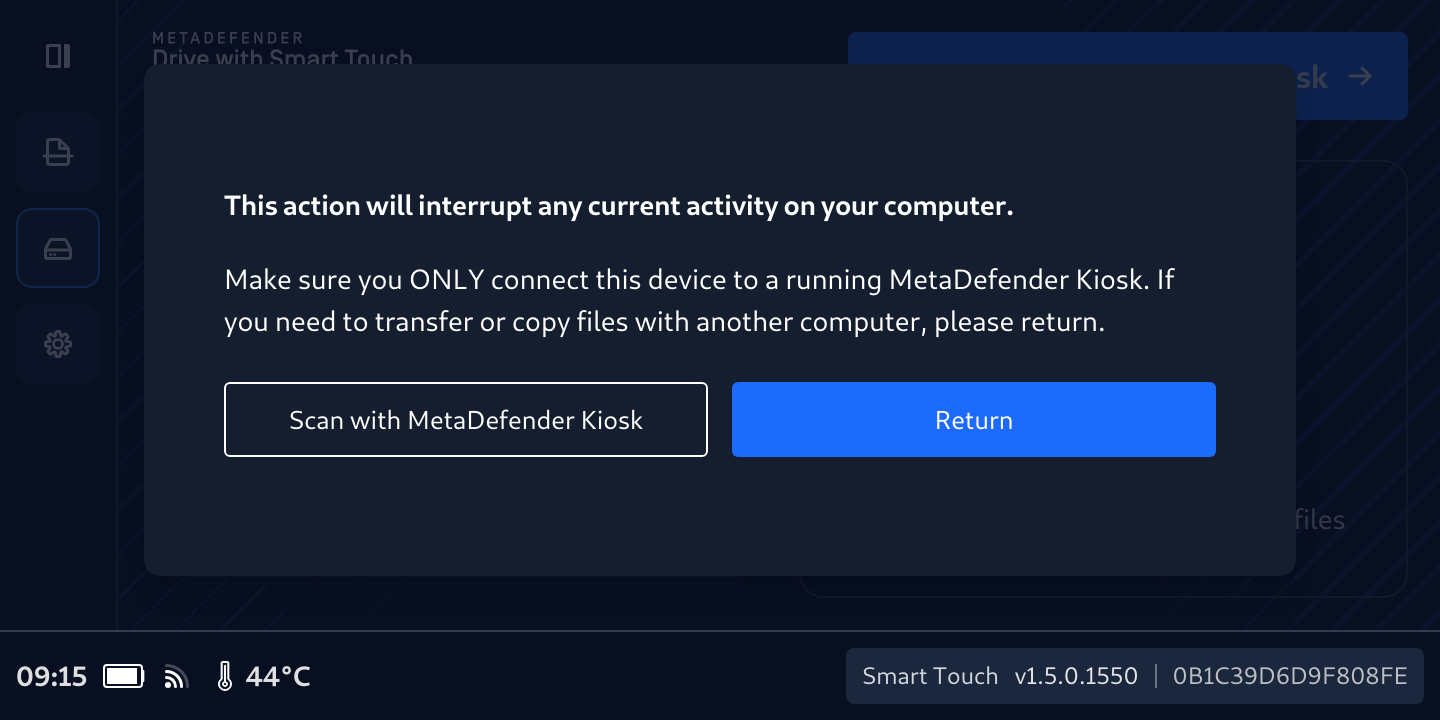
- Confirm that you would like to proceed with the scan when prompted
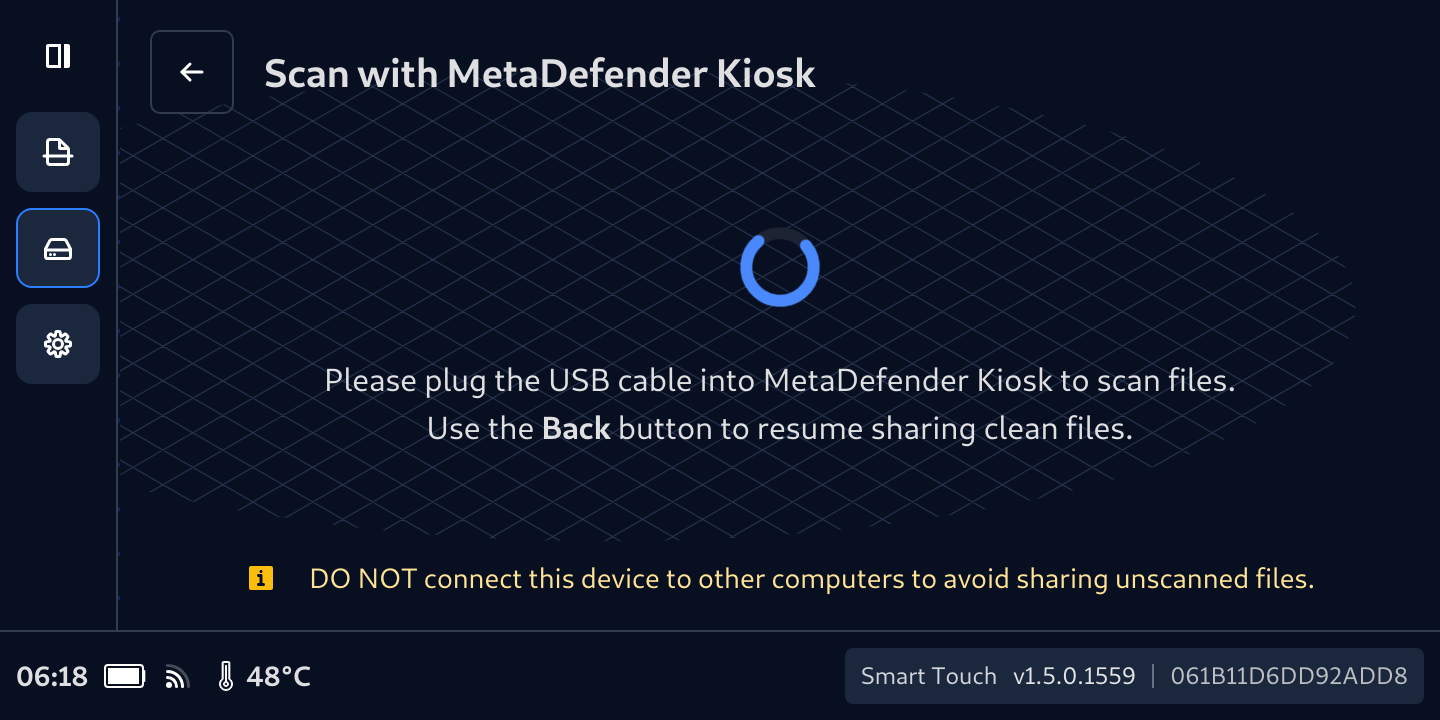
- MetaDefender Drive with Smart Touch will start preparing files with a warning displayed to avoid cross infection because the file stored in Secure FIle Storage have not been scanned yet.
- Once files are staged, they will be ready for scanning with Kiosk
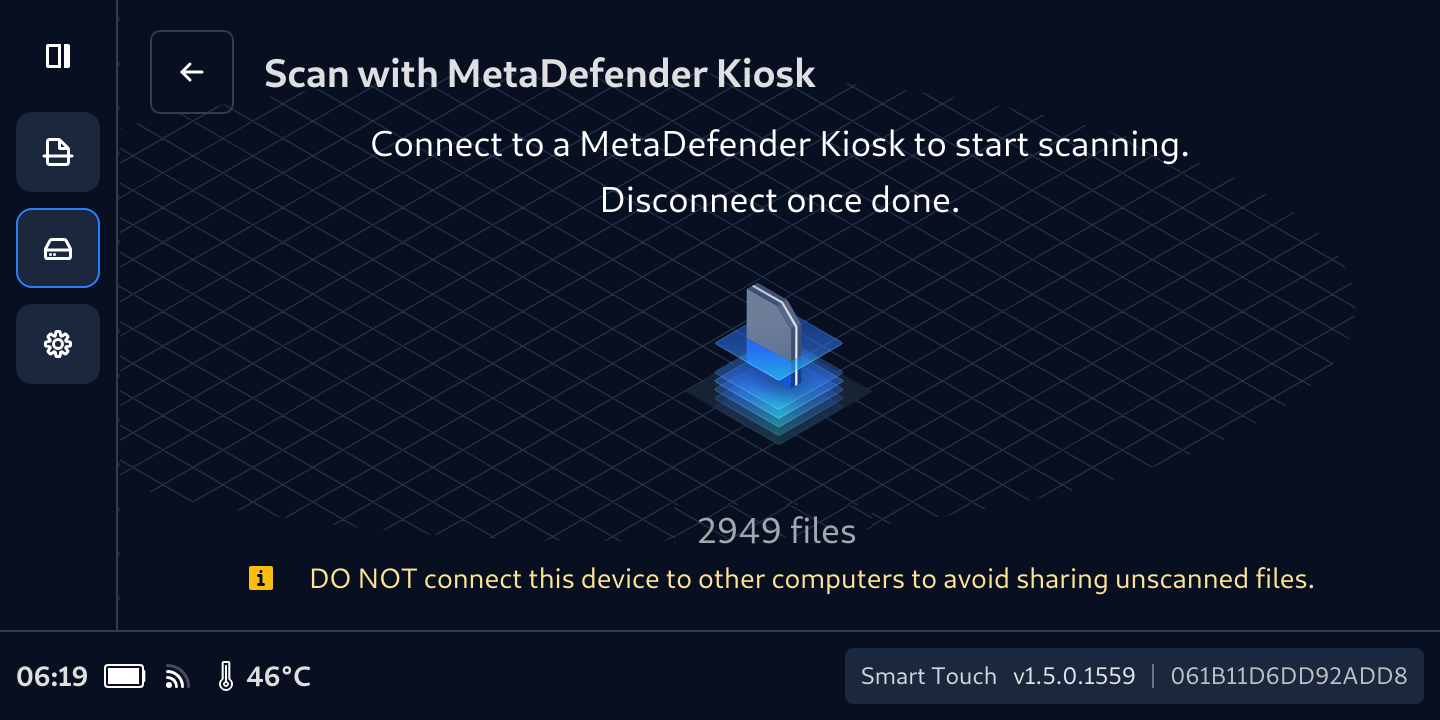
- Follow the steps on MetaDefender Kiosk to scan the stored files
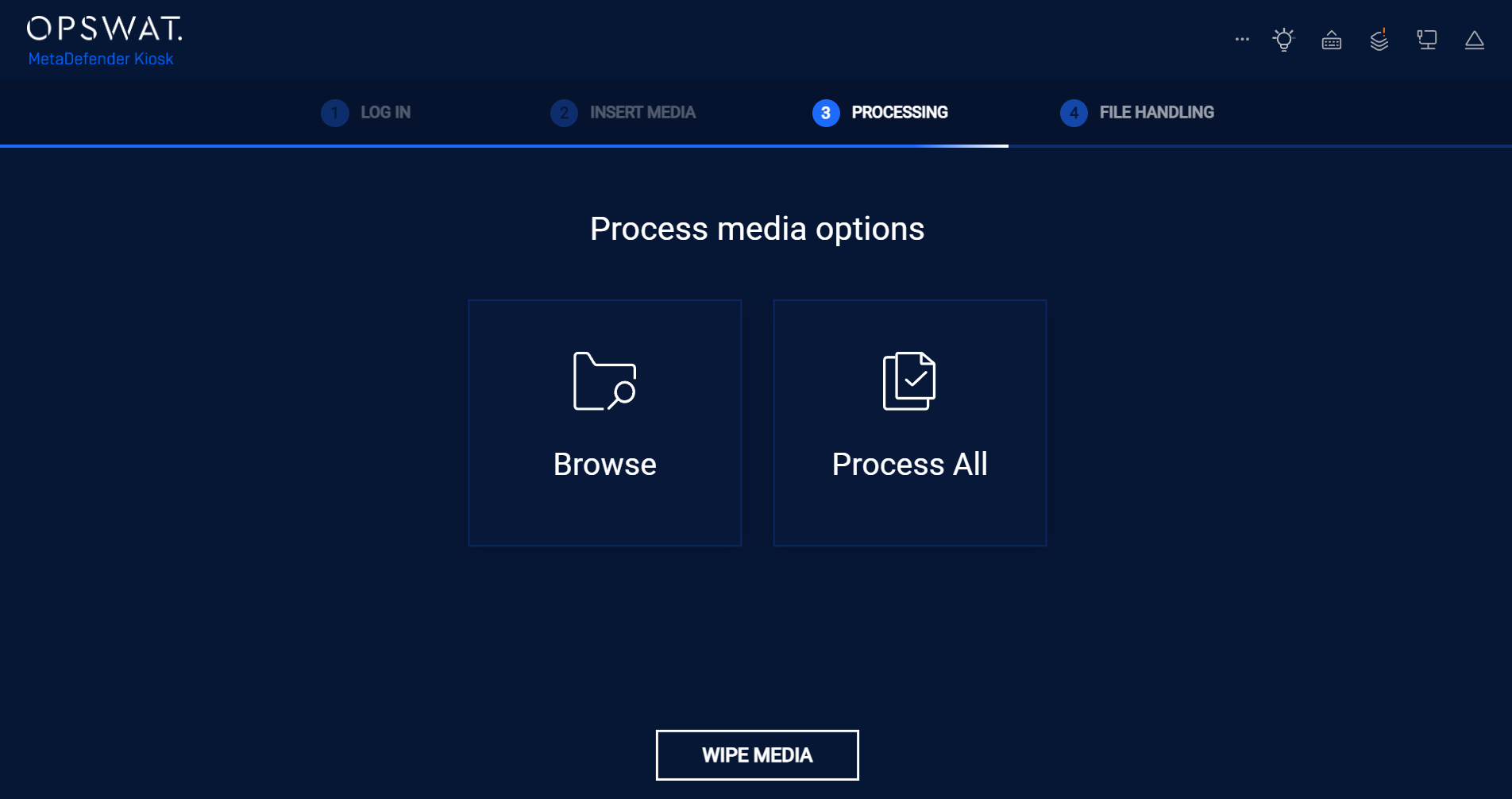
During MetaDefender Kiosk processing steps, you will see 2 storage partitions.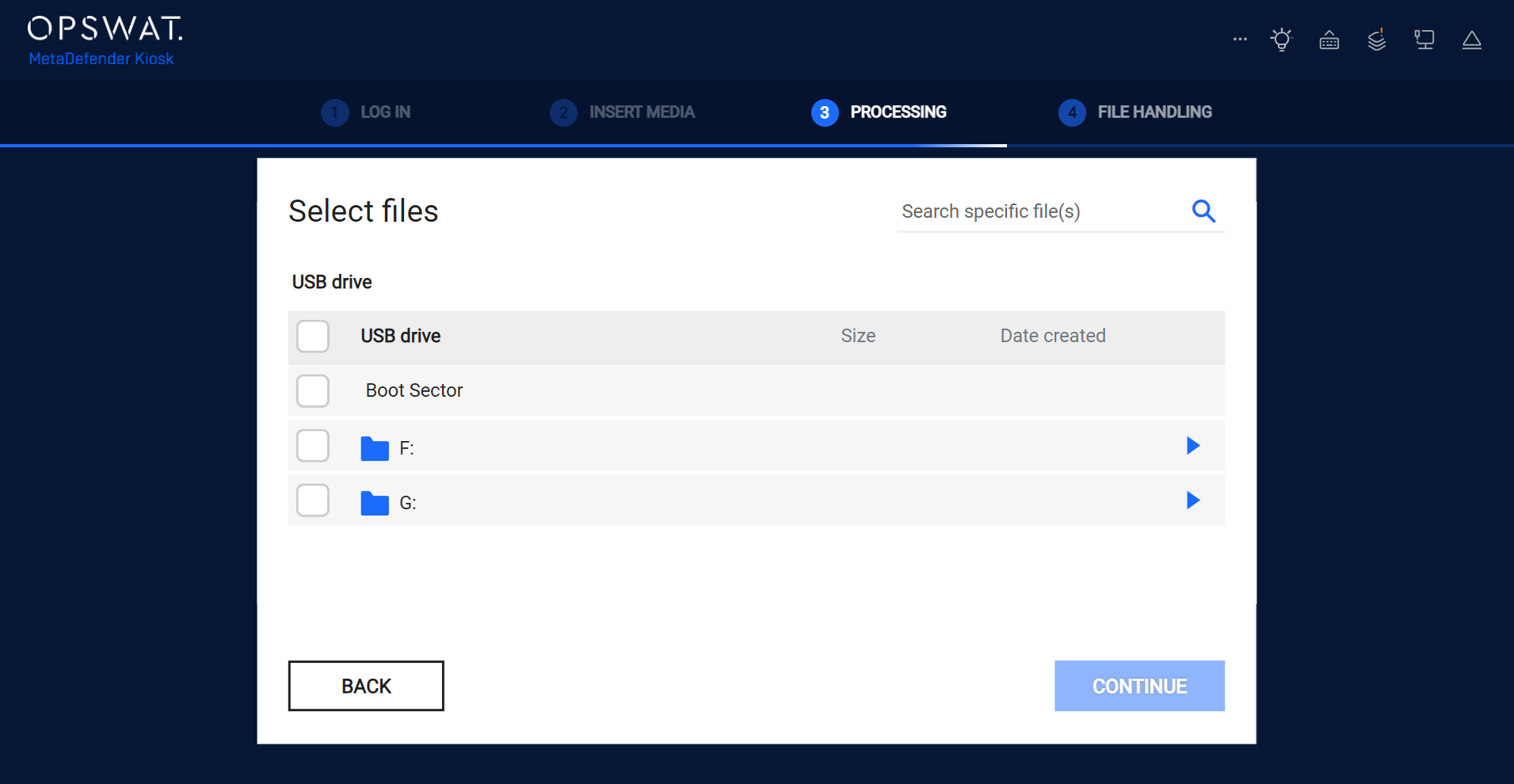
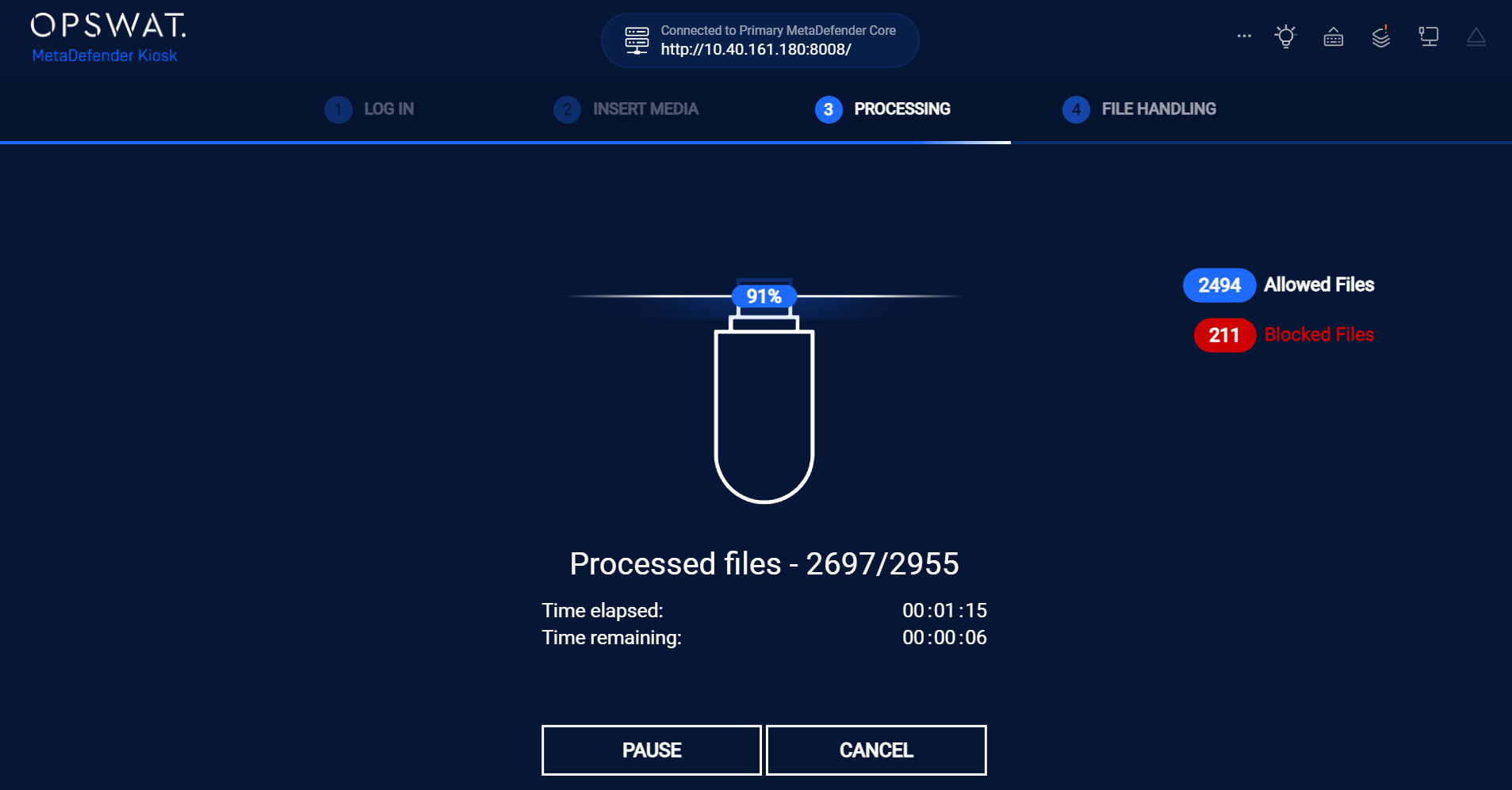
- Wait until the MetaDefender Kiosk scan is completed.
- View the on-screen report showing how many files are Allowed or Blocked.
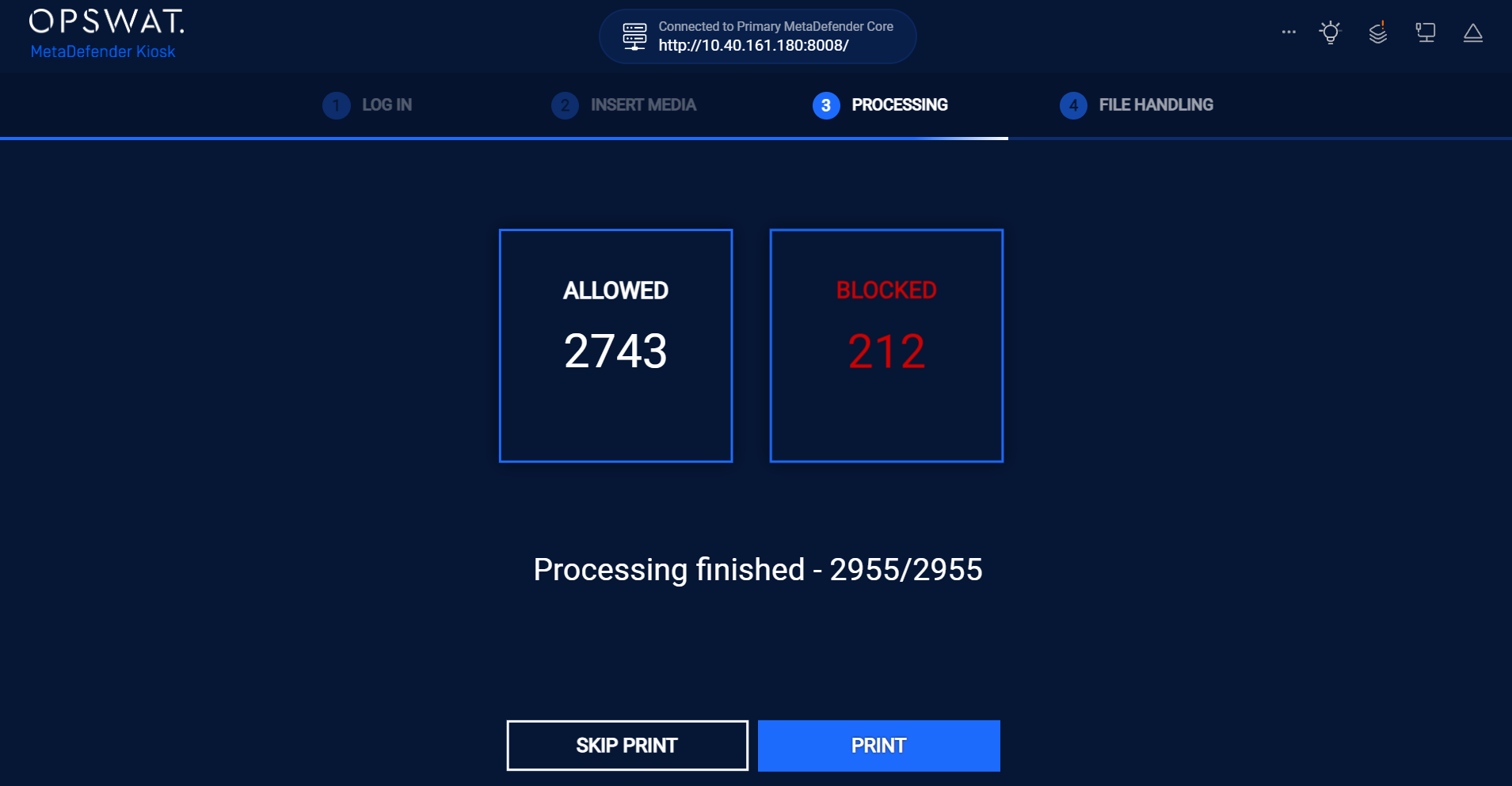
- Choose to Print the scan report or not.
- Safely unplug the USB cable once you are ready. The files will be recalculated again display the correct numbers of Clean Files, Unsafe Files, and Unscanned Files.
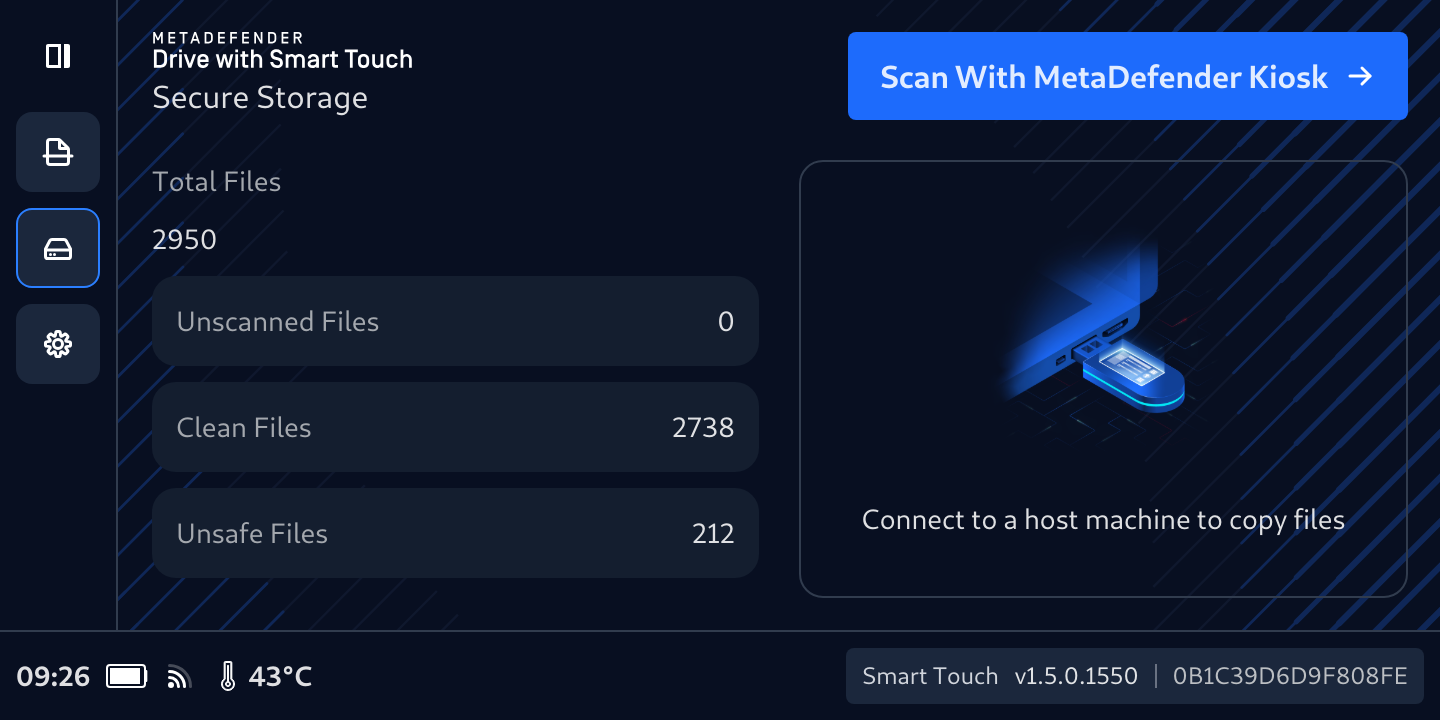
On the MetaDefender Drive with Smart Touch screen, Allowed files will be considered as Clean by Secure Storage, and Blocked files are considered as Unsafe Files. Skipped files will be considered as Unscanned Files.
Was this page helpful?

