
MetaDefender Drive with Smart Touch
For more information on how to enable and configure this feature, please follow the instructions here and make sure the configurations are correct and ready to use.
If you are also using Media Validation, you can follow that all the instruction. If you are only using Secure File Storage, you just need to have Media Manifest enabled.
Add Kiosk's public key to Secure Storage
To use Secure Storage with Kiosk, follow the steps to add the valid key, on a Secure Storage that does not currently have a public key
- Tap Kiosk Scan Validation
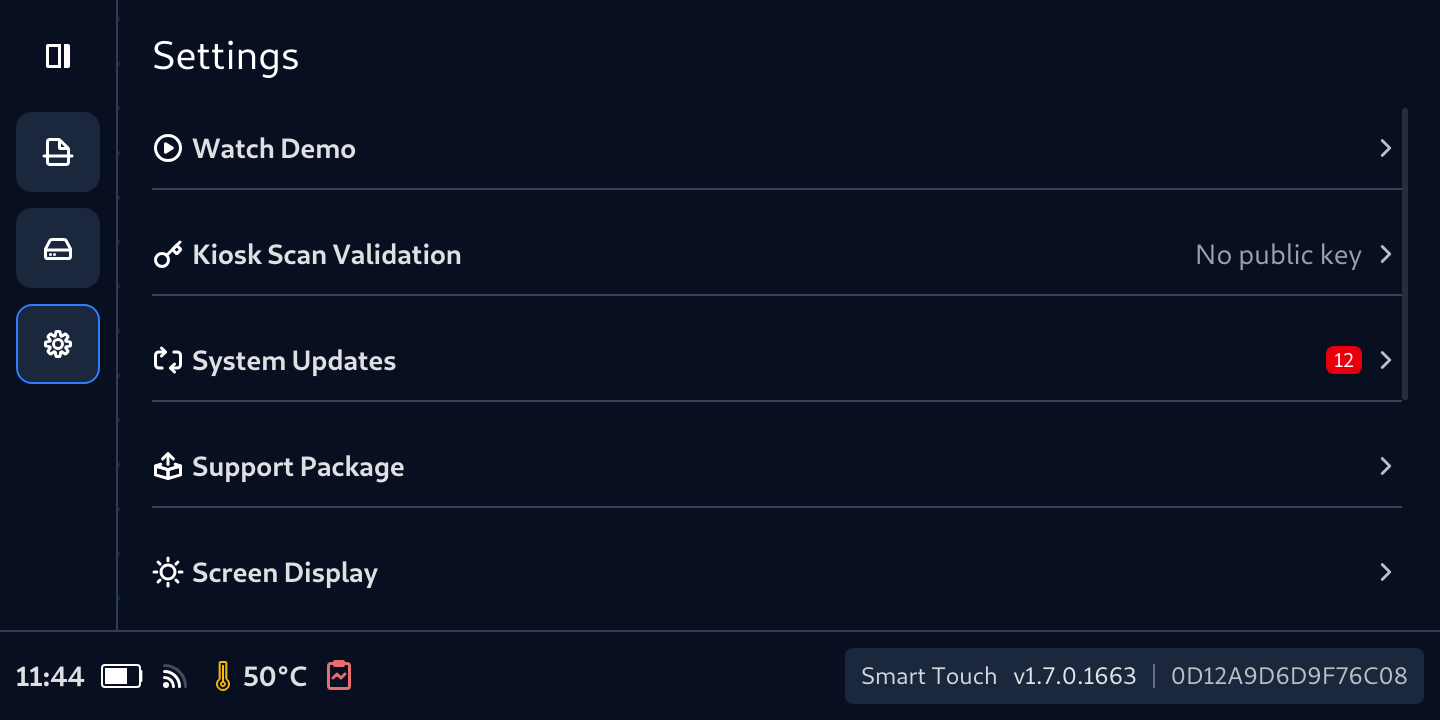
- Tap Add/Replace Certification button
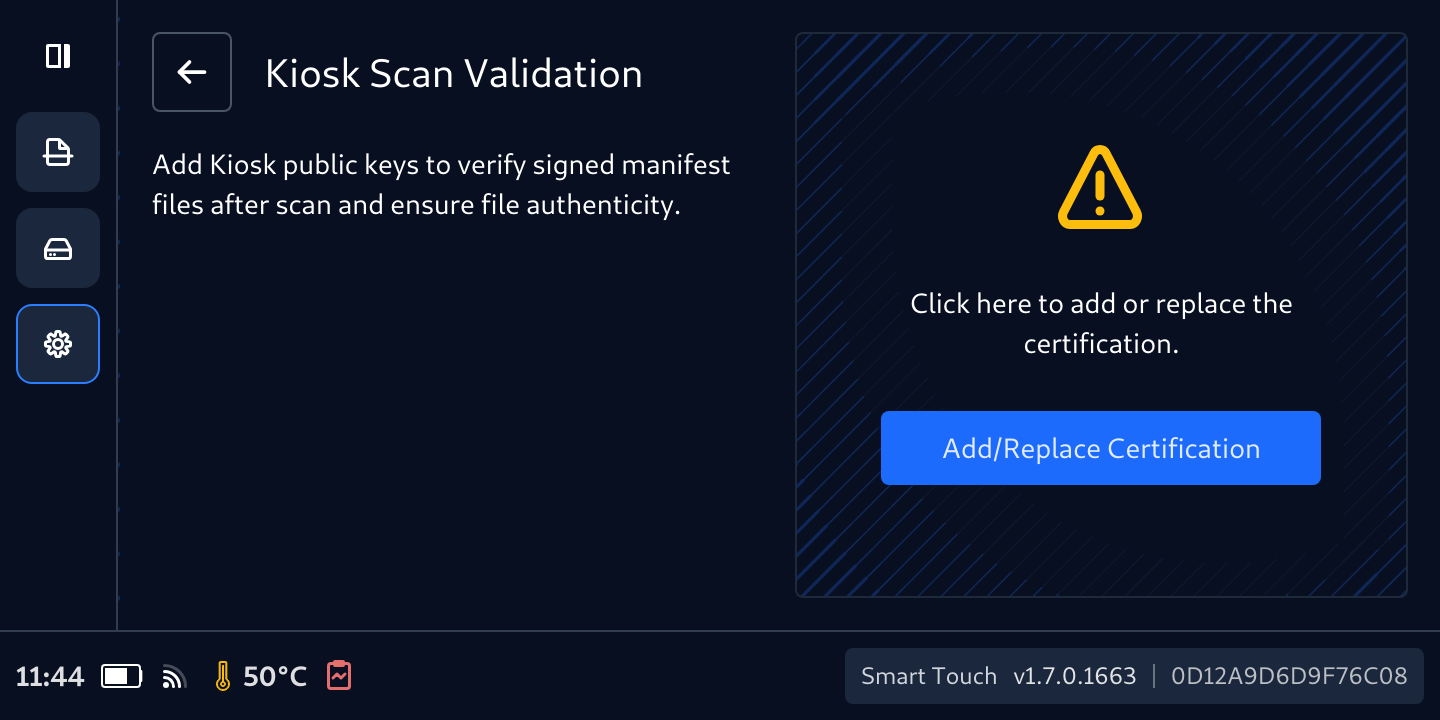
- Tap Add/Replace Certification button again to confirm the acknowledgement
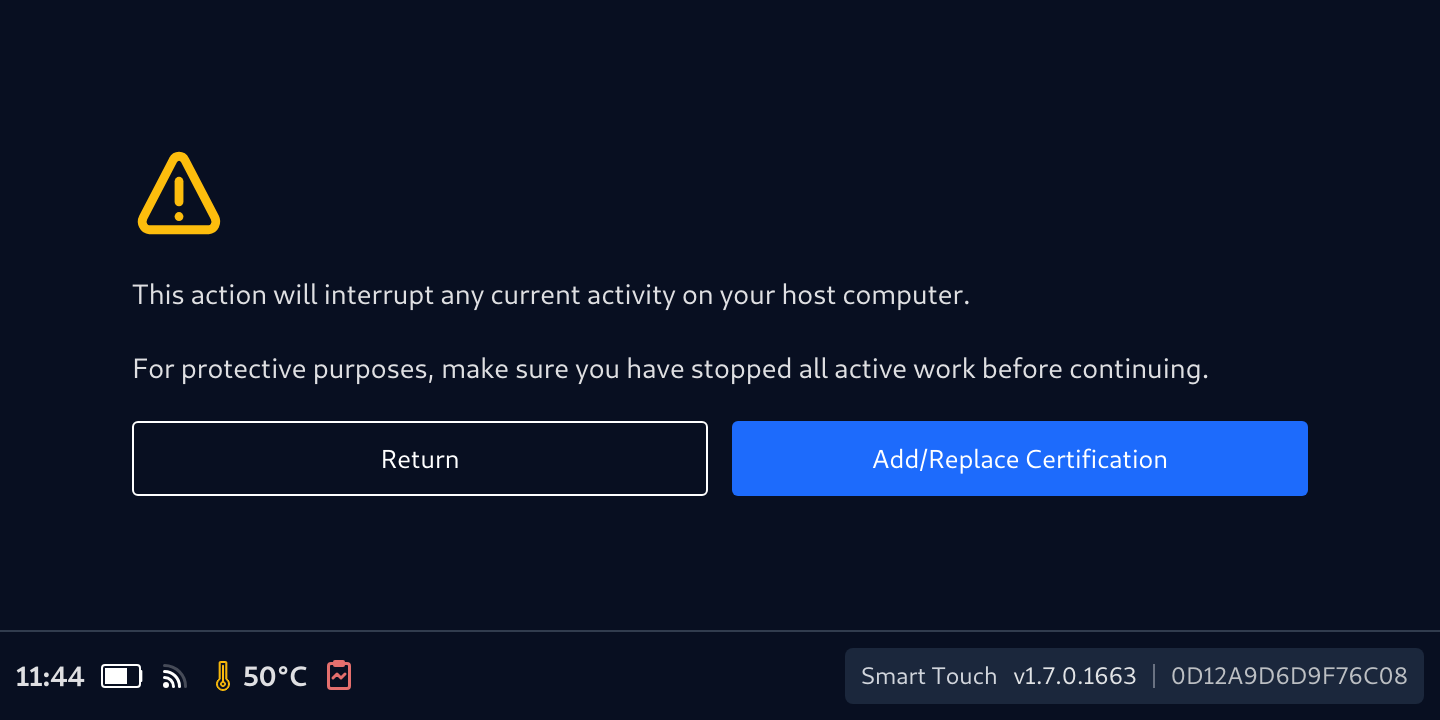
- Then this screen displays, waiting for the key. Now, connect the device to a machine that store the Kiosk public key
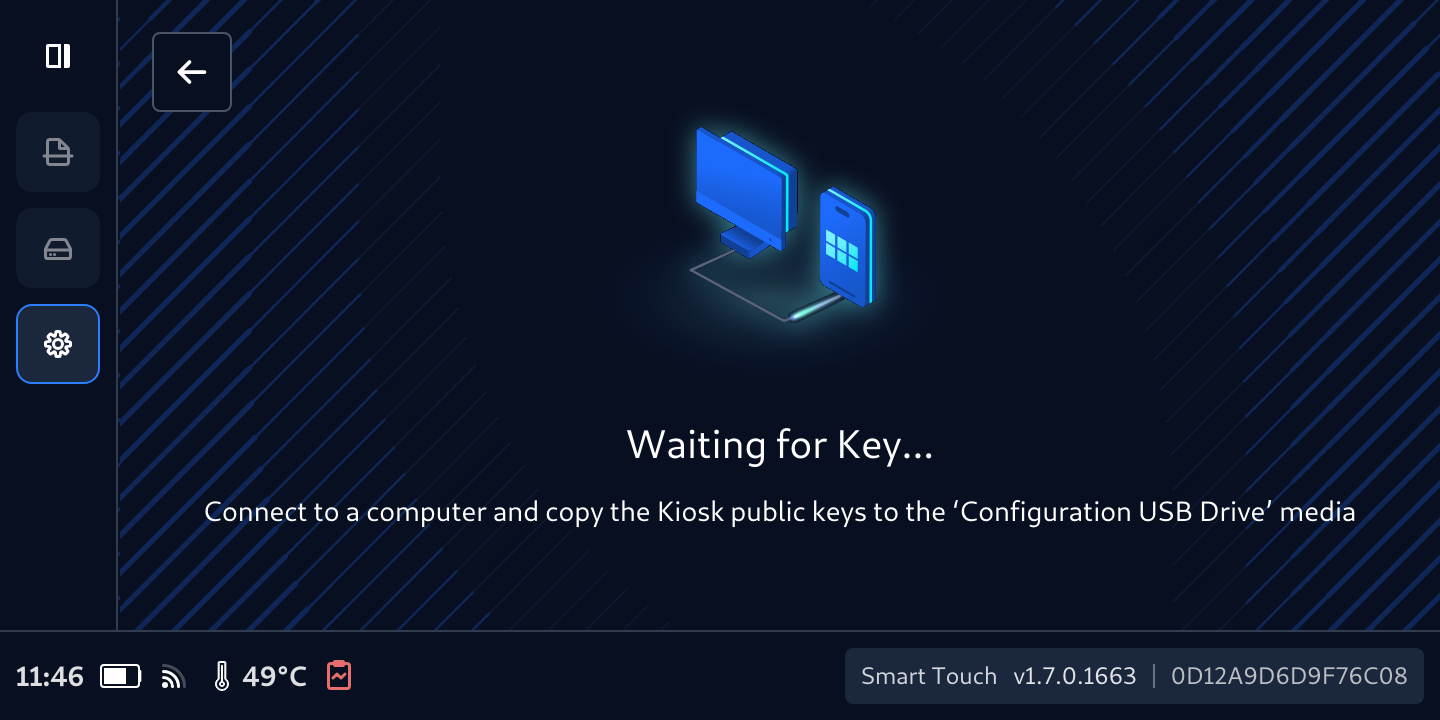
- On that computer, copy the public key to the USB storage has been mounted.
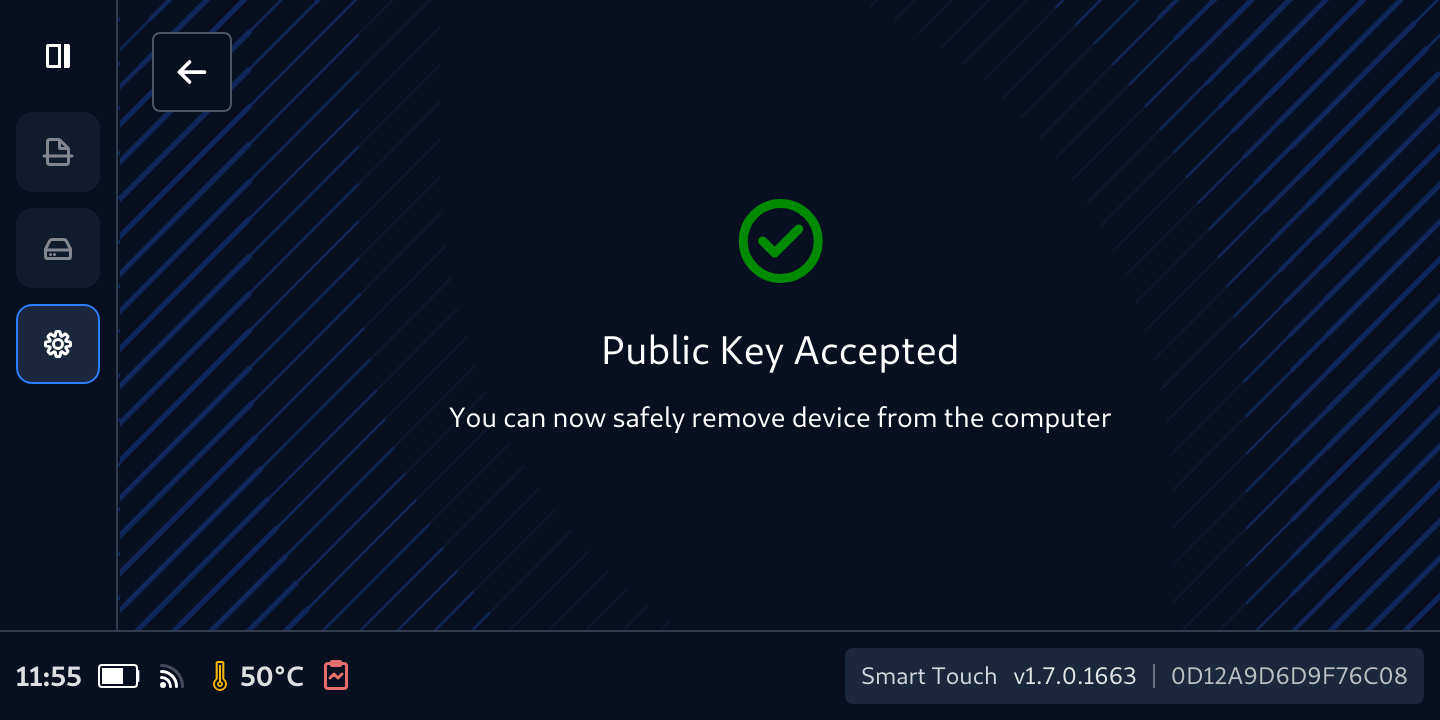
- Don't remove the cable, wait for the key to be accepted when this screen appears.
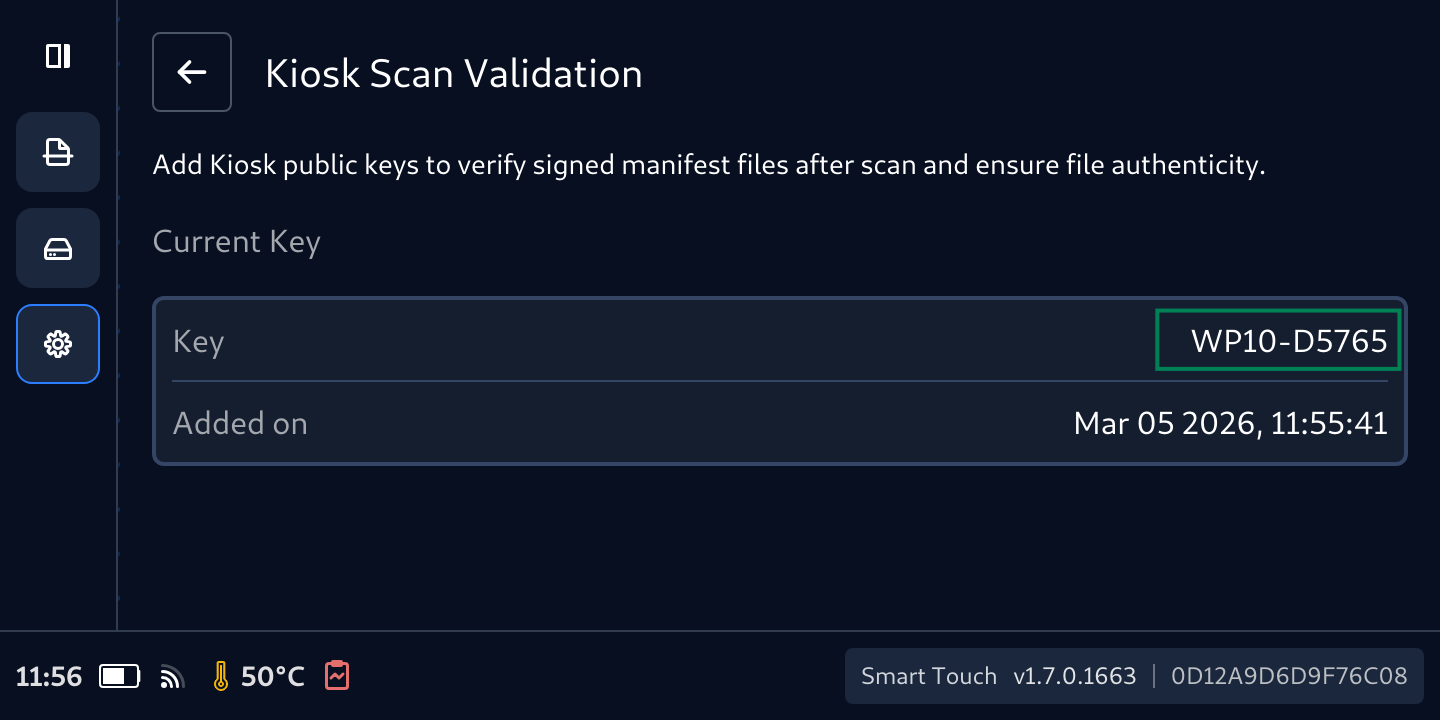
- Your Secure File Storage now is ready to be used with the Kiosk that has the information showed in the Current Key
Was this page helpful?

