
Check Your Version:
This article applies to all MetaDefender Core v5 releases deployed on Windows systems.
Summary
A file shown under “Potentially Infected Files” is not automatically confirmed as infected by MetaDefender Core itself. It means one or more integrated AV engines returned a malicious or suspicious verdict for that file, and Core is surfacing the engines’ results so you can take a risk-based decision.
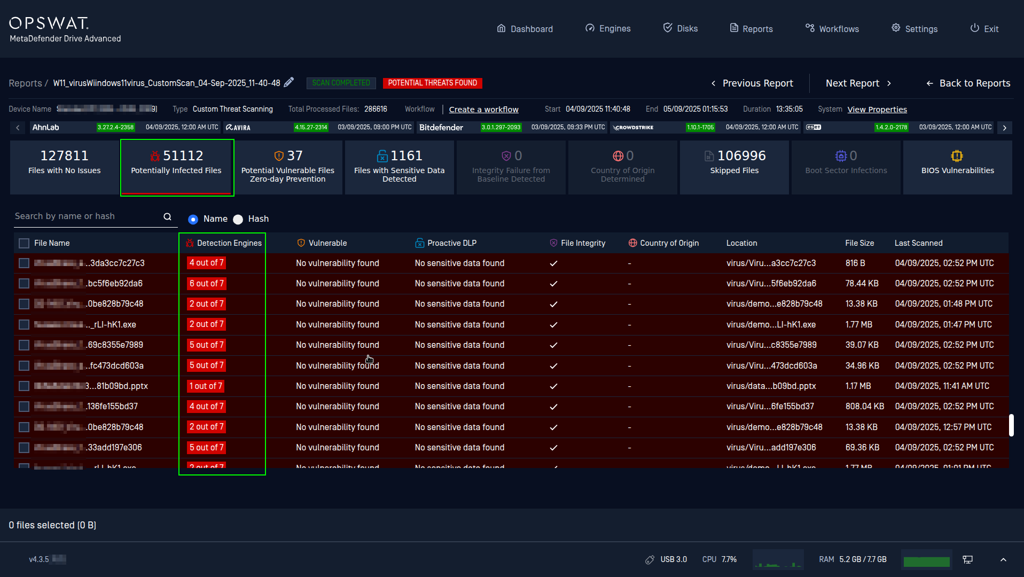
The example above is showing a MetaDefender Drive interface with some files that have been scanned by MetaDefender Core that have been flagged as Potentially Infected Files.
What triggers “Potentially Infected”
MetaDefender Core performs multi-scanning and aggregates vendor engine outputs. If at least one engine reports a threat (or flags it as suspicious), the file can appear as potentially infected in the results view/reporting.
Related scan result meanings (engine verdict level):
Infected: one or more threats found by the Metascan AV engines.
Suspicious: classified as a potential threat without a specific identification.
Recommended handling (best practice)
Because the finding originates from AV vendors’ detections, the safe operational recommendation is:
Block / quarantine the file (or prevent onward delivery) until it is confirmed clean.
Review which engine(s) flagged it and the threat name reported.
If the file is expected to be legitimate, treat it as a suspected false positive and submit it for expert analysis (see below).
This approach reduces the chance of allowing a true positive through while the detection is still under investigation.
How to identify exactly what was flagged (step-by-step)
Option A — Management Console (UI)
Go to History → Processing (Processing History).
Open the scan entry for the file (or the parent archive, then check contained files).
In the scan details, locate the engine detection list to see:
engine name
verdict
threat name / signature (where provided)
Option B — API / exported report
Export the scan result (or retrieve via API) and review the per-engine results in the scan details.
How to confirm / correct a false positive
If you believe the file is clean but was flagged:
Log into My OPSWAT.
Go to Support → Report False Detection.
Submit the file (or hash, depending on portal options) for investigation by OPSWAT’s analyst team.
After confirmation/correction, re-scan once the relevant engines’ detections are updated (vendor-side or via analysis feedback loop).
Optional: reduce noise (with caution)
If your workflow classifies files as “Infected” based on thresholds (e.g., X engines must detect), you can tune those thresholds in the workflow settings. Be cautious: lowering thresholds can increase security risk.
If Further Assistance is required, please proceed to log a support case or chat with one of our support engineers.