
My OPSWAT Central Management lets you create, edit, enable, disable, and delete MetaDefender Managed File Transfer automation jobs from the Jobs tab.
From this tab you can:
See the automation jobs configured on the instance
Create a job, or duplicate an existing one
Edit a job's settings
Enable or disable a job
Delete a job
Review who changed which job, and when, in Logs > Service Events
Before You Begin
The Jobs tab appears only for connected MFT instances running version 3.12.0 or later.
Requirement | Detail |
|---|---|
Supported product | MetaDefender Managed File Transfer 3.12.0 or later. Instances on earlier versions show only the Summary and Configuration tabs. |
Connection | The instance is enrolled in My OPSWAT Central Management and shows as connected. My OPSWAT Central Management opens a live session to the instance when you open the tab, so the instance must be reachable at that moment. |
Permissions | A role with write access to Inventory. The same access is required both to view jobs and to change them. |
Open the jobs tab
Go to Inventory > Services > MFT
Select a MFT instance
Select the Jobs tab
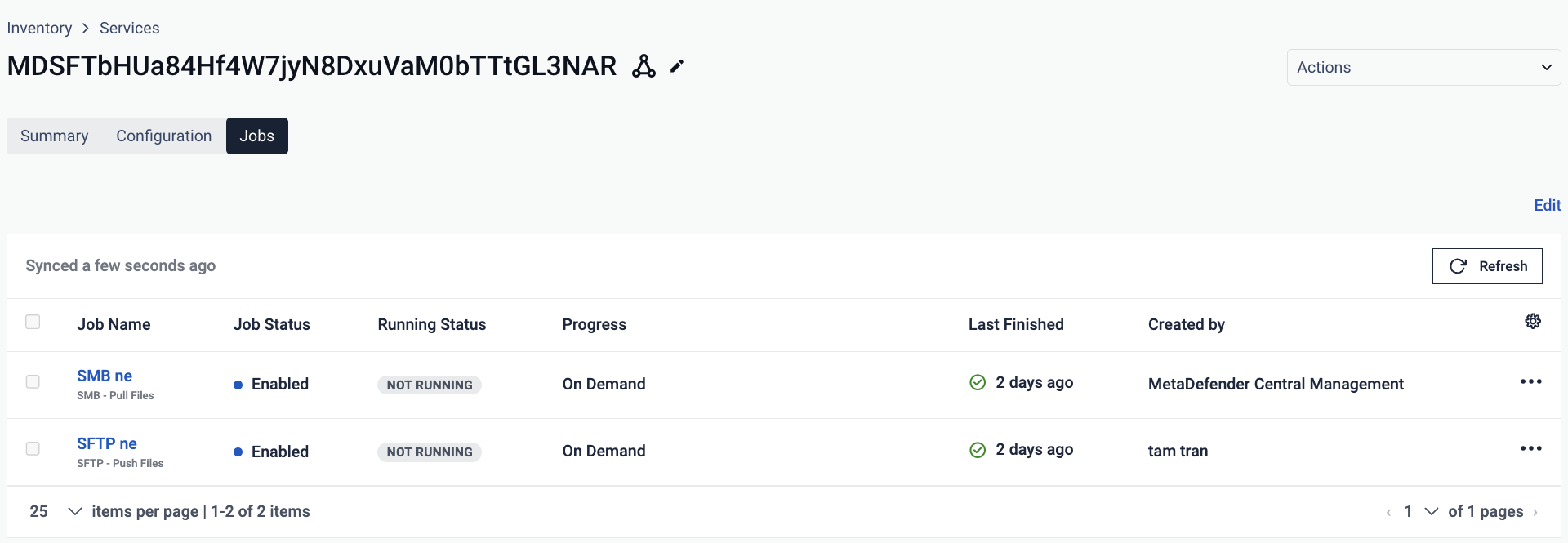
The tab shows the jobs configured on that instance. The first load can take a few seconds while My OPSWAT Central Management connects to the instance.
Create, edit and delete jobs
All changes are made in Edit mode. Each change applies to the instance as soon as you save it in the job editor.
On the Jobs tab, select Edit
Do one of the following:
To create a job, select + Add New Job and configure the job in the editor
To edit a job, select its name, or open its ⋯ menu and select the action you want.
Save your changes in the job editor.
Select Done to leave Edit mode.
Things to keep in mind
Edit mode stays on after each save, so you can make several changes in a row
Selecting Done leaves Edit mode immediately, without a confirmation prompt
Track job changes
Every job change made through My OPSWAT Central Management is recorded in Logs > Service Events under MetaDefender Managed File Transfer.
Event | Recorded when |
|---|---|
Job Created | A job is created or duplicated |
Job Updated | A job is edited, enabled, or disabled. The entry shows the new state. |
Job Deleted | A job is deleted |
Each entry shows the instance, the job name, who made the change, and when.
Use the Job Created, Job Updated, and Job Deleted filters to narrow the list.
Only changes the instance accepted are recorded. Job settings are not copied into the log.
Troubleshooting
Issue | Cause | Resolution |
|---|---|---|
The Jobs tab is not shown for an instance | The instance runs MetaDefender Managed File Transfer earlier than 3.12.0, or it is not connected | Upgrade the instance to 3.12.0 or later and confirm it shows as connected in Inventory |
Edit is unavailable | Your role does not have write access to Inventory | Ask your administrator for a role with write access to Inventory |
The tab takes several seconds to load | My OPSWAT Central Management is opening a live session to the instance | Wait for the connection to complete. If it does not load, verify the instance is reachable |
A change does not appear in Service Events | The instance rejected the change, so it was not applied or recorded | Reopen the job and confirm its state |