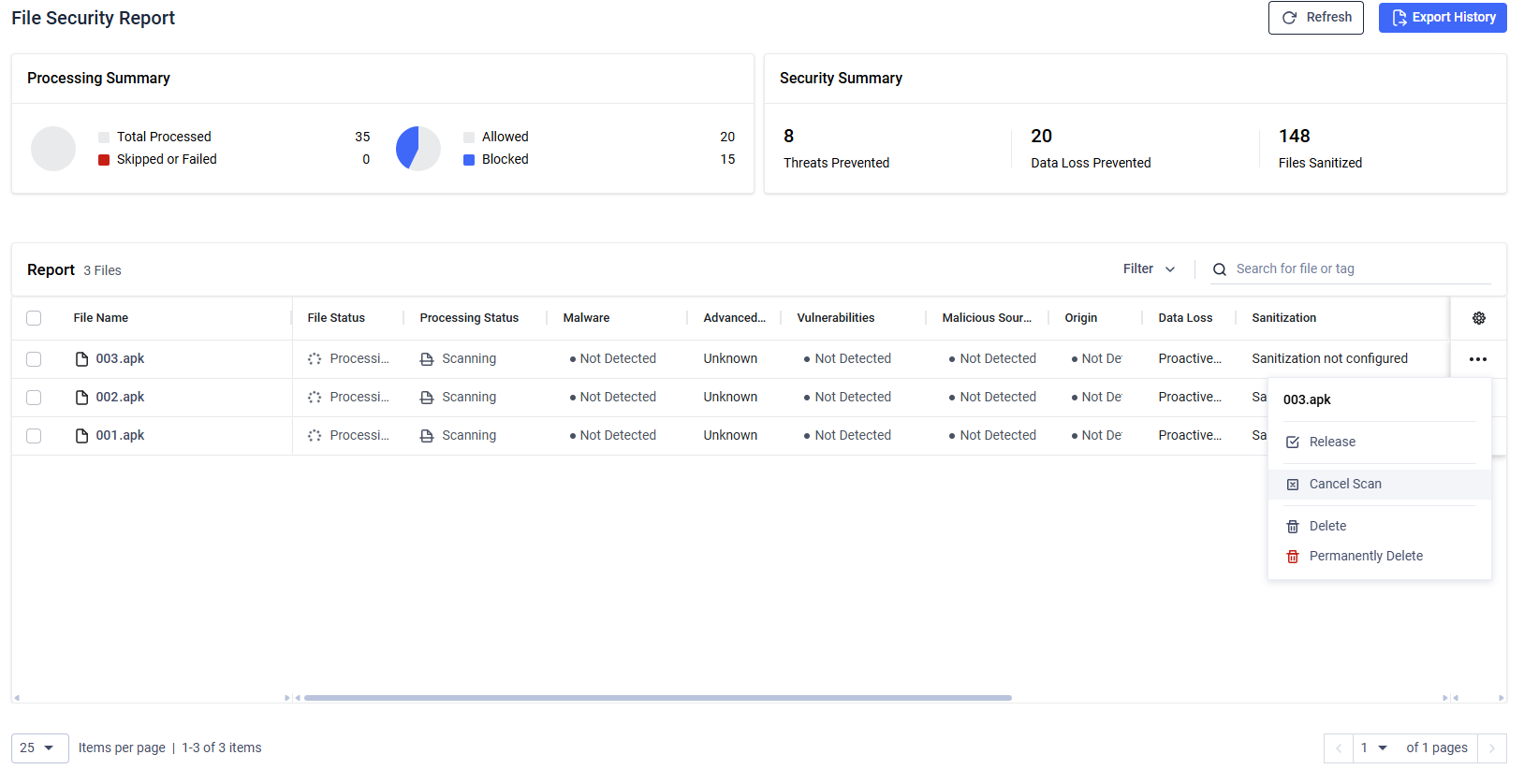
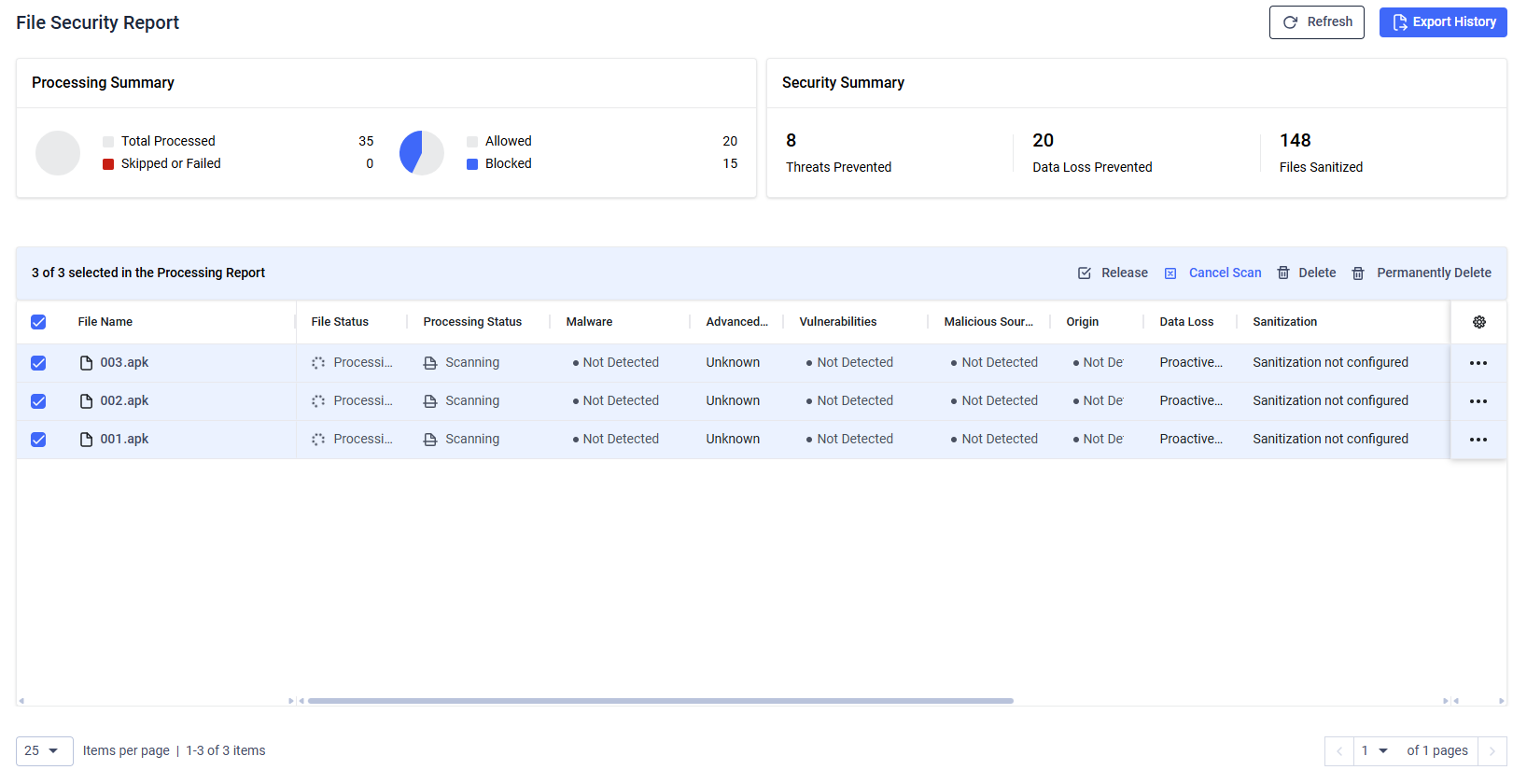
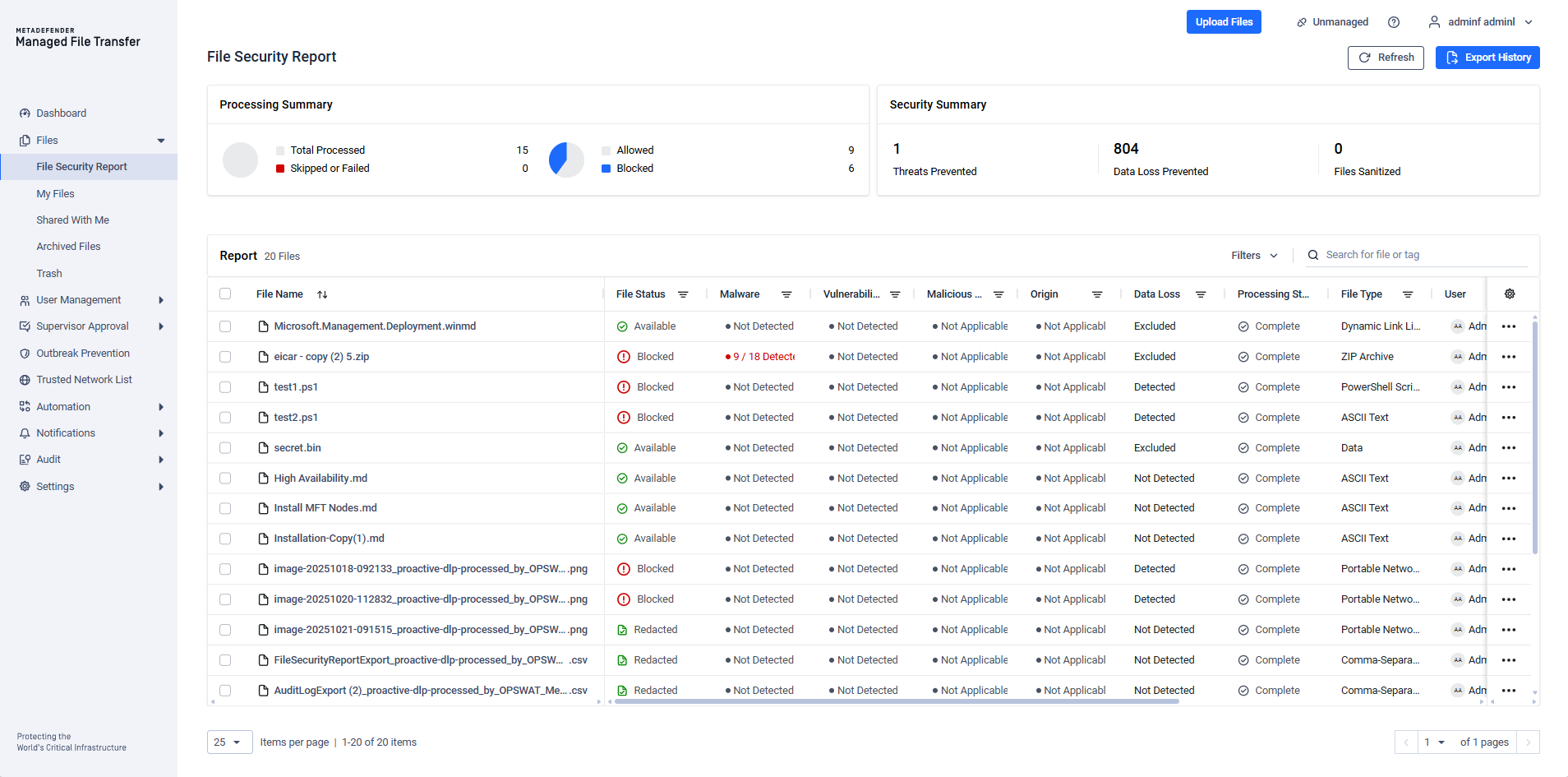
The "File Security Report" page allows users with specific roles to view files that have been uploaded to MetaDefender Managed File Transfer™.
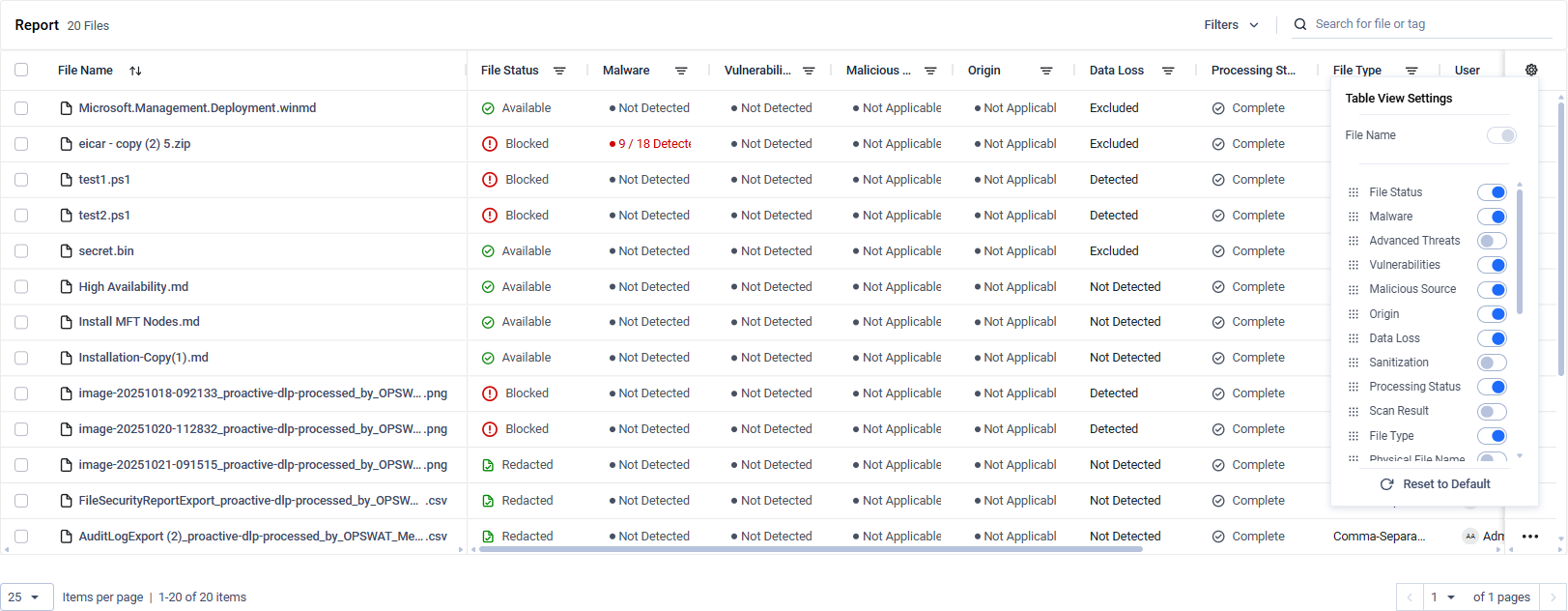
Hide / Show Columns
To toggle the visibility of a column, click the cogwheel icon located in the last column and select which columns you want to show or hide. The desired layout can be stored by clicking on the "Save View" button.
The "Last Time Downloaded" column displays the most recent download timestamp for files shared with users. Downloads by Administrators and Auditors do not affect the "Last Time Downloaded" record.
The "Physical File Name" column displays the actual file name on the associated storage device.
Sorting
On the “Processing History” page, table data can be sorted by clicking the arrow icons located next to each column header.
Certain columns (for example, those containing status values such as “Blocked ” or “Detected”) follow a predefined custom sort order and can be sorted by selecting values like "Blocked First" or "Detected Last". Other columns are sorted alphanumerically.
Multi-level sorting is supported for a maximum of two columns. In this case, one column is designated as the primary sort (priority 1), and a second column is applied as the secondary sort (priority 2). The active sort priorities are indicated in the user interface by small “1” and “2” markers displayed in the upper-right corner of the corresponding sort icons.
Sorting for a column can be cleared by clicking its sort icon again. If the primary sort column is cleared while a secondary sort is active, the secondary column automatically becomes the new primary sort.
A “Clear Sorting” button is also available next to the search bar to reset all active sorting preferences. Sorting preferences are persisted for the table.
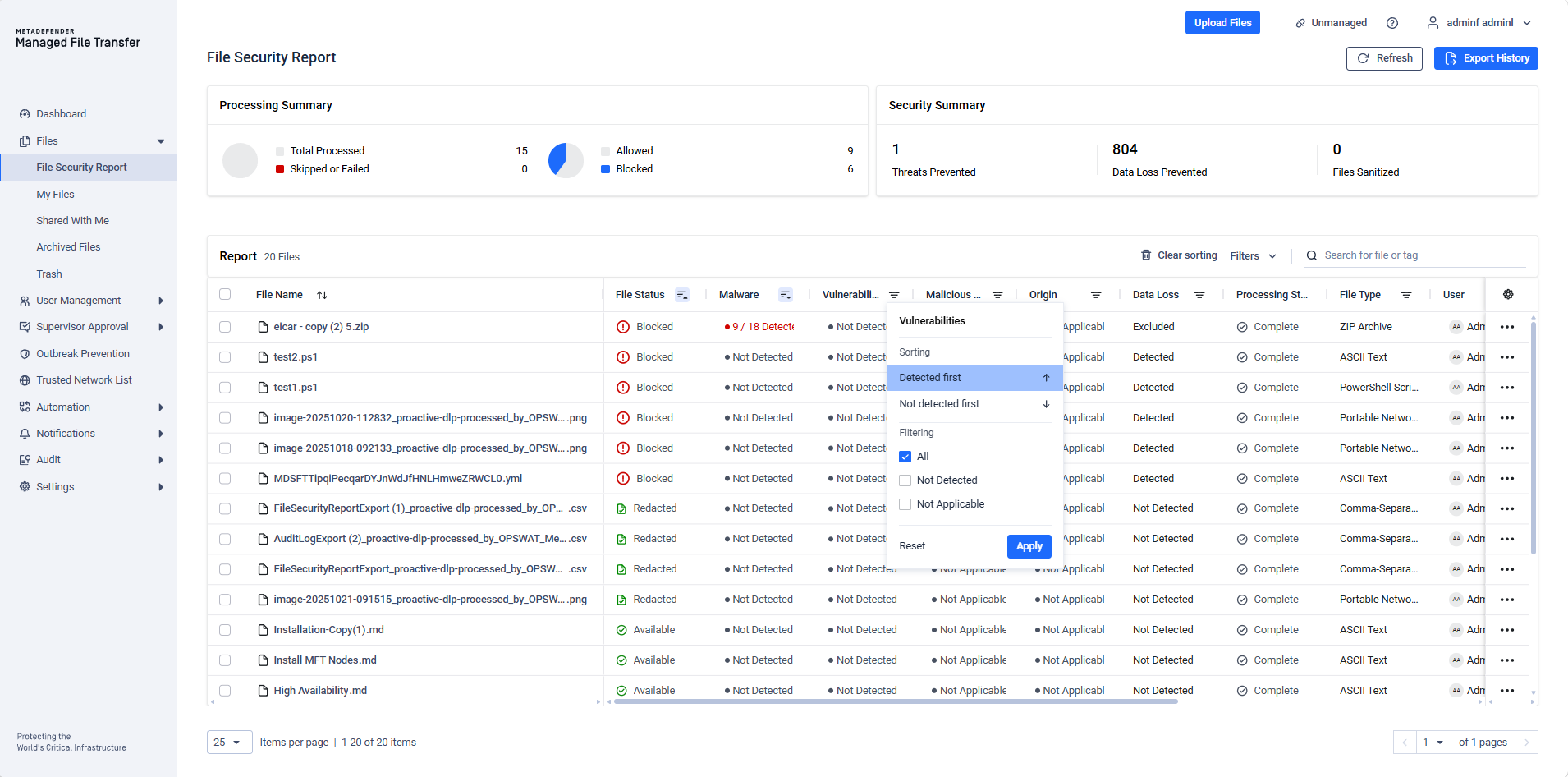
Filtering
Every column on the “Processing History” page can be filtered on its own, directly from the column header. Click the filter icon in a column header to open that column's filter, set your criteria, and click “Apply”. A marker on the header icon shows when a column's filter is active. To clear a single column's filter, reopen it and click “Reset”.
Filters on different columns are combined with AND — a file must match every column you have filtered. Multiple values chosen within the same column are combined with OR — a file matches if it has any of those values.
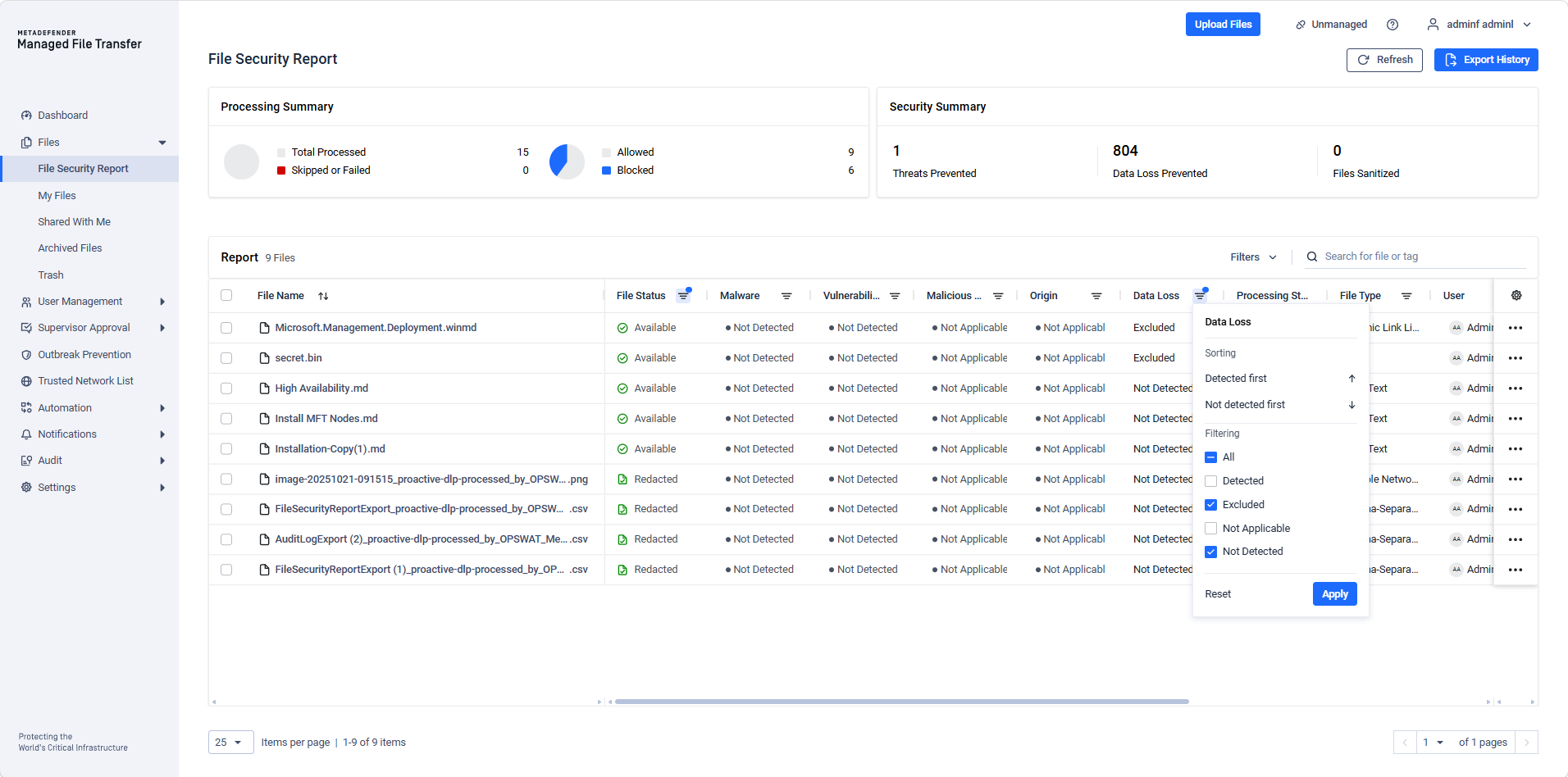
Filters are grouped below by the type of control each column provides.
Search by text — type any part of the value (case-insensitive, partial match):
Physical File Name, SHA256, SHA1, MD5
User — start typing an uploader's name and select the matching user from the suggestions.
Select from a list of values — tick one or more values from a checklist (a master “All” option selects or clears everything). Each list only offers the values that are actually present in your data:
File Status, Scan Result, Malware, Advanced Threats, Vulnerabilities, Malicious Source, Origin, Data Loss, Sanitization, File Type, Workflow, File Classification, Supervisor Approval Status
Numeric range — drag the slider to set a lower and/or upper bound (you can set just one end):
Duration, File Size
Date range — choose a From and a To date:
Upload Date, Expiration Date, Last Time Downloaded
The “Processing Status” column is the only column that cannot be filtered.
The “File Name” column has no header filter either — use the search box above the table to find files by file name or tag.
A few filters behave in ways worth noting:
Origin combines country-of-origin verdicts and individual countries. Selecting both a verdict and one or more countries returns files matching either (the union), not only those matching both.
Date range filters apply only when both From and To are set, and a To date includes the entire selected day.
File Classification matching works with accented and non-Latin characters.
A column's filter is only available when the column is visible. Use the cogwheel column chooser to show a hidden column before filtering on it.
Exporting History
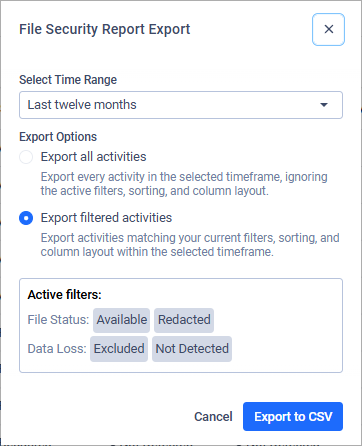
You can export the report in CSV format. Click “Export History” above the table to open the “File Security Report Export” dialog, choose a time range and an export option, then click “Export to CSV”. Localization is applied to the exported values where applicable.
Select Time Range — every export is limited by upload date. Pick one of the predefined intervals (“Last week”, “Last two weeks”, “Last month”, “Last two months”, “Last six months”, “Last nine months”, “Last twelve months”) or “Complete history” to export without a time limit.
Export Options — choose whether the export reproduces your current view:
Export all activities — exports every activity in the selected timeframe and ignores what you have set up on the table. No filters are applied, the default sort order is used, and all available columns are included.
Export filtered activities — exports only the activities matching your current filters, using your current sorting and column layout. Just like on screen, only the columns you have visible are exported, in the same left-to-right order, and multi-level sorting is preserved.
When anything is applied on the table, “Export filtered activities” is preselected. If the table is in its default state — no filters, no sorting and the default column layout — there is nothing to reproduce, so the option is disabled and “Export all activities” is used.
Selecting “Export filtered activities” also shows an “Active filters” summary that lists each filtered column with the values you filtered on, so you can check what the CSV will contain before exporting. The summary covers your column filters as well as the search box and any narrowed-down view you opened the report with (for example from the Threat Map or an outbreak counter). Sorting and column layout are applied to the export too, even though they are not listed in the summary.
The time range selected in the dialog always determines the exported upload-date window. If an “Upload Date” column filter is also active, the time range chosen in the dialog takes precedence over it.
To prevent formula injections (also known as CSV injections), the exported CSV may include additional apostrophe characters at the beginning of fields. This prevents spreadsheet applications from interpreting potentially malicious fields as formulas.
Override Blocked Status and Restore Blocked Status action
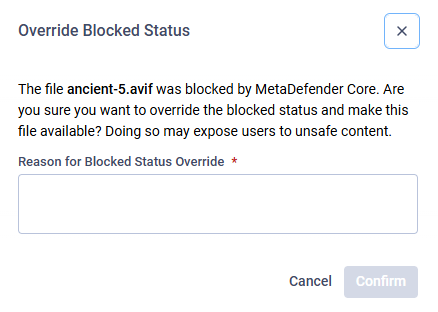
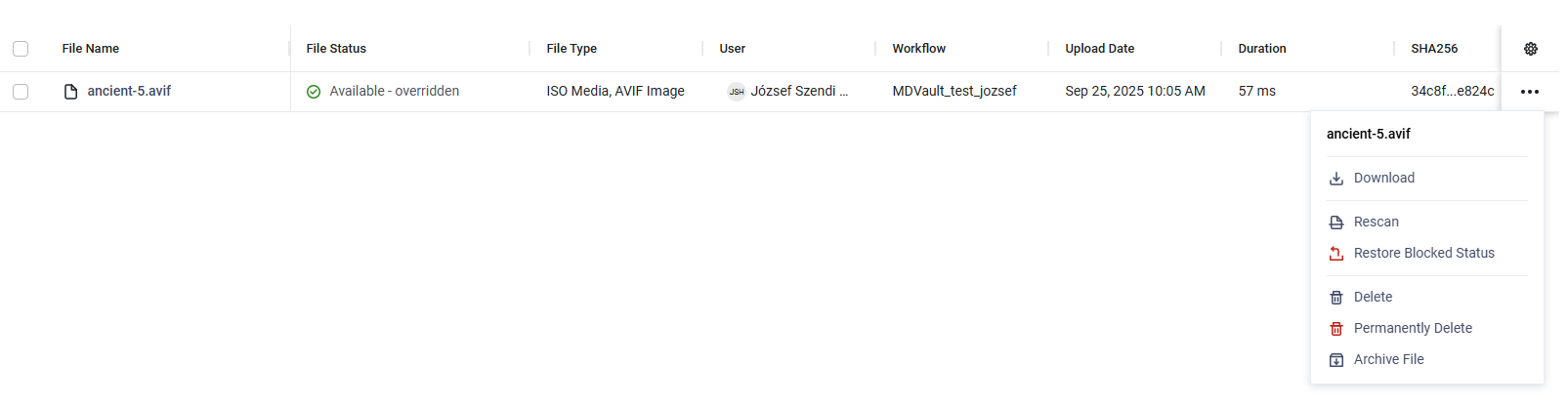
Administrators and Restricted Administrators can unblock files that have been marked as blocked by MetaDefender Core™. During the unblock process, they must provide a reason, ensuring transparency since unblocking makes a potentially harmful file available for download to the uploading user. Once unblocked, the file status changes to Available – overridden.
Unblocking a file is a high-risk action, as it may allow malicious content to bypass security controls and become available for download. Administrators and Restricted Administrators must exercise extreme caution and verify the reason for the block before proceeding. This includes double-checking whether the file was blocked due to a false positive or an intentional security measure. Every unblock action requires a documented justification to ensure accountability and transparency.
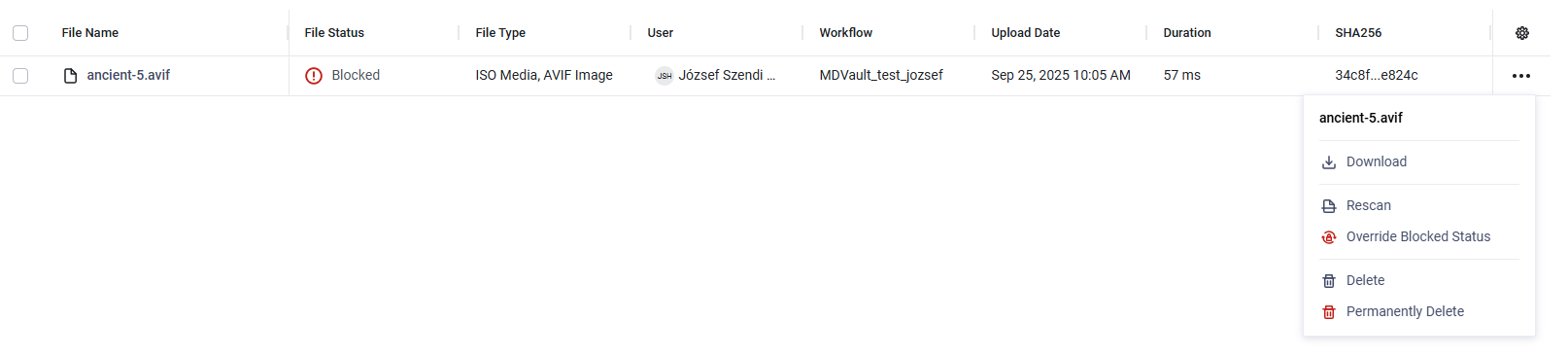

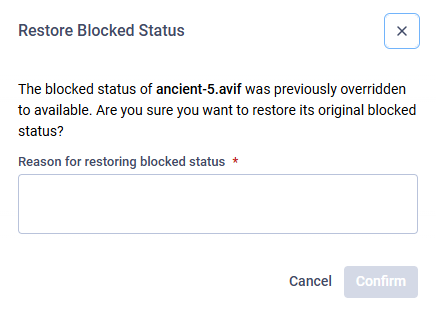
An unblock action can be reverted by an Administrator or a Restricted Administrator. When reverting an unblock, they must provide a reason to maintain transparency. After the action is completed, the file status is changed back to Blocked.
Cancel File Scanning
During busy periods, file uploads and scans can quickly build up, putting significant strain on MetaDefender Managed File Transfer™ and MetaDefender Core™. To maintain system stability, System Administrators can cancel ongoing file scans, helping reduce load and avoid long processing queues.