
If you choose the Redundant HA Controllers topology, use this page to configure the cluster.
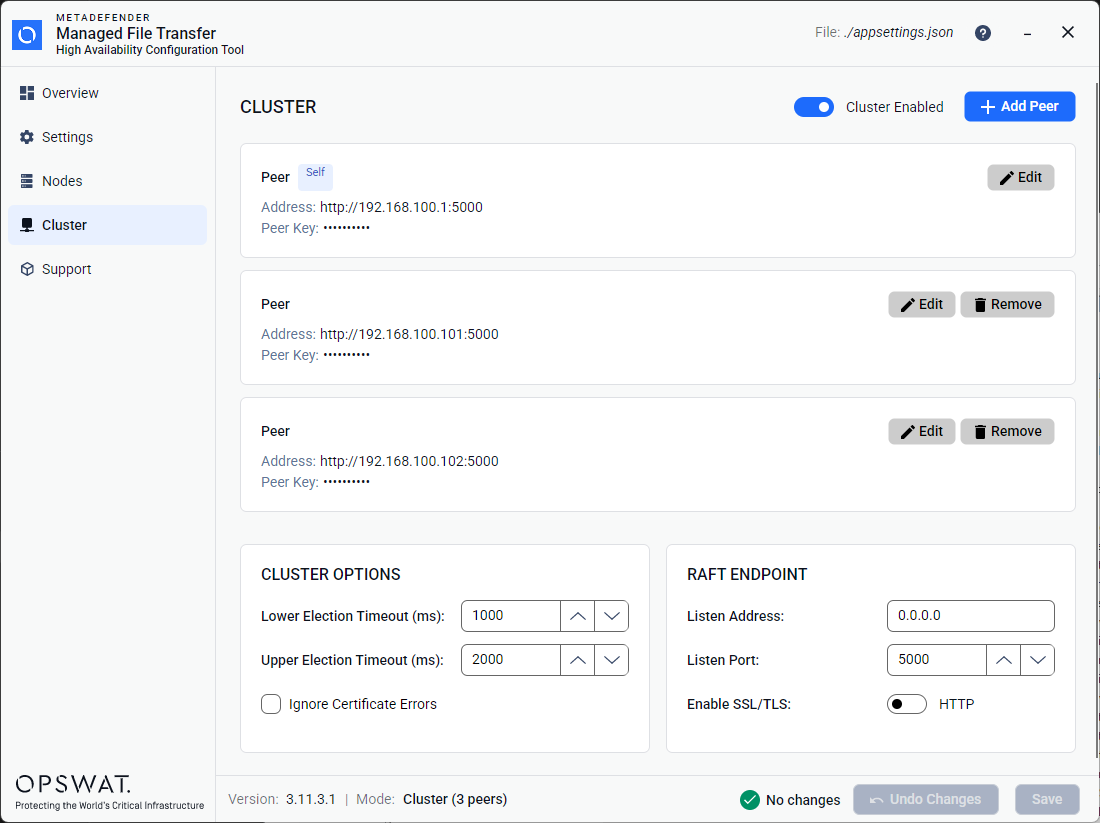
The Cluster page manages the MetaDefender MFT HA Controller™ peer instances.
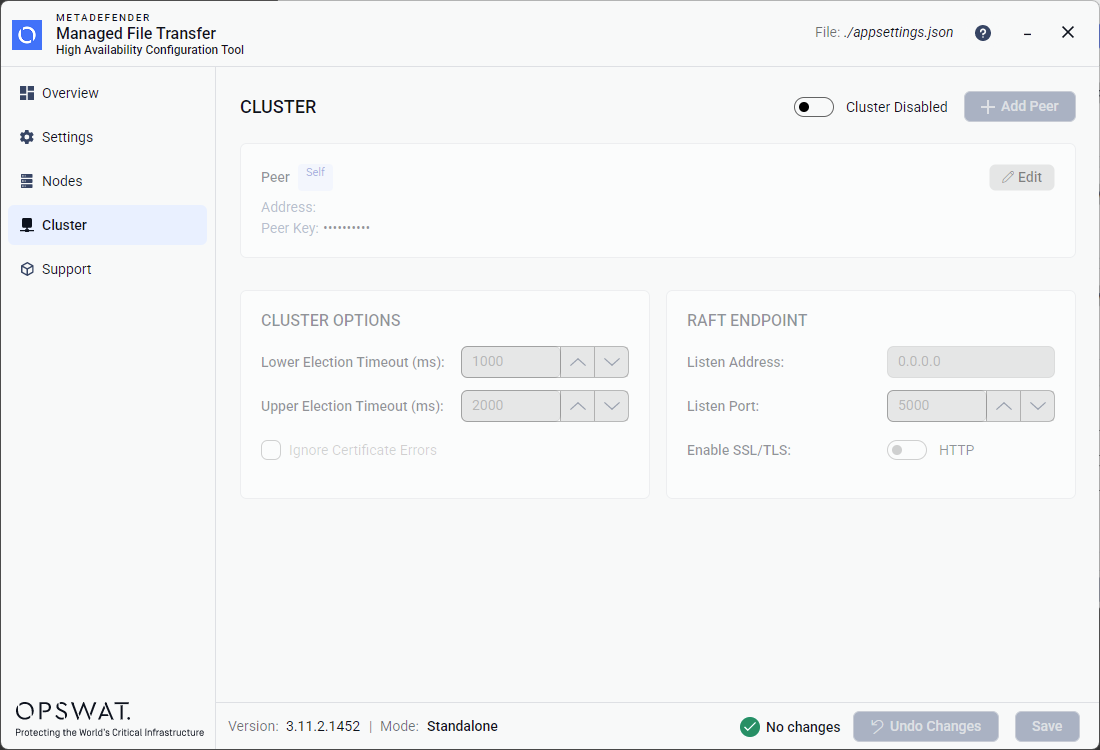
Cluster mode is disabled by default after a fresh installation. Enable Cluster Enabled to configure the local Raft endpoint and add remote peers.
Enabling Cluster Mode
At the top of the page, a Cluster Enabled / Cluster Disabled toggle controls whether clustering is active.
When disabled, the peer list and cluster options are dimmed and non-interactive. On save, the
ClusterSettingssection is omitted fromappsettings.json.When enabled, peers can be managed and cluster options become editable.
Peer cards
Peer cards have the following fields:
Address: URL of the peer
Peer Key: API key for the remote peer
Self Peer
The self peer is always displayed and identified automatically by matching its API key to the value in localpeer.json. The self peer:
Has a (Self) badge next to its title.
Cannot be removed — no Remove button is shown.
Has a read-only Peer Key — the key is sourced from
localpeer.jsonand cannot be changed in the tool.Its address has to be set by clicking the Edit button.
After a new installation, the self peer does not have an address assigned. It must be configured by editing the peer when enabling cluster mode.
Adding a Remote Peer
Click the + Add Peer button (only enabled when cluster mode is on).
A dialog appears with two fields:
Field | Description |
|---|---|
Address | HTTP(S) URL of the remote HA Controller peer's Raft endpoint |
Peer Key | API key for the remote peer (from its Requirements:
|
Click OK to add or Cancel to discard.
Editing a Peer
Click Edit on any peer card to open the edit dialog. For the self peer, the Peer Key field is read-only and shows a note: "(Read-only, from localpeer.json)".
Removing a Peer
Click Remove on a remote peer card. Remove is only shown for non-self peers.
Cluster Options
When cluster mode is enabled, the Cluster Options panel will be enabled in the lower-left:
Field | Description |
|---|---|
Lower Election Timeout (ms) | Minimum Raft election timeout. Lower values detect leader failures faster, but on slower network it may lead to election errors. |
Upper Election Timeout (ms) | Maximum Raft election timeout. |
Ignore Certificate Errors | When selected, TLS certificate validation errors between peers are ignored when HTTPS communication is enabled. |
Raft Endpoint Configuration
The Raft Endpoint panel (lower-right) uses the same Kestrel endpoint configuration control as the Settings page:
Field | Description |
|---|---|
Listen Address | Local bind IP address used for Raft communication. For example, |
Listen Port | TCP port used for Raft communication. Must not conflict with the HTTP endpoint or be used by another service. Default is |
Enable SSL/TLS | Toggle between HTTP and HTTPS for Raft. |
TLS Certificate / Key / Password | Same certificate fields as the HTTP endpoint (visible when TLS is enabled). |
Important: The Raft endpoint address and port must not match the application HTTP endpoint configured on the Settings page. Validation will reject the configuration if they are the same. However, validation does not check whether the port is already in use by another service.