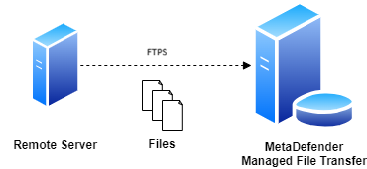
Use this type of job to automatically pull files from a file share on a remote host using the FTPS protocol.
Configuration
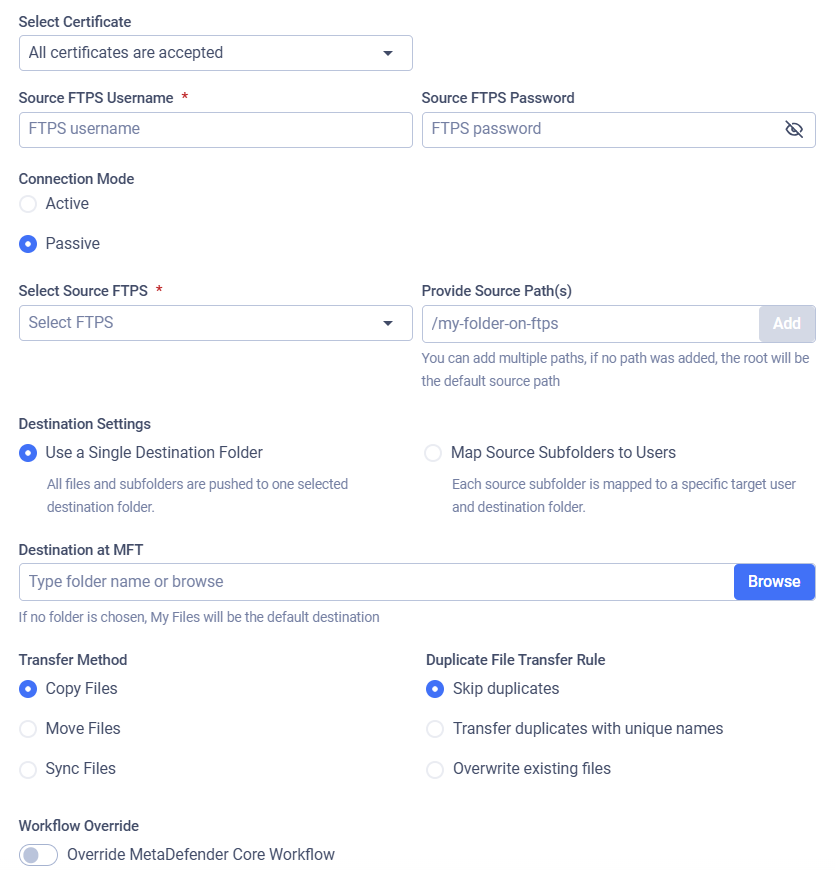
Source FTPS Username
The username used to authenticate via the FTPS protocol on the selected host.
Source FTPS Password
The password used to authenticate via the FTPS protocol on the selected host.
Server Certificate
Select how the server certificate should be validated. Two options are available:
All certificates are accepted: The MFT will accept any certificate presented by the FTP server (useful for self-signed certificates).
Certificate: Choose a specific, previously stored certificate associated with your Client ID (see: My Credentials)
Connection Mode
Select the mode used for data connections. Two modes are supported:
Active: The client opens a port and waits for the server to connect. (Note: You must specify a valid port range).
Passive: The server opens a port and waits for the client to connect.
Select Source FTPS
Select the FTPS integration to use. Files will be pulled from the selected file share. See: FTPS Integration
Provide Source Path(s)
Provide paths to recursively collect and pull files from the selected host using FTPS. Any number of paths can be configured.
The folder structure under the configured source paths will be preserved at the destination.
Pull Files as a Member of the Selected Group
Select the Active Directory group you want to upload files to. Different groups may have different security settings. This field is available if your account is from AD and you belong to multiple groups, or if the "Allow Users to Upload Files Without Specifying Group Membership" option is disabled.
For further information, see Custom MetaDefender Core Workflow Rule for Groups and Active Directory Supervisors Setup.
Destination Settings
Choose how destinations are configured for this pull job. Two modes are available:
Use a Single Destination Folder: All files and subfolders are pushed to one selected destination folder.
Map Source Subfolders to Users: Each source subfolder is mapped to a specific target user and destination folder.
Use a Single Destination Folder
When Use a Single Destination Folder is selected (the default), all files pulled from the source will be placed into a single destination in MetaDefender Managed File Transfer. This matches the traditional pull job behavior.
Selecting this mode reveals the Transfer files to and Destination at MFT fields described below.
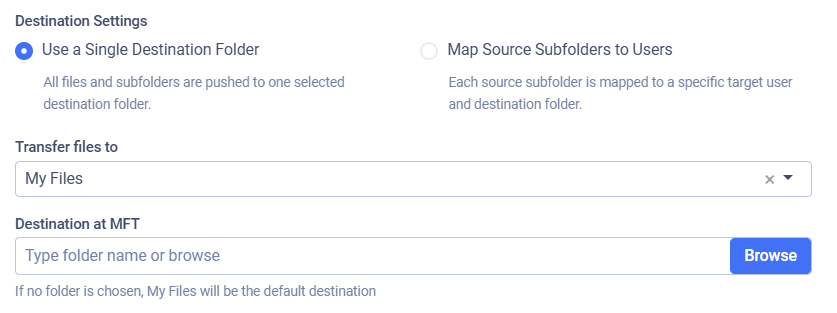
Transfer files to: Choose who the pulled files should be delivered to. Three target options are available
My Files (default): Files are delivered to your own vault. This is the default behavior and maintains backward compatibility with existing jobs.
Specific User: Files are delivered to a selected user's vault. Search for the user by name or email.
User Group: Files are delivered to every active member of the selected group. Each group member receives their own copy of the pulled files. Groups can be Custom, Active Directory, or Single Sign-On groups.
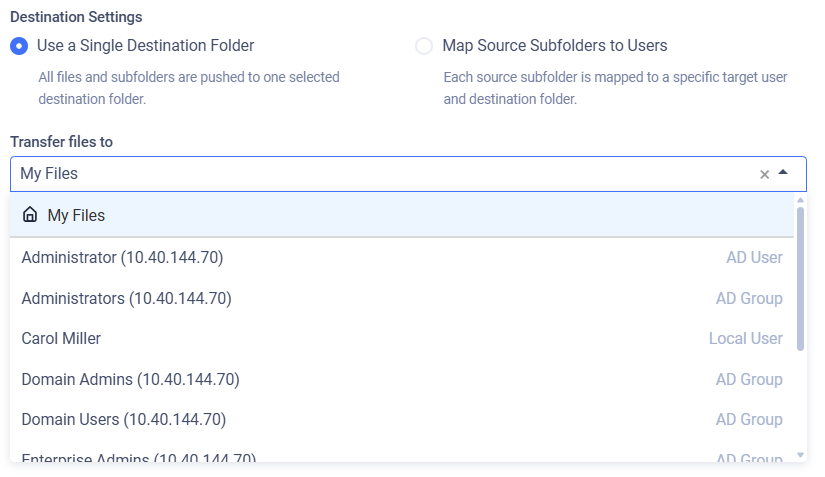
Administrators can target any user or any group in the system.
Automation Coordinators can only target users and groups that have been explicitly delegated to them by an Administrator. See: Coordinator Group Delegation.
Destination at MFT: Specify the destination path in MetaDefender Managed File Transfer where the files will be pulled. Type a folder name or click Browse to select from existing folders.
Map Source Subfolders to Users
When Map Source Subfolders to Users is selected, you can define multiple source-to-user-to-destination mappings using a CSV file. This allows a single job to distribute files from different source sub-folders to different users' vaults.
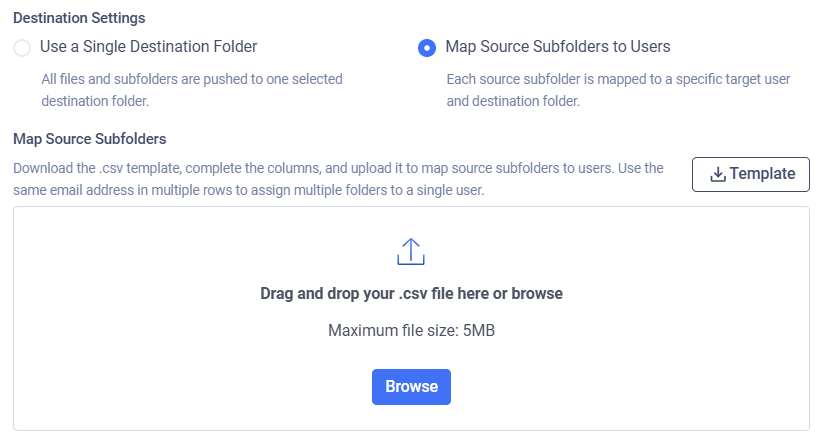
Download the .csv template, complete the columns, and upload it to map source subfolders to users. Use the same email address in multiple rows to assign multiple folders to a single user.
Transfer Method
Decide what to do with the original files on the remote file share:
Copy Files: Files successfully pulled will remain intact on the remote file share.
Move Files: Files successfully pulled will be removed from the remote file share.
Sync Files: Keeps a local destination folder identical to a remote source folder.
If multiple source paths point to the same file, the file will only be deleted from the remote host if it is successfully pulled from all listed source paths.
For example, if move is enabled and there is a file located at \data\logs\log.txt and source paths \data and \data\logs are configured with the destination /pull, it will only be removed from the remote file share if pulling is successful for both \pull\logs\log.txt and \pull\log.txt.
Duplicate File Transfer Rule
Decide what to do if a file with the same absolute path already exists in MetaDefender Managed File Transfer.
Skip duplicates: The file on the remote share is not pulled into MFT.
Transfer duplicates with unique names: The existing local file is kept. The new file from the remote share is pulled and saved locally with a unique name.
Overwrite existing files: Pull the file from the remote host and replace the locally existing one.
The Overwrite existing files option does not perform any pre-check on the local or remote file; it simply overwrites the local file with the remote one, even if they contain the same data. This means if a file does not change on the remote host, the same file will be pulled repeatedly.
The Overwrite existing files option will not work for files that have been sanitized by MetaDefender Core and had their filenames changed.
For example, if a file file.pdf is sanitized and renamed to file_sanitized_by_OPSWAT_MetaDefender.pdf by a Core rule, the overwrite function in MFT will not recognize it as the same file, and a new file will be created instead of overwriting the old one.
To ensure files are overwritten as expected, you can configure the sanitization rules in MetaDefender Core. This will maintain the original filename after sanitization, allowing MFT's overwrite function to work correctly.
Sync Behavior for Deleted Files
Decide on the course of action if the selected transfer method is Sync Files.
Delete from destination: If a file or folder is deleted from the source, it will also be deleted from the destination on the next job run. This ensures the destination remains an exact mirror of the source.
Retain on destination: If a file or folder is deleted from the source, it will not be deleted from the destination. This option is useful when you want to use Sync to transfer new and updated files but need to prevent any data from being automatically removed from the destination.
Workflow Override
If enabled, select which MetaDefender Core™ Workflow Rule should analyze the files being pulled.
If Workflow Override is not enabled, the analysis will use the same MetaDefender Core Workflow Rule as for a manually uploaded file.
Example
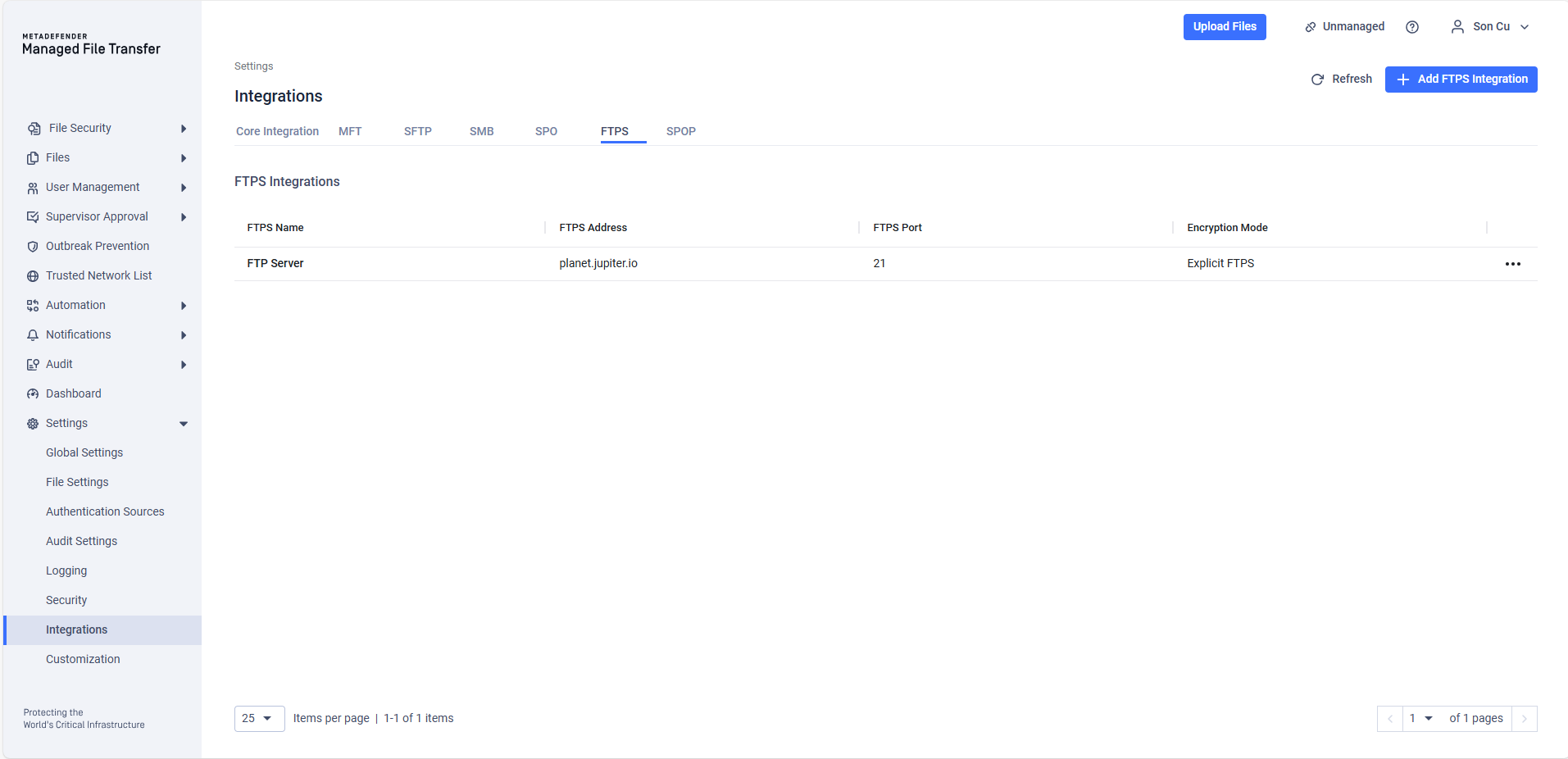
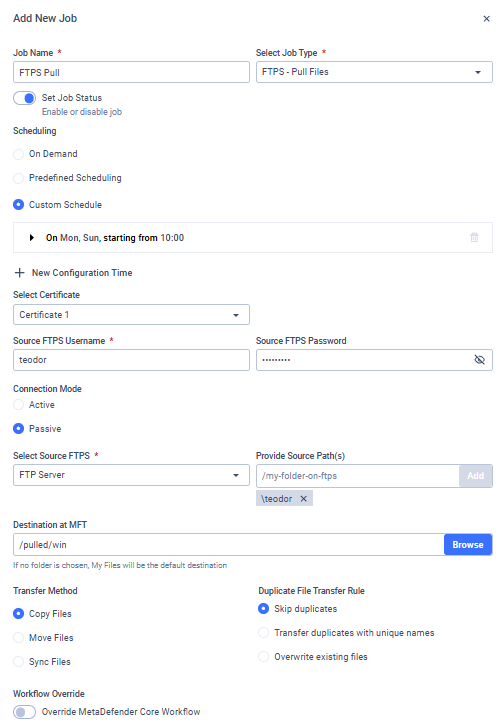
I want to pull files from my FTP Server into MetaDefender Managed File Transfer™. I only want to pull files that are in my folder named teodor, and I want this to be done every Monday at 10 AM. My username is teodor and my password is pass%123!.
The FTP server is reachable via the FQDN 'planet.jupiter.io' on port 21, using the default Explicit encryption mode. I want the files to remain on the FTP server and simply be copied to '/pulled/win' on MetaDefender Managed File Transfer. If a file already exists at the destination, I want to overwrite it. Finally, I want my MetaDefender Core integration to analyze these files using the Workflow Rule named 'Pulled From Windows'."