
MetaDefender Drive with Smart Touch
Despite MetaDefender Drive shipping with the latest software version, it is always a good practice to check for updates before use.
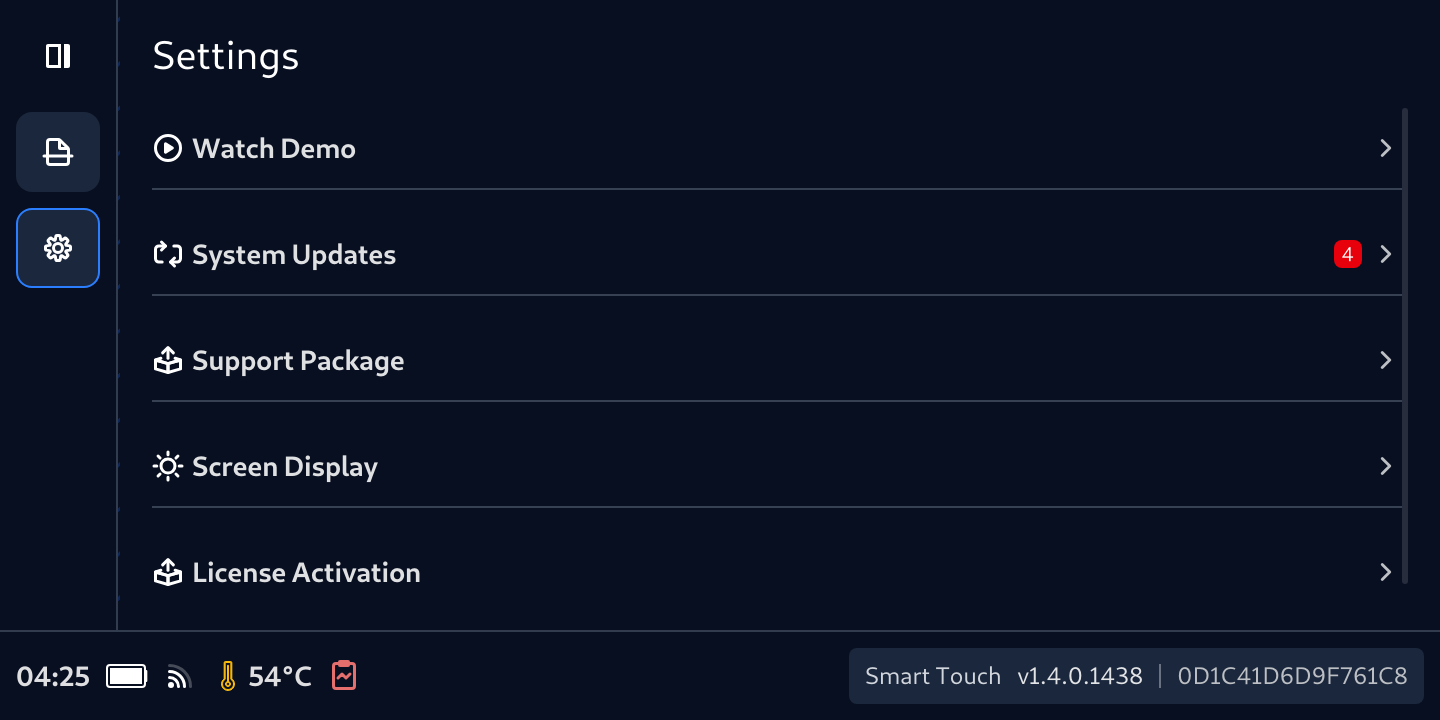
- From anywhere, tap Settings (the Gear icon) on Navigation bar.
- Notice the red dot displays next to System Updates notifying about any updates available for Smart Touch
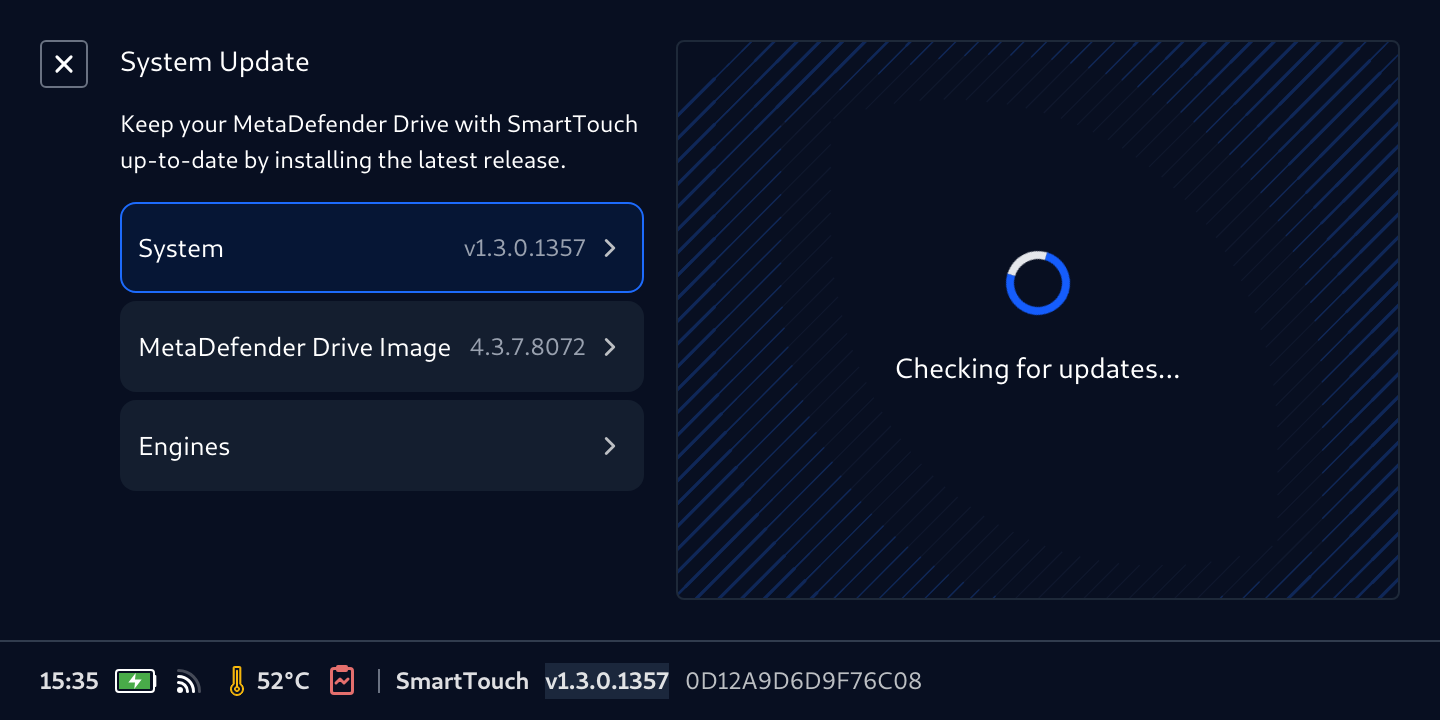
- Wait for MetaDefender Drive with Smart Touch to check for available updates.
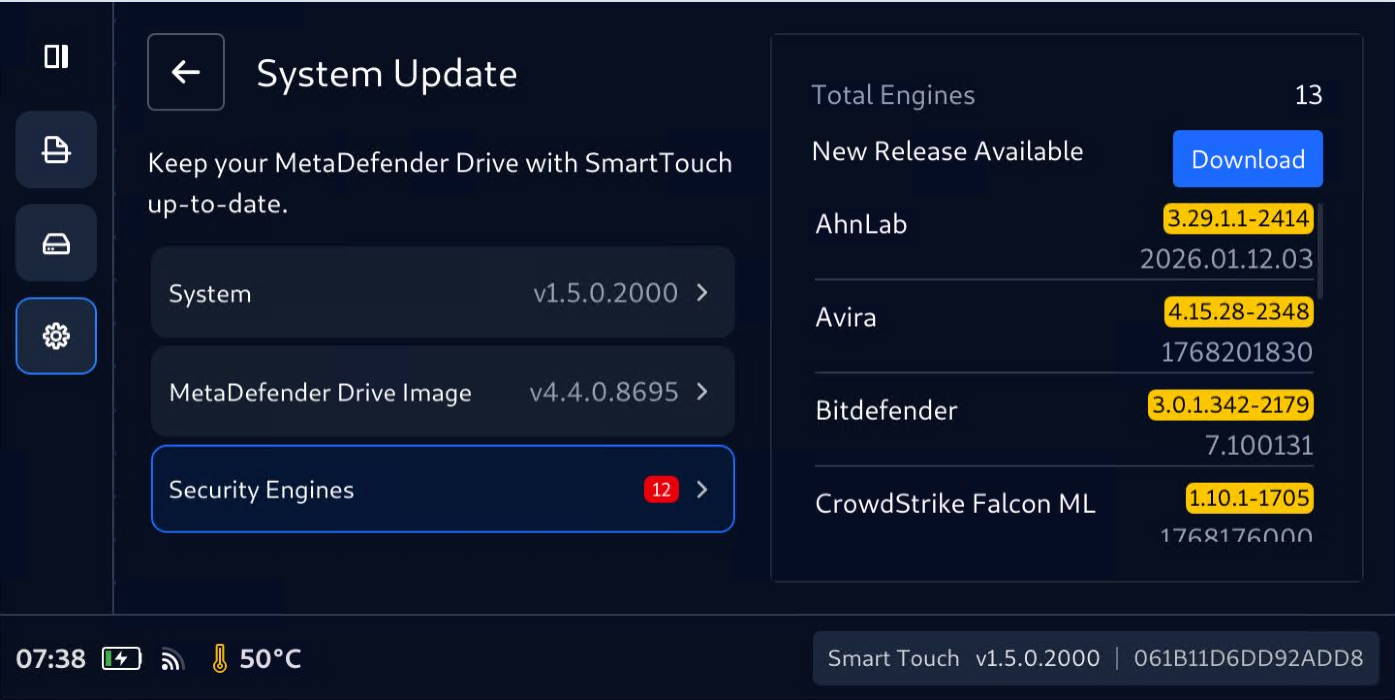
- If new updates are found, a red dot will be displayed by the System, MetaDefender Drive Image, and Engines tabs
Perform System, Image, and Engine Updates
The experience is almost the same for the three types of updates:
- Select System Update screen, noticing that there are updates available, tap System, MetaDefender Drive Image, or Engines, then tap Download or Install, and wait for the new version of the application to be downloaded.
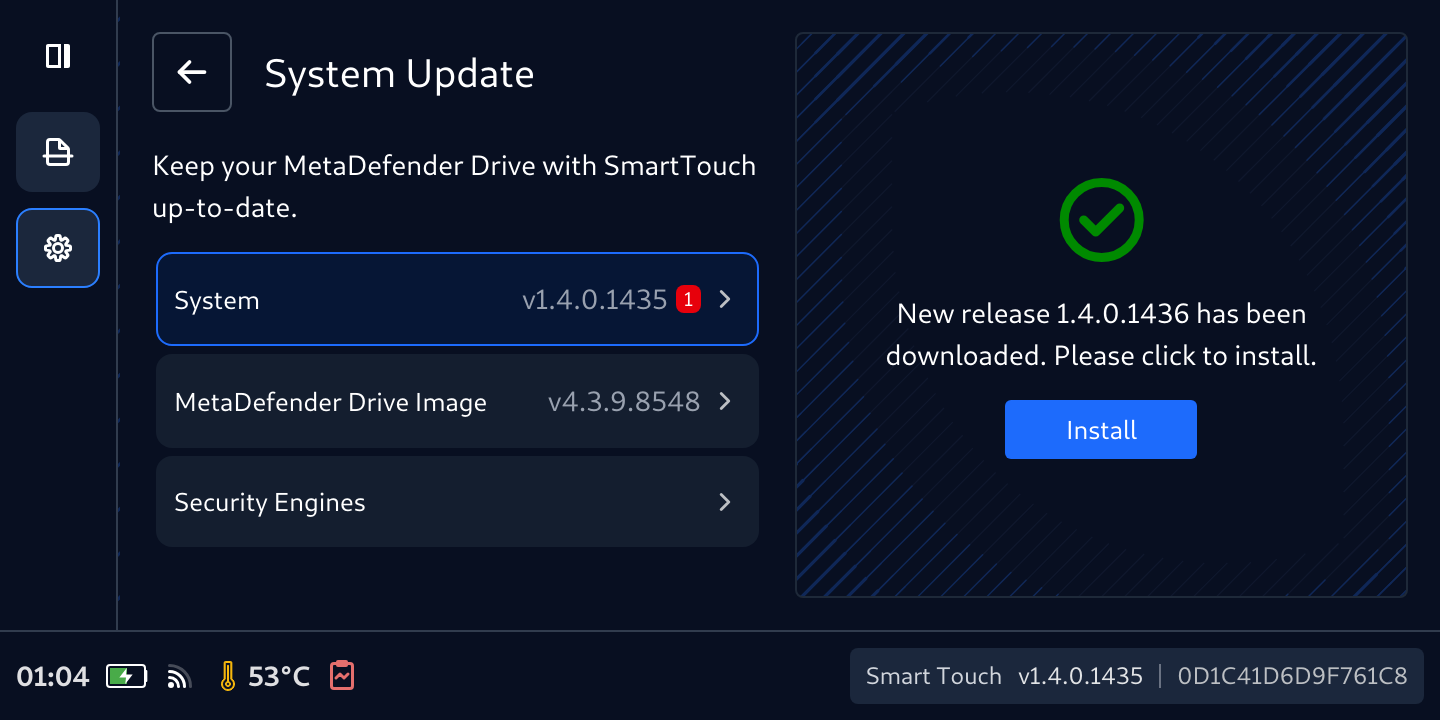
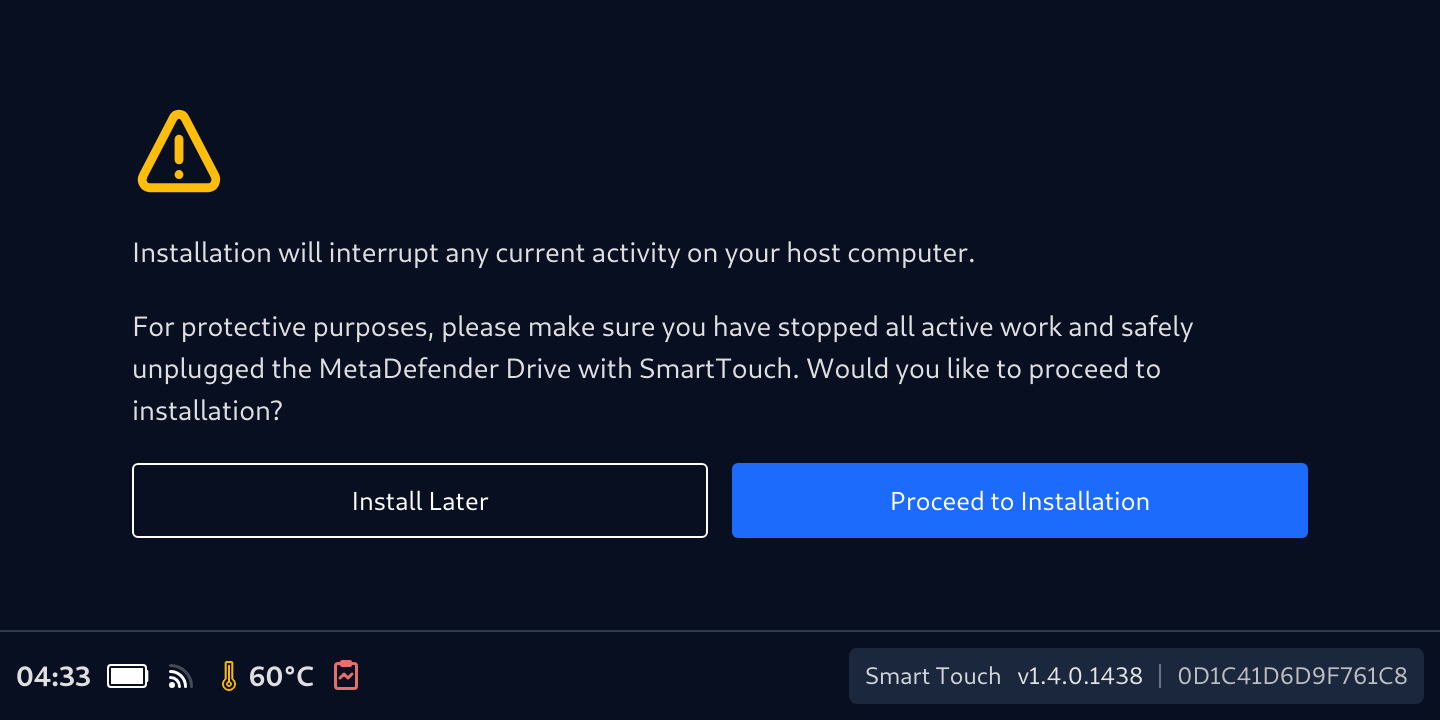
- After the download is completed, a prompt will be displayed to confirm if you would like to proceed with the installation.
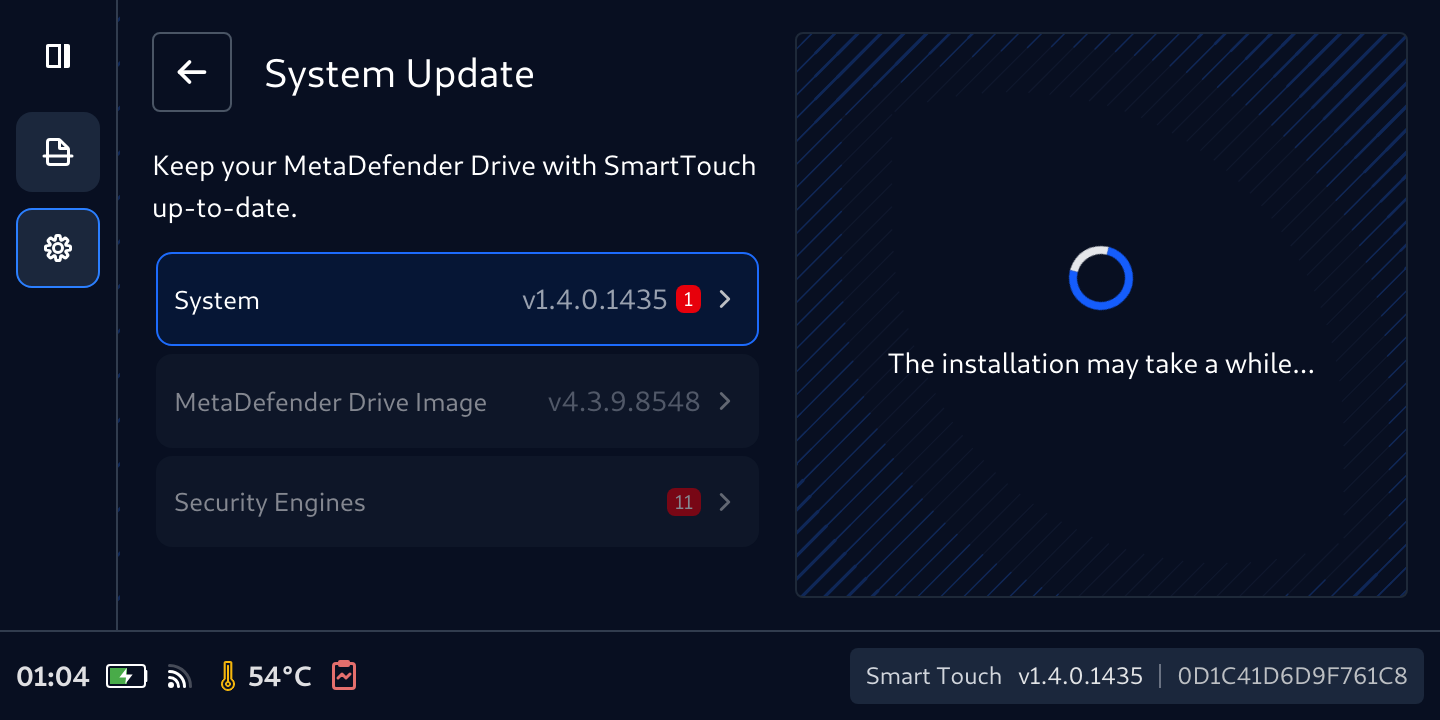
- Monitor the Installation progress.
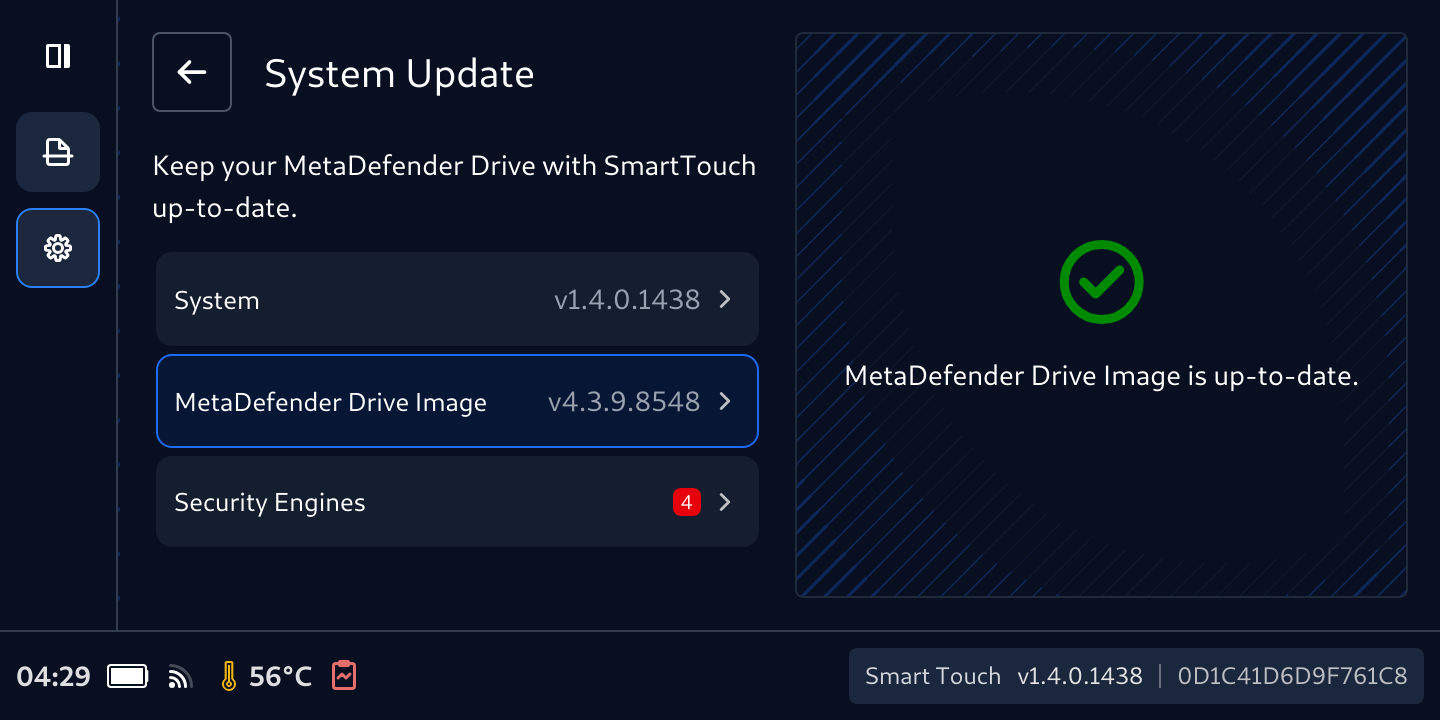
- In case of system and image updates, MetaDefender Smart Touch will restart. After rebooting, go back the the System Update page to confirm that all updates are installed.
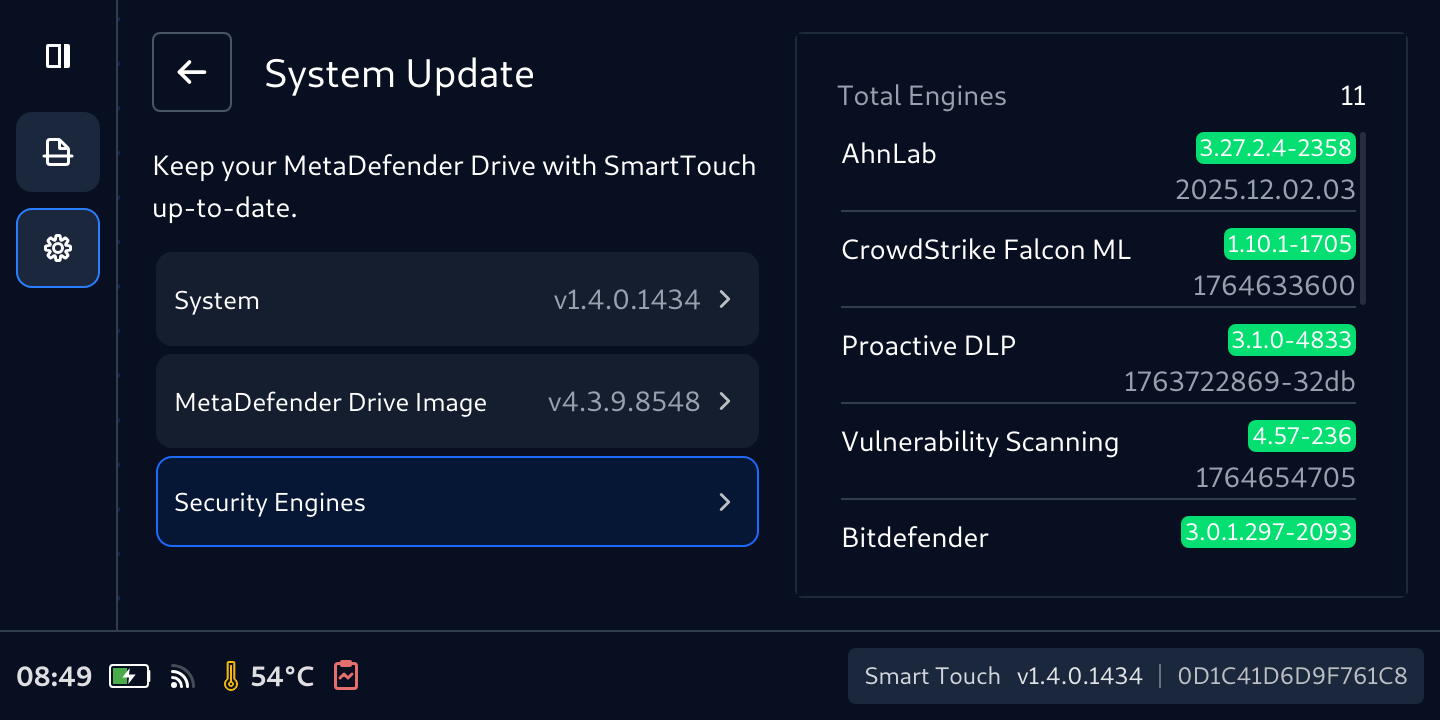
During the update process, MetaDefender Drive will not be ready to perform a scan.
Was this page helpful?

