
Date & time format, Queue size, Queue ratio for archive and Login banner are accessible under Settings > System after successful login.
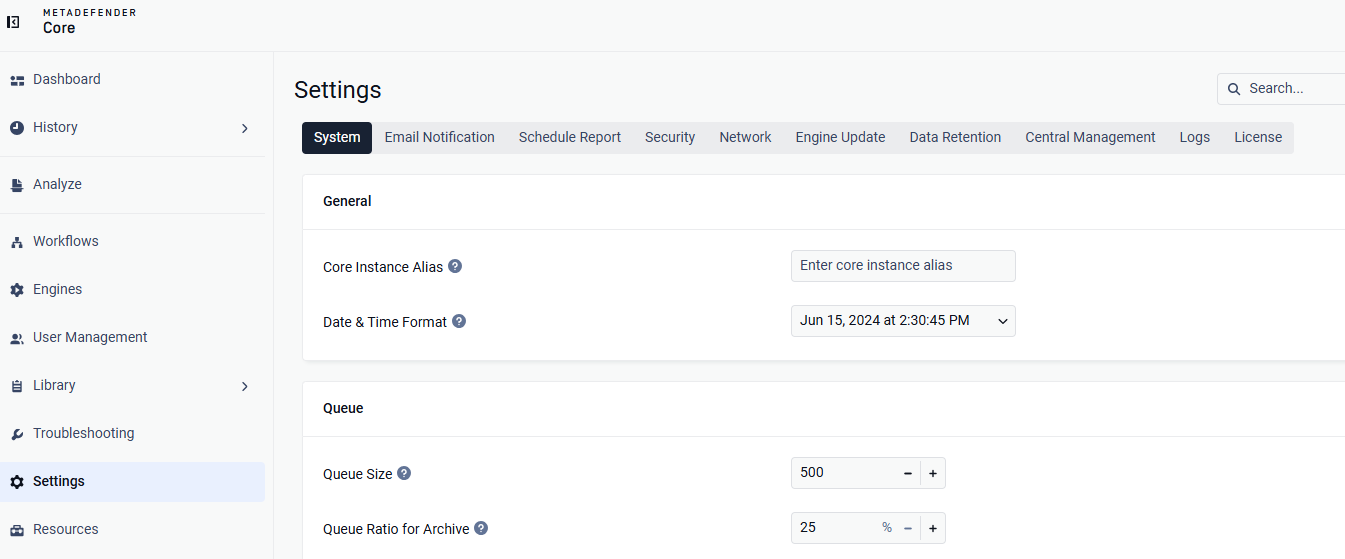
Core instance alias
The instance alias functions as a nickname to help distinguish between different MetaDefender Core instances, particularly in environments with multiple deployments. Please note that the instance alias is separate from the instance name and serves a different purpose.
By default, the alias is an empty string. Users may choose to leave it empty to opt out of including it in email notifications.
The alias must comply with the following requirements:
Maximum length of 64 characters
Must not contain trailing spaces
Must not include Unicode control characters
Must be unique (it cannot duplicate an existing alias in the database)
The instance alias is not included in export packages and is therefore unaffected by export/import operations or upgrade processes.
Date & time format
There are 2 supported formats
AM/PM format
24 hours format
Queue size
This setting will help to adjust the overall queue size (scan queue) of Metadefender Core service.
Setting this configuration too high could affected Metadefender Core itself and other services on the server.
Queue ratio for archive
This setting will help to adjust the percentage of queue size spent on processing archive files. The default value is 25% and can be set to 75% for maximum.
The higher the value of queue ratio set for archive, the fewer slots are available for processing new client requests, which may cause Metadefender Core to easily respond with HTTP code 503 and message Server is too busy. Try again later.
During the processing of nested archives, the number of queue slots allocated to extracted files may temporarily exceed the configured ratio. This behavior is by design. Enforcing the ratio as a hard limit could prevent child files from acquiring queue slots while the parent archive is holding one and waiting for them to finish, which would result in a deadlock.
Track Rejected Requests
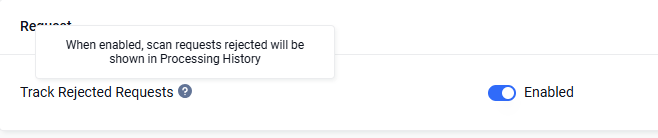
By default, rejected requests (such as those exceeding file size limits or when local scan is disabled) are not stored in the processing history. Administrators can enable the option to store these rejected requests due to the following reasons for future tracing and analysis.
All requests rejected will receive a verdict of "Rejected" in the Processing History.
Note: This feature has not supported for multipart uploading yet.
Rejection reasons
File Size Limitations: Exceeding maximum file size and maximum download size limits
Feature Availability: Local scan functionality is disabled
Workflow Constraints: Workflow rule is not within its active time period
Engine Readiness:
Insufficient mandatory engines available
Insufficient active antivirus engines
Insufficient up-to-date engines
Login banner
Enable this option to show login banner when user in the login page.
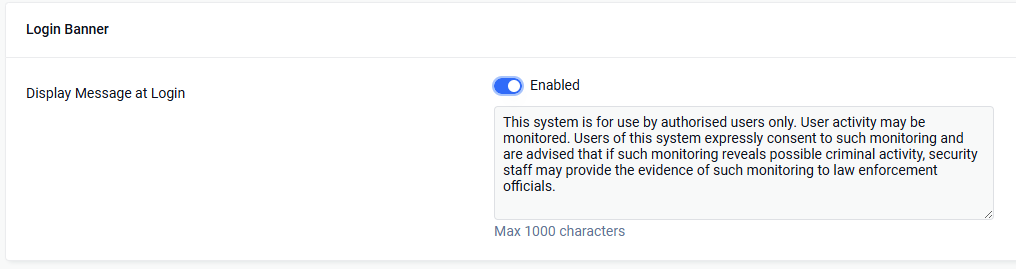
The message will be shown in the end of login page.
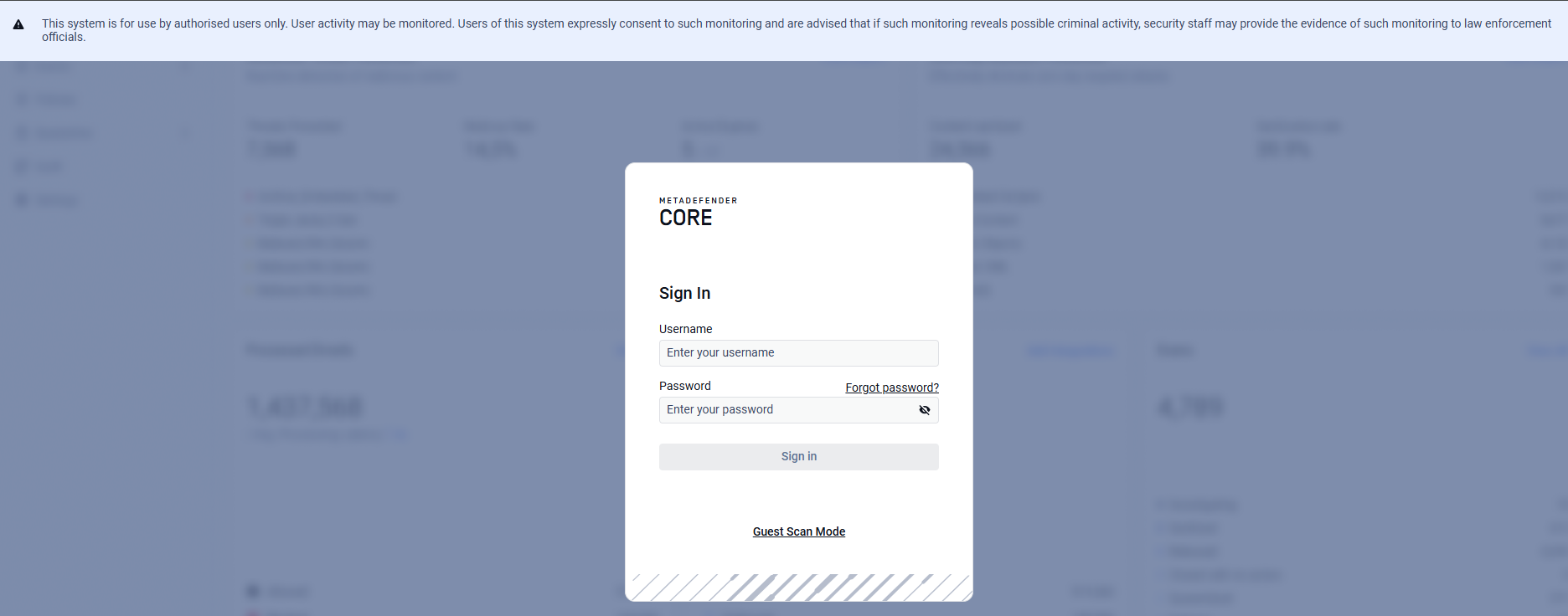
System Banner
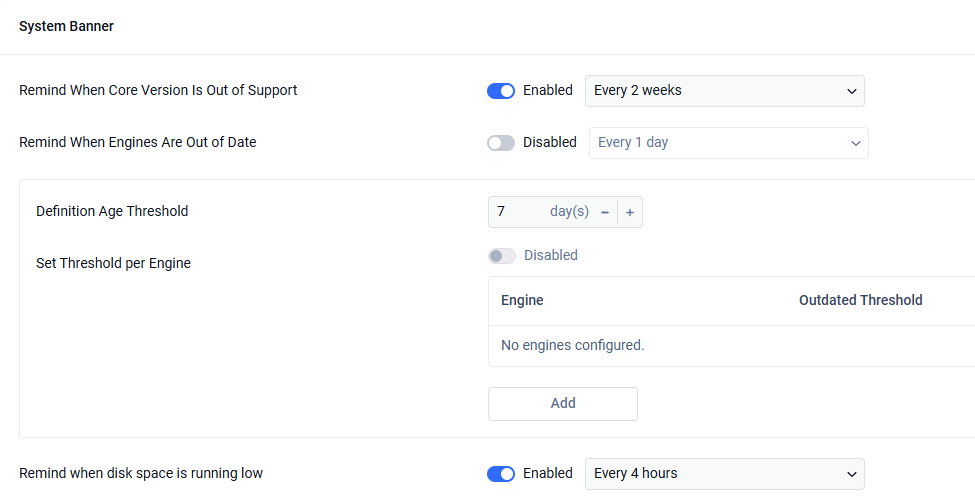
Out-of-date notification banner
The system banner notifies users when the MetaDefender Core deployment requires attention. Two notification types are available:
Core version end of support — Notifies users when the installed MetaDefender Core version is approaching or has reached end of support.
Out-of-date engines — Notifies users when scan engines have not been updated within a configured timeframe. A global threshold can be set in days, with the option to override per engine.
Reminder timing is configurable for both notification types.
Health Check API Configuration
MetaDefender Core version 5.0.0 or newer
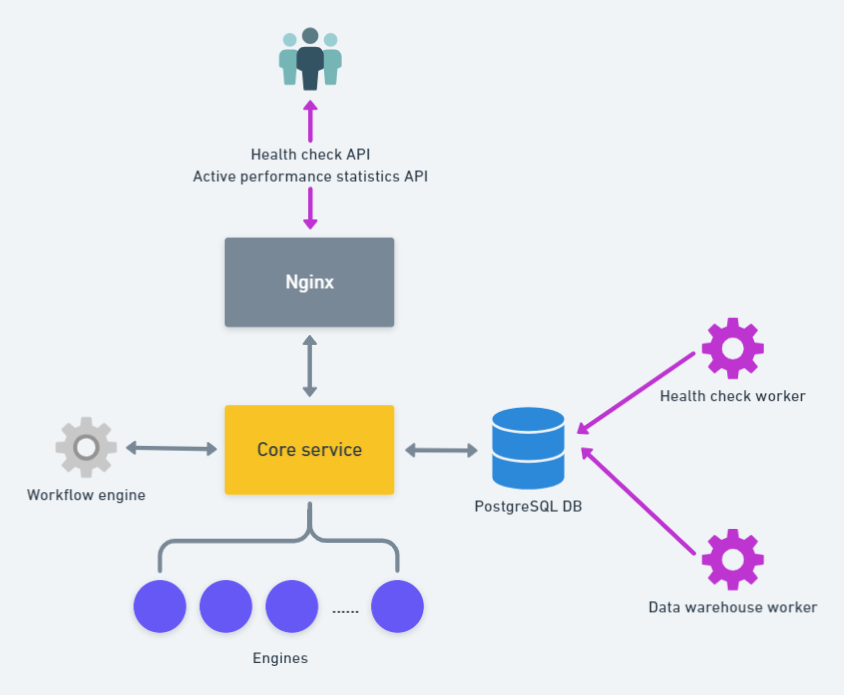
Health check API feature supports you to verify MetaDefender Core application readiness in term of file processing and licensing, before making a decision to submit files and avoid time and resources being wasted predictably.
Using the health check API
Health check API expects to return HTTP(S) 200 Successful only when all pre-configured conditions met.
Learn more on how to use the heath check API at: GET - Get health check status
Configure health check policy
You are supported to adjust thresholds on vital criterias as your own policy tailored for heath check verification, via both REST API and MetaDefender Core management console.
Using UI
The relevant settings could be found under "Settings" page
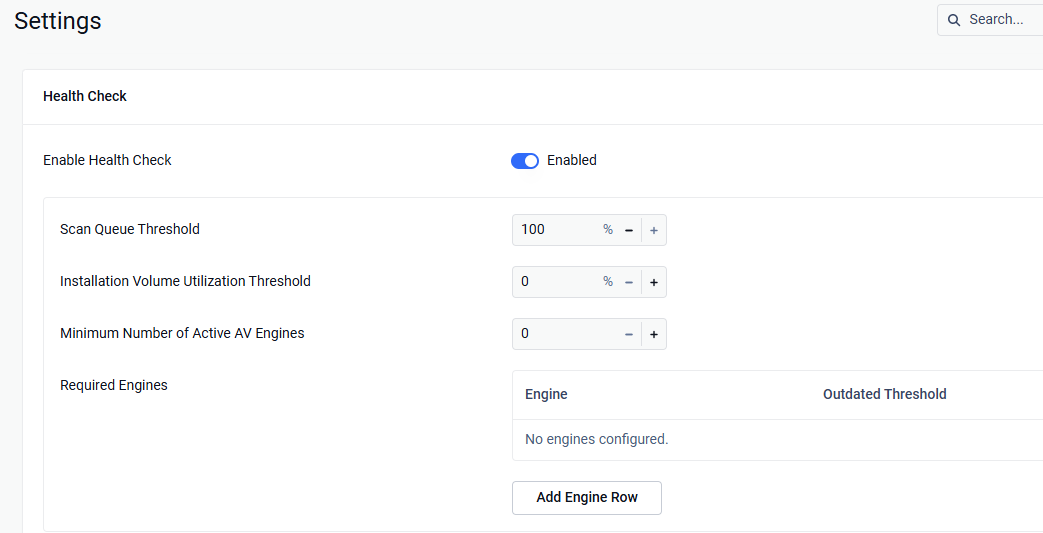
When enabled, expecting all conditions in associated configurations met to determine MetaDefender Core's readiness for file processing.
Value | Description | |
|---|---|---|
Enable health check | On / Off | Enabling this option will allow MetaDefender Core automatically run a background task to collect application operational data for health check logic. |
Scan queue threshold | 0% - 100% | MetaDefender Core's occupied percentage slots in queue must be equal or smaller than what configured. |
Installation volume utilization threshold | 0% - 100% | Monitor whether the free disk space on the MetaDefender Core installation drive falls below the configured threshold. |
Minimum number of active engines | >= 0 | Applicable to AV engines only. Making sure the pre-configured value is not greater than your current actual licensed AV engines. |
Required engines | Select which engines are required for the health check to pass and configure their outdated threshold in days. |
Using administrative REST API
Learn more at: GET - Get health check