By default, Hardened Image devices do not have BitLocker enabled. Admins can enable BitLocker by following the steps below.
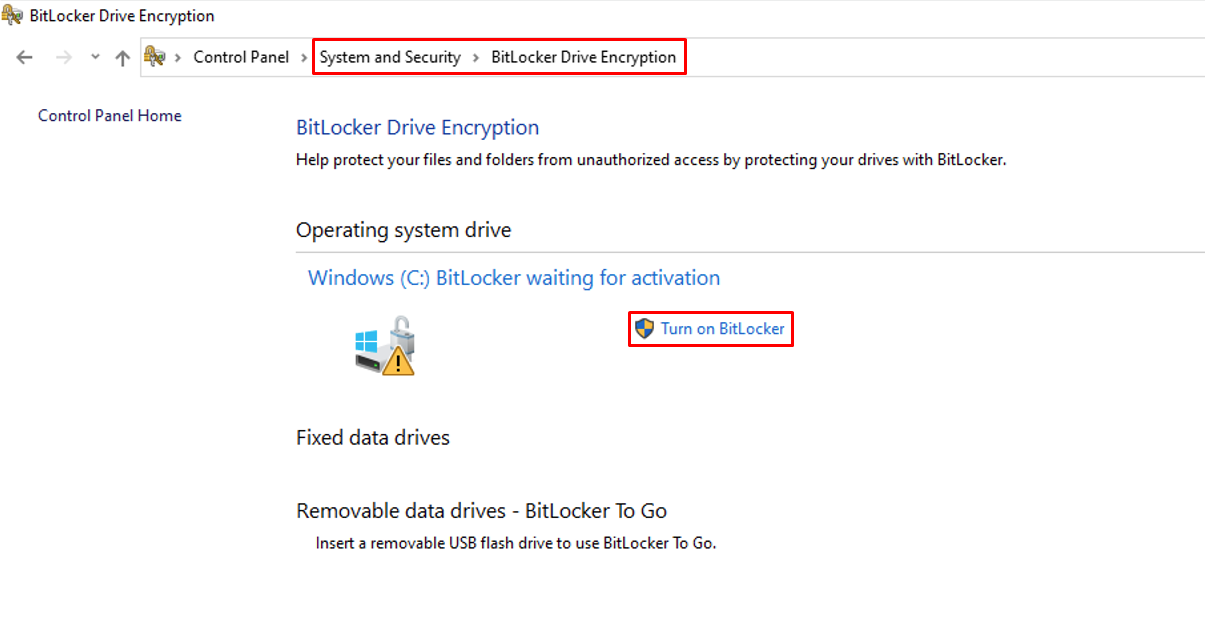
Step 1: Open Control Panel from the system's Start menu.
Step 2: Navigate to System and Security, then select BitLocker Drive Encryption.
Step 3: Choose "Turn on BitLocker."
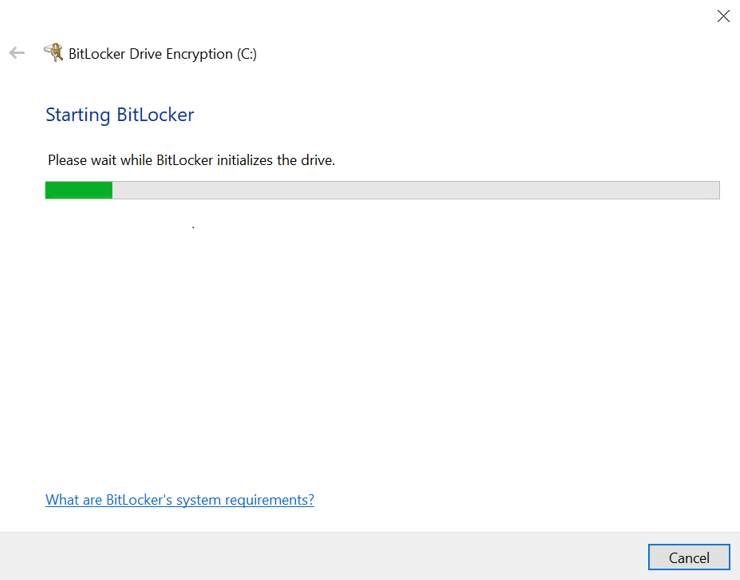
Step 4: The initialization process for the drive's basic information begins immediately.____×
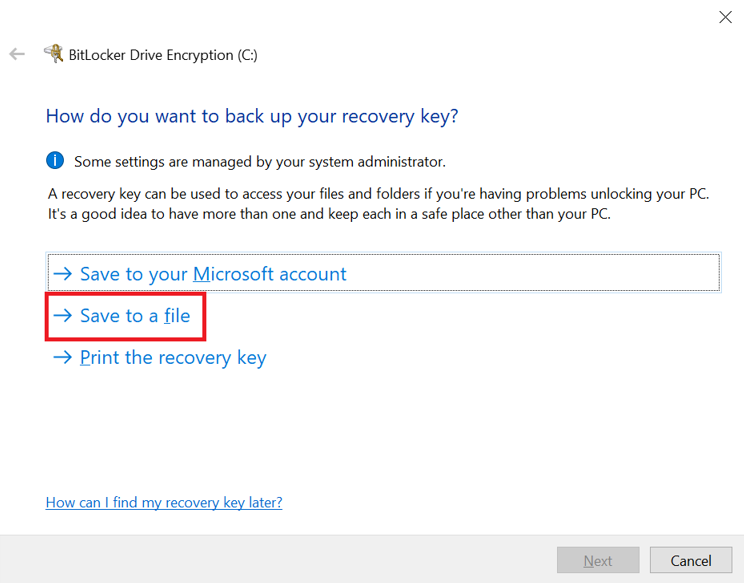
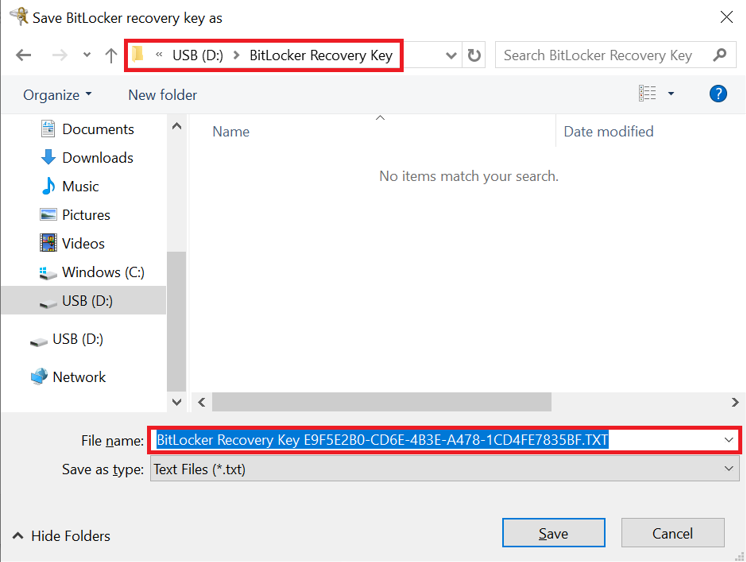
Step 5: After the initialization process, it is essential to back up the recovery key to facilitate drive recovery when needed. Please manage the recovery key file in a secure location.
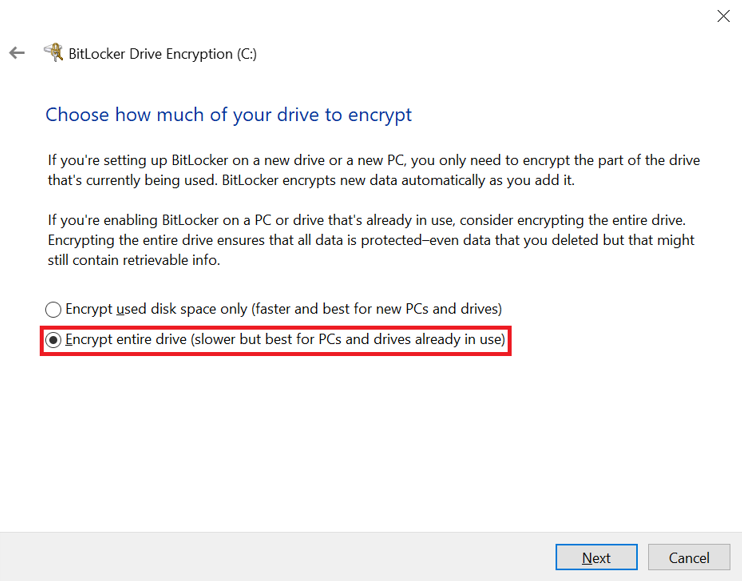
Step 6: Following the backup of the recovery key, select "Encrypt entire drive (slower but best for PCs and drives already in use)" in the next step.
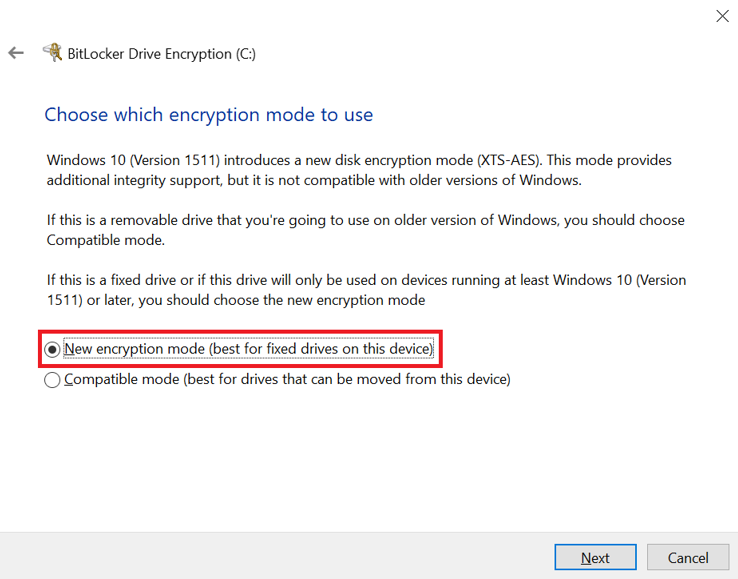
Step 7: Select New encryption mode (best for fixed drives on this device)
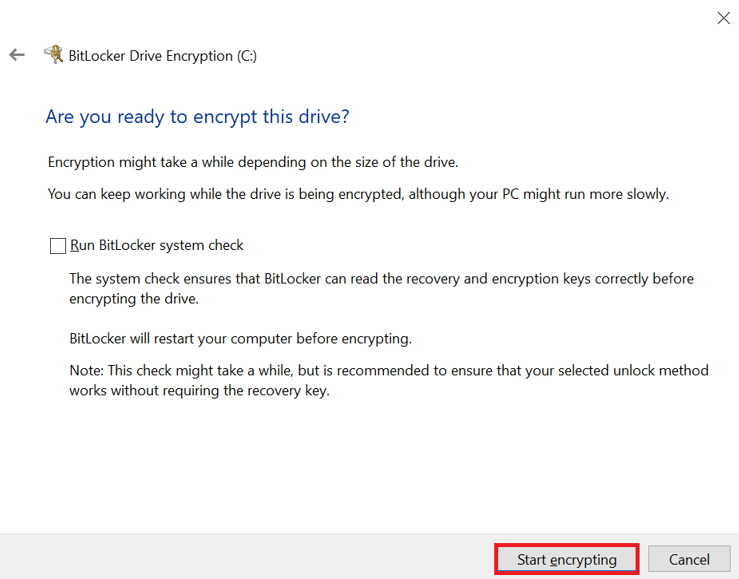
Step 8: Once all information is configured, the system will confirm the request before initiating the drive encryption. Select "Start Encrypting" to commence the encryption process.
Step 9: The drive encryption process will commence afterward. The duration depends on the size of the drive and may take some time.
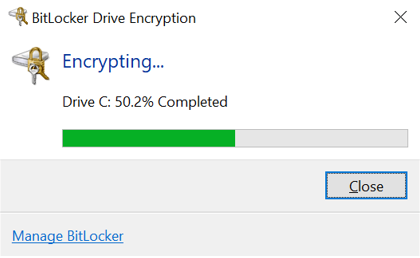
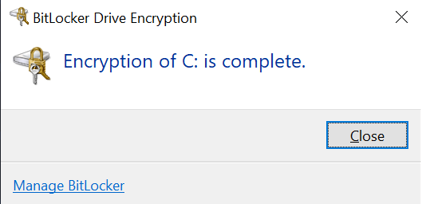
Step 10: After the encryption is completed, the system will notify that the device has been encrypted. BitLocker serves as a protective measure against unauthorized access to the drive.