
This article applies to all MetaDefender Core V4 and V5 releases deployed in offline Windows environments.
MetaDefender Core supports deployment in either online or offline environments.
There are four steps to getting the product up and running in an offline environment:
Install MetaDefender Core on the offline server.
Activate your license.
Install and configure the MetaDefender Update Downloader utility.
Apply the offline updates that are downloaded by the update utility to the offline MetaDefender Core server.
A. Installing MetaDefender Core
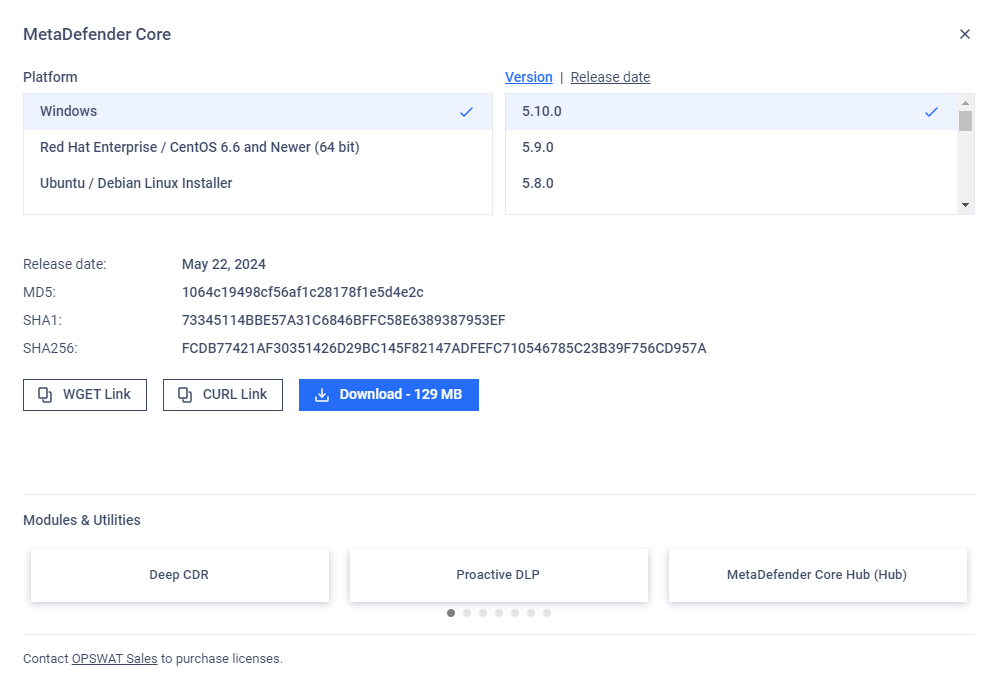
The MetaDefender Core installation packages can be downloaded from My OPSWAT.
After logging into the portal, go to the Downloads page to select the MetaDefender Core package you wish to download.
The supported platforms include Windows 7 and later releases.
Download the appropriate installer and run it on the Windows system:
B. Activating your license
After MetaDefender Core is installed, you will need to activate your MetaDefender Core installation:
Log in to your MetaDefender Core Management Console at http://localhost:8008/. Complete the required steps of the Basic Configuration Wizard.
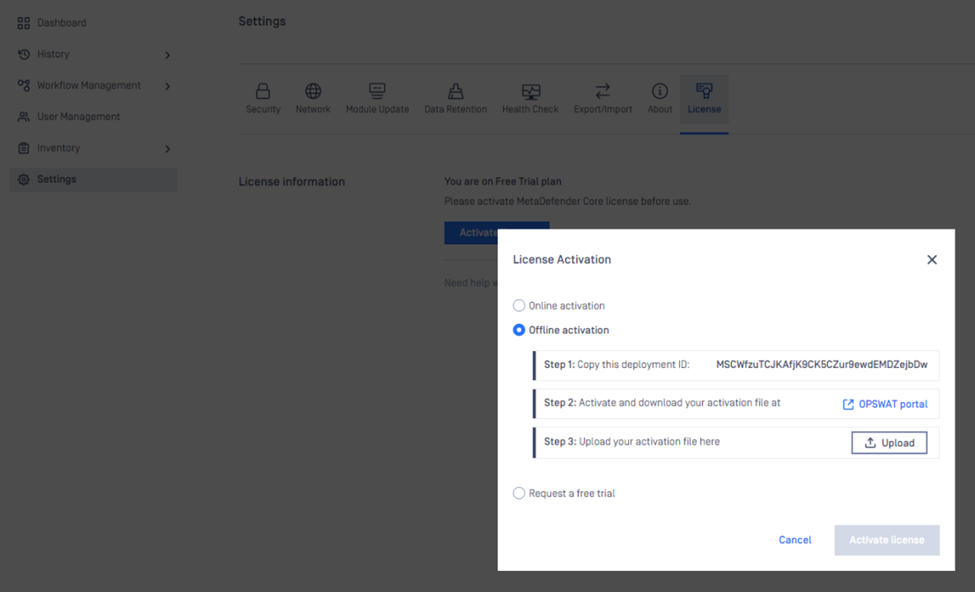
Go to Settings > License > Activate > Offline.
Here, you can follow the steps to:
Copy your Deployment ID to the clipboard, then open a new browser tab.
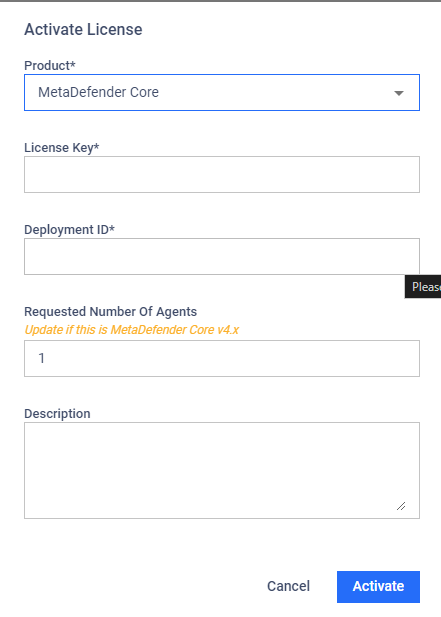
Log in to the My OPSWAT and navigate to the License Management page and click on Activate License button on the top right.
Fill in the required details to retrieve your Activation File.
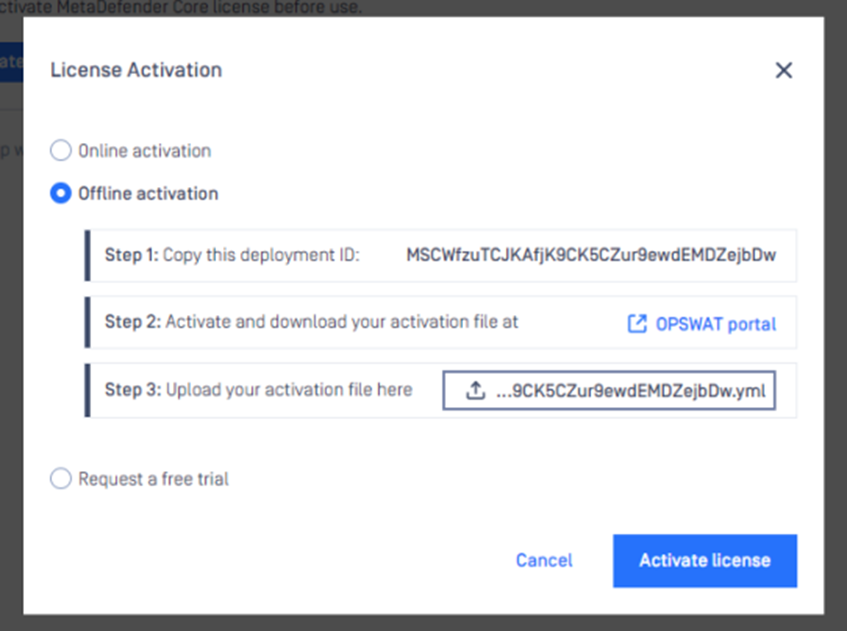
d. Return to the Management Console to upload your Activation File.
e. Finally, Activate your license, as shown in the screenshots below.
C. Installing the MetaDefender Update Downloader utility
If your MetaDefender Core server is deployed offline, you will need to install the Update Downloader utility to download the anti-malware definition updates to be applied to the server.
You can download the Downloader utility from My OPSWAT under Modules & Utilities.
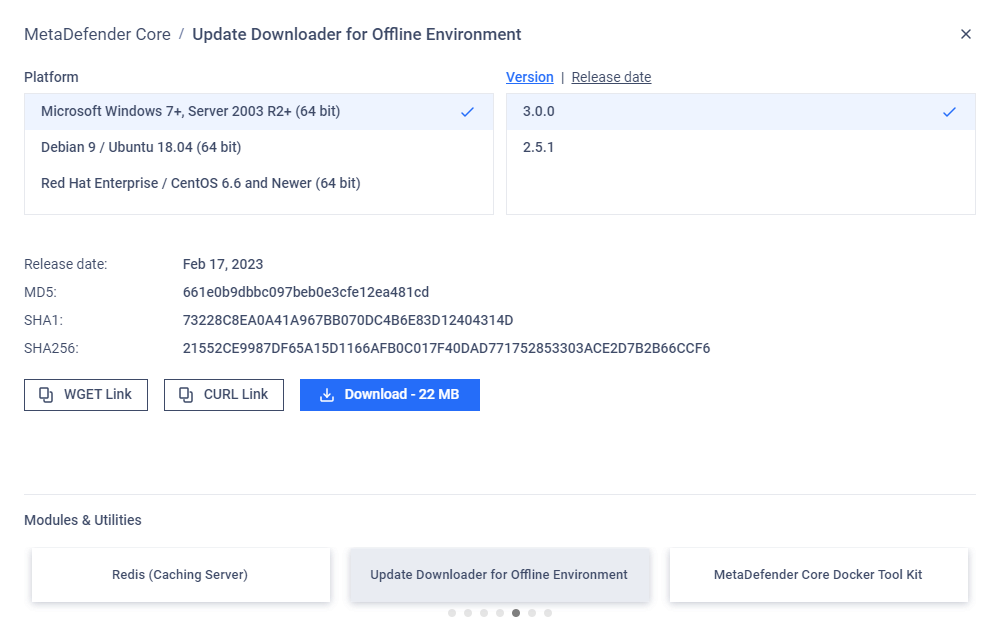
Once you have installed the Update Downloader, apply your license key to activate the product:
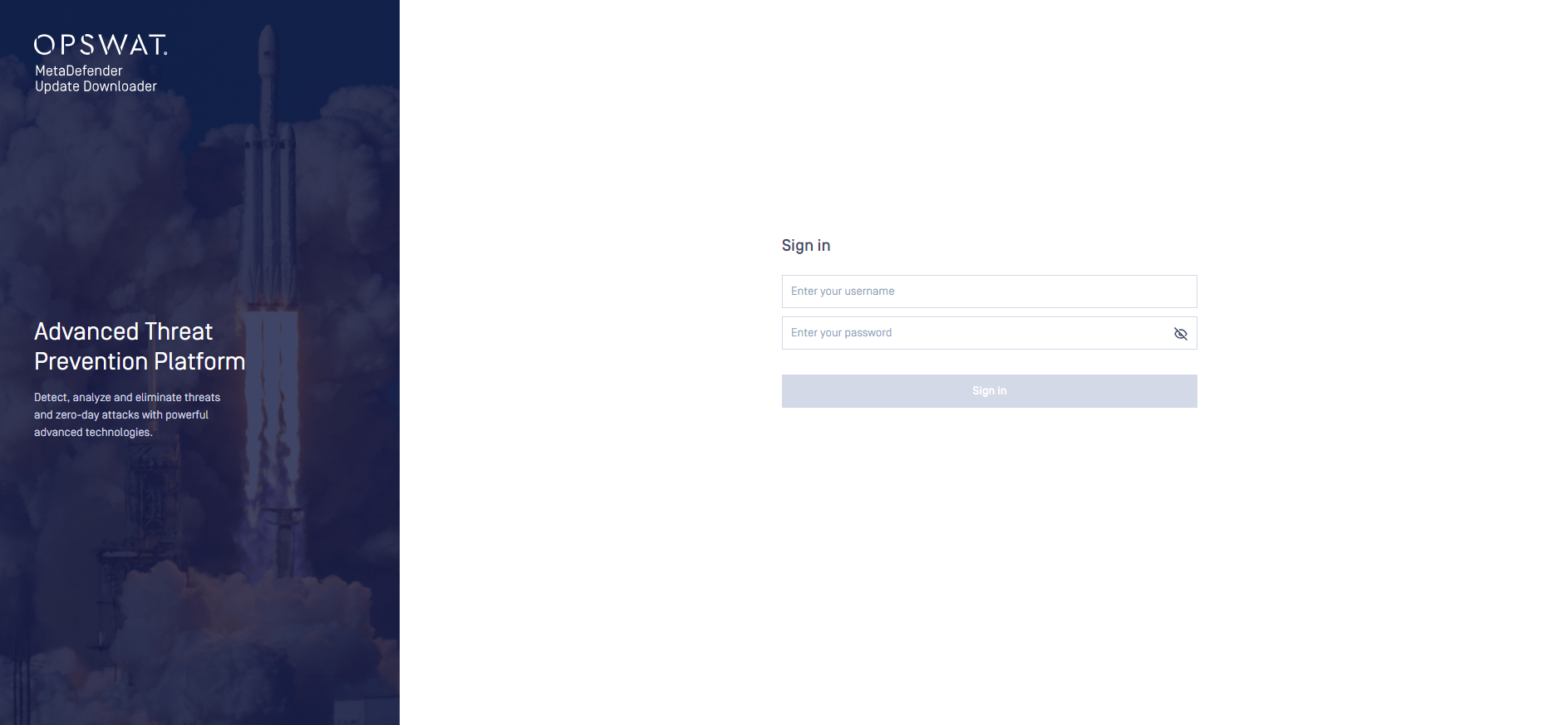
Log into the Update Downloader Management Console at http://<server>:8028/.
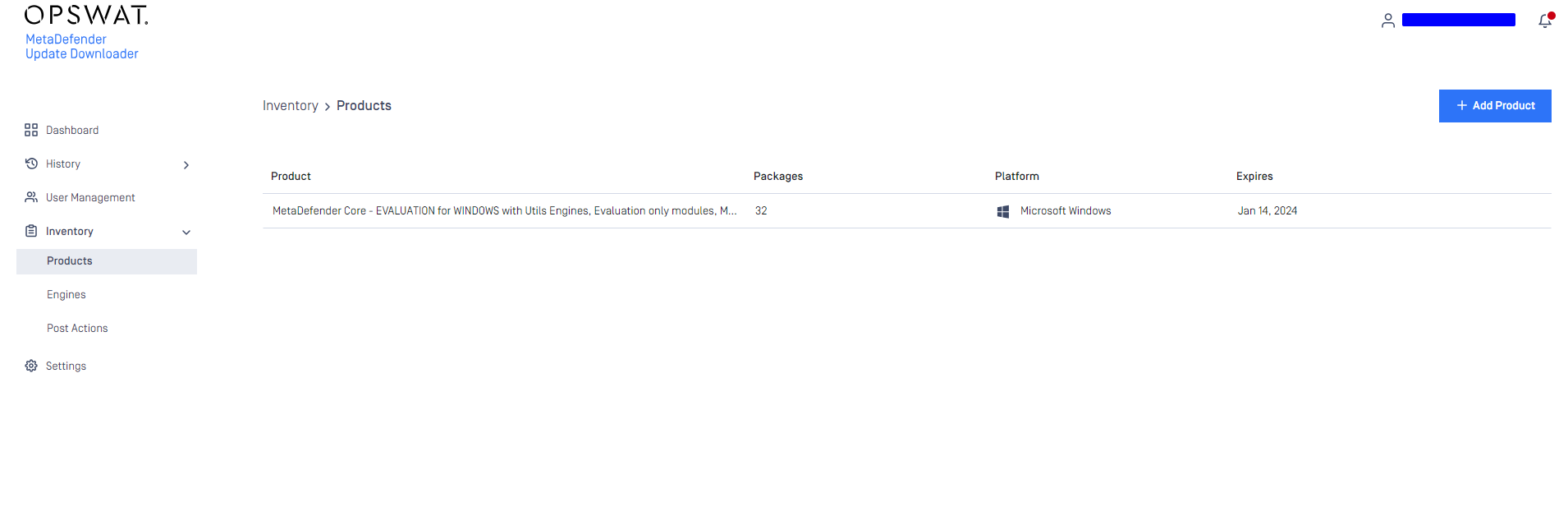
Add your product on the Inventory page, Product tab.
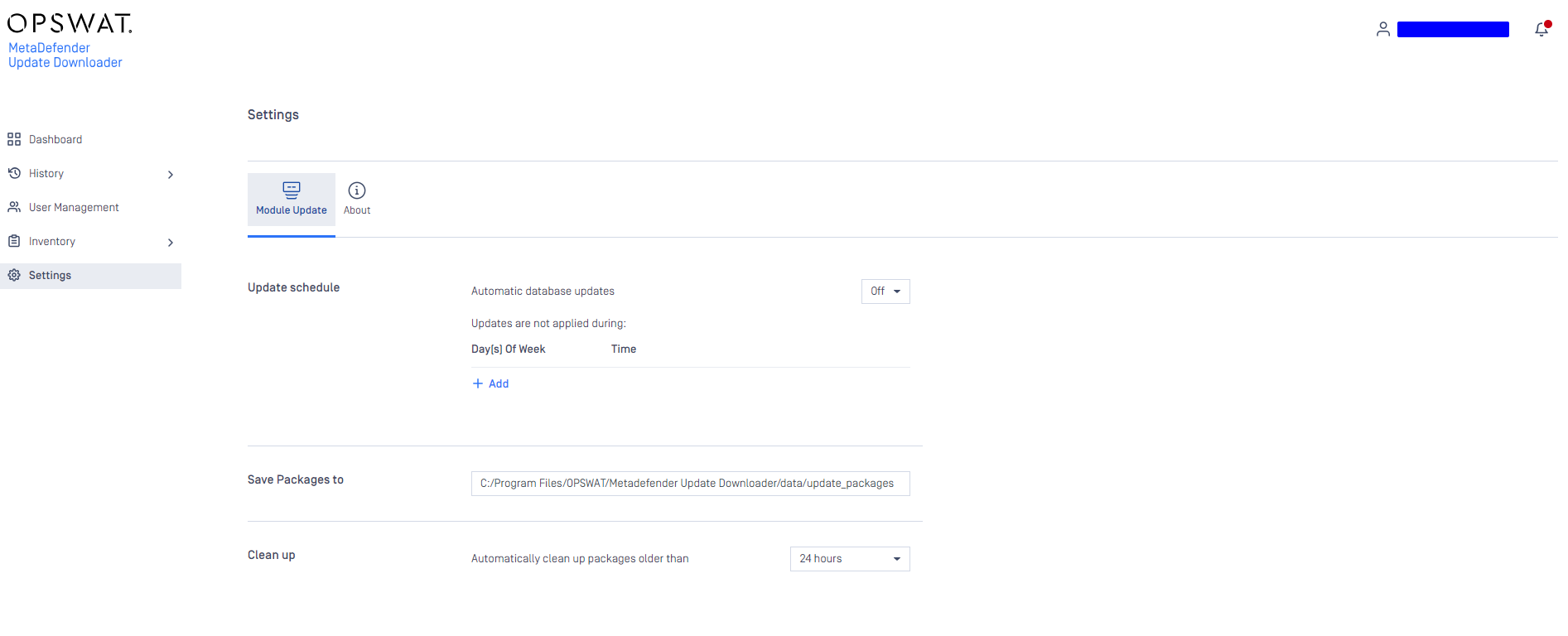
Update the configuration for update download and package generation on the Settings page of the Management Console.
D. Applying offline updates
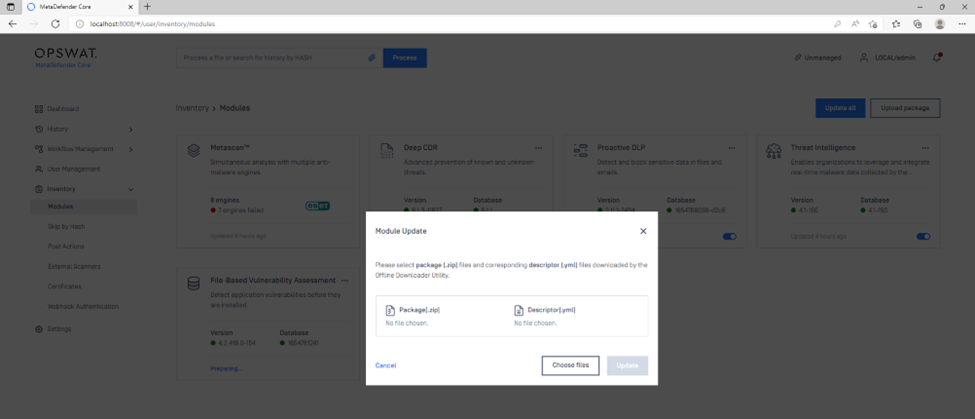
Once the update packages have been downloaded, you can apply them to the offline MetaDefender Core server through the MetaDefender Core Management Console:
Copy all of the update packages from the directory where the Update Downloader saves the updates, to the offline MetaDefender Core system.
Upload the updated packages through the MetaDefender Core Management Console.
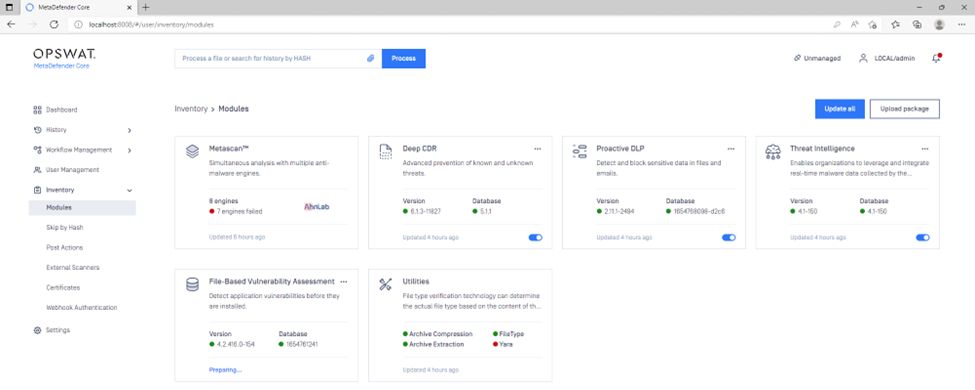
To save the update packages, select the engine update packages from the directory where the Update Downloader is configured.
If you have any difficulty setting up MetaDefender Core in an offline Windows environment, please follow these instructions on How to Create Support Package With Bundle Tools?, before creating a support case or chatting with our support engineer.