
Introduction
This document describes how to set up EAP-PEAP (Protected Extensible Authentication Protocol). This setup is essential for organizations seeking to enhance their network security while enabling seamless user access.
To configure EAP-PEAP authentication, follow these steps:
Prepare the Network Infrastructure
Ensure that your wireless access points (APs) and switches are compatible with EAP-PEAP.
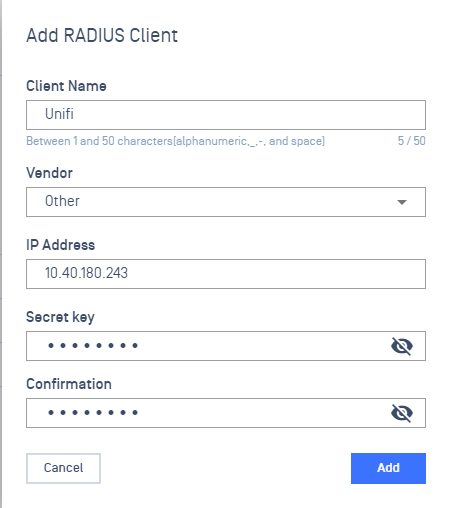
Create RADIUS Clients
Log into the My OPSWAT Central Management console as an administrator
Navigate to RADIUS NAC
Click on a specific Edge type
Click on RADIUS Clients tab
Click Add RADIUS Clients button
Provide a name for the Radius Client
Select a specific Vendor
Enter a Secret key
Click on Add
Enable EAP-PEAP Authentication
Log into the My OPSWAT Central Management console as an administrator
Navigate to RADIUS NAC
Click on the Edge Type
Click on Authentication Methods tab
Click on Enable Authentication Methods toggle button

Select EAP-PEAP
Input your Active Directory credentials in order to join the domain:
Domain: The full domain of your Active Directory environment (examples: com, sub.domain.net, domain.local).
Workgroup: This is the workgroup name of your domain
Active Directory Domain Controller: The FQDN of the domain controller that NAC will authenticate against
NetBIOS Name**:** This is the name NAC will use as the machine name when it registers itself in Active Directory
Username: The username of a Domain Admin or other user with rights to join devices to the domain (Least Privilege account could be used)
Password: The password corresponding to the given username
Confirm Password: The password corresponding to the given username
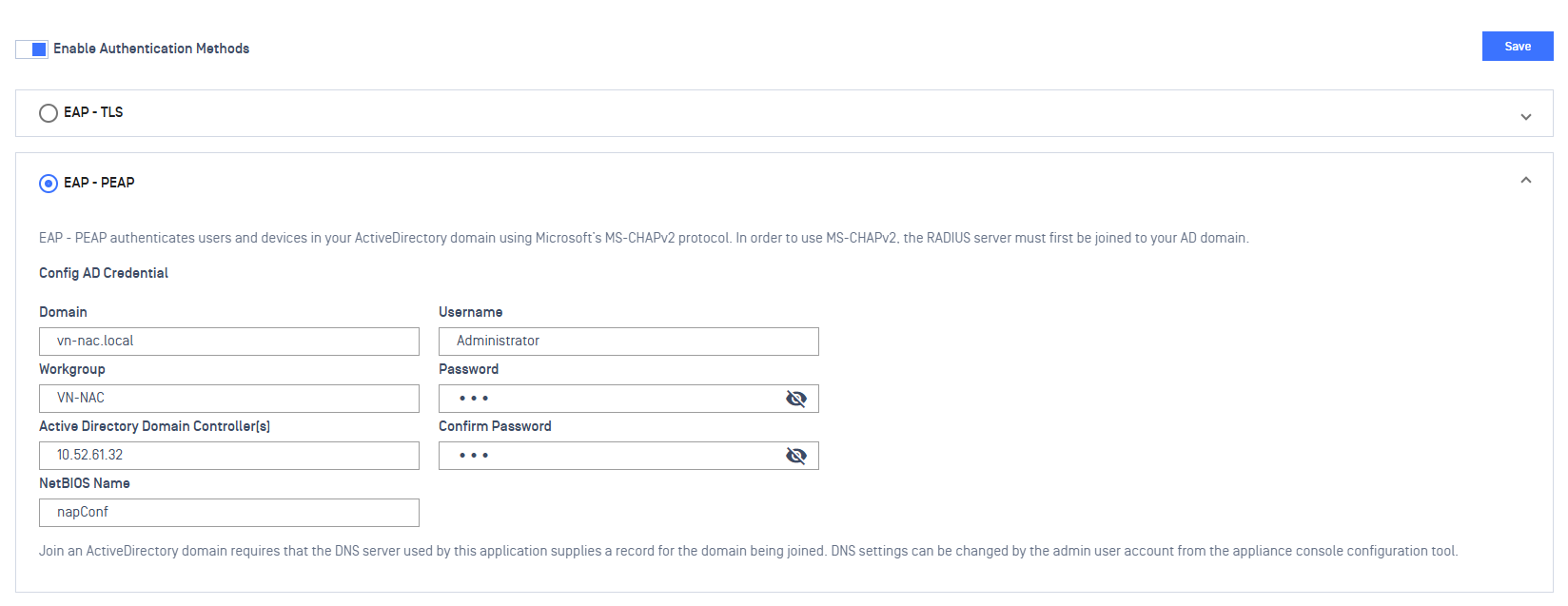
Save changes.
Apply the configuration
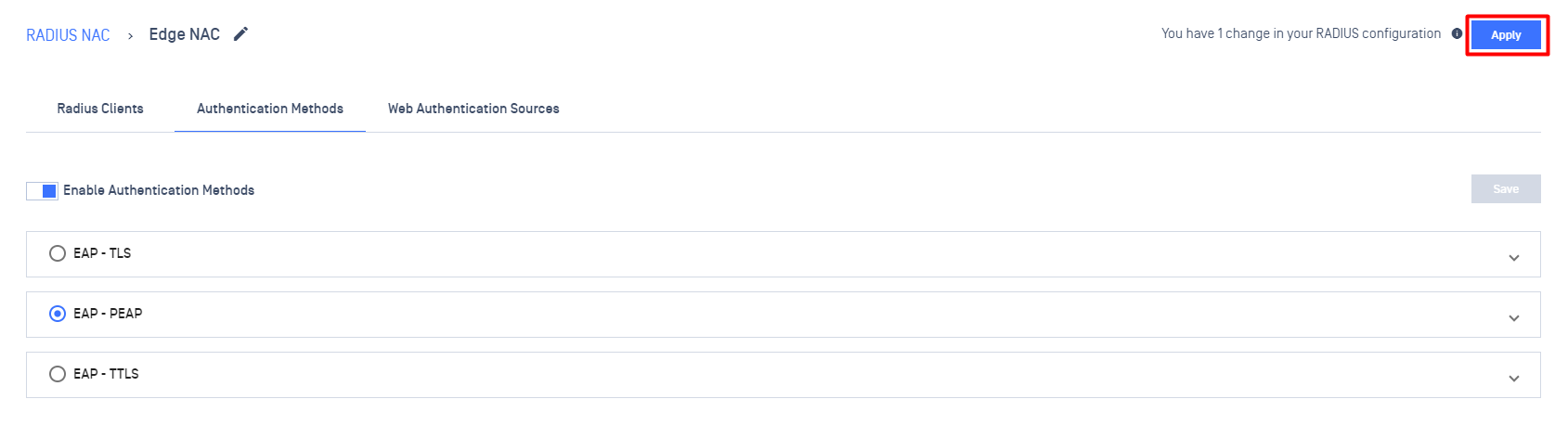
Click on the Apply button at the upper right corner of the screen.