
My OPSWAT Central Mangement integrates with a third-party Single Sign-on Service (SSO), enabling Administrators to configure end-user authentication via multiple Identity Providers (IdP).
How to configure on My OPSWAT Central Management console
Setup SSO - End User Authentication
To integrate My OPSWAT Central Mangement with your own SSO service,
Log into the My OPSWAT Central Mangement console with admin permissions
Navigate to User Management > SSO > End User Authentication
On the Console tab, enable "Enable Single Sign On"
Enter an IdP Name. This is for your reference
Click the Choose File button to upload an IdP X.509 certificate .pem file that you got from the Identity Provider.
Enter Issuer you got earlier from the identity provider
Enter the IdP SSO URL you got earlier from the identity provider
Enter the IdP Log out URL and Error URL you got earlier from the identity provider if any
Click the Save button.
You can find detailed setup guideline for some identity providers below:
Setup SSO with Microsoft Azure
Configure Access Rules
To configure Access Rules for Network Vendors that support DNAT (ex: Aruba), perform the below steps:
On the Access Profiles tab, create an Access Profile for Captive Portal
On Aruba dropdown, declare a value (ex: ORG_B_2024RDR) for Aruba-User-Role attributes
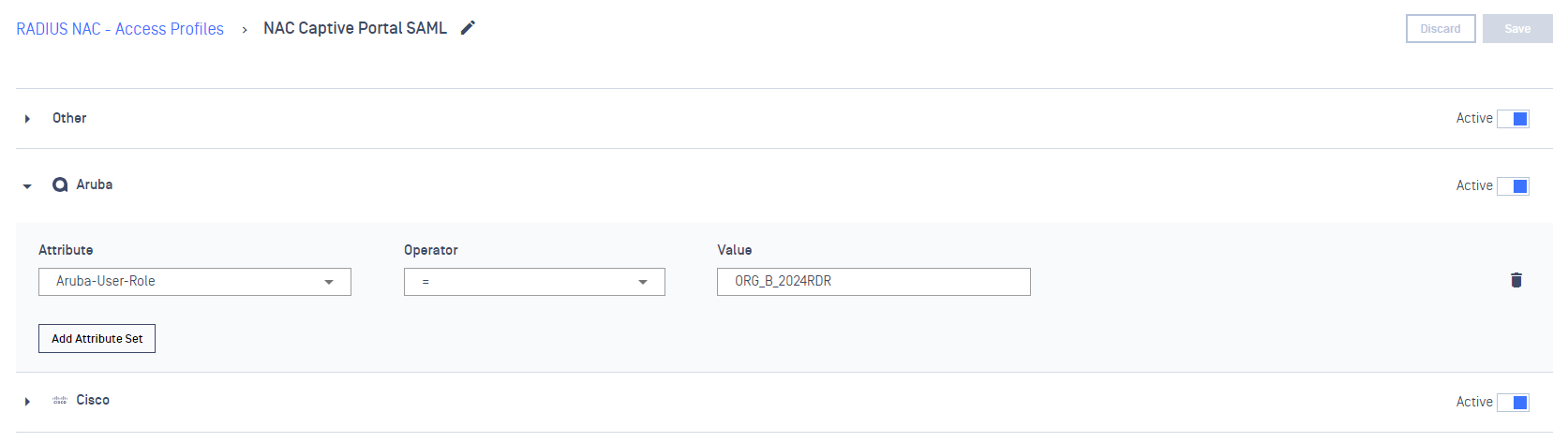
Set up a rule for BYOD, Guest devices using devices’ authentication status condition
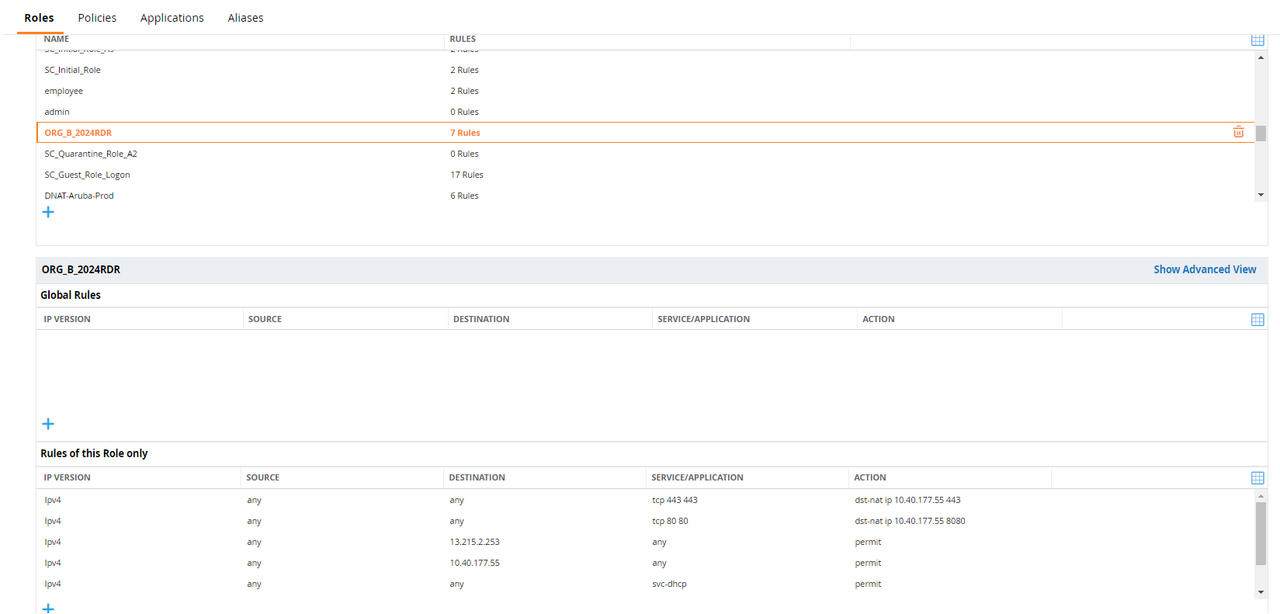
How to configure on Aruba
On the Network Vendor (ex: Aruba) console, create an ACL (Network Access Control List) to forward traffic to your Captive portal server.
How to verify:
Using a test device & Connect to the Network
If the Device's authentication status is Unauthenticated via the authentication method SAML SSO, it will match the Unauthenticated Device Rule above and the user will be redirected to the Captive Portal pages
Grant access using Single-sign options
After the authorization flow, the device should be switched to the correct VLAN
Confirm with Admin using RADIUS Events