
Check Your Version:
This article applies to all My OPSWAT Central Management releases deployed on Windows systems.
Overview
By default, OPSWAT Central Management stores its log and data files in a predefined installation directory, the C drive. In some environments, administrators may need to relocate these directories — for example, to a drive with more storage capacity or to comply with organizational data management policies. This article describes how to change the log folder location using the Windows Registry.
How To:
Prerequisites
Administrator access to the Windows machine
Access to the Windows Registry Editor (regedit)
Steps
Stop the “My OPSWAT Central Management” service
Open the Windows Services panel (services.msc), locate the OPSWAT Central Management service, and stop it before making any changes.
Copy the log folder to the new location
Navigate to the current data directory “C:\ProgramData\OPSWAT\MOCM” and copy the entire folder to your desired destination path. Ensure the new location has appropriate read/write permissions.
Copy the installation data to the new location
Navigate to the current installation directory “C:\Program Files\OPSWAT\MOCM” and copy the entire folder to your desired destination path. Ensure the new location has appropriate read/write permissions.
Open the Windows Registry Editor
Press Win + R, type regedit, and press Enter.
Navigate to the OPSWAT Central Management registry key
Go to:
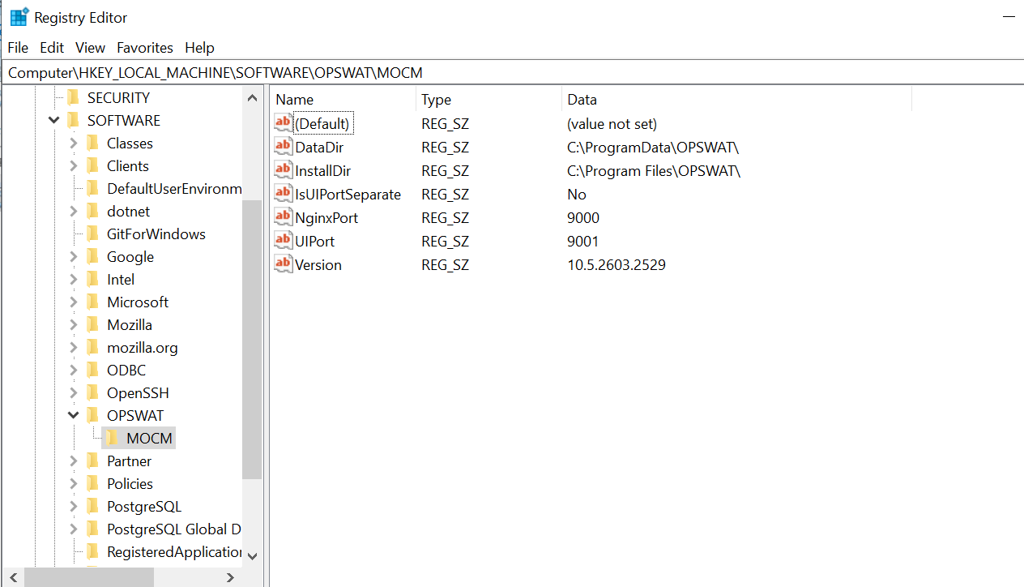
“Computer\HKEY_LOCAL_MACHINE\SOFTWARE\OPSWAT\MOCM”
Update the DataDir key to the new path for the logs. Previous path: “C:\ProgramData\OPSWAT\”
Update the InstallDir key to the new path for the logs. Previous path: “C:\Program Files\OPSWAT\”
Restart the OPSWAT Central Management service
Return to the Windows Services panel and restart the service. Verify that logs are being written to the new directory.
Note: Always back up your registry before making changes. Incorrect registry modifications can cause service instability.
If there is issues with the service start, please revert back changes to the below
Only supported on Windows, please contact OPSWAT support for help with Linux Installations.
Support:
If Further Assistance is required, please proceed to log a support case or chatting with our support engineer.