
This article applies to all OPSWAT Central Management version 10.x.
The My OPSWAT Central Management Console facilitates two methods of guest MetaDefender Endpoint device removal:
Manual removal of one or multiple devices
Automatic removal of an individual device or a group of devices.
Option 1: Manual removal
For On-Demand MetaDefender Endpoint devices, please use Option 2, as Option 1 will only temporarily remove on-demand Client devices from the inventory.
Log into your Console and navigate to Inventory > Devices > Endpoint.
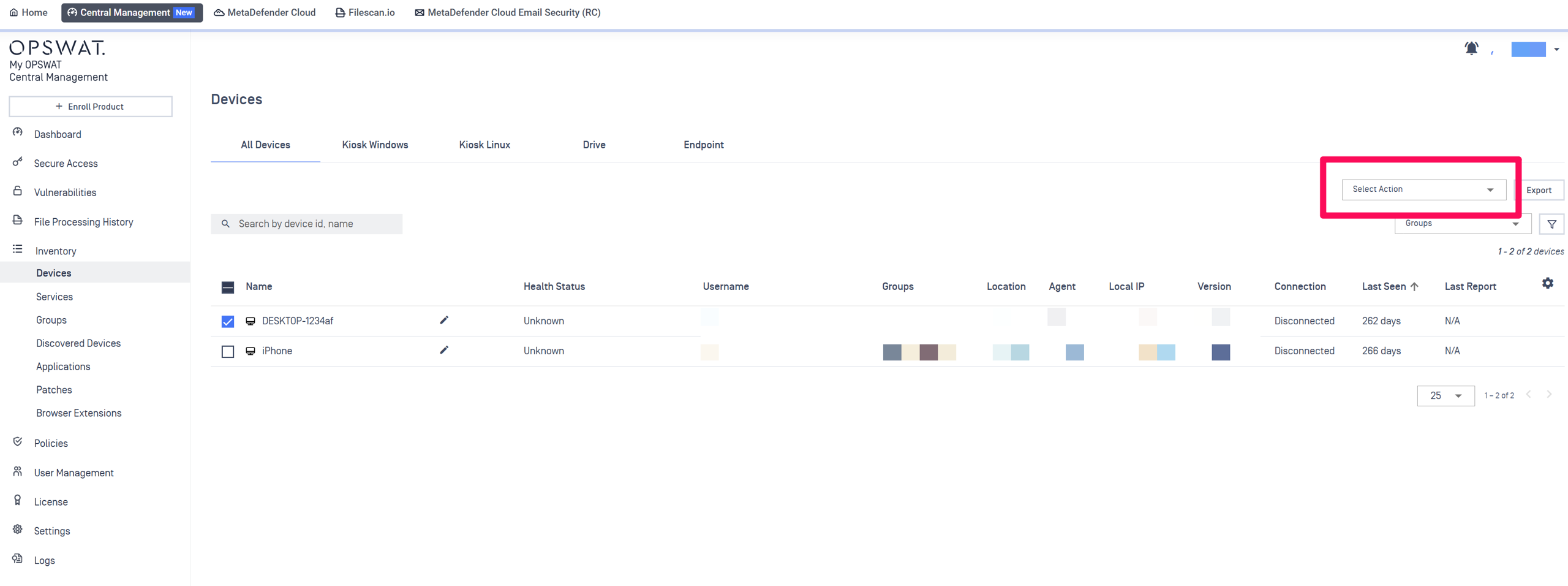
Select one or multiple devices from the device list by checking the selection boxes in the left-hand column, as illustrated below.
Once selected, expand the Actions drop-down menu in the upper right-hand corner of the device list, also illustrated below.
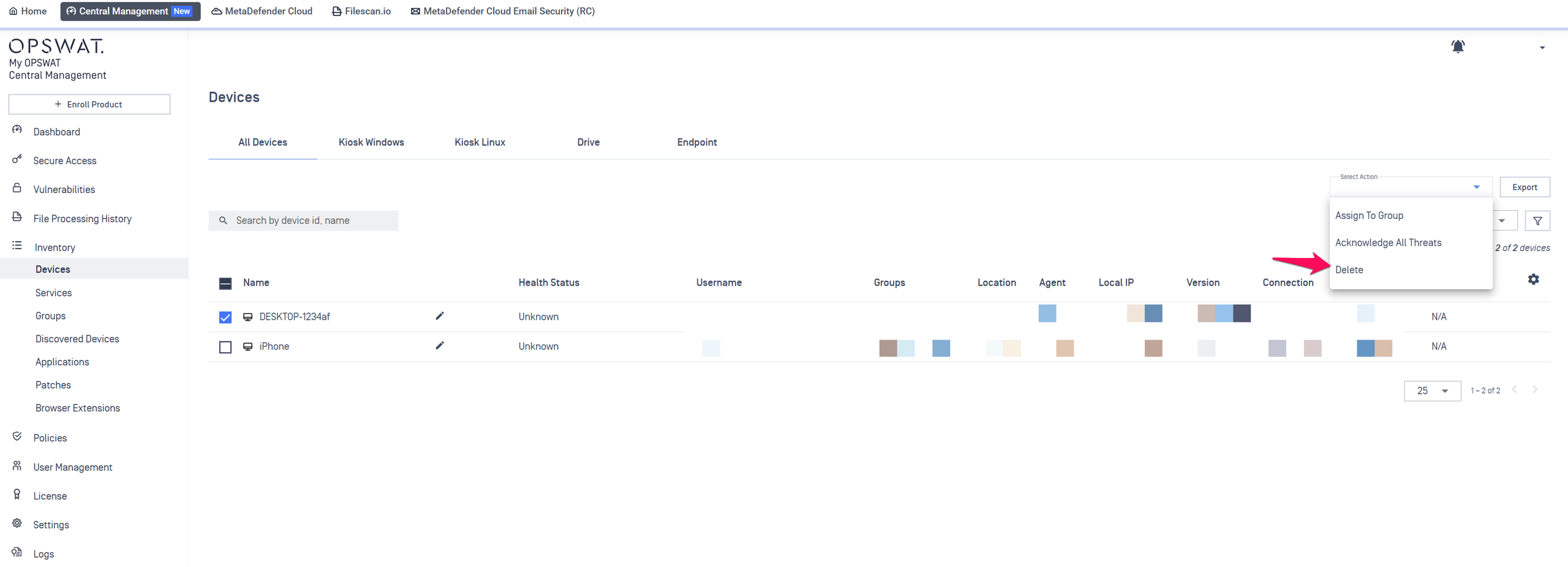
From the drop-down menu, select the option to Delete.
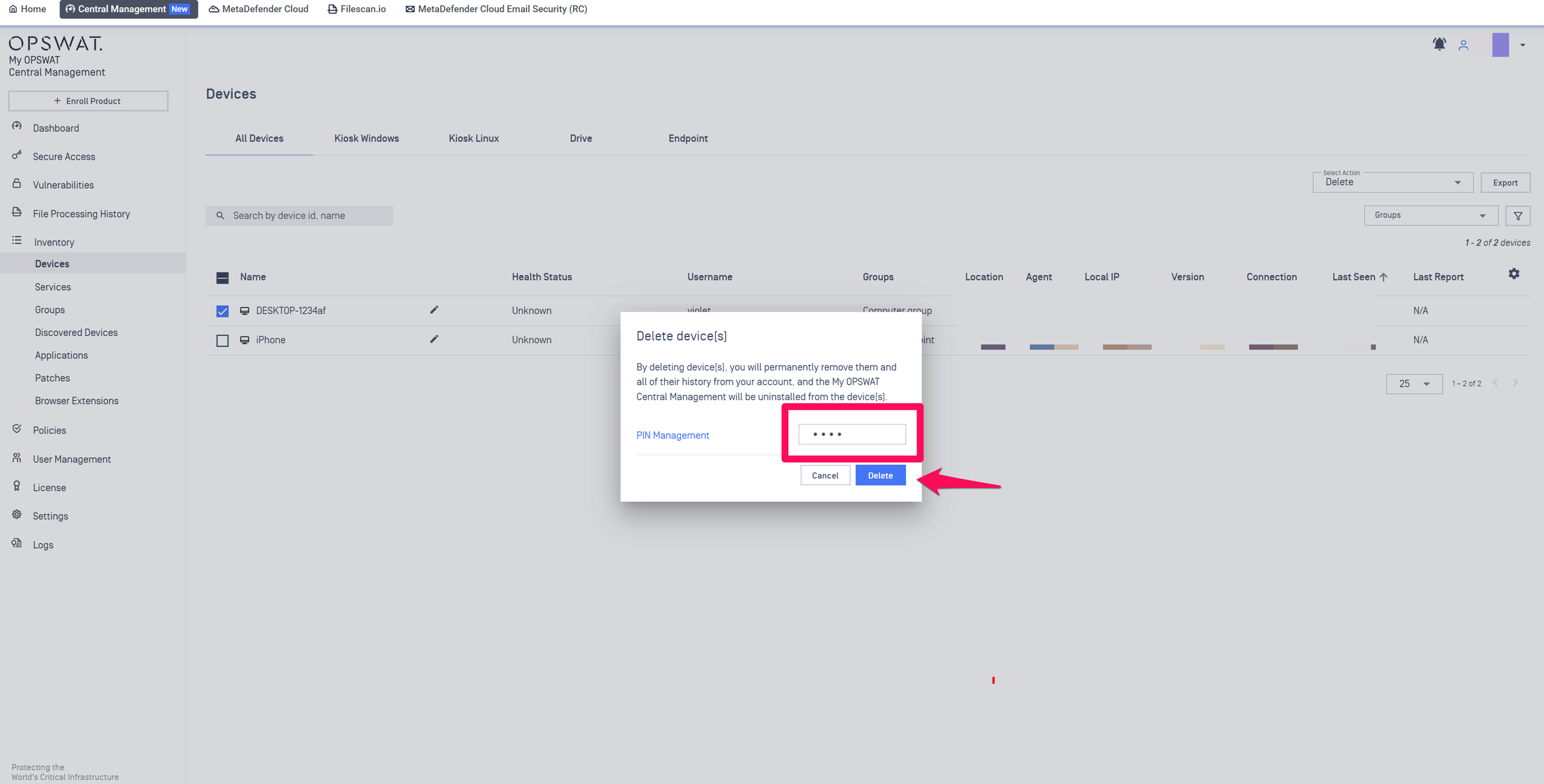
Enter your PIN, then confirm your selection by clicking Delete in the prompt, as shown below.
Pro Tip:
Persistent MetaDefender Endpoint | Windows, macOS and Linux | Option 1 will trigger a remote uninstall the next time the device/s check in with the My OPSWAT Central Management servers. |
OS and Android | Option 1 will trigger a remote unregister action on the device/s, but the end-user/s will still need to uninstall/delete the OPSWAT app manually. | |
On-Demand MetaDefender Endpoint | All | Option 1 will not trigger any remote action and, if the Client is still running, it will reappear in the My OPSWAT Central Management Console after a few minutes. |
Option 2: Automatic removal
Automatic device removal is enabled via the Console’s Lost Device settings, which can be adjusted either for individual devices or for groups of devices, as follows:
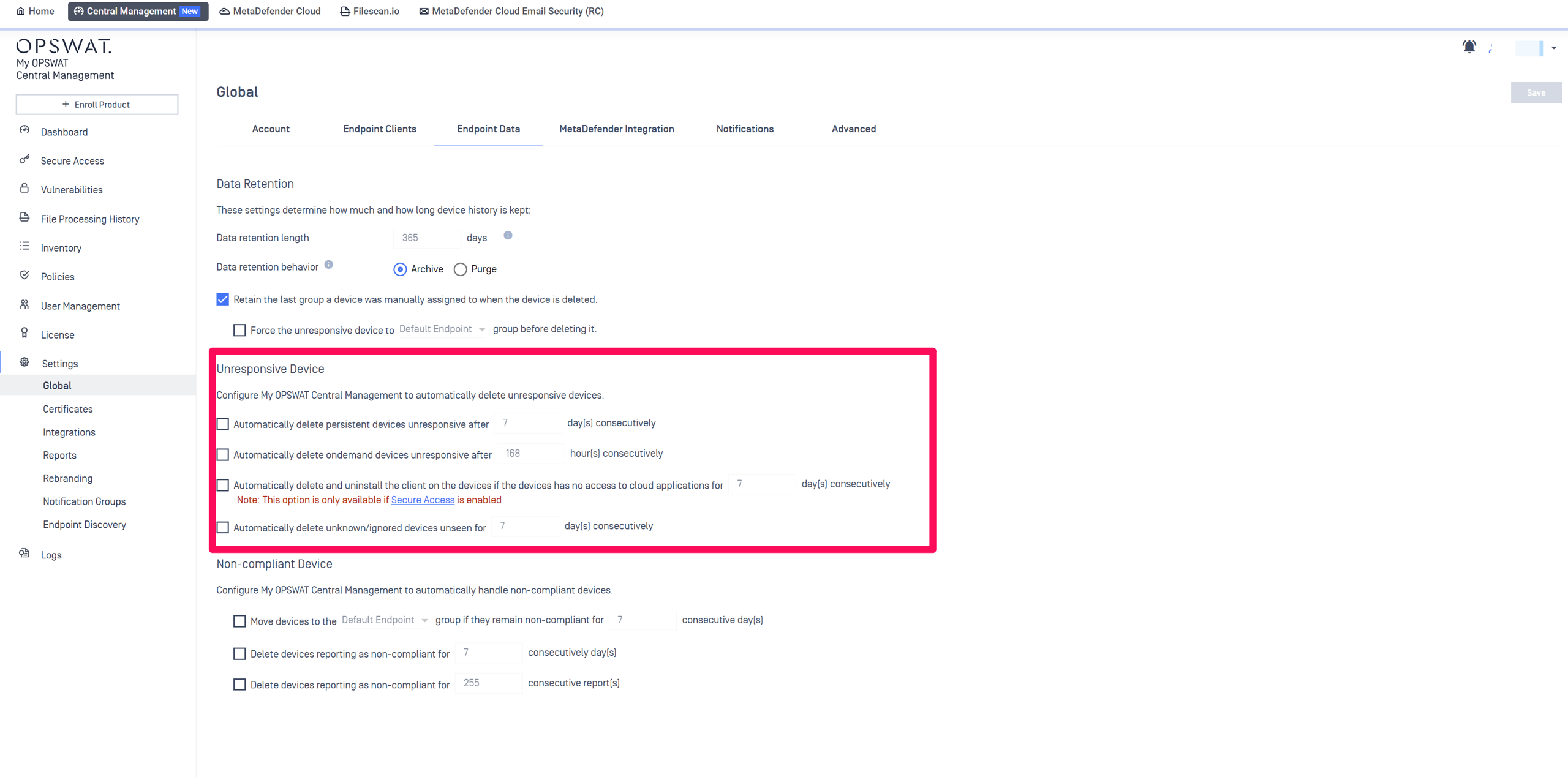
Individual devices: go to Console>Settings>Global>Endpoint Data>Unresponsive Device (see Screenshot A)
Groups of devices: go to Console>Inventory>Groups>Relevant Group>Settings>Lost Device(see Screenshot B)
Screenshot A
Screenshot B
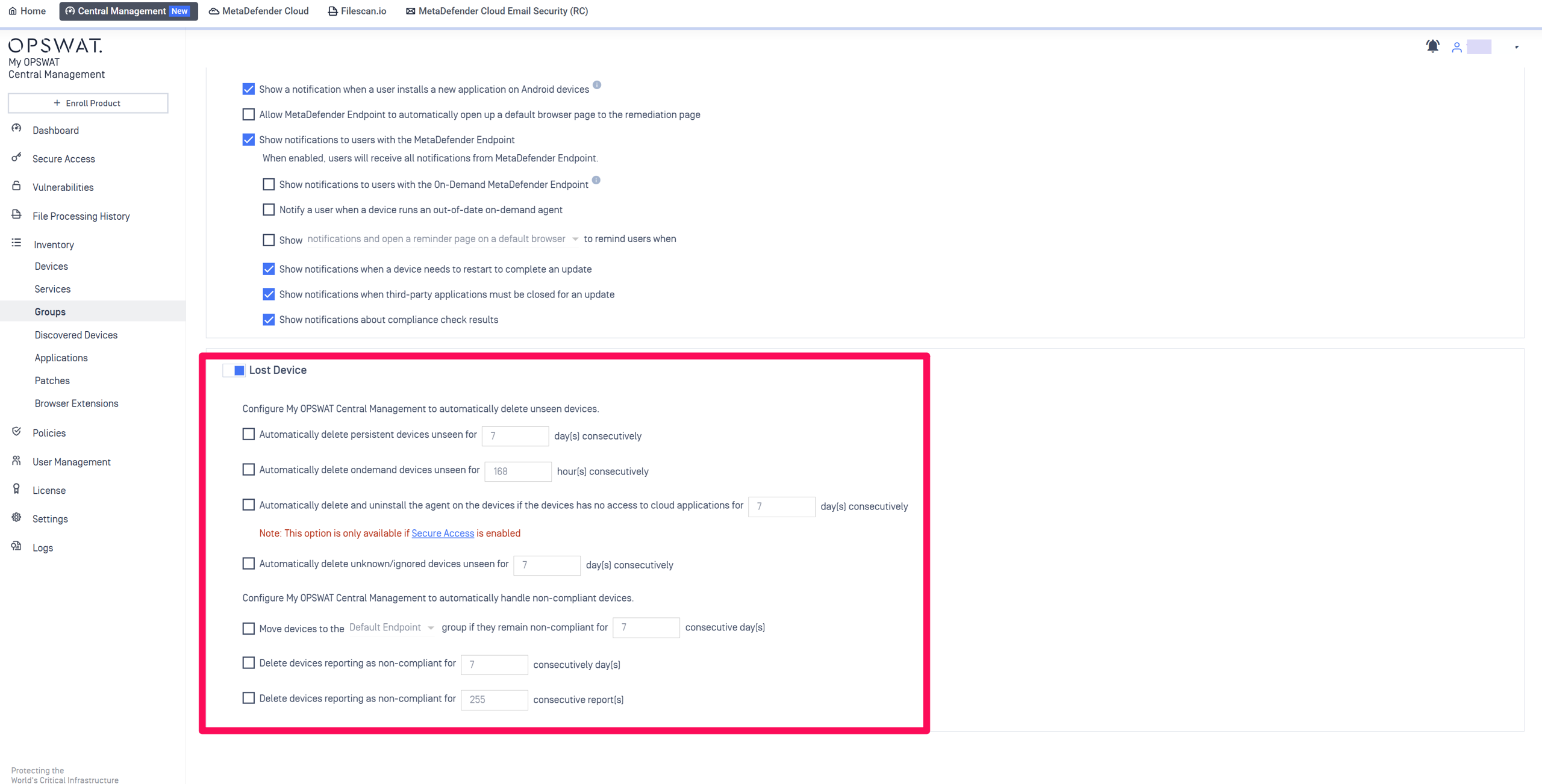
Log into your Console and navigate to the relevant location detailed above.
Configure the options according to your preference.
Settings include:
Automatically delete persistent devices unseen for X day/s consecutively
Automatically delete on-demand devices unseen for X hour/s consecutively
Automatically delete and uninstall the agent on devices if the devices have no access to cloud applications for X days consecutively (only available if Secure Access is enabled)
Automatically delete unknown/ignored devices unseen for X days consecutively
Automatically delete devices reporting as non-compliant for X days consecutively.
Finally, click Save to apply your settings.
If you have followed the instructions above but are having difficulty Deleting A Device Via Your Console, please open a Support Case with the OPSWAT team via phone, online chat or form, or feel free to ask the community on our OPSWAT Expert Forum.