Prerequisites
A security dongle must be inserted in the BLUE and RED servers to change configuration.
Before you configure any transfer parameters:
Ensure that the Optical Diode BLUE and RED network addresses are configured.
Ensure the current license and personality are uploaded.
Streams must be configured on both the BLUE and RED sides.
Security Gateway BLUE
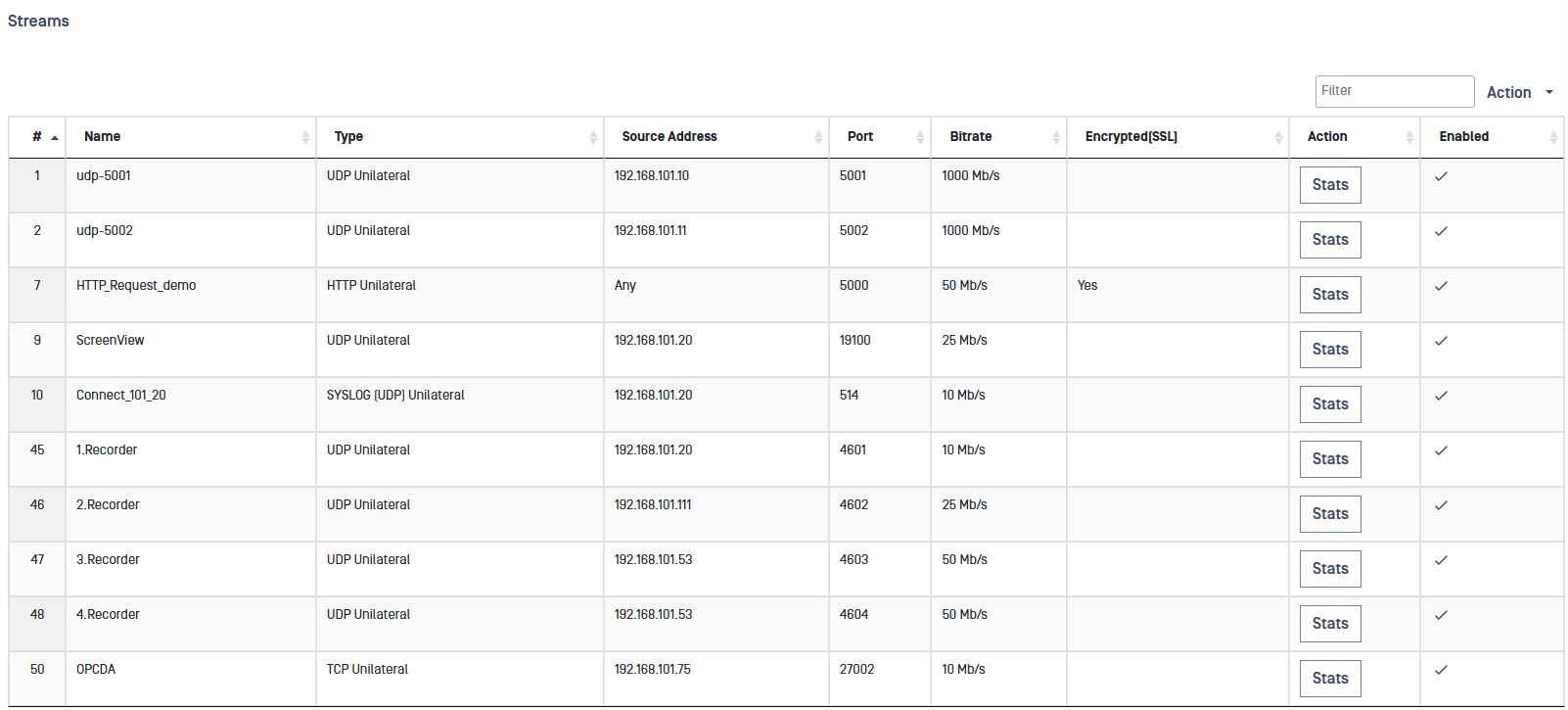
Click the Streams link and then click on the Action button. Click on the type of stream (HTTP, Syslog, TCP or UDP) to be configured.
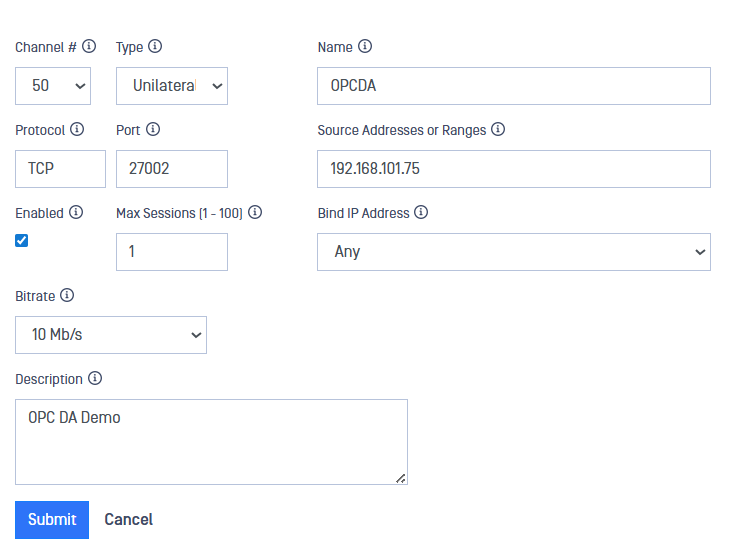
Complete the following:
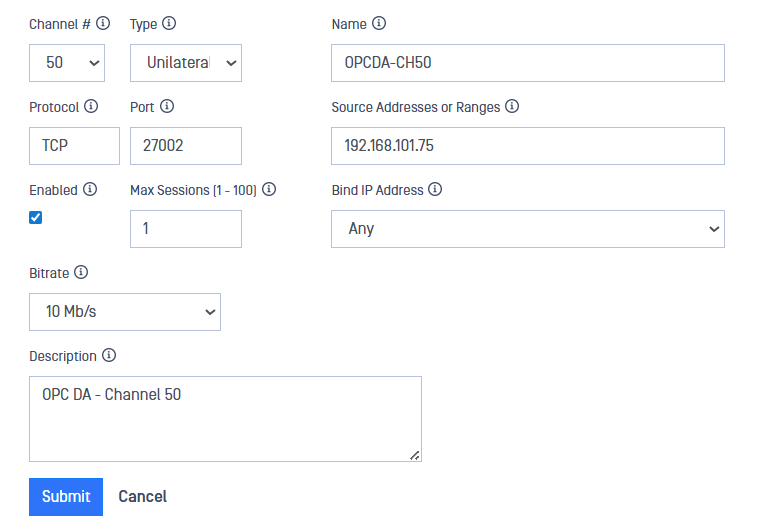
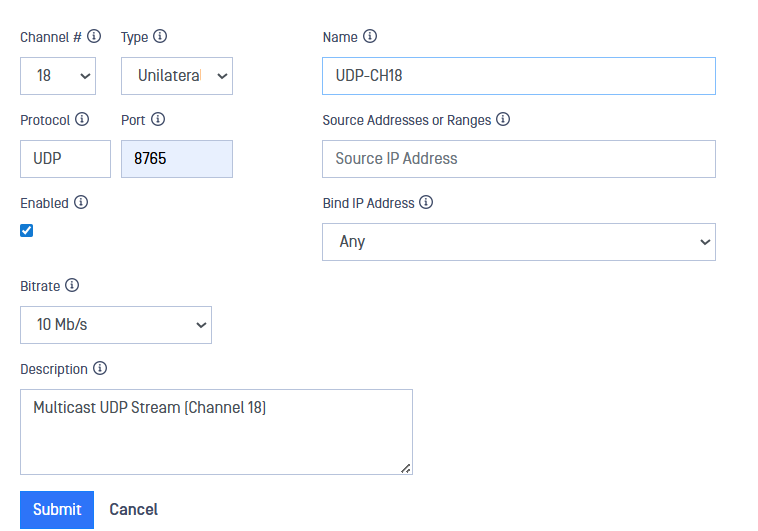
Channel: Assign a channel number. The channel number assigned must be the same on both the BLUE and RED sides.
Type: Type of stream being configured (Unilateral or Bilateral).
Name: Friendly name of the stream.
Protocol: Protocol of the stream. This is preselected according to the stream selected.
Port: Port number to listen on.
Source Addresses: IP address(es) in the BLUE zone where the stream will originate. If you are entering more than one address, separate the addresses with a semicolon.
Enabled: Checkbox to enable/disable the stream.
Max Sessions: Maximum number of sessions for the stream. Max session is not utilized for UDP streams.
Bind IP Address: IP address that the stream will bind to. The IP addresses displayed in the dropdown list are the IPs configured under Advanced > Networking > IP Addresses. Default value is Any. For UDP Multicast, select Multicast from the drop down menu then key in the Multicast IP in the Multicast address field.
Bitrate: Maximum bitrate that BLUE side will reach for this stream. This is used to tune the bitrate in the event of overload on the RED side.
Description: User-friendly description
After filling in the fields, click on the Submit button to save configuration.
Security Gateway RED
Click the Streams link and then click on the Action button. Click on the type of stream (HTTP, Syslog, TCP, UDP) to be configured.
Complete the following:
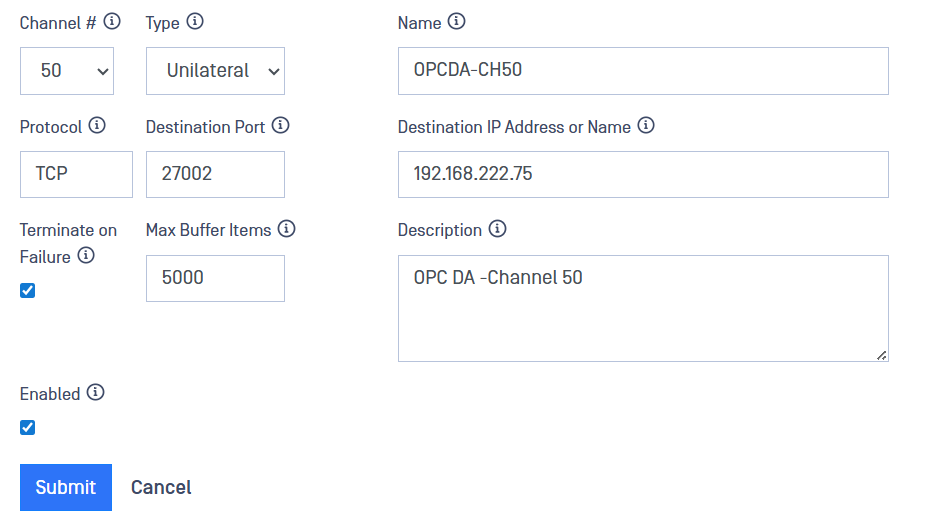
Channel: Assign a channel number.
The channel number assigned must be the same on both the BLUE and RED sides.
Type: Type of stream being configured (Unilateral or Bilateral).
Name: Friendly name of the stream.
Protocol: Protocol of the stream. This is preselected according to the stream selected.
Destination port: Port number of the destination IP.
Destination address: IP address in the RED zone where the stream will terminate. You can enter only one address.
Terminate on Failure (TCP & HTTP only): Checkbox controls what happens in the event of data overrun. When the box is checked, the relevant connection on RED will be closed, all data buffers discarded and a new connection re-opened to allow for synchronization recovery. If left unchecked, the relevant connection remains intact and communication continues after the data buffers have been discarded.
Max Buffer Items (TCP & HTTP only): select the size of the buffer items queued on RED. For high speed streams, a larger buffer is preferred in order to avoid data overruns. Please, note that buffering data consumes memory.
Enabled: checkbox to enable/disable the stream.
Description: user-friendly description.
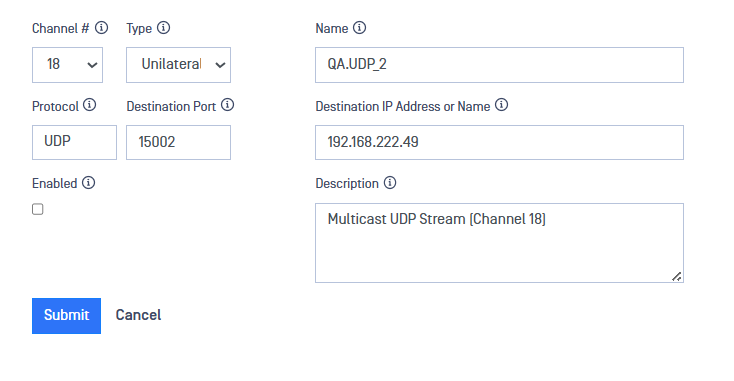
After filling in the fields, click on the Submit button to save configuration.
Modify a stream
In the Streams section, click on the stream to be modified. Modify the Stream and click Submit to save the changes.
Syslog Over SSL/TLS
Security Gateway BLUE
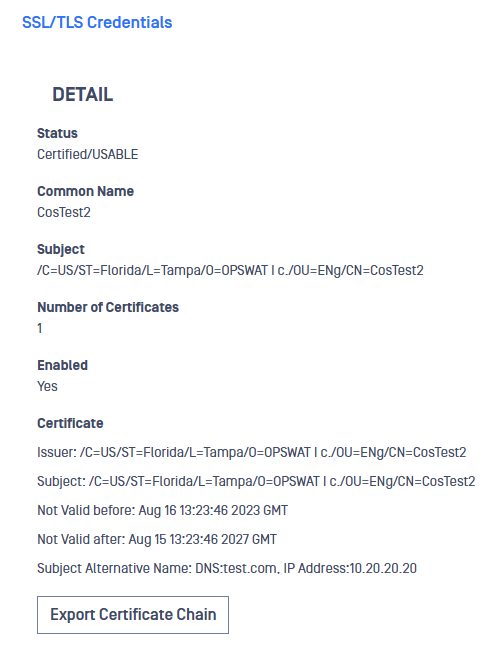
Create/Import SSL/TLS Credentials
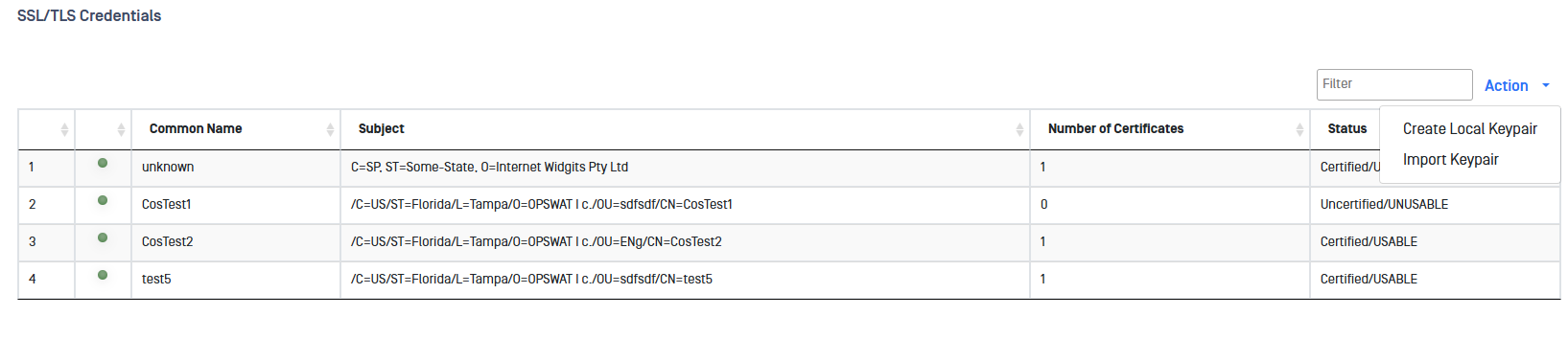
Navigate to: Advanced>Encryption>SSL/TLS Credentials.
Select "Create Local Keypair" or "Import Keypair".
Fill in the associated fields for Create or Import Keypair.
Configure Syslog Over SSL/TLS Stream
Click the Streams link and then click on the Action button. Click on Add Syslog TCP.
Complete the following:
Channel: Assign a channel number. The channel number assigned must be the same on both the BLUE and RED sides.
Type: Type of stream being configured (Unilateral or Bilateral).
Name: Friendly name of the stream
Protocol: Protocol of the stream. This is preselected according to the stream selected.
Port: Port number to listen on.
Source Addresses: IP address(es) in the BLUE zone where the stream will originate. If you are entering more than one address, separate the addresses with a semicolon.
Enabled: Checkbox to enable/disable the stream.
Max Sessions: Maximum number of sessions for the stream. Max session is not utilized for UDP streams.
Certificate: Select a certificate to enforce SSL for the stream. The certificate is defined in Configuration>Settings>Certificates.
When configuring multiple Syslog streams the certificate must be the same for all streams.
Bitrate: Maximum bitrate that BLUE side will reach for this stream. This is used to tune the bitrate in the event of overload on the RED side.
Description: User-friendly description
Security Gateway RED
Click the Streams link and then click on the Action button. Click on Add Syslog TCP.
Complete the following:
Channel: Assign a channel number.
The channel number assigned must be the same on both the BLUE and RED sides.
Type: Type of stream being configured (Unilateral or Bilateral).
Name: Friendly name of the stream.
Protocol: Protocol of the stream. This is preselected according to the stream selected.
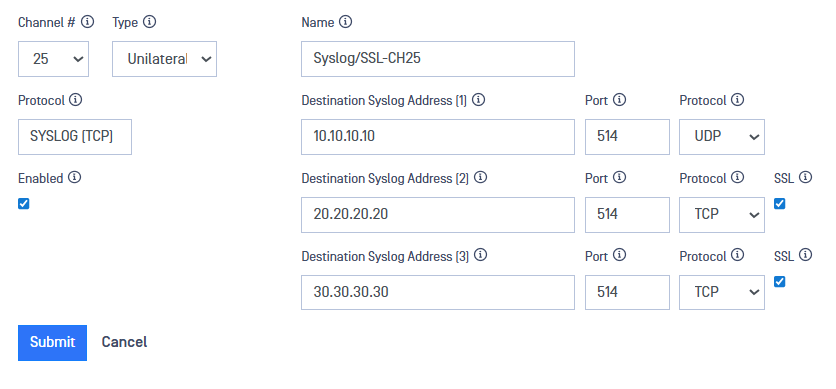
Destination Syslog Address: IP address in the Red zone where the stream will terminate. Up to three IP Addresses are supported.
Enabled: Checkbox to enable/disable the stream.
Port: Port number of the syslog address. Default is 514. Range: 1- 65535.
Protocol: Protocol of destination IP/Port. Default TCP.
SSL Checkbox: Check to enable SSL on the connection. A CA certificate is needed, located under Advanced>Encryption>X509 Certificates. All certificates defined within Advanced>Encryption>X509 Certificates are deemed as valid.