
User type: Organization user
Role: Full access on License Management
Manage Active Deployments allows users to see every active deployment associated with a license key and, for supported products, to self-service deactivate deployments without the need to submit support ticket.
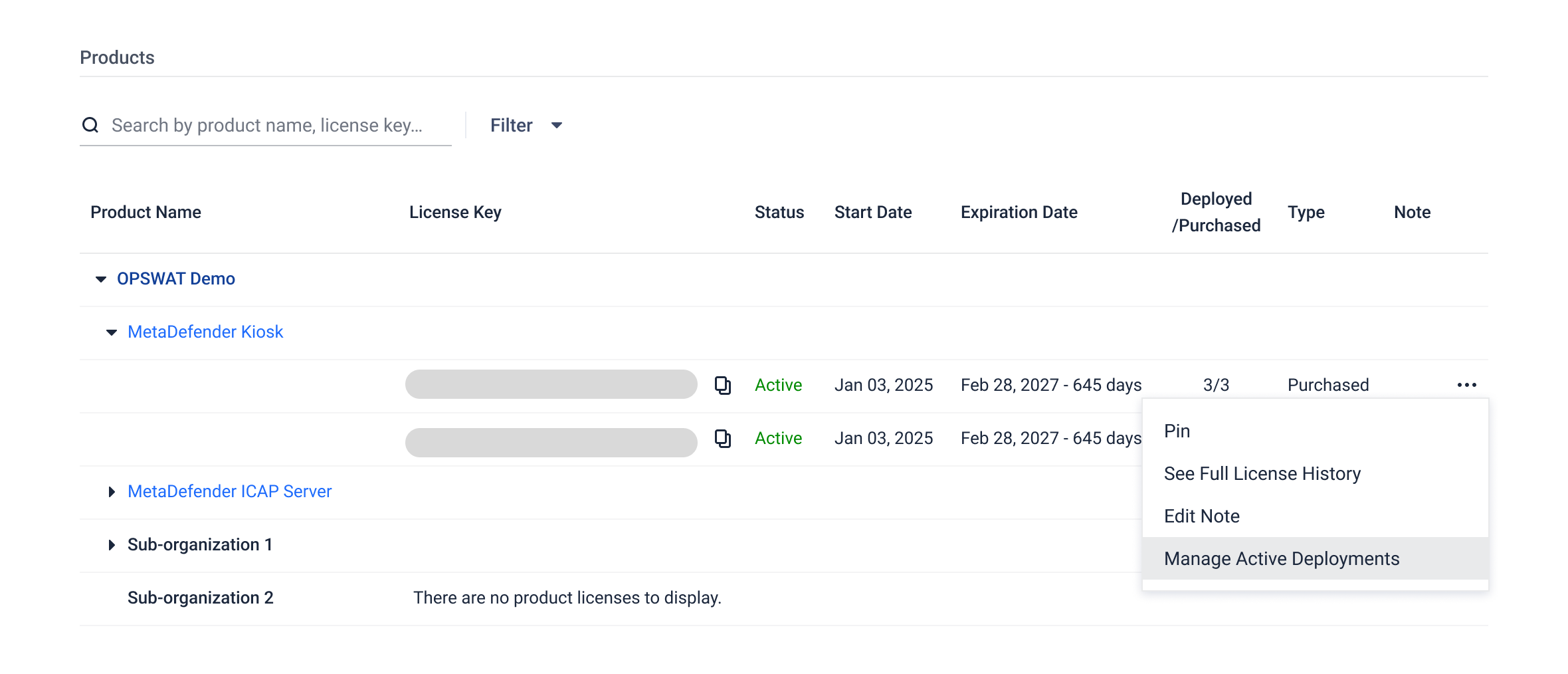
To view active deployments of a license key:
Select License Management in the left navigation.
Locate a specific license key (not applicable to expired licenses)
Click the three-dot icon next to the license key
Select Manage Active Deployments.
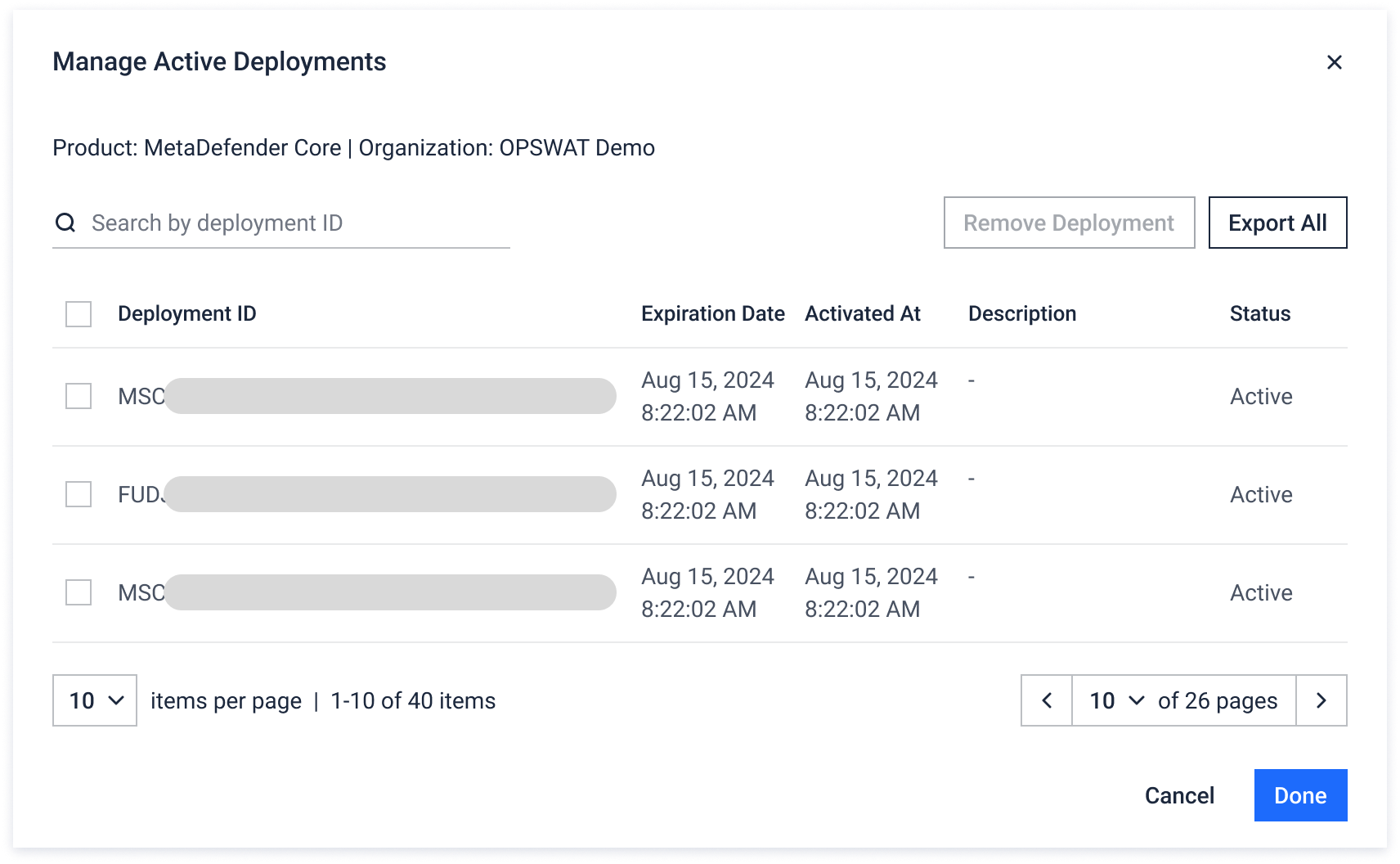
You can
View all active Deployment IDs associated with the license key.
Search the list to find a specific Deployment ID.
Export selected deployment IDs to excel file (not applicable for Expired licenses)
Select one or multiple Deployment IDs and deactivate them (see below).
NOTE
'Manage Active Deployments' is not available for Volume licenses.
Deactivate Deployments
Self-service deactivation is currently supported for MetaDefender Core licenses only
To deactivate deployments, follow the below steps
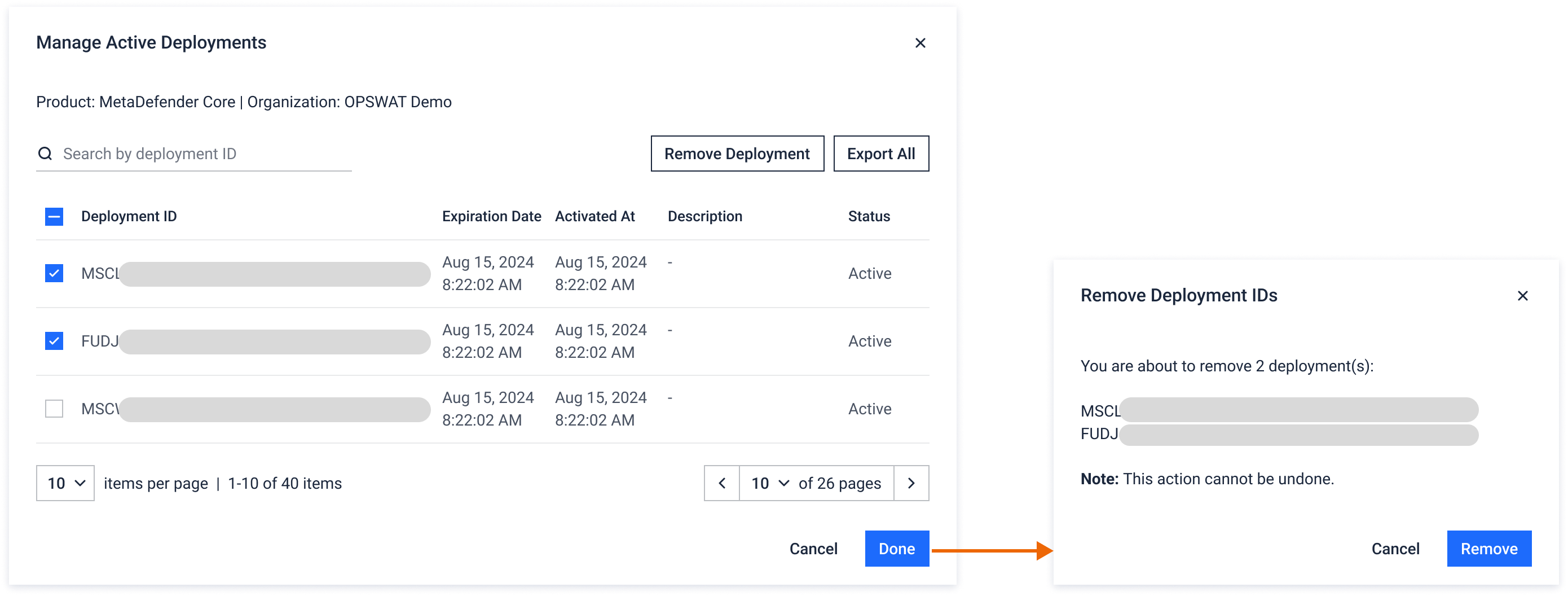
Open Manage Active Deployments for a MetaDefender Core license key.
Select the checkbox next to each Deployment ID you want to deactivate. You can select one or multiple.
Click Remove to confirm the deactivation.
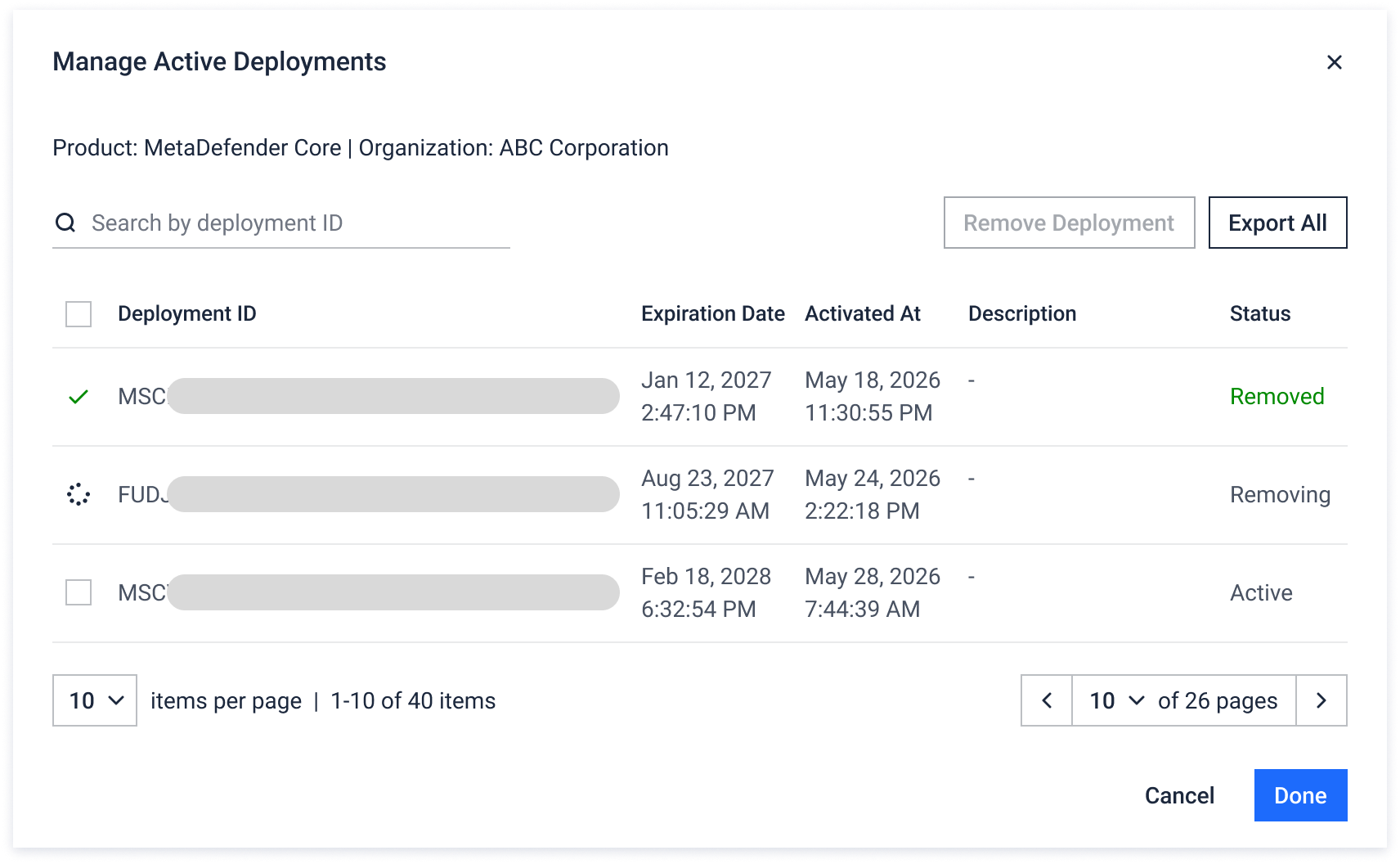
The selected deployments are deactivated, and the freed slots become available for reuse. Every activate and deactivate action is recorded in the organization event log. (My Organization > Event History)