The MetaDefender Diode X can be configured to integrate with an instance of the MetaDefender Core Advanced Threat Prevention Solution, installed on Diode X BLUE server. MD Core stops file-borne threats, including ransomware, zero-day exploits, and embedded malware, before they reach users or systems. It integrates seamlessly into existing infrastructure, securing uploads, downloads, email attachments, and file transfers without disrupting workflows. Diode X supports up to 10 AV engines. MD Core must be purchased separately from the Diode X.
Once configured, all files transferred using MetaDefender Diode X will be scanned for malicious activity by MetaDefender Core. The scan is performed prior to file transfer from BLUE to RED. For more details on MetaDefender Core management and operation, go to https://docs.opswat.com/mdcore
The MetaDefender Diode X/ MetaDefender Core integration is supported on the BLUE side only.
A security dongle must be inserted in the BLUE side to change configuration.
API Key
An API key is required in order to enable API integration with Diode X.
Generating an API Key
Before accessing the MetaDefender Core UI, the management IP needs to be changed from the default 10.10.10.10 address. Subnet 10.10.10.0/24 is an internal subnet used by MetaDefender Core and causes conflict when trying to access.
On MetaDefender Diode X BLUE, go to http://<management IP>:8008 to access MetaDefender Core UI and login.
From the sidebar menu go to User Management.
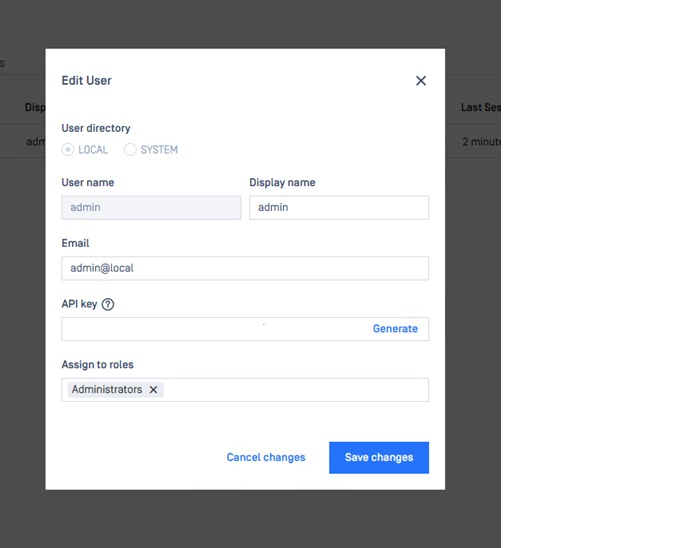
Click on Admin user.
Copy the API key (generate one if the box is empty). It will be used to configure the Diode X BLUE side integration with MetaDefender Core.
Diode X BLUE
This section describes configuration of the Diode X BLUE to communicate with MD Core.
Initial Setup
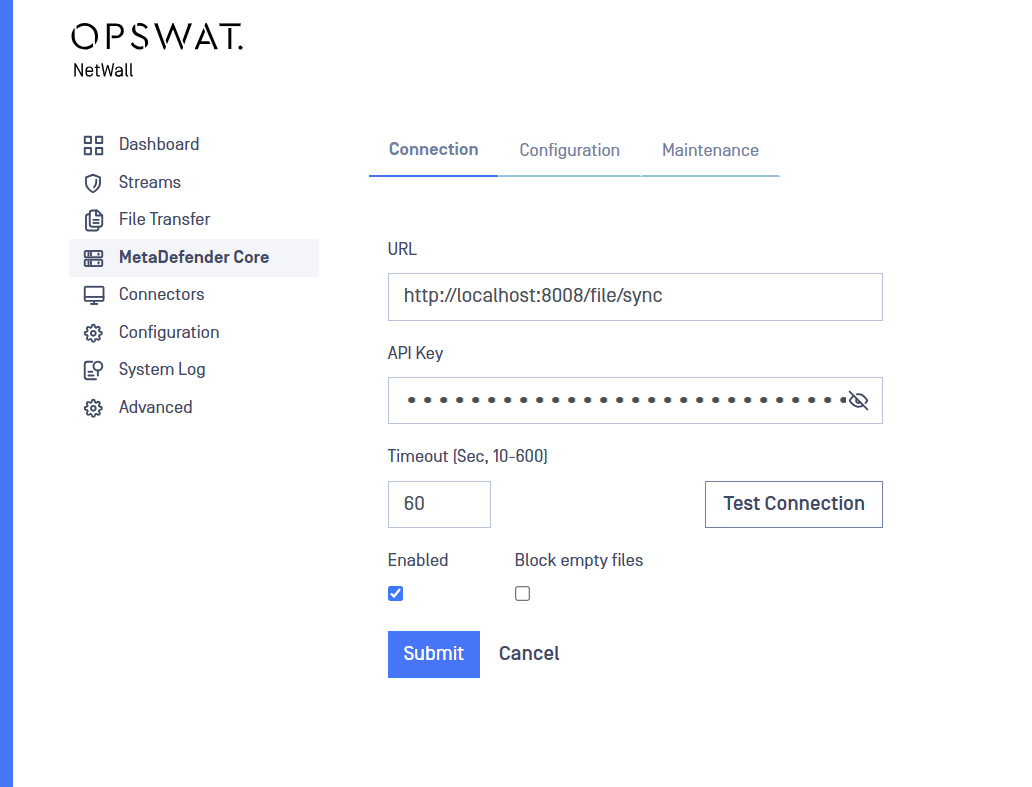
On Diode X BLUE navigate to MetaDefender Core -> Connection. Select Edit and fill in the following fields:
URL: URL of the MD Core instance used to scan files.
API Key: API Key for authorized access to MD Core. Paste the API Key copied in the previous Generating API key step.
Timeout: the maximum duration Diode X maintains an idle TCP connection in its state table before closing it. Default = 60.
Block Empty Files: Block zero byte files
Enabled: Click check box to enable communication with MD Core.
Core Version: Version of MD Core installed.
Submit: Press Submit to save configuration.
Configure Workflow and Logging
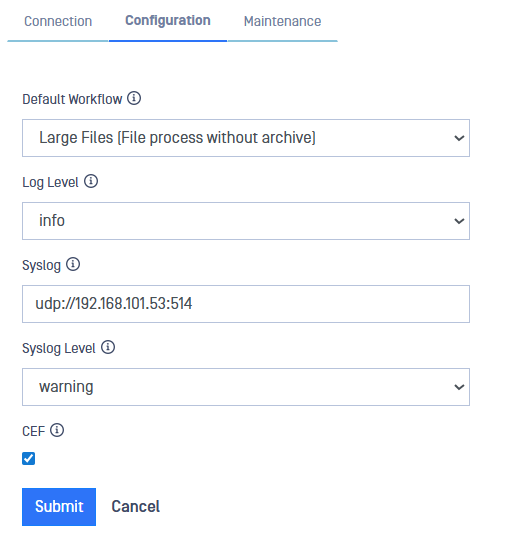
Navigate to MetaDefender Core -> Configuration. Select Edit and fill in the following fields:
Default Workflow: Choose a default workflow. The values from this selector (other than system default) are retrieved from MetaDefender Core. There must be a successful connection to retrieve workflows.
Log Level: Level of logging. Default: Info
Syslog: Switch on logging to a remote ('protocol://<hostname>:<port>') syslog server. Multiple syslog servers can be specified separated with a comma).
CEF: Select checkbox to enable Common Event Formatting.
Syslog Level: Level of Syslog logging. Optional.
Maintenance
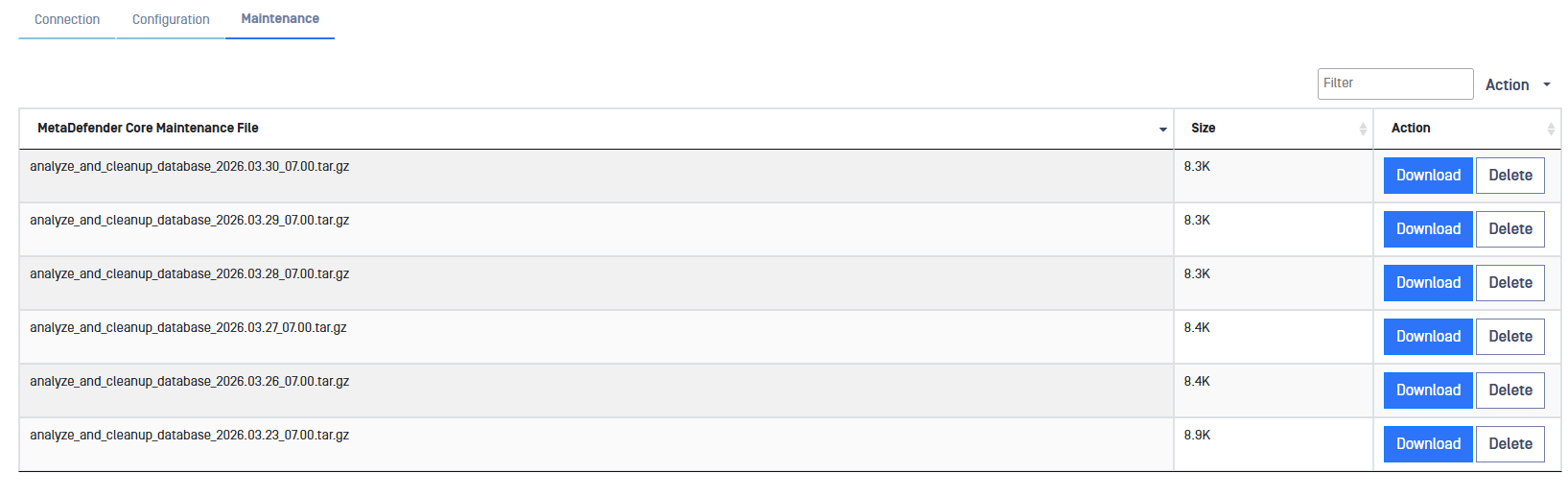
On daily basis MetaDefender Core performs data base maintenance operations, freeing database space and generating database log files. Once generated, users can download and/or delete the files in the Maintenance tab.
Navigate to MetaDefender Core -> Maintenance. Download or delete MD Core maintenance files.
History Data
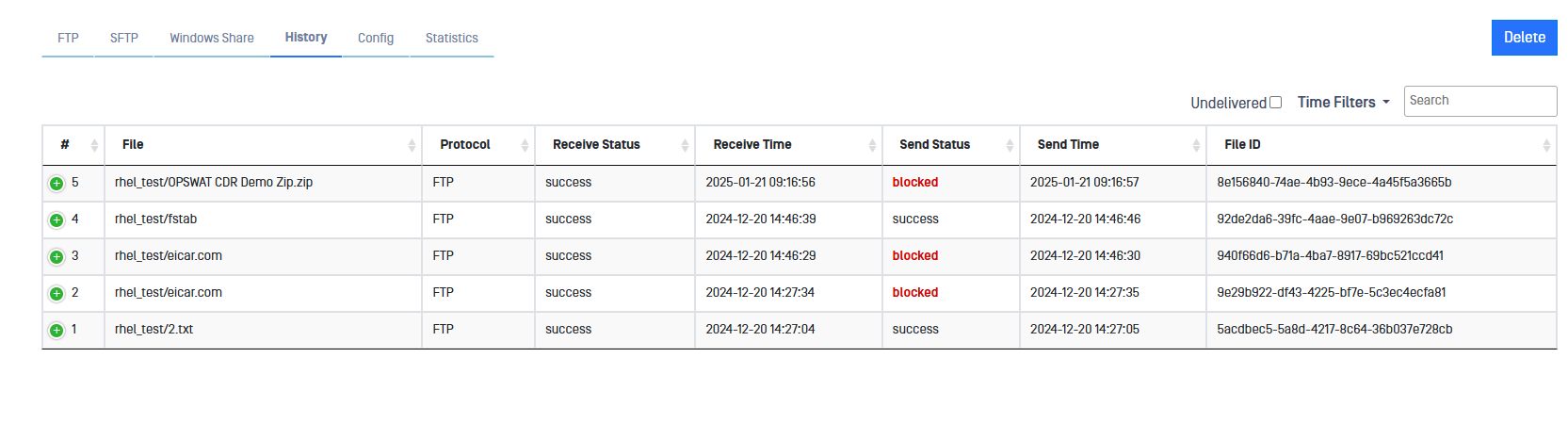
Diode X will keep records of files transferred from BLUE to RED. To review File Transfer History Data, click on the History tab within the File Transfer section.
File Transfer Historical Data is not stored in backups.
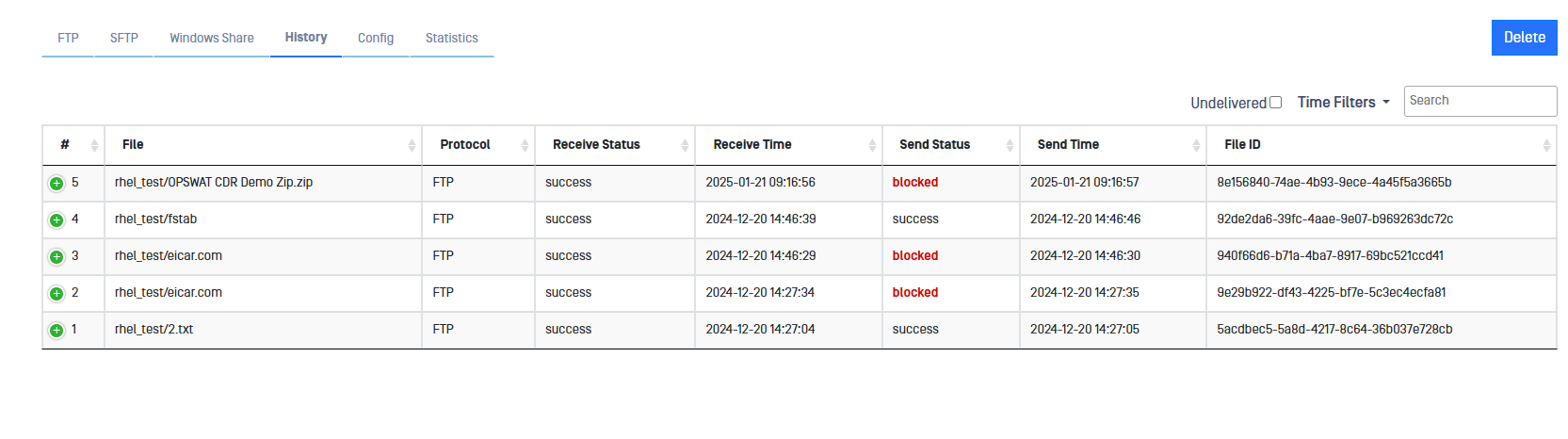
History data can be filtered in several ways.
Undelivered: Shows undelivered transfers. File has not been received by the RED side.
Time Filters: Daily, weekly, monthly or date range filters can be applied.
Search Box: Search for specific files by typing text.
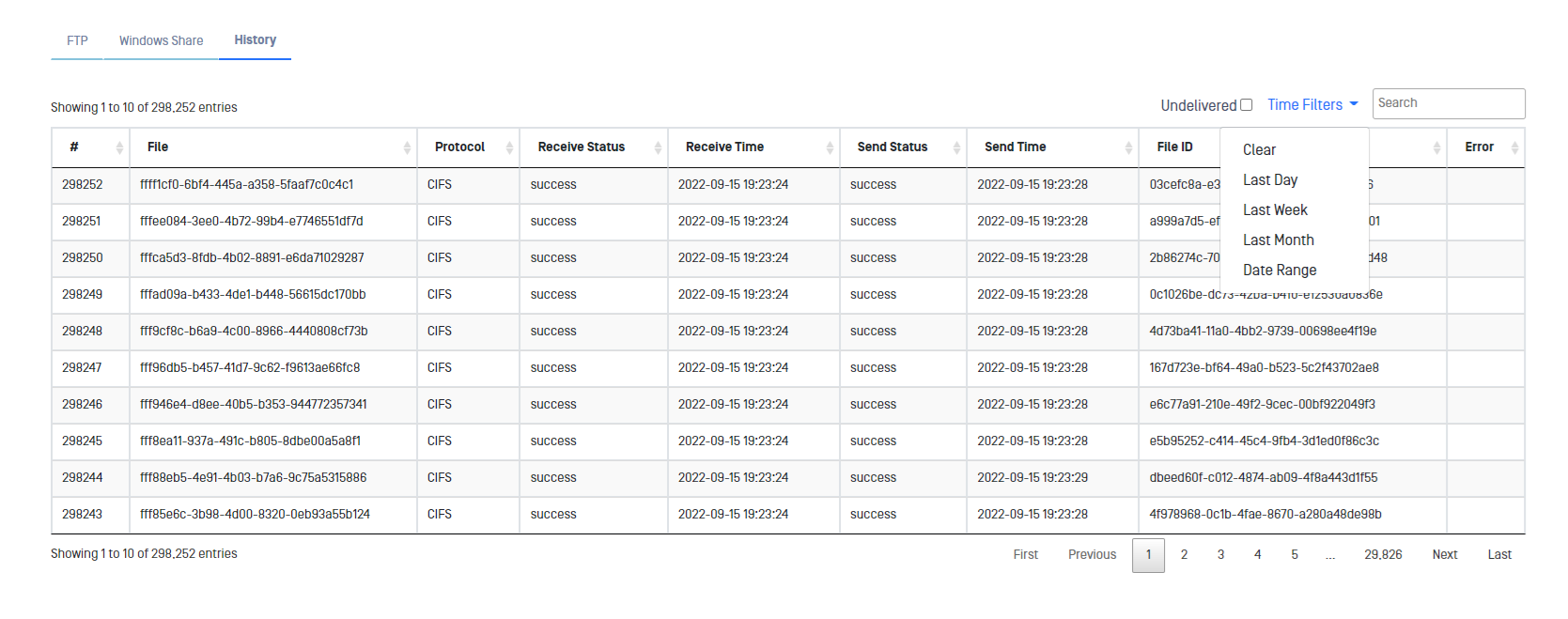
History information can be viewed on both the BLUE and RED sides.
File Scan Results
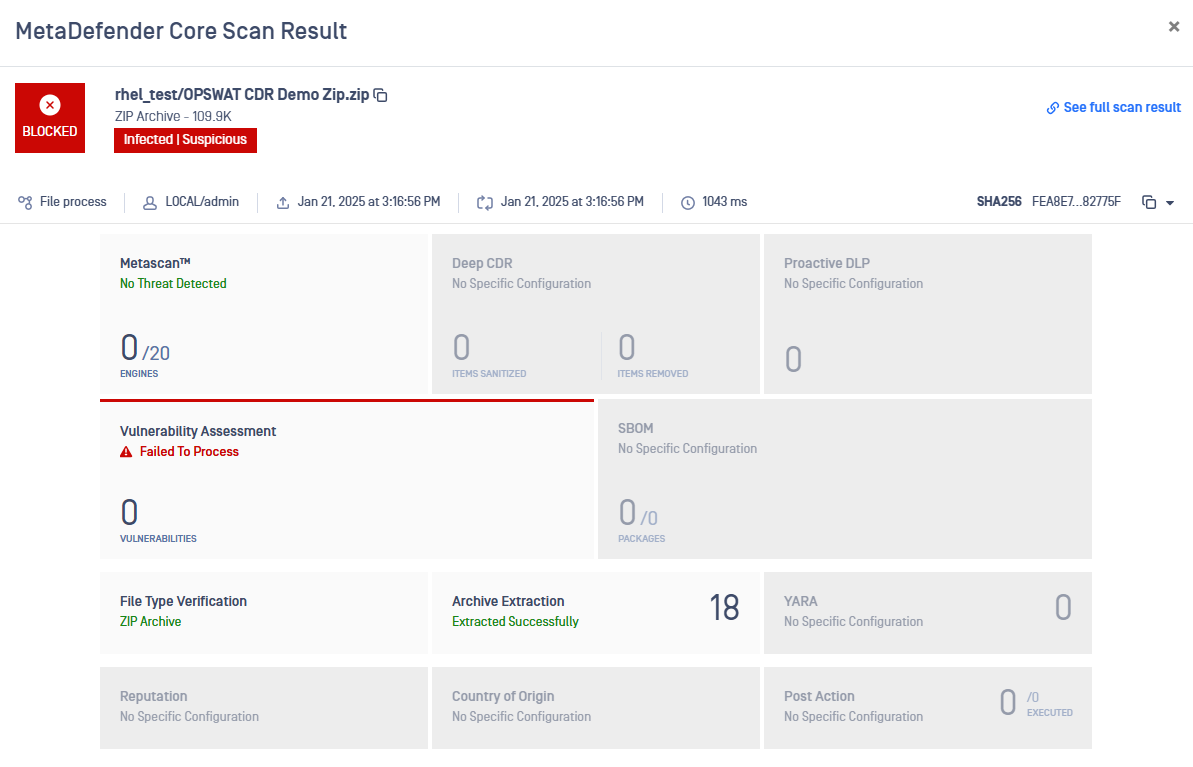
When a file is blocked, the MetaDefender Core Scan Result report can be reviewed by clicking on the word blocked in the corresponding file.