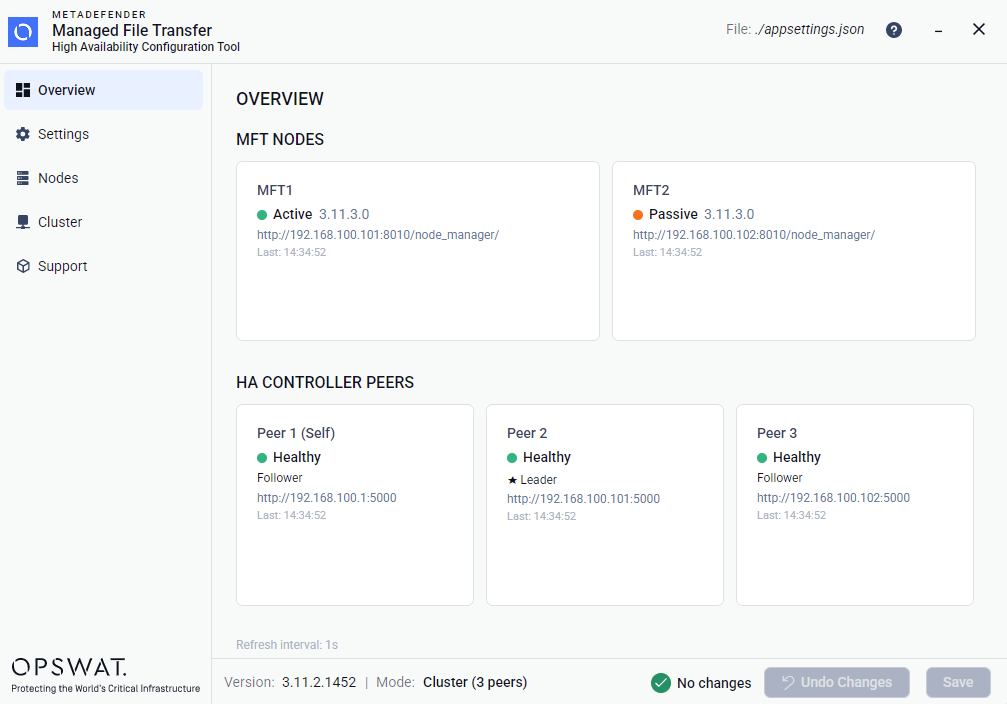
To setup the cluster, open the Cluster page in HA Configuration Tool™. But before that, make sure, that the single node setup works well. Then follow the instructions below.
Enable Cluster Mode
In the navigation menu, choose Cluster page, then turn on the Cluster switch:
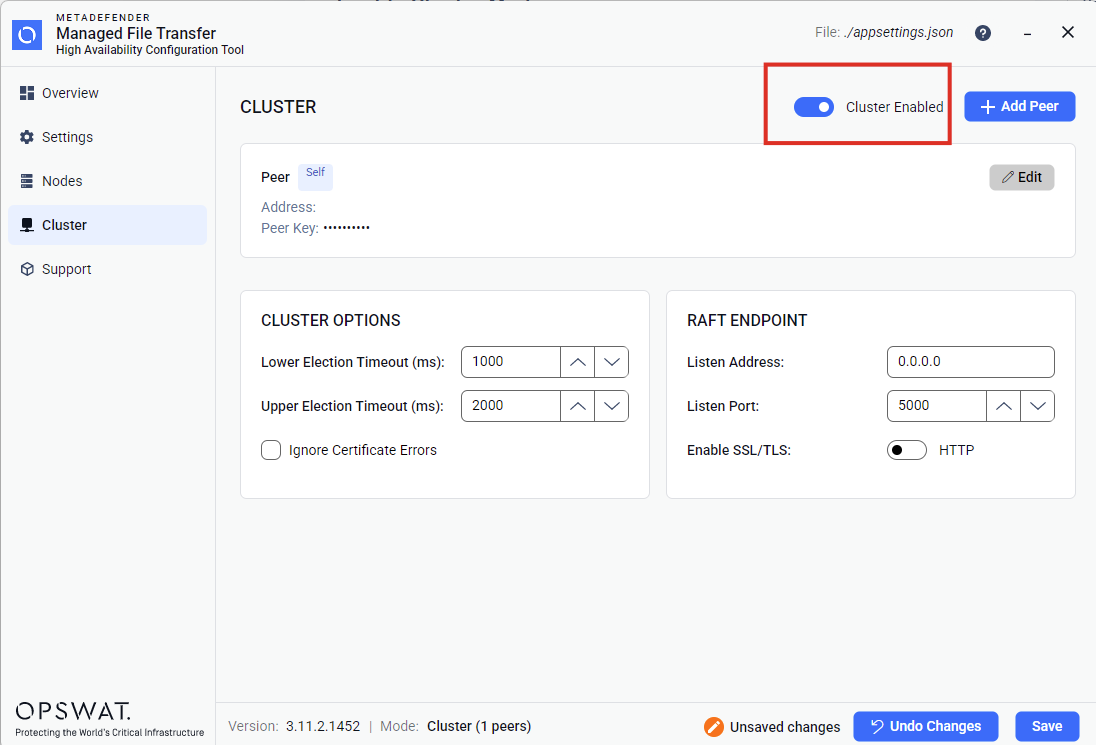
Set cluster options and Raft Endpoint
Update Timeout values if necessary in Cluster options section, and edit Raft Endpoint section according to the network environment.
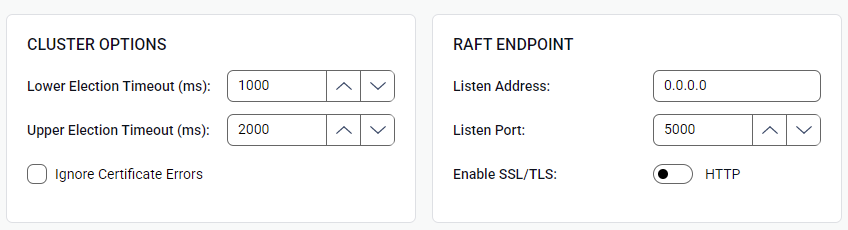
Ignore Certificate Errors is a checkbox. In case when using HTTPS, it can be checked. This makes testing easier. Default is unchecked. In production environment it is recommended to be false.
To Enable SSL/TLS switch makes it possible to use encryption between the peer communications as well by choosing certificates:
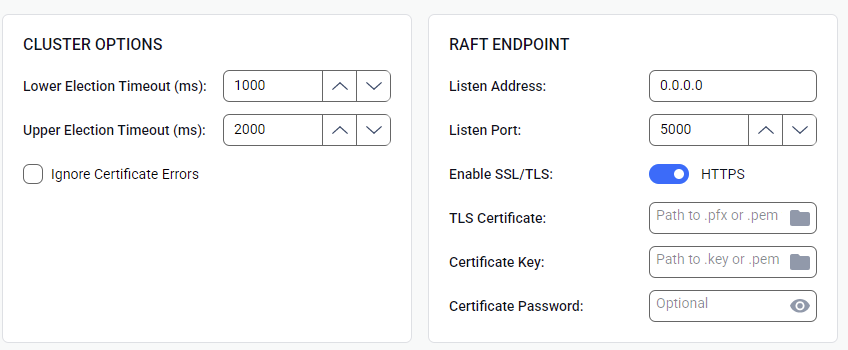
The Raft endpoint is used by the cluster peers to communicate with each other, and elect a leader based on the Raft consensus protocol. This ensures, that only a single leader can initiate a failover mechanism, avoiding conflicts. The non-leader peers still can serve requests, without managing the failover of the MetaDefender® MFT nodes.
To see more details on the above fields, please see the Cluster Page section.
Setting up peers
By default, there is only one peer displayed in the peers list. This is the Self peer decorated with a Self badge.
All peers in the cluster must be set for the working cluster.
Each peer has the following properties:
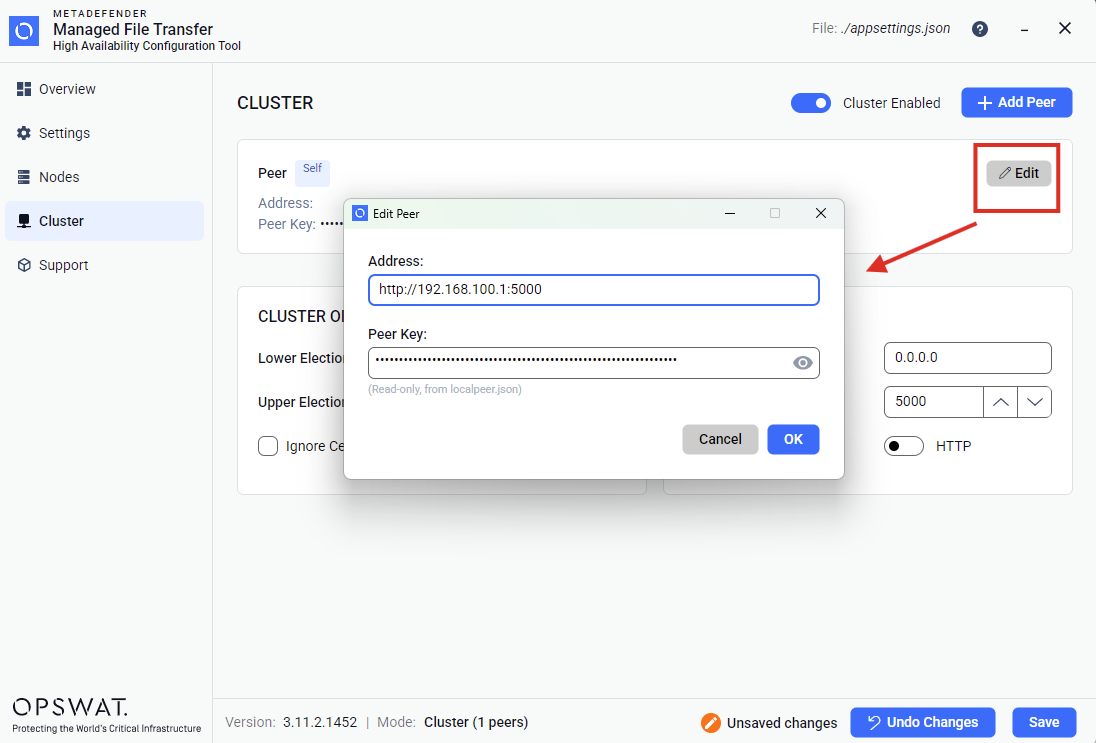
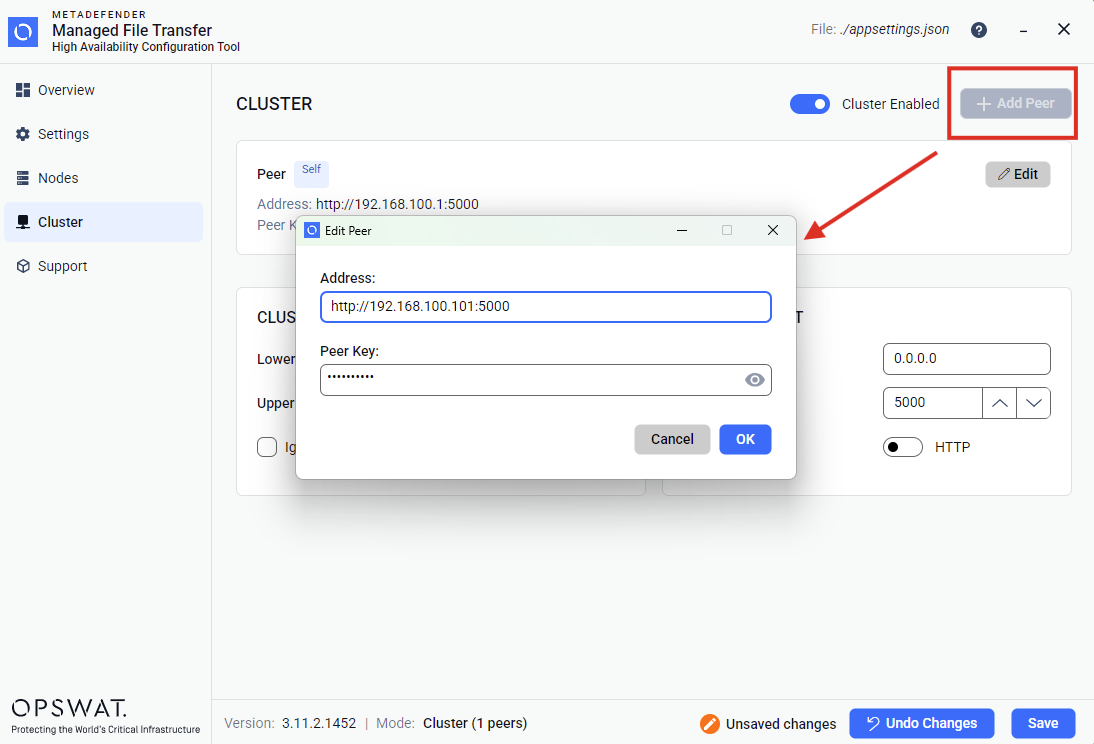
Address: The endpoint of the peer on which its Raft URL is configured.Peer Key: This is the unique key used for the peer. It can be found in thelocalpeer.jsonfile located in the installation directory of each peer, by theApiKeyproperty. This file is automatically generated by the installer, and must exist on all peers where MetaDefender MFT HA Controller™ is installed. If thePeer Keydoes not match theApiKeyof the peer, it will not be able to function within the cluster. This property is not editable in theSelfpeer.
Collect the API keys for the peers from their localpeer.json files:
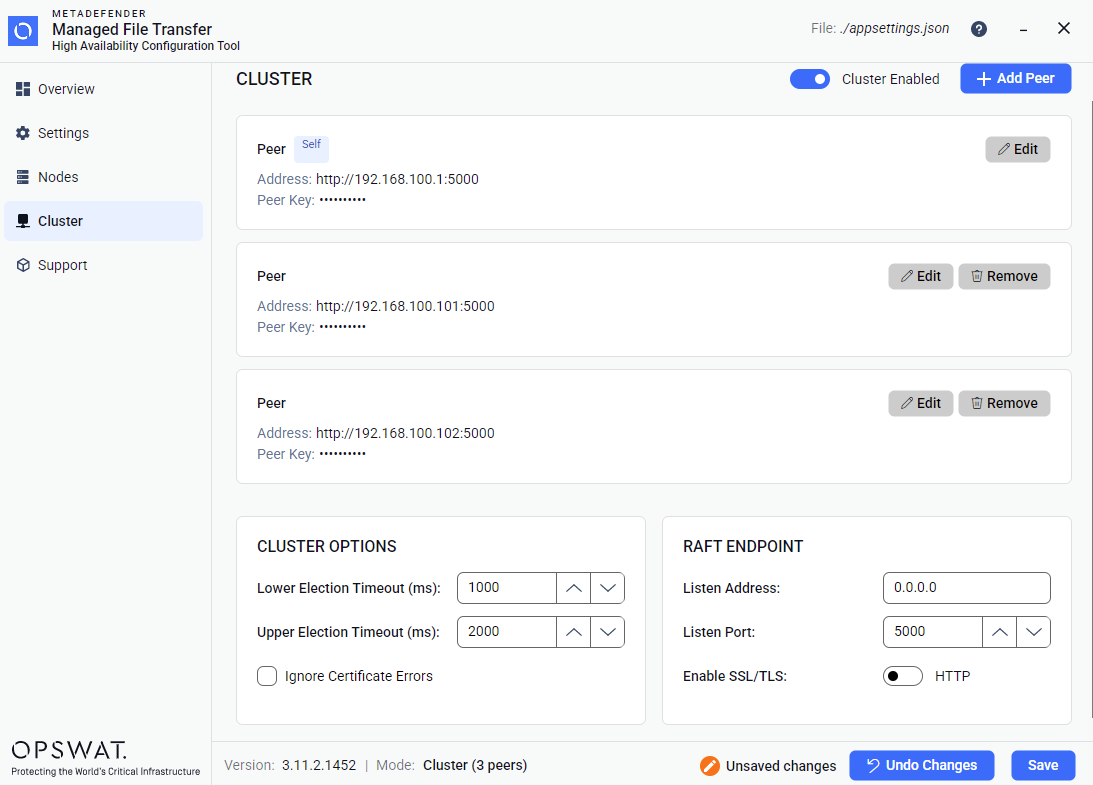
Example setup:
Peer | Address | Key | |
|---|---|---|---|
Peer1 ( | peer-key-1 (Not editable on self) | ||
Peer 2 | peer-key-2 | ||
Peer 3 | peer-key-3 |
Addresses must be the URL for the peer specified by their raft endpoint. Note that these must be real addresses (IP or hostnames), followed by the raft port.
Edit self peer
Click on Edit button on the right of the Self peer:
Add other peers
Add the two other peers by clicking the + Add Peer button and filling their data:
After adding the peers, the list should display them:
Save and apply configuration on other peers
Save the configuration, and configure the other peers the same way.
Alternatively copy the appsettings.json file from the local installation directory, to the installation directory of the other peers, where the MetaDefender MFT HA Controller™ is installed.
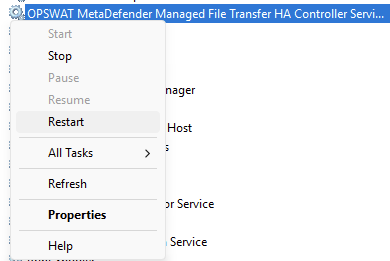
Restart the service on all peers
Restart MetaDefender MFT HA Controller™ on all peers.
Check results
If the configuration was successful on all peers, all of them are restarted, the Overview Page should show all peers as healthy: