
Quick Overview
MetaDefender® MFT includes a built-in SFTP server. When it is enabled, users and partners connect with a standard SFTP client using their MetaDefender MFT account and work directly with their own MFT folders. Files uploaded over SFTP land in the user's folders and go through the same scanning and policies as files uploaded through the web interface.
This page covers the server side: enabling the listener, choosing the address and port, and managing the server's SSH host key. For user accounts, SSH keys, and connecting with a client, see SFTP Access.
Info
"SFTP Server Configuration" under "Settings" → "Security" is not the same as "SFTP Integrations" under "Settings" → "Integrations". On this page, MetaDefender MFT is the SFTP server: partners and users connect to it with their MFT accounts.
An SFTP integration is the opposite direction: it stores the connection details of an external SFTP server so that automation jobs can pull files from it or push files to it. The two do not share settings, keys, or accounts, and either can be used without the other.
Only users with the "Settings" → "Security" update permission can view and change the SFTP server configuration.
Enabling the SFTP Server
Go to "Settings" → "Security" → "SFTP Server Configuration".
Turn on the "Enable SFTP as MFT" switch.
Fill in the fields described below.
Click "Save Configuration". The change applies immediately; no service restart is needed.
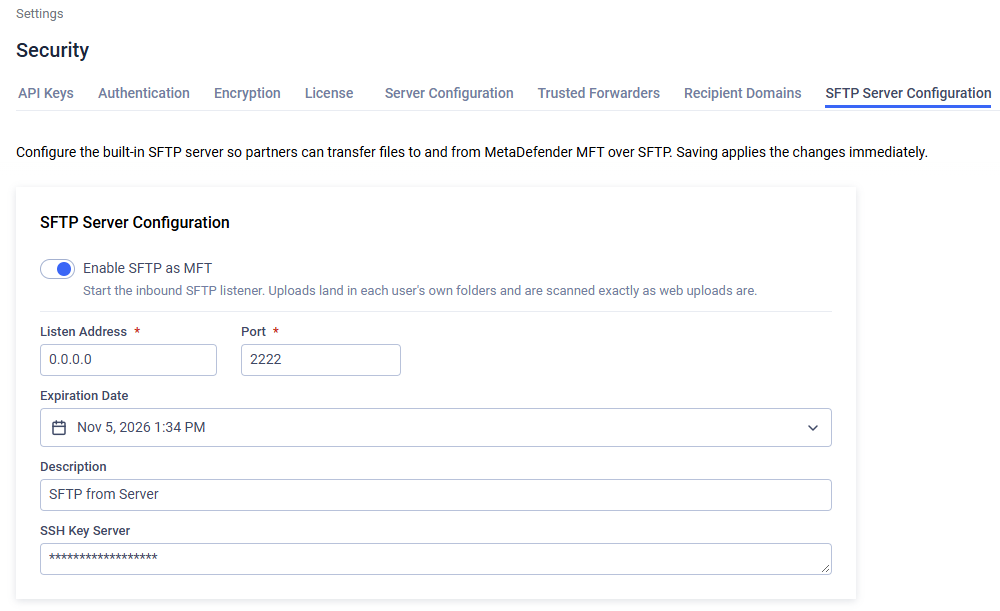
Name | Description |
|---|---|
Enable SFTP as MFT | Starts the inbound SFTP listener. When the switch is off, the remaining fields are read-only and no SFTP connections are accepted. |
Listen Address | IP address the listener binds to. Use |
Port | TCP port the listener accepts connections on, between 1 and 65535. The default is |
Expiration Date | Optional reminder date for rotating the host key. It is not enforced by the server, but the date cannot be in the past. |
Description | Optional note about the host key, for example where it came from. |
SSH Key Server | The server's SSH host key. Leave it blank to have MetaDefender MFT generate one, or paste an existing private key. See the next section. |
Warning
The installer does not open the SFTP port in Windows Firewall. Add an inbound rule for the configured port (TCP) on the MetaDefender MFT server, and on any firewall between the server and your partners, before asking anyone to connect.
Info
If the configuration is saved but the listener could not start, a notification says so. The reason, for example a port that is already in use, is written to the MetaDefender MFT service log. Fix the cause and save the configuration again.
Host Key
The host key is the SSH identity of the server. SFTP clients show its fingerprint on the first connection and store it; on every later connection, they compare the stored fingerprint with the one the server presents.
Generating a new host key
If no host key is configured yet, leave "SSH Key Server" blank and click "Save Configuration". MetaDefender MFT generates an RSA host key and stores it encrypted in the database. The field then shows a masked value instead of the key.
Using an existing host key
To keep the identity of an SFTP server you are replacing, paste its private key into "SSH Key Server" and save. The following formats are accepted:
Format | Notes |
|---|---|
RSA private key in PEM form ( | 2048-bit or larger. |
ECDSA P-256 private key in PEM format ( | Other curves (P-384, P-521) are not accepted. |
The following are not accepted:
Keys in OpenSSH format (
-----BEGIN OPENSSH PRIVATE KEY-----). Convert them first withssh-keygen -p -m PKCS8 -f <keyfile>.Password-protected (encrypted) private keys.
Public keys. The field needs the private key.
Ed25519 keys.
To create a suitable key on the command line, on Windows (OpenSSH) or Linux:
Paste the contents of mft_host_key (not mft_host_key.pub) into the field.
Warning
Saving a different host key replaces the server's identity. Every client that has connected before will report that the host key has changed, which looks identical to an attack, so inform your partners before rotating the key and give them the new fingerprint.
Fingerprint
After the key is saved, its fingerprint is shown to every user on their "User Preferences" → "SFTP Access" card, together with the connection command. Share that fingerprint with partners so they can verify the server on their first connection.
Connection Limits
The following limits apply to the SFTP server:
Setting | Value |
|---|---|
Idle timeout | A session with no activity for 10 minutes is disconnected. |
Authentication attempts | 3 failed attempts per connection, after which the connection is closed. |
Concurrent sessions | 200 in total, at most 10 from the same client address. |
Supported Algorithms
The SFTP server offers only modern algorithms. CBC ciphers, SHA-1 signatures, and compression are not offered.
Purpose | Algorithms |
|---|---|
Key exchange | ecdh-sha2-nistp256, ecdh-sha2-nistp384, diffie-hellman-group14-sha256 |
Host key signatures | rsa-sha2-512, rsa-sha2-256, ecdsa-sha2-nistp256 |
User key types | ssh-rsa (2048-bit or larger, used with rsa-sha2-256 or rsa-sha2-512 signatures), ecdsa-sha2-nistp256, ecdsa-sha2-nistp384, ecdsa-sha2-nistp521 |
Ciphers | aes256-gcm@openssh.com, aes128-gcm@openssh.com, aes256-ctr, aes128-ctr |
MACs | hmac-sha2-256-etm@openssh.com, hmac-sha2-512-etm@openssh.com, hmac-sha2-256, hmac-sha2-512 |
Ed25519 and curve25519 are not supported, and the SHA-1-based ssh-rsa signature is not offered.
Disabling the SFTP Server
Go to "Settings" → "Security" → "SFTP Server Configuration".
Turn off the "Enable SFTP as MFT" switch.
Click "Save Configuration".
Open sessions are closed and no new connections are accepted. The host key and the users' SSH keys are kept, so enabling the server again later restores the same identity.