
Organizations frequently need to control where files are allowed to go. Export control regulations may permit transfers only to a named set of partners, an acquisition may require that a former subsidiary's domain loses access, or a free webmail domain may simply not be an acceptable destination for business data.
MetaDefender® MFT creates a guest user or an external user account for every recipient outside your organization, and those accounts normally have an email address. The Recipient Domains page lets an administrator decide which email domains those accounts may belong to.
The policy applies to guest users and external users only. Internal users are never evaluated, and no account is ever restricted from reaching the files it owns.
What the Policy Enforces
An enabled policy enforces two rules:
A recipient on a disallowed domain cannot become the target of a new share. No guest or external account can be created on a disallowed domain, and an existing account's email address cannot be changed to one.
A recipient on a disallowed domain cannot download, preview, or otherwise read content already shared with them, because the account itself is disabled.
Nothing is removed. Files, folders and share records stay exactly as they are — the account carries the restriction. When the domain is permitted again, MetaDefender® MFT re-enables the affected accounts and their previous access returns without anyone re-sharing anything.
Example
An organization allows transfers to its partner dxc.com and every subdomain beneath it, but the lab environment at test.dxc.com must never receive production data. Free webmail is not an acceptable destination at all.
The administrator configures:
Domain | Match | Policy |
|---|---|---|
dxc.com | + subdomains | Allow |
test.dxc.com | Exact only | Block |
freemail.com | Exact only | Block |
With Unlisted domains set to Allow, the result is:
anna@dxc.com— allowed, matched by thedxc.comexception.anna@mail.dxc.com— allowed, matched by the same exception through its subdomains.anna@test.dxc.com— blocked. Two exceptions match this address, and the more specific one wins.anna@freemail.com— blocked.anna@newpartner.com— allowed, because no exception matches and unlisted domains are allowed.A guest user without an email address — allowed. It has no domain, so it follows the setting for unlisted domains.
Overview of the Recipient Domains Page
To configure the policy visit the "Settings" -> "Security" -> "Recipient Domains" tab.
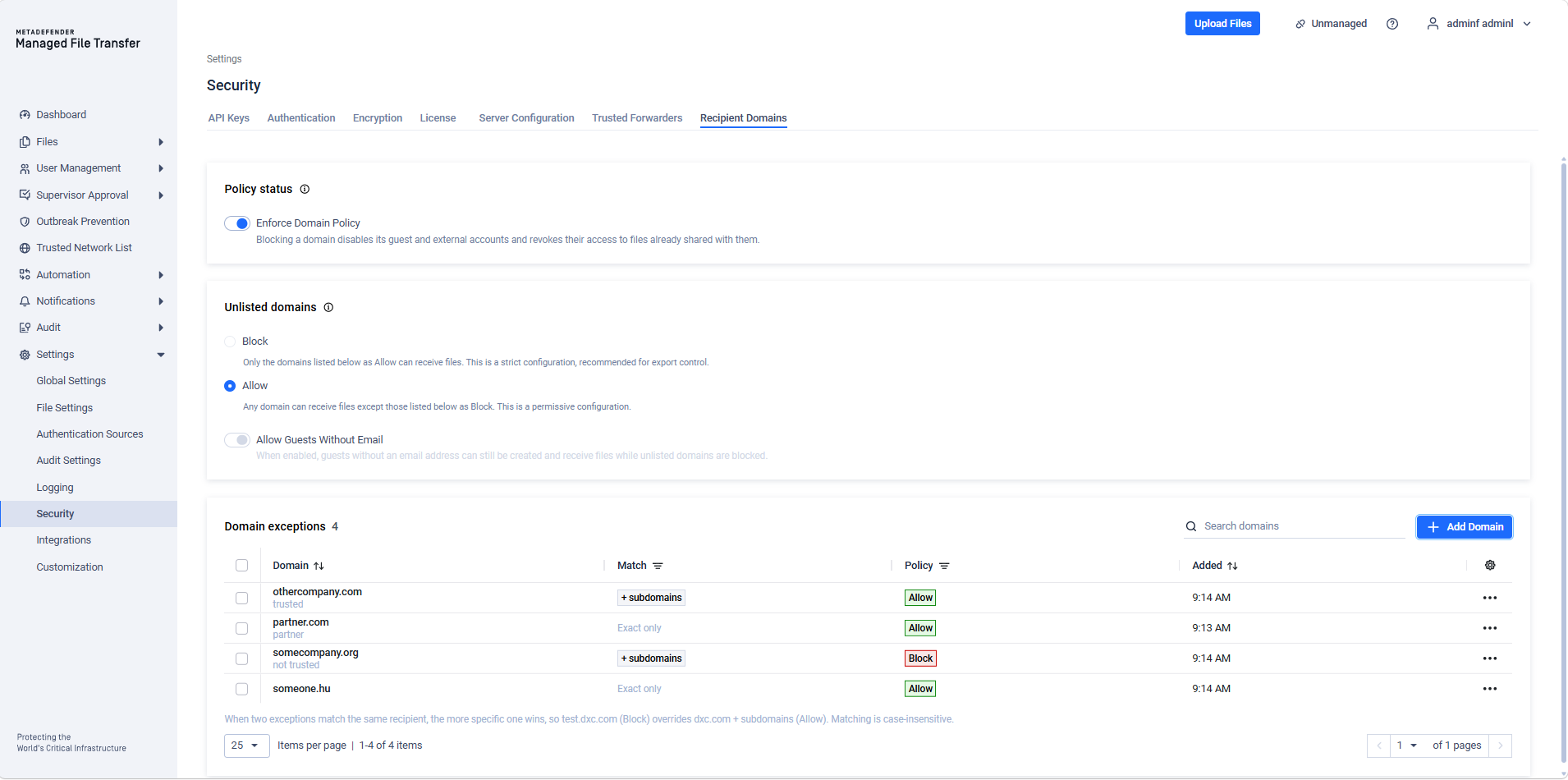
From this page, administrators can:
Turn the policy on or off
Choose what happens to domains that have no exception configured
Choose whether guest users without an email address are permitted while unlisted domains are blocked
Create, edit and delete domain exceptions
Review exactly who loses access before any change that takes access away is applied
There is no separate Save step: each setting is applied as soon as it is changed. Changes take effect immediately. No service restart is required.
The page is available to administrators holding the following permissions:
Permission | Grants | Assigned by default to |
|---|---|---|
RecipientDomain.Read | Viewing the policy and the exception list | Administrator, Third-party Administrator, Read-only Administrator, Third-party Read-only Administrator, Helpdesk Administrator, Third-party Helpdesk Administrator, Restricted Administrator, Third-party Restricted Administrator |
RecipientDomain.Write | Changing the policy and managing exceptions. Also required to change the email address of an account whose domain is blocked. | Administrator, Third-party Administrator |
Administrators holding only RecipientDomain.Read see the page read-only.
Policy Status
Determines whether the domain policy is enforced at all. The switch is labelled Enforce Domain Policy.
Status | Description |
|---|---|
On | Domain checks run on every share, on every guest and external account creation and email address change, and on every download, preview and archive download. Guest and external accounts on blocked domains are disabled. |
Off | No domain checks run, and every guest and external account stays enabled. |
Unlisted Domains
Sets the default action for any recipient domain that has no exception configured. This option is only available while the policy is on.
Setting | Description |
|---|---|
Allow | Any domain can receive files except those listed below as Block. This is a permissive configuration, and the default. |
Block | Only the domains listed below as Allow can receive files. This is a strict configuration, recommended for export control. |
The exception list starts empty. Selecting Block before adding the domains you rely on will deny every external recipient at once. Build the allow list first, then switch the default.
Allow Guests Without Email
A guest user can be created without an email address and sign in with its Guest ID instead. Such a guest has no email domain to evaluate, so it counts as an unlisted domain. This setting decides whether those guests are permitted while unlisted domains are blocked.
The setting is only available while the policy is on and Unlisted domains is set to Block. When unlisted domains are allowed, a guest without an email address is always permitted.
Setting | Description |
|---|---|
On | Guests without an email address can be created, can be shared with, and keep their access. This is the default. |
Off | Guests without an email address are blocked like any unlisted domain. New ones cannot be created or shared with, and existing ones are disabled. |
The setting applies to guest users only. Turning it off takes access away from existing guests, so the impact preview appears first.
Domain Exceptions
Each exception names one email domain and the action that applies to it.
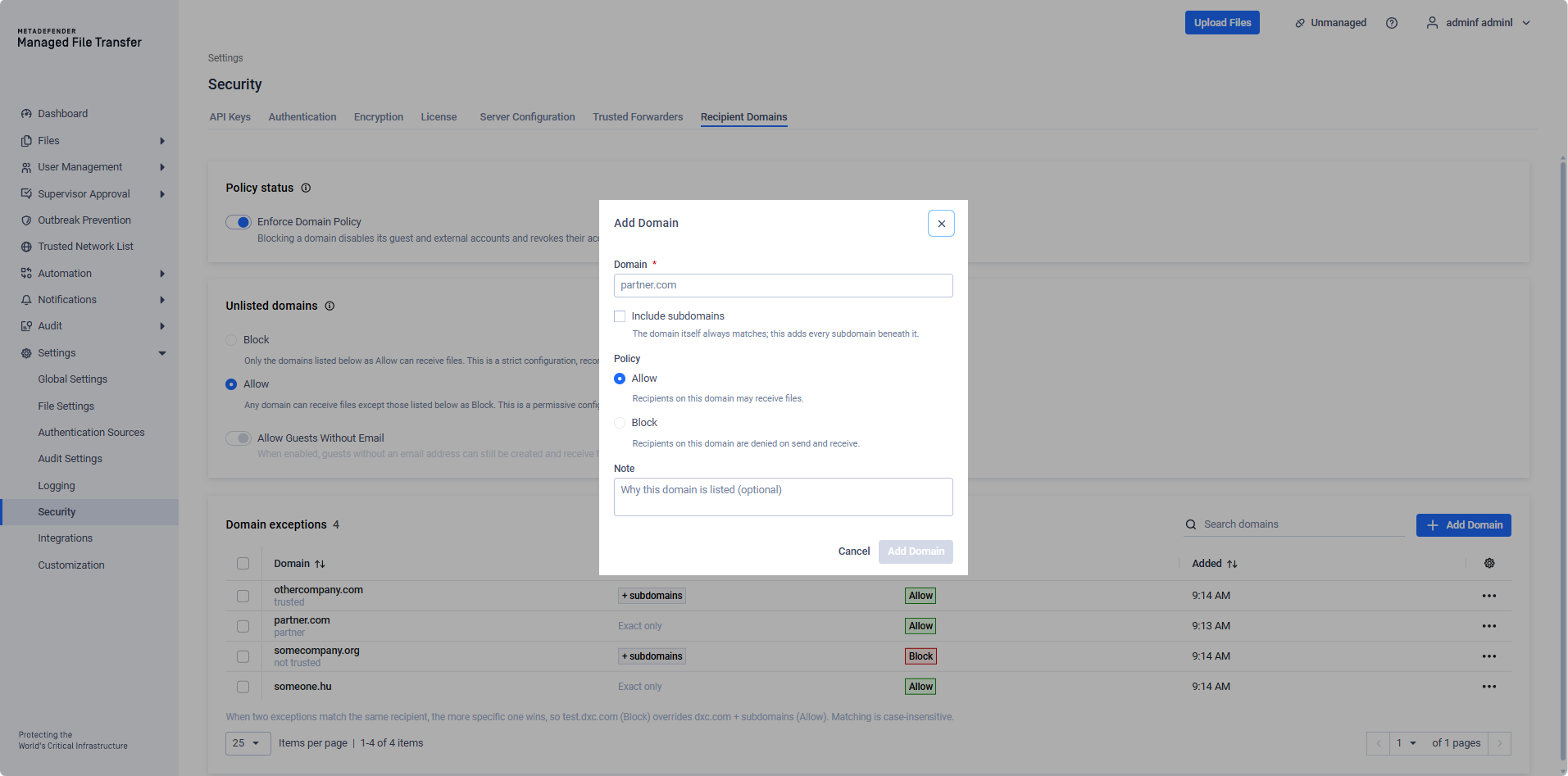
Field | Description |
|---|---|
Domain | The recipient email domain, for example partner.com. |
Include subdomains | The domain itself always matches; this adds every subdomain beneath it. With this enabled, partner.com also matches mail.partner.com. |
Policy | Allow — recipients on this domain may receive files. Block — recipients on this domain are denied on send and receive. |
Note | Optional. Records why the domain is listed, for the benefit of the next administrator. |
Up to 500 exceptions can be configured.
Matching is case-insensitive, and when two exceptions match the same recipient the more specific one wins. A Block exception for test.dxc.com therefore overrides an Allow exception for dxc.com with subdomains.
Selecting one or more rows enables Delete selected. Recipients on a deleted domain fall back to the setting for unlisted domains, so deleting a Block exception does not allow the domain if unlisted domains are blocked.
Adding, editing or deleting an exception shows the impact preview first whenever the change takes access away.
Reviewing the Impact Before Enforcing
A stricter policy affects access that already exists, so MetaDefender® MFT reports the consequences before writing anything. The preview appears for any change that takes access away:
Turning the policy on
Switching Unlisted domains to Block
Turning Allow Guests Without Email off
Adding, editing or deleting an exception
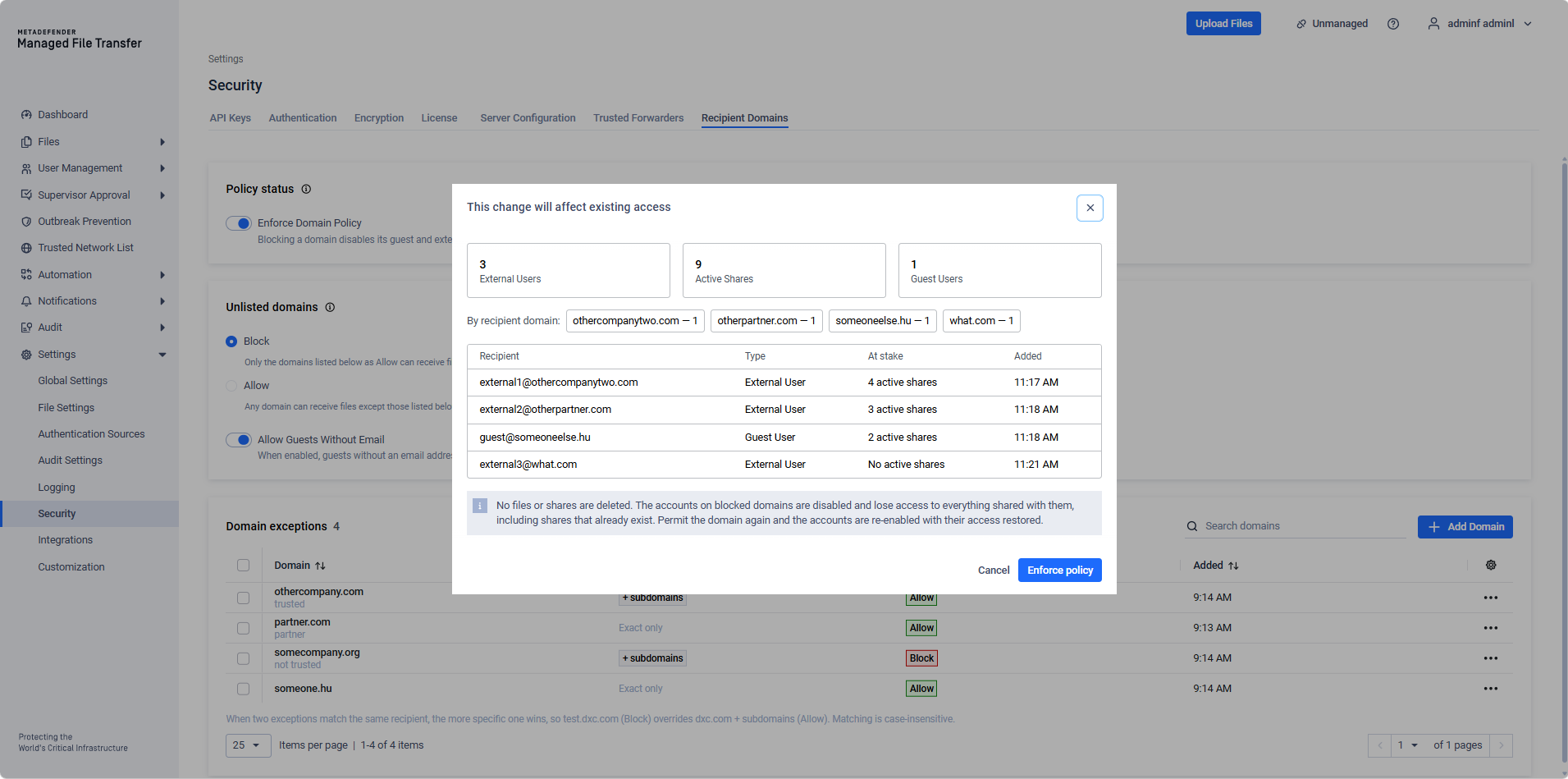
The preview reports the number of external users, guest users and active shares affected, grouped by recipient domain, and lists the individual recipients with the most access at stake. It counts only the recipients that the change newly blocks. Recipients that the current configuration already blocks are left out. A guest without an email address is listed by its display name and ID, never by its Guest ID, which is also its password.
Selecting Enforce policy applies the change. Closing the dialog leaves the policy and the exception list untouched.
If the change takes no existing access away, no preview appears and the change is applied directly.
What Blocked Recipients Experience
For the Sender
When a sender types a guest address on a blocked domain into the share dialog, MetaDefender® MFT reports it as the address is added rather than after the share is saved. Save remains unavailable until the address is removed.
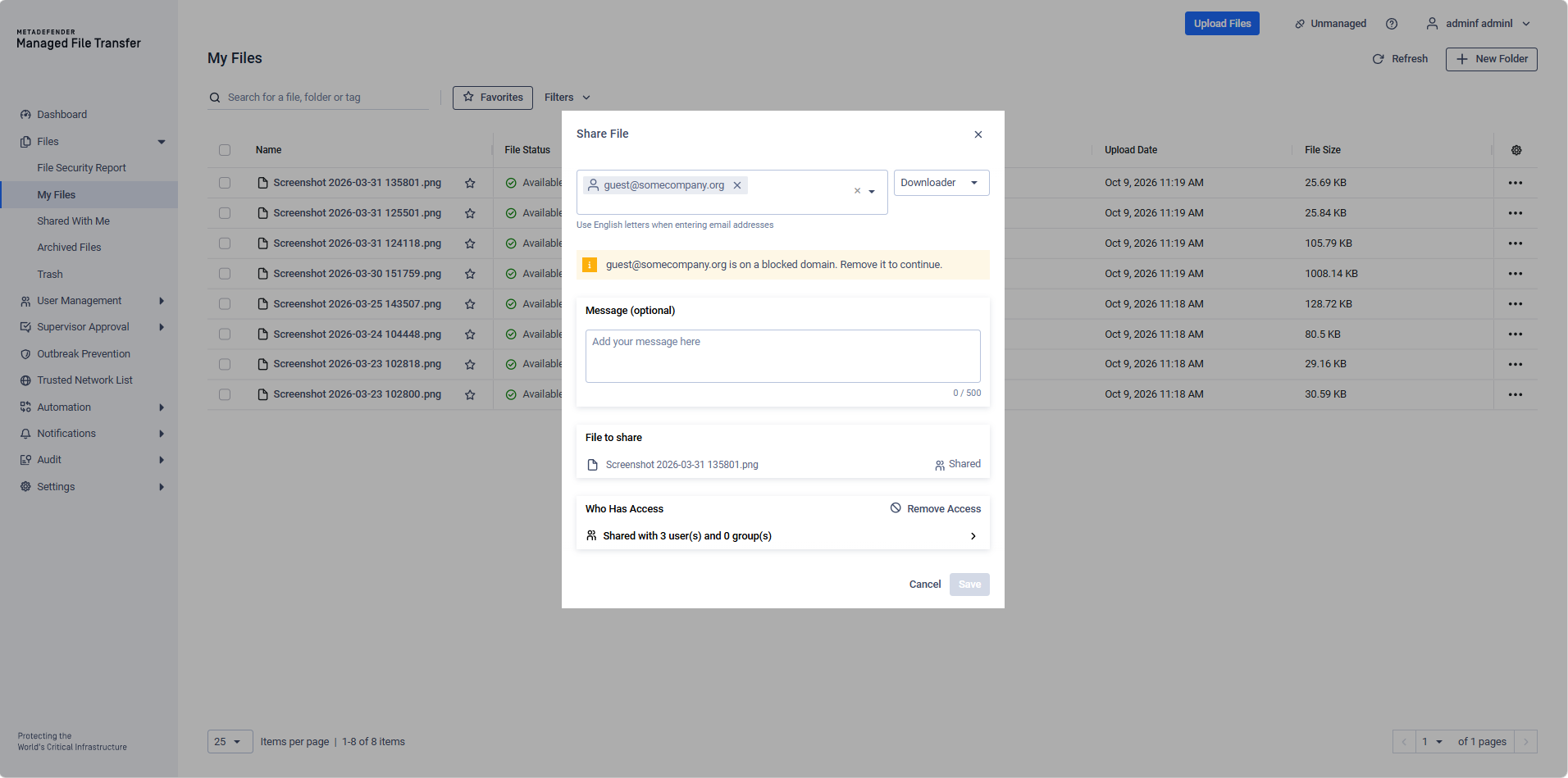
If the check cannot reach the server, the sender is not held up. Every share request evaluates its recipients again when it is written, so a failed check never lets a blocked recipient through.
For the Recipient
Situation | Message |
|---|---|
A sender attempts to share with a blocked domain | This email domain is blocked. Ask your administrator to permit it. |
A guest or external account is created on a blocked domain | This email domain is not permitted, so the account was not created. Use a different address, or ask your administrator to allow the domain. |
A blocked account attempts to download shared content | Your email domain is no longer permitted to receive files. Contact the sender or your administrator. |
Downloads, previews and archive downloads are all covered, including an archive that was prepared before the domain was blocked.
How Accounts Follow the Policy
After every change to the policy or to an exception, MetaDefender® MFT reconciles guest and external accounts against the current configuration. An account whose domain is no longer permitted is disabled. An account whose domain was blocked and is now permitted again is enabled.
This symmetry is what makes the policy reversible without an administrator re-enabling accounts individually. Three consequences are worth knowing:
Re-enabling only undoes what the policy did. An account that an administrator disabled by hand, on a domain that was not blocked, stays disabled when the policy or an exception changes.
An account that an administrator disabled by hand before its domain was blocked is enabled again when its domain becomes permitted. MetaDefender® MFT cannot tell it apart from an account the policy disabled.
An expired account remains disabled. Permitting its domain does not extend the expiry.
Changing an Account's Email Address
While the policy is on, a change to a guest's or external user's email address is evaluated the same way as creating the account:
Changing the address to one on a blocked domain is refused for everyone, administrators included. Nothing is saved.
Changing the address of an account whose current domain is blocked requires the RecipientDomain.Write permission. Without this rule, the account's creator could restore a blocked recipient, together with all its shares, by editing the address. When an administrator moves a disabled account to a permitted domain, the account is enabled again, unless it has expired.
Removing a guest's email address is evaluated as a guest without an email address. See Allow Guests Without Email.
Saving an account without changing its address is not evaluated.
Situation | Message |
|---|---|
The new address is on a blocked domain | This email domain is not permitted, so the change was not saved. Use a different address, or ask your administrator to allow the domain. |
The current address is on a blocked domain, and the user lacks RecipientDomain.Write | This account's email domain is blocked, so only an administrator can change its email address. Ask your administrator to update it. |
Audit Events
The policy records six event types, available in the audit log:
Event | Recorded when |
|---|---|
Recipient Domain Policy Updated | The policy status, the unlisted-domain default or the Allow Guests Without Email setting changes |
Recipient Domain Exception Created | An exception is added |
Recipient Domain Exception Updated | An exception is edited |
Recipient Domain Exception Deleted | An exception is deleted |
Share Blocked by Recipient Domain Policy | A sender is refused a recipient, a guest or external account is refused creation, or an email address change is refused, together with the domain and the rule that refused it |
Access Blocked by Recipient Domain Policy | A recipient is refused a download, preview or archive download, together with the domain, the rule and the client IP address |
A guest without an email address is recorded by its display name and ID, never by its Guest ID.
When to Use Recipient Domains
Use this feature in the following scenarios:
Export control or regulatory requirements limit transfers to a named set of destinations.
A partner relationship has ended and their domain must lose access to material already shared with it.
Business data must not reach free webmail or other consumer domains.
A specific environment, such as a partner's test infrastructure, must be excluded from an otherwise permitted domain.
Security Considerations
Enforcing the policy disables the guest and external accounts on blocked domains. Review the impact preview before confirming — it lists the accounts and the shares involved.
The policy governs external recipient domains. It is not a substitute for share permissions, folder permissions, or role configuration.
A blocked account keeps full use of the files it owns. If the requirement is that the account reaches nothing at all, disable or delete the account directly.
Sharing with a group grants the share to the group. If the group contains a member on a blocked domain, the share record is created, although that member cannot read anything through it — their account is disabled, and access is evaluated against the account's own domain regardless of how the share was granted.
Allow Guests Without Email is on by default, so guests without an email address keep working after an upgrade. While it is on, a strict Block configuration does not stop a user who can create guests from creating one without an email address and sharing files with it. Where only listed domains may receive files, for example under export control, turn the setting off.