
How To Configure
Enabling Custom Command Line Script may introduce potential security risks. It is recommended that only experienced administrators enable and manage this setting, taking full responsibility to implement appropriate security measures and monitor for any vulnerabilities.
Post-processing scripts can be configured via the Run custom command line script option. Variables from the table below can be used in the scripts.
One command can only be configured for the script. For multiple commands, a batch or powershell script should be created and then called from the command line script.
For example, the following command line will call a batch script that will copy the file that was analyzed by Kiosk to E:\MD_POST_ACTION_BY_PAC folder and delete after the copy.
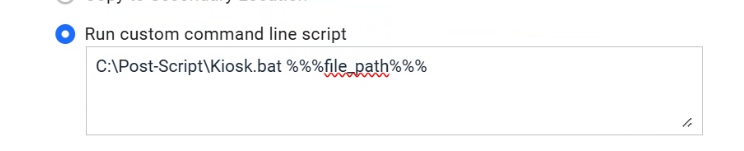
After entering your script, click Apply.
Be sure to test the script before configuring with Kiosk as the script is not validated.
Paths or parameters (excluding Pre-defined variables for scripts) containing blanks should be surrounded in "quotes".
Pre-defined variables for scripts
Variable | Description | Notes |
|---|---|---|
%%%% | The absolute path of the file scanned | |
%%%% | The name of the threat found by the engines | This variable only applies to infected scan results ( |
%%%% | The time when the scan was finished | Local time of the kiosk system |
%%%% | A random number assigned to each Kiosk session | |
%%%% | Integer representation of the scan result | |
%%%% | The process outcome
| |
%%%% | The username of the currently logged-in user | Available when Kiosk is configured for user authentication. Syntax: |
%%%userresponse#%%% | The answer given to a question configured under User Questions for the workflow | Numbered by the order questions are presented. Syntax: |
Example
A common use of custom command line scripts is to combine the scanned file's path with information collected from the user earlier in the session — for example, filing processed files into a folder named after an ID the user typed in when answering a workflow question.
If a workflow asks the user one question before scanning, a script like the following uses both the scanned file's path and that question's answer:
When Kiosk runs the script, it replaces each variable with its actual value for that session before executing the command.
If more than one question is configured for the workflow, each question's response is available as a separate variable, in the order the questions are presented to the user.
Running a Powershell script
To execute a Powershell script, the corresponding group policy needs to be set. See About Execution Policies under USE GROUP POLICY TO MANAGE EXECUTION POLICY. Enable Turn on Script Execution -> select Allow all scripts