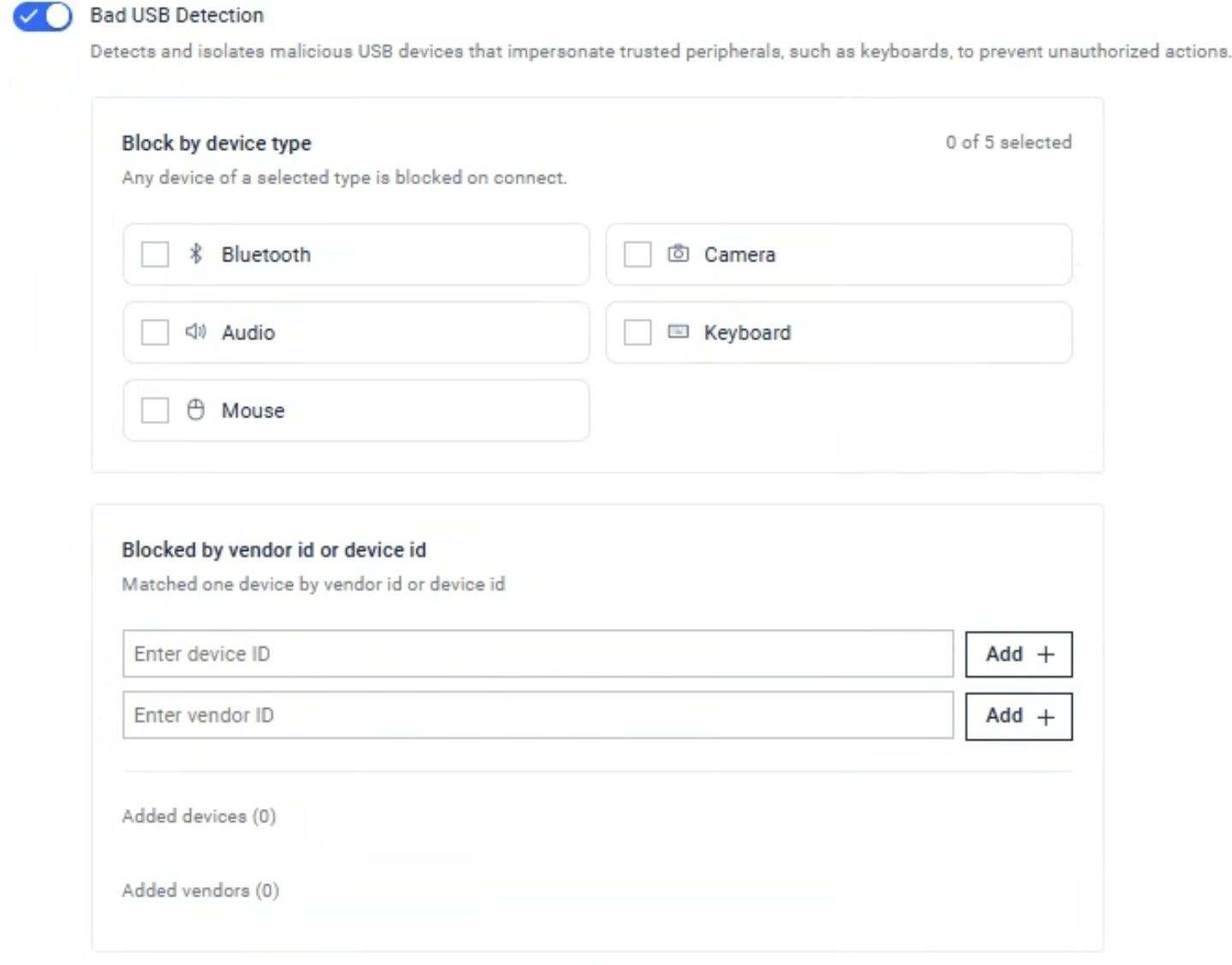
MetaDefender Kiosk can detect and block a range of USB-based attacks that go beyond ordinary malware on a storage device — including USB devices that impersonate trusted peripherals like keyboards, and attempts to damage the system electrically through a USB port. This capability, called Bad USB Detection, has been available since Kiosk 4.8.0 and was significantly expanded starting in Kiosk 4.8.5 with a stronger detection engine, more granular configuration, and a redesigned detection experience.
What It Protects Against
A range of USB attack devices — including well-known tools like RubberDucky and BashBunny — mimic standard USB flash storage in appearance. Beneath that facade, they present a USB keyboard or network adapter interface to the host system, then use it to execute keystroke sequences that launch processes, open a shell, or change system settings without anyone typing at a real keyboard. Some attempt to physically damage the host through the USB port itself.
Bad USB Detection addresses this with several complementary techniques:
Typing-behavior analysis distinguishes a person's genuine keystrokes from a device injecting them automatically, which reduces false alarms while still catching real attacks quickly.
Attack-payload checking inspects USB storage devices for a common attack-tool payload file before it can run — a type of file that can't be scanned for malware the way an ordinary file can.
Power surge attack detection (also known as "USB Killer" attack detection, on supported hardware only) recognizes an attempt to damage the system through a power surge delivered over a USB port, and reports the attempt without harm to the Kiosk. This protection requires a Kiosk Tower 6 or Kiosk Desktop 5 fitted with a supported attack-resistant USB hub and is not available on other Kiosk hardware or on a standard (non-hardened) installation.
Prerequisites
Administrator access to the Kiosk Management Console, to configure Bad USB Detection.
For power surge attack ("USB Killer") detection specifically: a Kiosk Tower 6 or Kiosk Desktop 5 fitted with a supported attack-resistant USB hub. This is not available on other Kiosk hardware.
Configuring Bad USB Detection
Sign in to the Kiosk Management Console as an administrator.
In the left navigation, expand Settings and select System Hardening.
Turn on Bad USB Detection.
Click Save Updates.
Bad USB Detection is off by default, so existing Kiosk deployments aren't affected until an administrator turns it on.
Choosing which device types to check
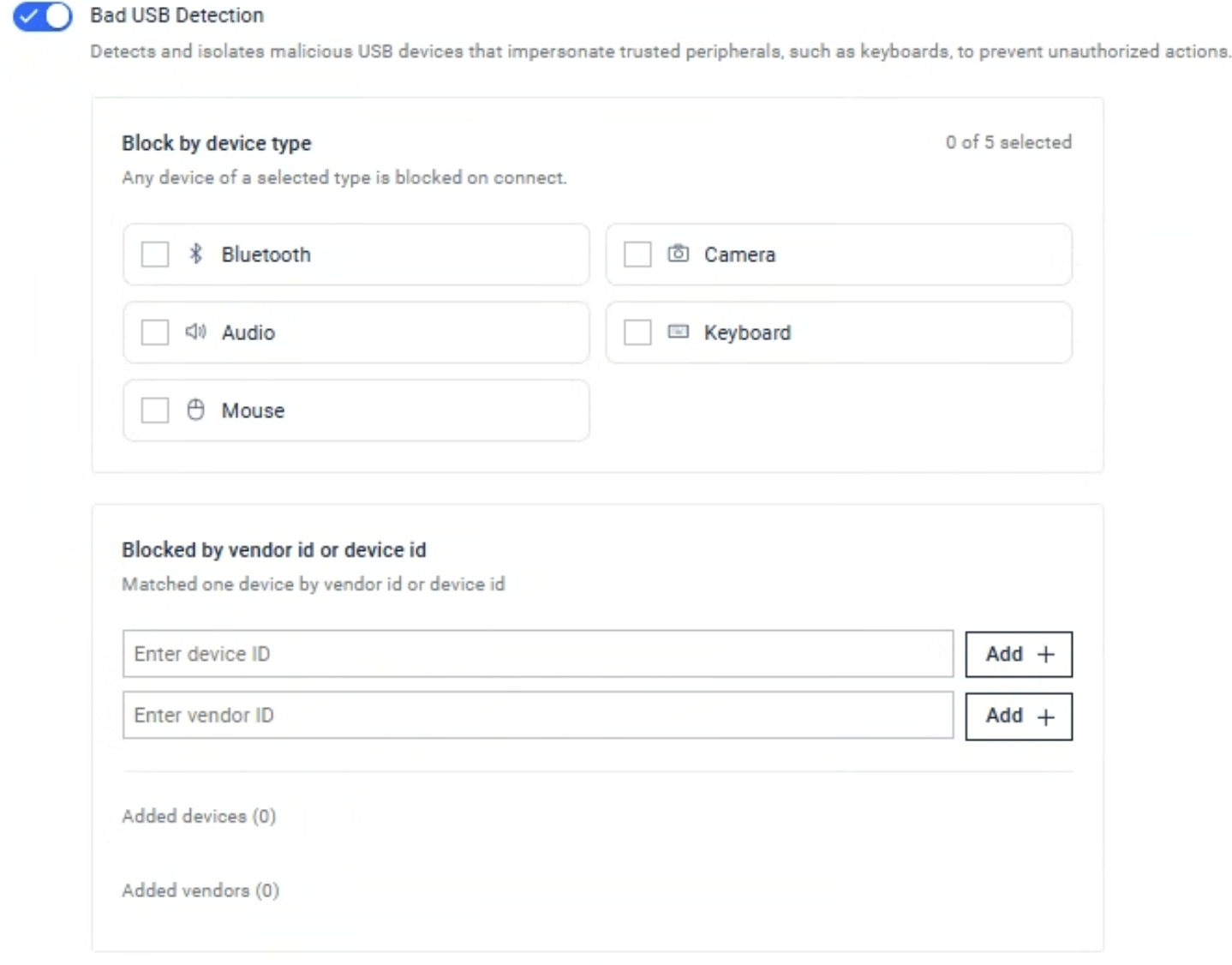
Under Block by device type, select which kinds of devices Bad USB Detection should apply to: Disk drive, Floppy disk, CD/DVD, Bluetooth, Camera, Audio, Mobile, Card reader, Keyboard, and Mouse. All categories are selected by default. Clear a category if your environment relies on that type of device and you don't want it subject to detection — for example, a site that uses Bluetooth keyboards routinely might clear both Keyboard and Bluetooth. Click Save Updates to apply your changes.
Blocking specific devices
Under Blocked by vendor id or device id, you can add a specific device to always be blocked, by its Vendor ID or Device ID, regardless of its category setting above — useful when you already know a particular device is unwanted. Trying to add an ID that's already on the list shows an error message so you don't add it twice. Click Save Updates to save the list.
The existing Reset Blocked USB List button clears any devices you've previously blocked.
What Happens When an Attack Is Detected
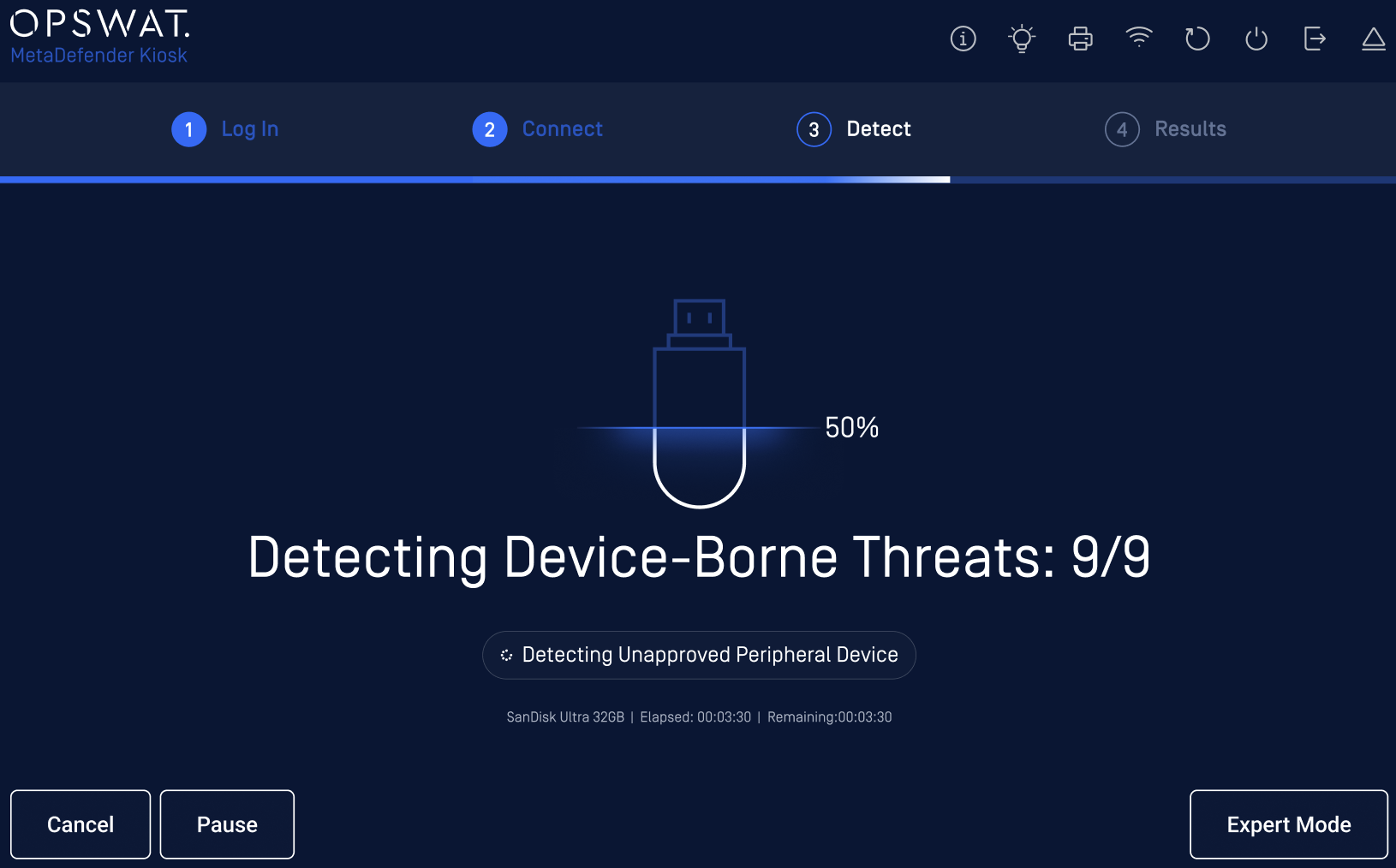
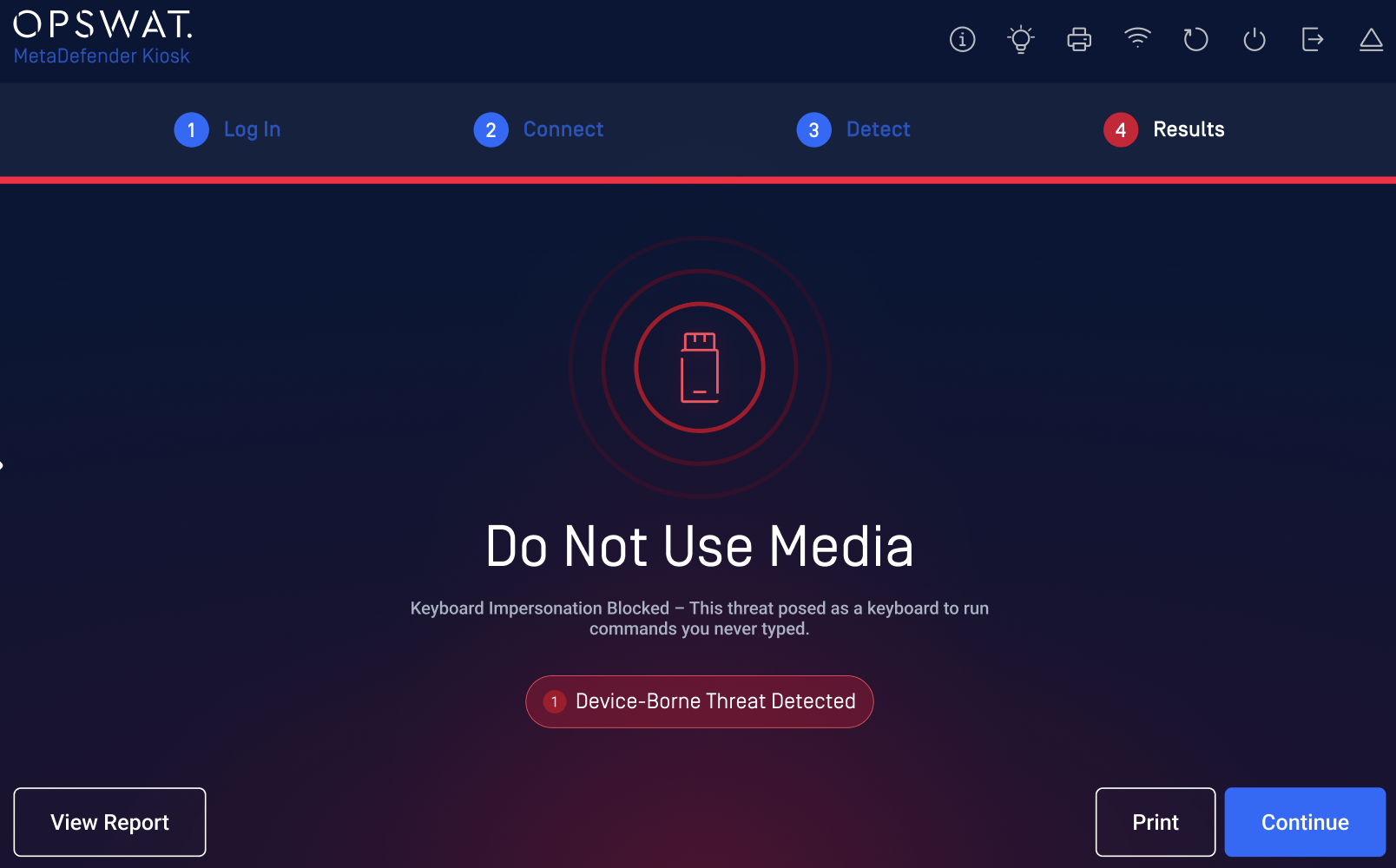
When Bad USB Detection identifies a device attack, Kiosk shows a full-screen alert naming what was found. If more than one issue is detected in the same session, the alert cycles through each one. Once detection finishes, you're taken to a results screen that separates findings into two categories — Device issues (problems with the device itself) and File issues (malicious files found on it). Selecting View Full Report shows more detail, including information about the flagged device (such as its make, model, and USB version) and which antivirus engines scanned the session.
A blocked or flagged device produces a report the same way a scanned file does. If this Kiosk is enrolled in My OPSWAT Central Management, that report is also available from your Central Management console.
Attack Types Detected
Bad USB Detection currently recognizes and reports the following attacks, shown with the exact category and description you'll see on screen:
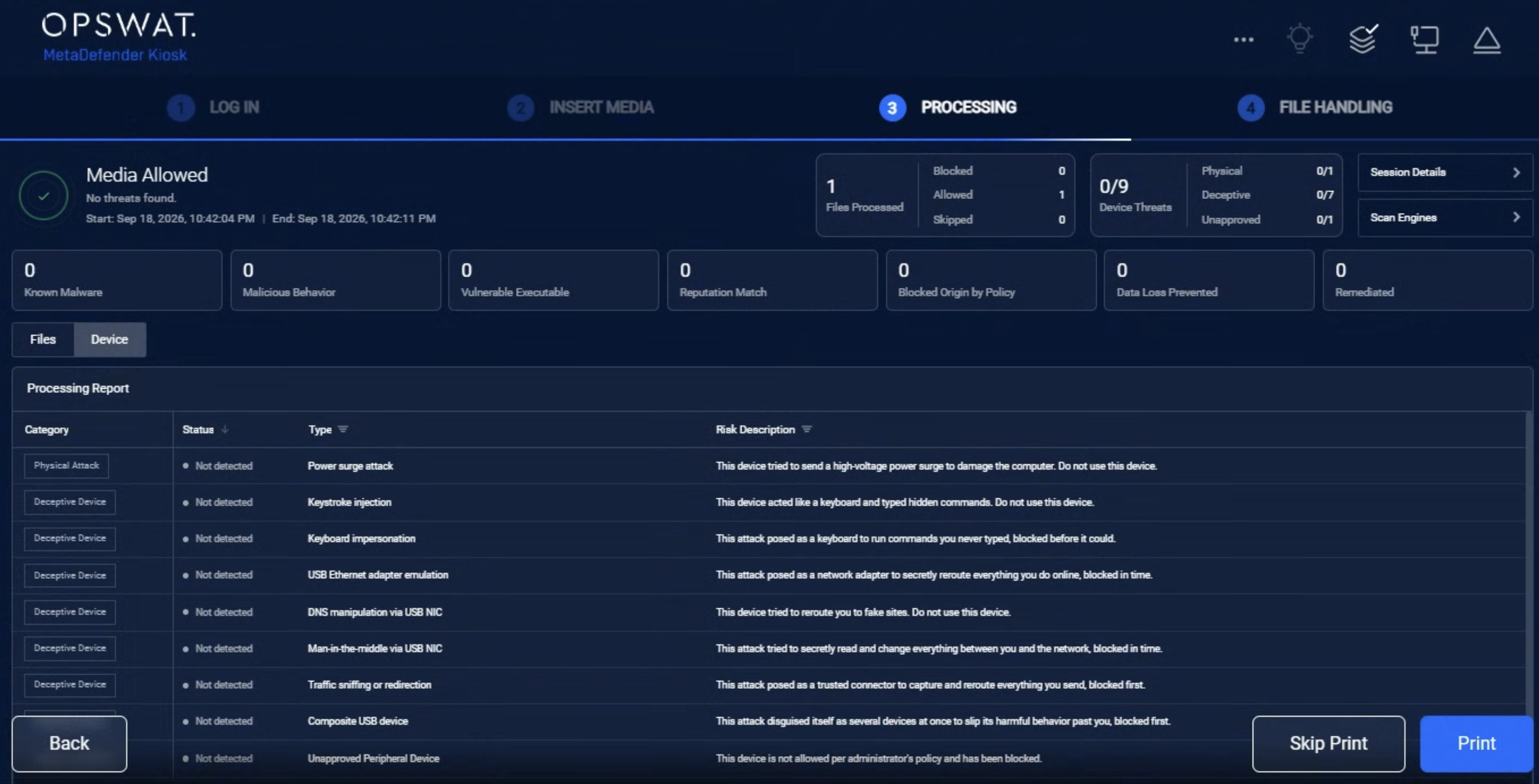
Category | Attack | Description |
|---|---|---|
Physical Attack | Power surge attack | This device tried to send a high-voltage power surge to damage the computer. Do not use this device. |
Deceptive Device | Keystroke injection | This device acted like a keyboard and typed hidden commands. Do not use this device. |
Deceptive Device | Keyboard impersonation | This attack posed as a keyboard to run commands you never typed, blocked before it could. |
Deceptive Device | USB Ethernet adapter emulation | This attack posed as a network adapter to secretly reroute everything you do online, blocked in time. |
Deceptive Device | DNS manipulation via USB NIC | This device tried to reroute you to fake sites. Do not use this device. |
Deceptive Device | Man-in-the-middle via USB NIC | This attack tried to secretly read and change everything between you and the network, blocked in time. |
Deceptive Device | Traffic sniffing or redirection | This attack posed as a trusted connector to capture and reroute everything you send, blocked first. |
Deceptive Device | Composite USB device | This attack disguised itself as several devices at once to slip its harmful behavior past you, blocked first. |
Unapproved Device | Unapproved Peripheral Device | This device is not allowed per administrator's policy and has been blocked. |
Example
A site uses Bluetooth mice and keyboards routinely, and wants to avoid false alarms on those, while still watching storage and mobile devices closely. An administrator opens Settings > System Hardening > Bad USB Detection, clears Bluetooth, Keyboard, and Mouse under Block by device type, and saves. Separately, after security research flags a specific Vendor ID associated with counterfeit charging cables, the administrator adds that Vendor ID under Blocked by vendor id or device id — any device presenting that Vendor ID is blocked outright, regardless of its device-type category.