
Check Your Version:
This article applies to all MetaDefender Kiosk releases deployed on Windows systems.
How to setup: https://www.opswat.com/docs/mdkiosk/operating/retrieving-files-from-an-external-source
This article explains how to resolve issues when retrieving files from the Employee or Guest Workflow.
Requirements to check through:
A MetaDefender MFT server must already be configured and reachable from the Kiosk.
The guest account on MFT must already contain files available for retrieval.
The guest account must be active and not expired.
You must know the correct MFT Owner/Guest ID for the guest account.
The active Kiosk workflow must have Retrieve Files enabled with MFT selected as a source.
The destination media type must be allowed for write to receive files from MetaDefender Kiosk.
Active directory must be active and connected for the Employee Workflow. Ensure the user exists on the Employee Workflow and can login.
Where to obtain the MFT Owner ID for the Kiosk Guest Workflow?
When prompted, enter the MFT Owner ID for the guest account.
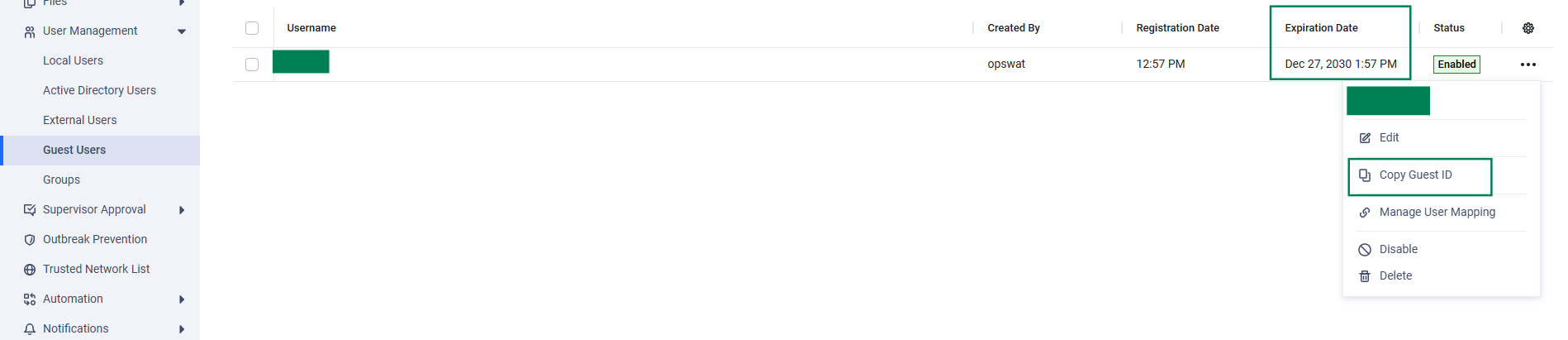
How to obtain the Guest ID:
a. Login to MFT > user management > Guest Users > click three dots to copy the Guest ID.
Common reasons the option is not available
Issue | What it means | What to check |
|---|---|---|
Retrieve Files option does not appear | The workflow or media type does not allow retrieval | Verify the workflow enables Retrieve Files and the inserted media type is allowed for Retrieving Files [Write permission] |
MFT files are not shown | The Owner ID may be wrong, Guest account expired, or the guest account has no available files | Confirm the correct MFT Owner ID and check the guest account on MFT |
Retrieval fails after starting | Kiosk may not be able to reach MFT or the session media was removed too early | Check Kiosk-to-MFT connectivity and keep the media inserted until completion |
Support:
If Further Assistance is required, please proceed to log a support case or chatting with our support engineer.