
Check Your Version:
This article applies to the MD Kiosk that is managed by the OPSWAT Central Management
Starting with version 10.4.2602 (On-premises), Central Management supports upgrading enrolled MetaDefender Kiosk instances. Allowing the Administrator to upgrade the MetaDefender Kiosk version, including the Hardened Image.
1. Upgrading MetaDefender Kiosk software version:
This feature is available for MetaDefender Kiosk versions 4.8.0.xxxx or later.
Go to Updates > Applications > Kiosk > Packages > “Check new version”.
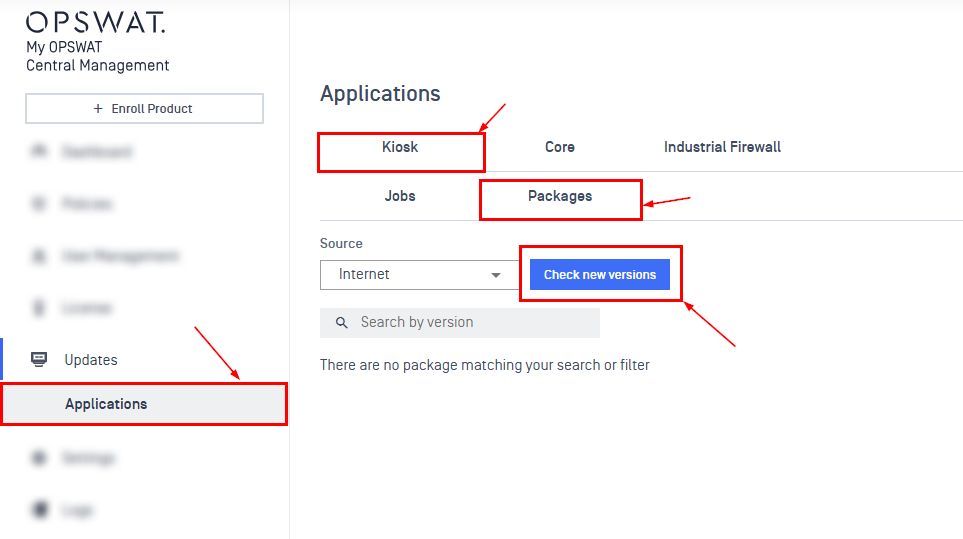
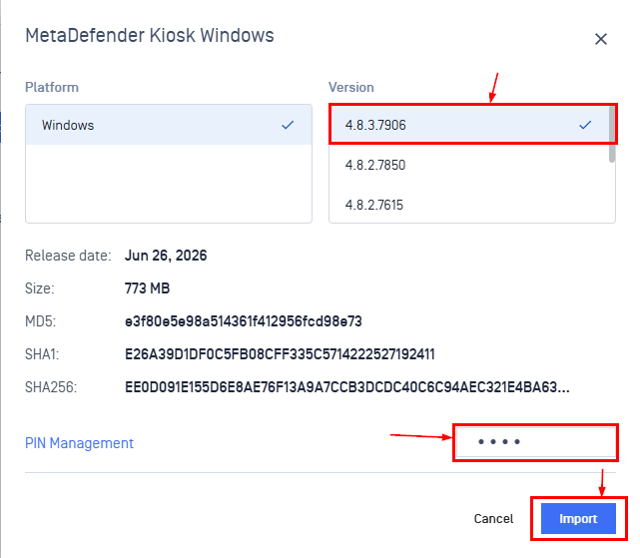
Choose the desired version that you want to add to the library, enter the PIN, then Import
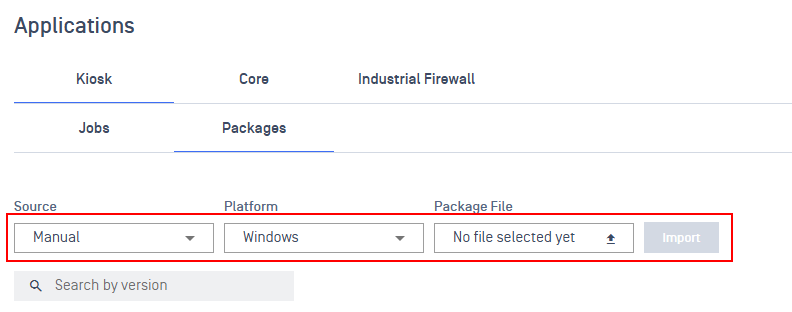
If you are using On-Premises deployment, you can download the installer from the MyOPSWAT Portal, then choose Manual, and import the installer from the downloaded file.
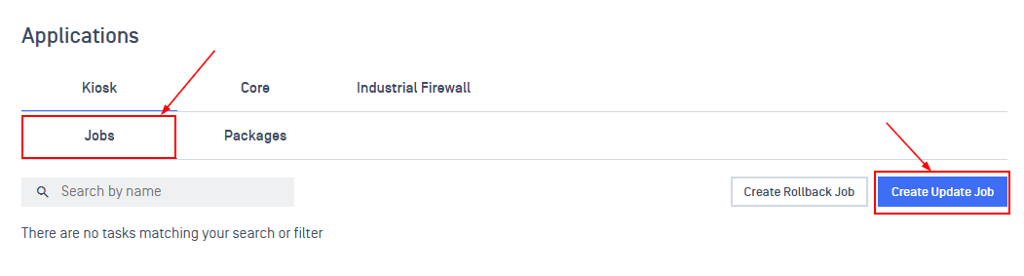
From Applications > Kiosk > Choose Jobs > Create Update Job.
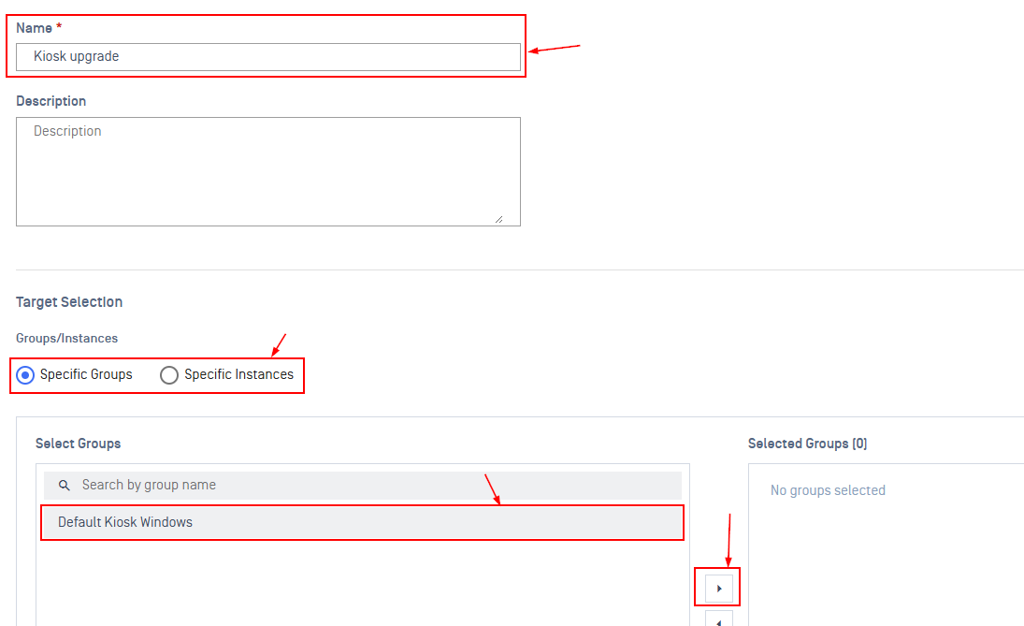
Enter the Name for the Job, then choose the target groups/instances.
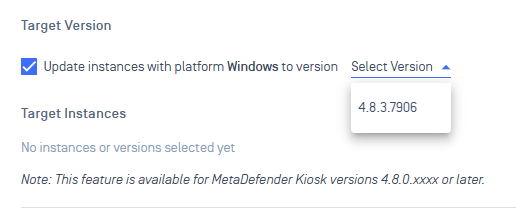
Choose the target version (this list is the library that you added in the steps above).
Edit the Update settings below if needed and save the job.
The job will run at your scheduled time, triggering the upgrade. Ensure your Kiosk instance is active and connected to Central Management then.
2. Upgrading Kiosk Hardened Image version:
This feature applies only to MetaDefender Kiosk Hardened Image deployments.
Applies to Hardened Image 25.01.0 or later.
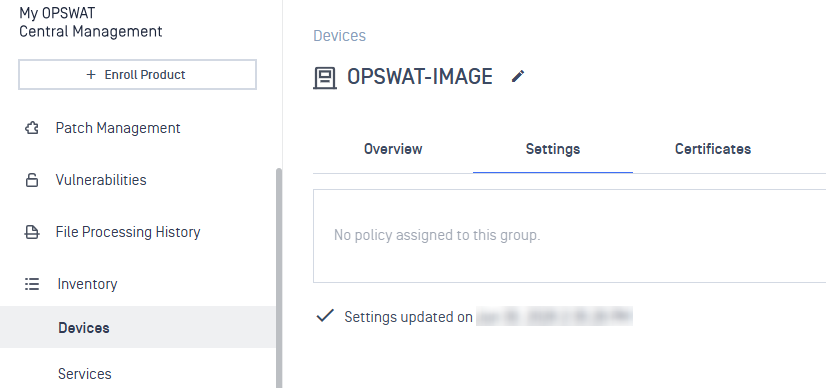
Go to Inventory > Devices > Choose the Kiosk instance > Settings
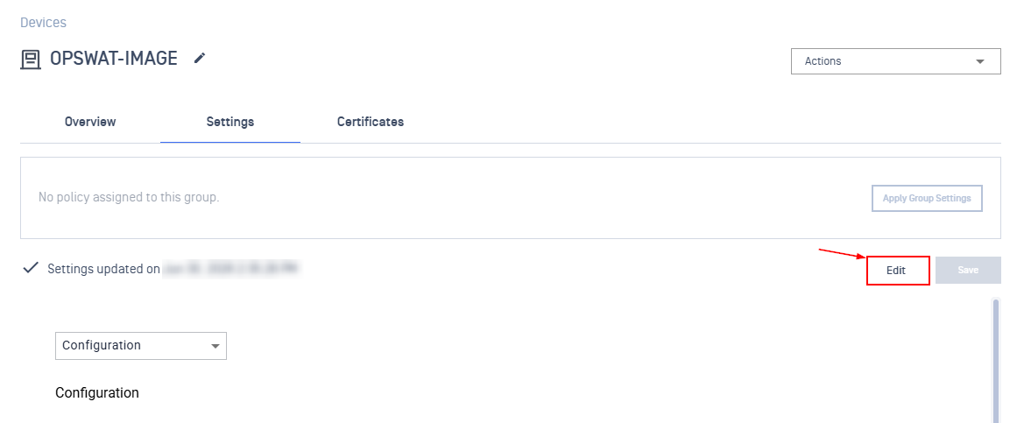
On the Configuration page > choose Edit to unlock the configuration.
From Configuration > System Upgrade > Hardened Image Upgrade > Enable Hardened Image Upgrade.
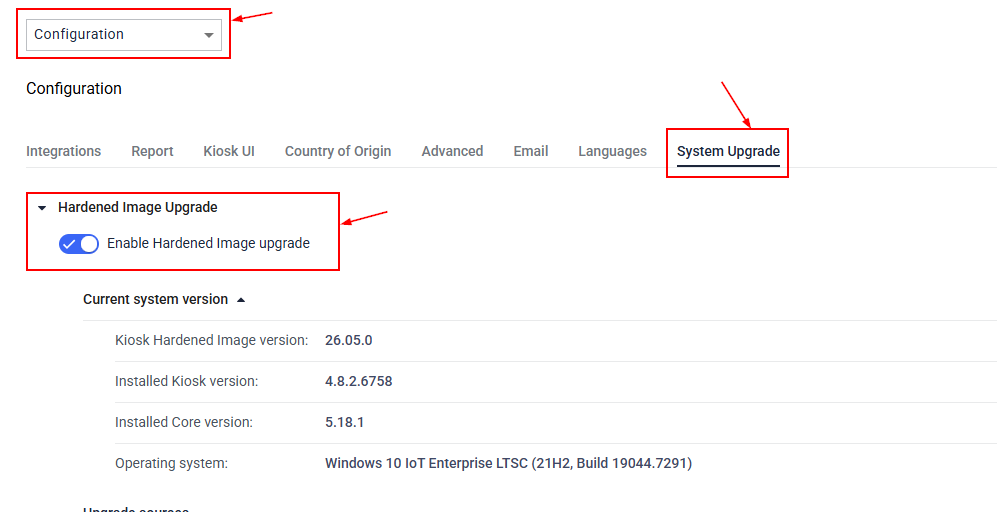
Choose the Upgrade sources. If you use an offline environment, follow this page to download the upgrade package manually Manual Upgrade of Kiosk Hardened Image - MetaDefender Kiosk Windows
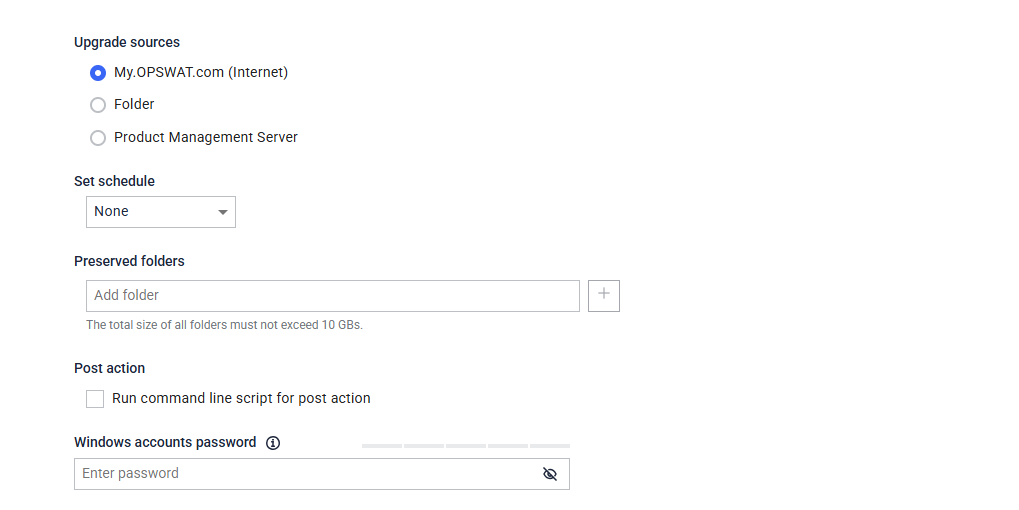
Choose the schedule time if needed; otherwise (None), the upgrade triggers immediately after saving the configuration.
Save the setting, then wait a few minutes so the configuration will be synced to the instance.
You can open the MD Kiosk Application log to see the upgrade progress.
Support:
If Further Assistance is required, please proceed to log a support case or chat with our support engineer.