
Disabling C-States in BIOS on Dell OptiPlex 7410 / 7420 All-in-One (Kiosk Dell Desktop) Can Potentially Resolve Random BSODs and Application Crashes
Summary
Disabling C-States Control in the Dell BIOS is a potential method to stop the repeated BSODs and continuous process crashes seen on Dell OptiPlex 7410 and 7420 All-in-One (Kiosk Dell Desktop) units. The change takes about 5 minutes per device and can be done at the BIOS screen.
Symptoms reported and observed in Kiosk labs:
Repeated Blue Screen of Death (BSOD), even while the kiosk is idle.
The Kiosk app or Windows processes crash continuously, sometimes several in a row within minutes
Kiosk screen freezes briefly before the crash or reboot
Steps: OptiPlex 7410 / 7420 All-in-One
Both AIO models use Dell's graphical BIOS (category menu on the left, toggle switches on the right), so the steps are the same for each.
Restart the kiosk.
Enter BIOS. As soon as the Dell logo appears, tap F12 repeatedly to go straight into BIOS Setup.
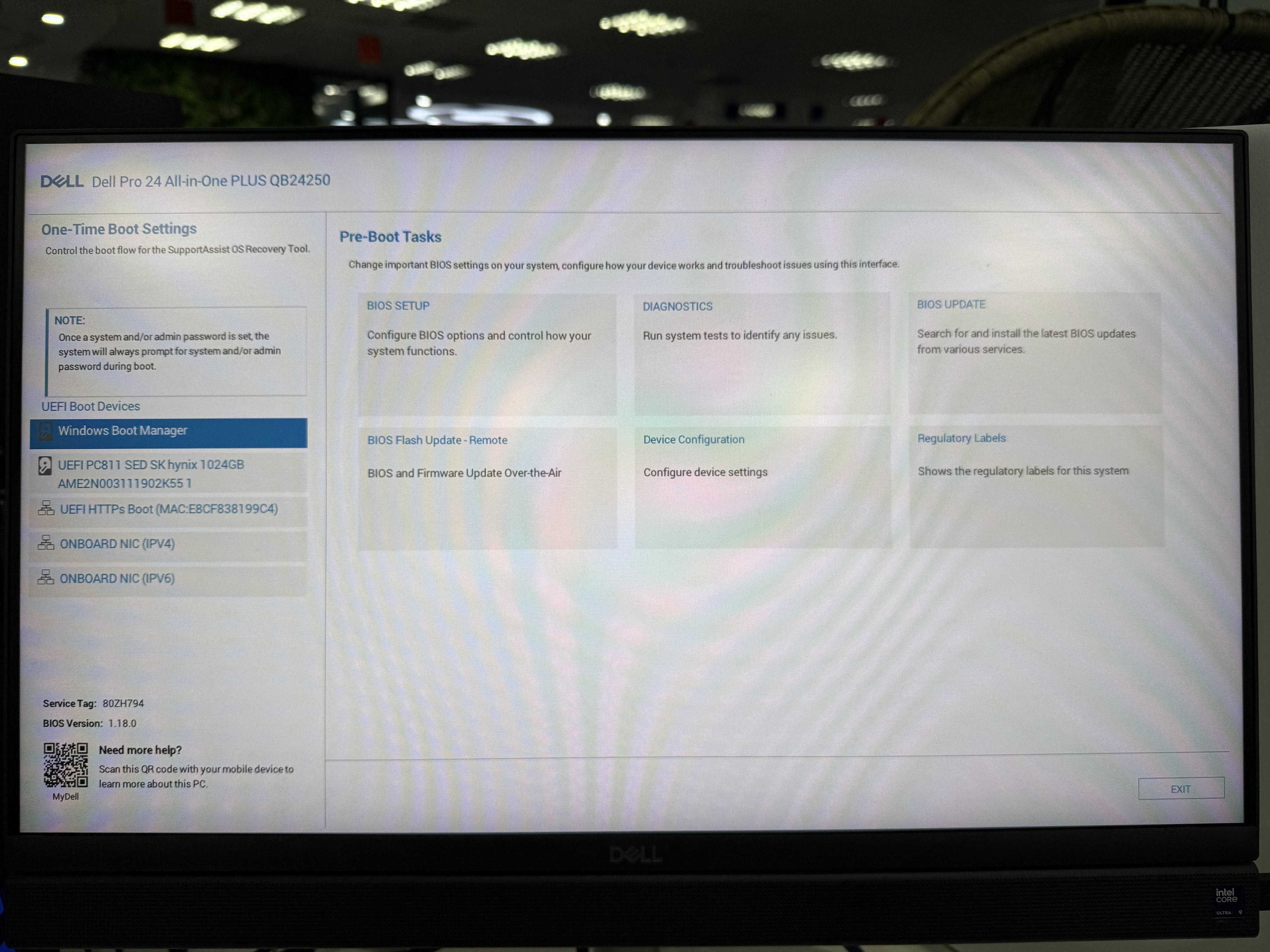
Alternative: tap F12 to open the One-Time Boot Menu, then use the arrow keys to select BIOS Setup and press Enter.
If Windows or the Kiosk app loads, restart and try again, tapping the key earlier.
Unlock settings. If prompted, or if options are greyed out, click Unlock and enter the BIOS admin password. If the Performance menu is missing, switch the Advanced Setup toggle (top right) to ON.
Click Performance in the left-hand menu.
Scroll the right pane to the C-States Control section.
Switch the C-States Control toggle to OFF.
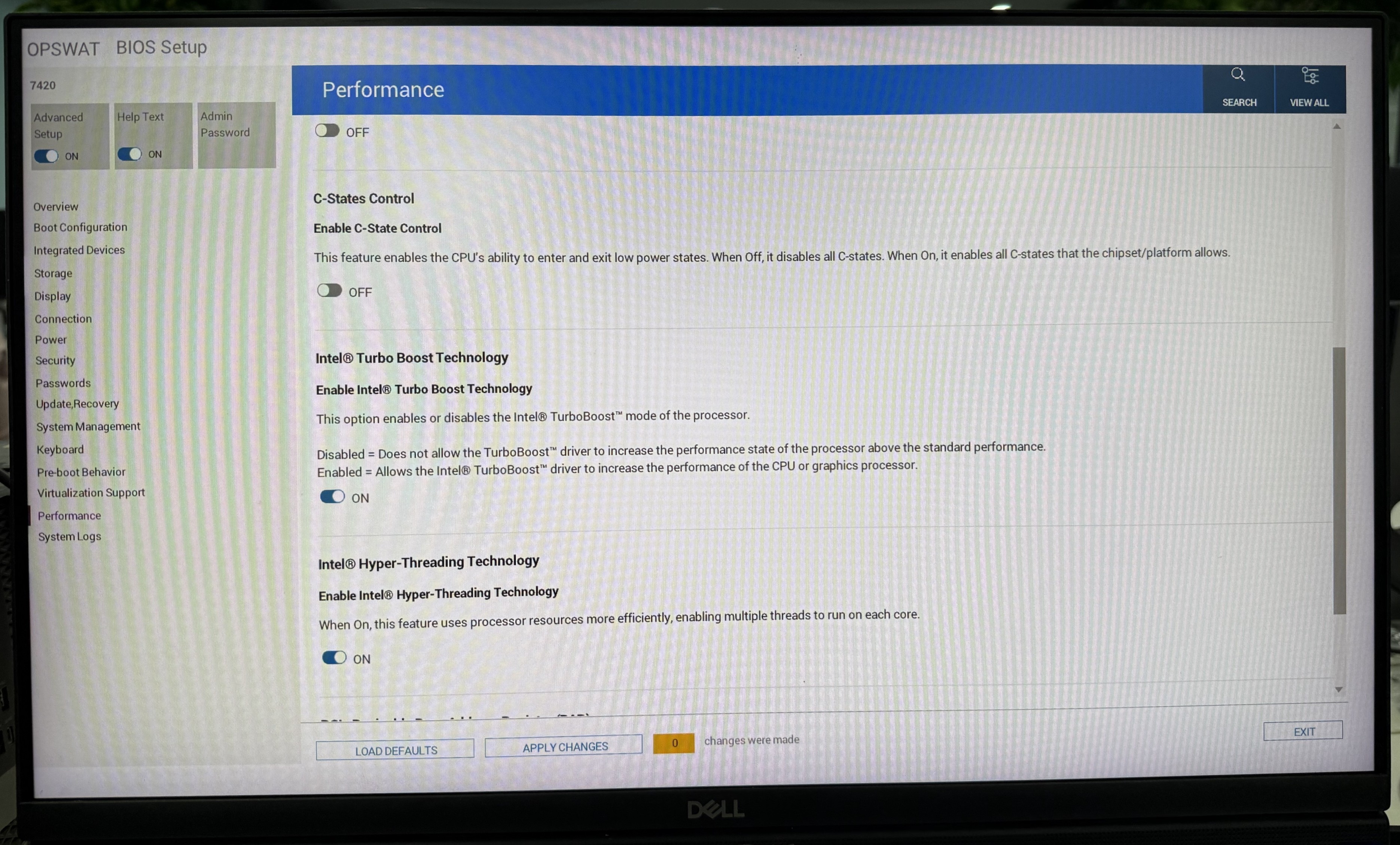
Click Apply Changes at the bottom, then OK on the confirmation.
Click Exit. The unit restarts into Windows and the Kiosk app.