This section configures which physical media types a MetaDefender Kiosk workflow can use, and what each media type is allowed to do. For every supported media type, you can turn on Processing (scanning files from the media), Retrieve Files (writing retrieved files to the media), and Use as secondary media (copying clean files to the media as a backup destination) independently — a media type doesn't have to allow all three at once.
Media Type Permissions
Open a workflow and go to its Media Types tab to see the permission table. Each row is a media type, and each column is an action you can turn on or off for it:
Media Type | Processing | Use as secondary media | Retrieve Files |
|---|---|---|---|
USB | Always on | Optional | Optional |
CD/DVD | Optional | Optional | Optional |
Floppy Disk | Optional | Optional | Optional |
SD Card / CF Card | Optional | Optional | Optional |
Phone | Optional | Not available | Not available |
An action is only offered to the end user at the Kiosk when it's checked for the media type they insert. If none of the boxes are checked for a media type, that media type's icon doesn't appear on the Insert Media screen at all, and inserting it shows a message that the media can't be used in that workflow.
USB is always available for processing; this can't be turned off. Retrieving files to USB and using USB as a secondary copy destination can each be turned on or off independently. To further restrict which specific USB devices are accepted, see USB Allowlisting below. Phone supports processing only — phones can't be used to retrieve files or as a secondary copy destination.
After a fresh install or an upgrade, Retrieve Files and Use as secondary media start turned off for every media type, even if Processing was already configured. If you want a workflow to retrieve or copy files to media types other than USB, turn on the corresponding boxes for those media types yourself.
CD/DVD
Processing files from a disc is supported when selected.
Specific requirements exist when using discs to copy files to.
Floppy
Processing files from a floppy disk is supported when selected.
When enabled, a button to detect the floppy disk is displayed on the Insert Media screen.
The floppy disk must be inserted prior to clicking the button.
Floppy disks are only supported when formatted with the FAT12 file system.
SD Card / CF Card
Processing files from SD cards and CF cards is supported when selected.
No additional software is required. See Supported File Systems for the full list of file systems Kiosk can read from these cards.
Phone
MetaDefender Kiosk can scan a wide range of modern mobile devices, including:
iOS devices (iPhone, iPad)
Android smartphones and tablets
To ensure successful scanning:
Use a data-capable USB cable. Charging-only cables will not work.
Unlock the device before connecting it to the Kiosk.
Confirm access on the device (for example, tap "Trust this computer" or similar prompts).
Keep the device awake during the scan to avoid connection drops.
It is recommended to configure the settings for Photos as "Keep Originals" in Transfer to Mac or PC. For more details, refer to Why Kiosk skips most files when scanning my iPhone? - MetaDefender Kiosk Windows
In some instances, an iPhone may not be recognized upon connection. This may be due to trust settings configured between the device and system which may require to reset Location & Privacy settings on the device.
Example: Separating Processing from Retrieval
Suppose you want employees to scan incoming files from USB drives, but you only want clean files retrieved back out onto CDs — not USB — so that outgoing media is easy to track separately from incoming media.
On the workflow's Media Types tab, leave USB's Processing on (it can't be turned off) and leave USB's Retrieve Files box cleared.
Turn on Retrieve Files for CD/DVD, and leave CD/DVD's Processing box cleared if you don't want discs scanned.
Save the workflow.
With this configuration, a user who inserts a USB drive is taken straight to the processing screen (retrieval isn't offered for USB). A user who inserts a CD is taken straight to the file-retrieval screen (processing isn't offered for CDs). Neither user sees a screen asking them to choose between the two, because only one action is available for the media type they inserted.
USB Allowlisting
The USB Allowlist functionality permits to define a list of USB devices that can be processed by MetaDefender Kiosk.
Any USB that has a device ID that either equals or contains any of the items in the allowlist will be permitted for processing.
The allowlists can include as many items as the administrator would like to define.
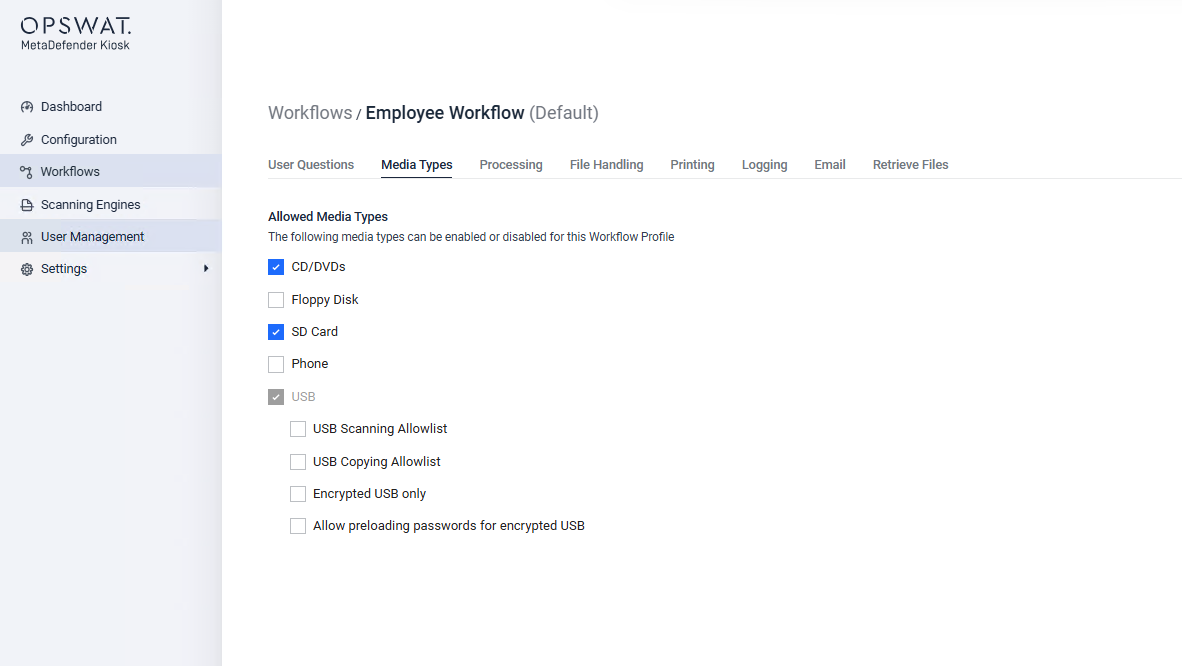
USB Scanning Allowlist
Only USBs that match the allowlist are accepted for scanning.
USB Copying Allowlist
Only USBs that match the allowlist can be used as a media destination to copy/move files to.USB Scanning Allowlist
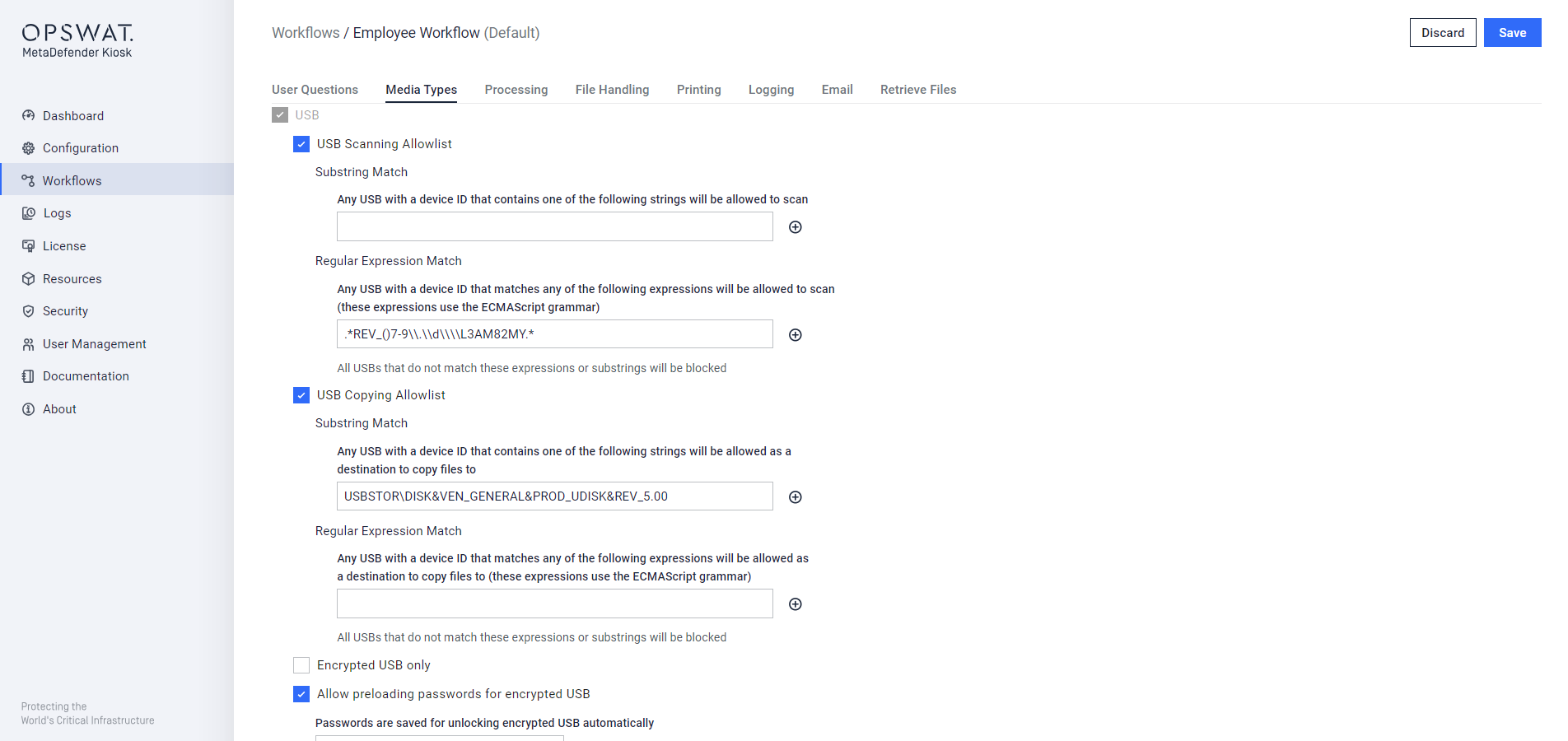
Example of an allowlist entry and devices whose IDs would either result in them being allowed or denied:
Allowlist entry: | |
|---|---|
Device ID | Allowed |
|
|
|
|
|
|


Device IDs of USBs from previous scan sessions can be found in the Session History page
Encrypted USB Only
Only encrypted USBs are accepted for scanning and copy-to.
The admin can combine this option with USB Scanning Allowlist and USB Copying Allowlist
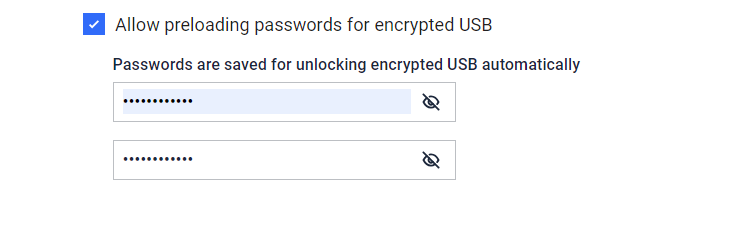
Allow preloading passwords for encrypted USB
Kiosk can automatically unlock specific encrypted USB drives so users are never prompted for a password. This is configured separately for two roles:
Original encrypted USB – applies to the drive inserted for scanning. Kiosk automatically decrypts the encrypted USB using a list of preloaded passwords, for scanning only.
Destination encrypted USB – applies to a second drive inserted later as a copy destination (for example, when files are copied to a secondary USB after scanning). A matching drive unlocks automatically the moment it's inserted as the copy destination, with no separate password prompt.
The maximum number of passwords that can be added for each role is 2, and the two password lists are independent — a password saved for one role is never tried against the other role's drive.
When enabled, password prompt will not display, but caution is strongly recommended because incorrect passwords can cause data loss or device damage.
Preloading matches on the drive's password, not its device identity. If Encrypted Drive Verification is turned on and a device hasn't been approved yet, that approval step still applies the first time the device is used, even if its password is preloaded.