
What is Allowlisting Download URL?
This feature enables administrators to specify trusted URLs or domains from which users can download internal or approved resources.
Files downloaded from the allowlisted sources are automatically trusted and exempted from additional scanning.
Add an allowlisted URL
Go to Policies → Endpoint Security → Select an endpoint policy → Advanced Endpoint Protection → Enable Threat Detection for Windows → Secure Download.
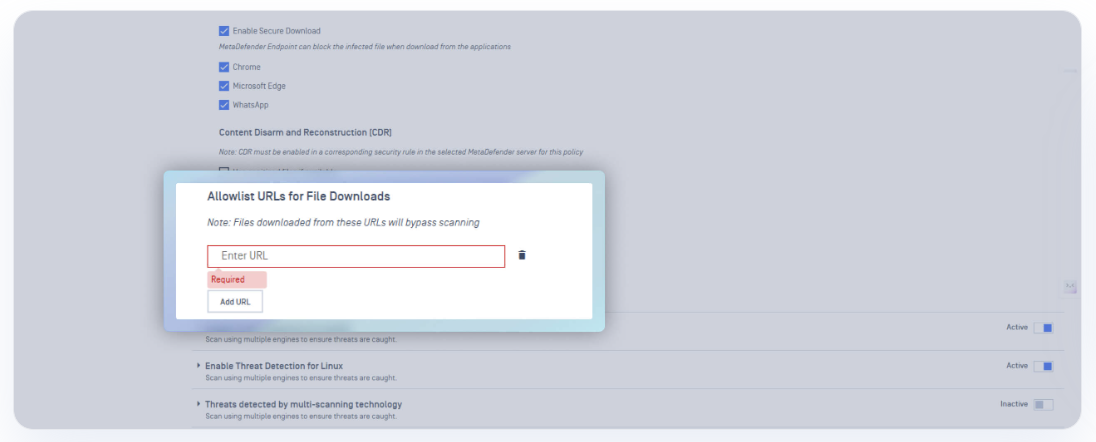
Find Allowlist URLs for File Downloads
Click on the Add URL button to enter the value
Use cases
Choose the most suitable option that satisfies your use case
Option A — Allowlist a specific domain
Use this when the whole domain is trusted for downloads:
*example.com*downloads.vendor.com
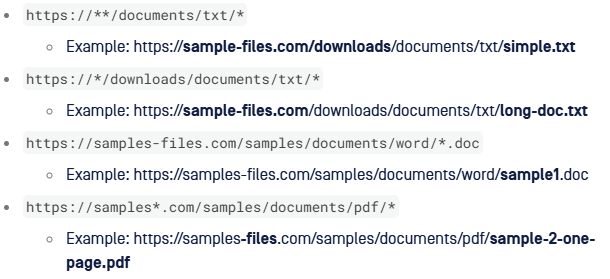
Option B — Allowlist a URL using wildcards
Option C — Allowlist a full URL
Use this when you only want to allow downloads from a specific path:
https://samples-files.com/samples/documents/word/sample1.dochttps://ash-speed.hetzner.com/100MB.bin