
What's new
Previously, if administrators needed different scan rules for inbound and outbound peripheral data transfers, admins had to manually switch to the right scan server before each action and had no way to enforce which server and rule should be used for a specific direction.
Now, with this new feature, admins can configure a specific server AND rule for each direction. If you select a different server than what's configured for that action, the agent automatically switches you to the correct one and lets you know.
The two directions
Direction | What it means | Example use case |
|---|---|---|
📥 Inbound | USB drive → your computer | e.g. deep scanning for malware and threats |
📤 Outbound | Your computer → USB drive | e.g. checking for sensitive/confidential data leaving the company |
The workflow for each direction is fully configurable, the examples above are just one common way organizations use it.
What the MetaDefender Endpoint agent does
No more manually switching scan servers between inbound and outbound transfers. If the server selected doesn't match what the admin configured for that direction, the app automatically switches to the correct server and rule before the transfer runs.
When this happens, it shows this notification:
Scan Server Switched
Your administrator requires using <Server> with the <INBOUND/OUTBOUND> rule to copy files from the drive.
This simply means the app auto-switched to the correct server and rule. No action needed, and the file transfer continues normally.
For admins: where to set this up
Configure this in My OPSWAT Central Management > Peripheral Media Protection > Policies, under When peripheral media is connected > Allow selected actions.
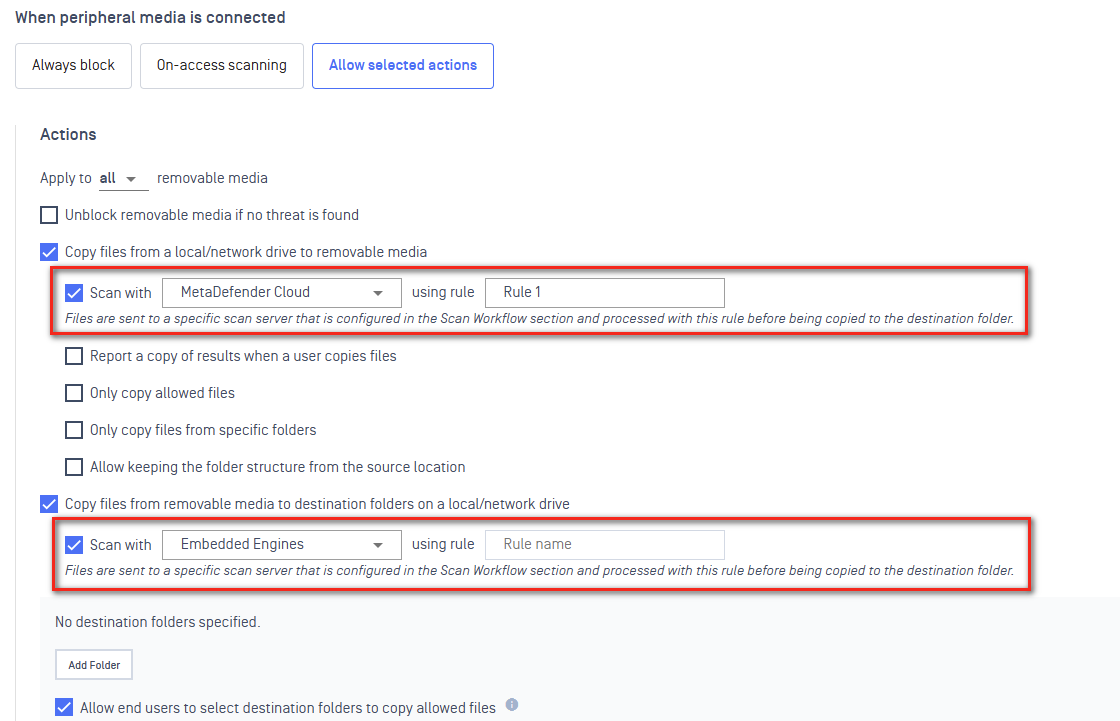
You'll find two separate actions, each with its own Scan with server and using rule field, so each direction can be designated to a different scan server and policy:
Copy files from a local/network drive to removable media — the outbound direction (computer → USB)
Copy files from removable media to destination folders on a local/network drive — the inbound direction (USB → computer)
If you leave using rule empty for an action, the agent falls back to the rule already configured for that server under Scan Workflow (in the server's Rule field).
What to put in "using rule"
The value depends on the scan server type:
Scan server | What to enter |
|---|---|
MetaDefender Core | The name of a workflow you've created in Core, under Workflow Management > Workflows (e.g. |
MetaDefender Cloud | One of the built-in rule names:
Need a rule outside this list? Contact MetaDefender Cloud to have a custom rule created. |
Embedded Engines | Not used for now — the rule name field has no effect for this server type. |
💡 You no longer need two separate server entries to get different policies per direction. One policy screen now covers both, and it's enforced automatically instead of relying on the user to switch manually.
Good to know
Nothing breaks if you don't set this up. Without separate inbound/outbound rules configured, everything keeps working exactly as before, using a single policy for both directions.
Reports now show direction. Each file event on the Reports page now tells you whether it was an inbound or outbound transfer.
Platform support: Windows and macOS.