
By default, after switching to Secure File Storage and files are calculated, Secure File Storage will stay at Share Files tab.
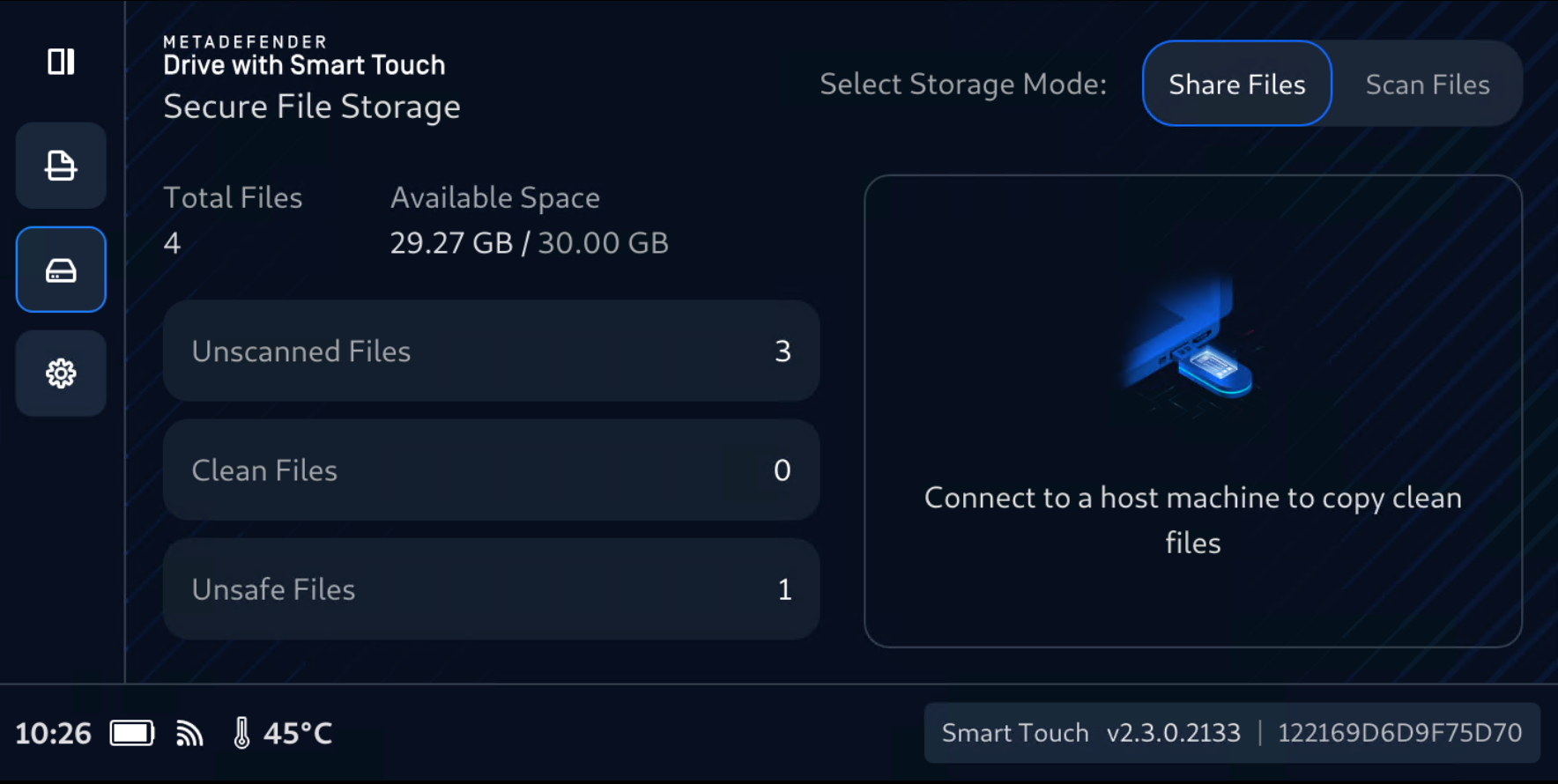
To scan file with MetaDefender Kiosk:
Tap Scan Files
Confirm that you would like to proceed with the scan when prompted
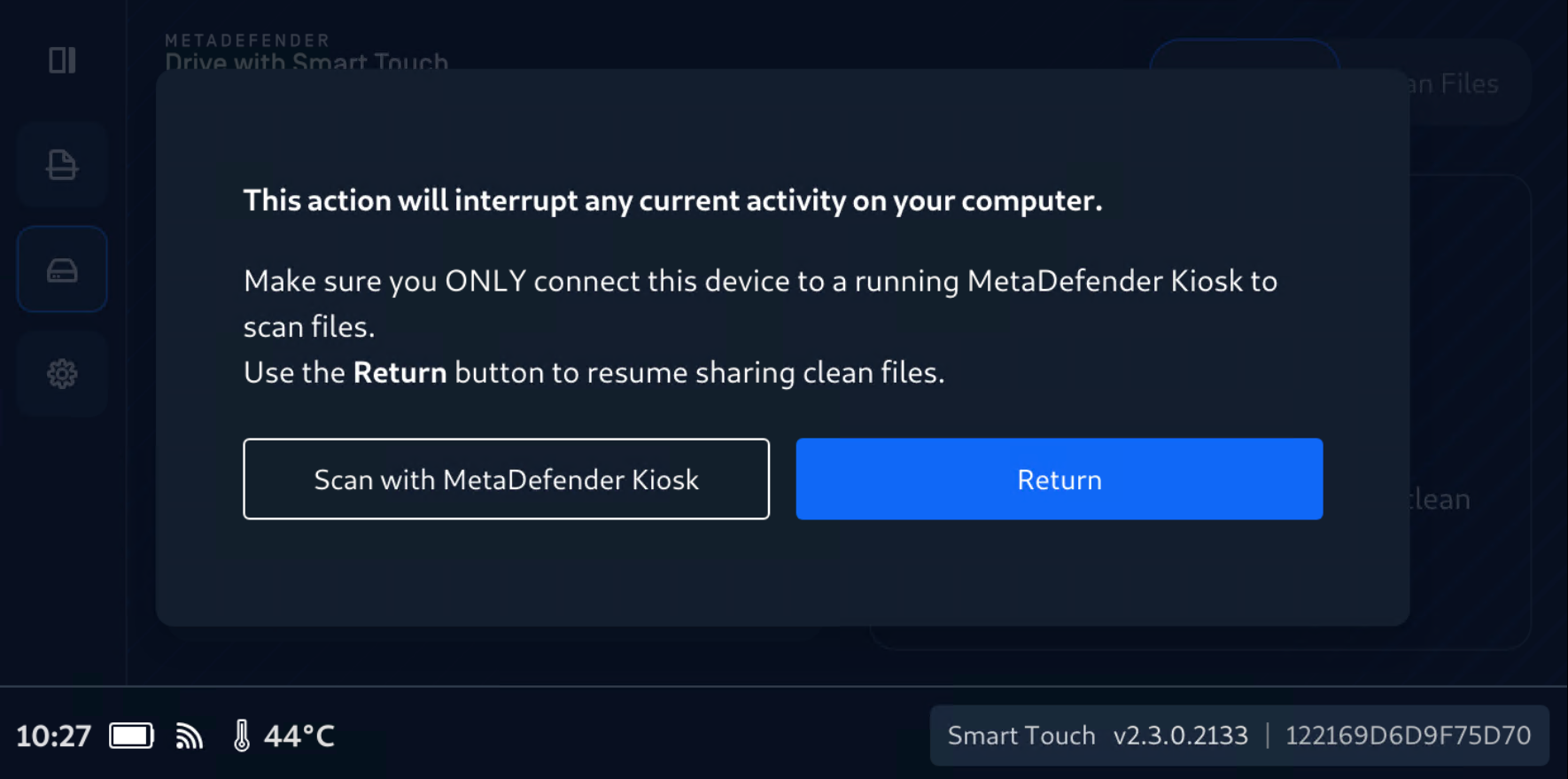
MetaDefender Drive with Smart Touch will start calculating file and once files are staged, they will be ready for scanning with Kiosk
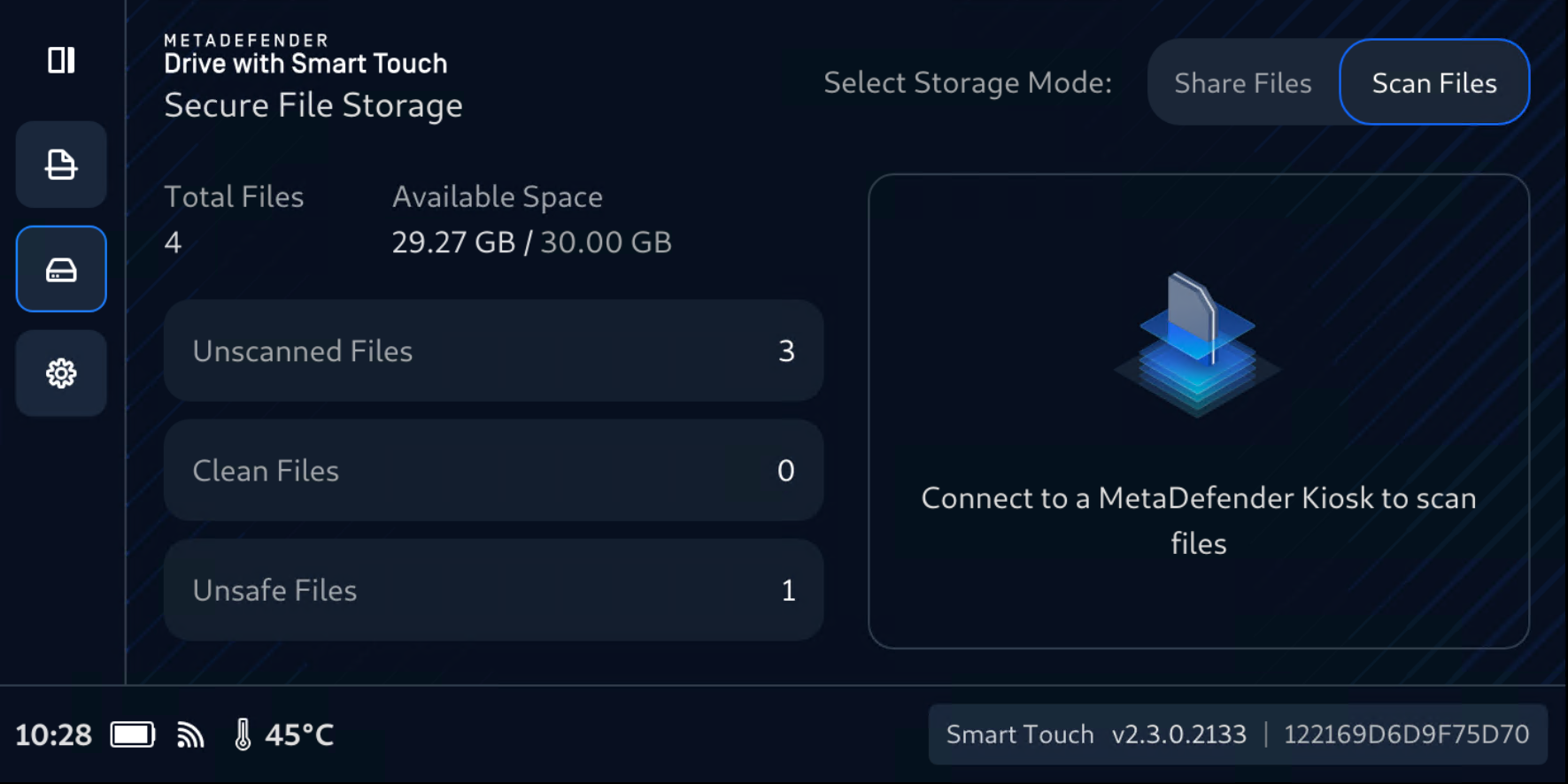
Connect Secure File Storage with MetaDefender Kiosk.
Secure File Storage will immediately change its screen to Kiosk scanning mode.
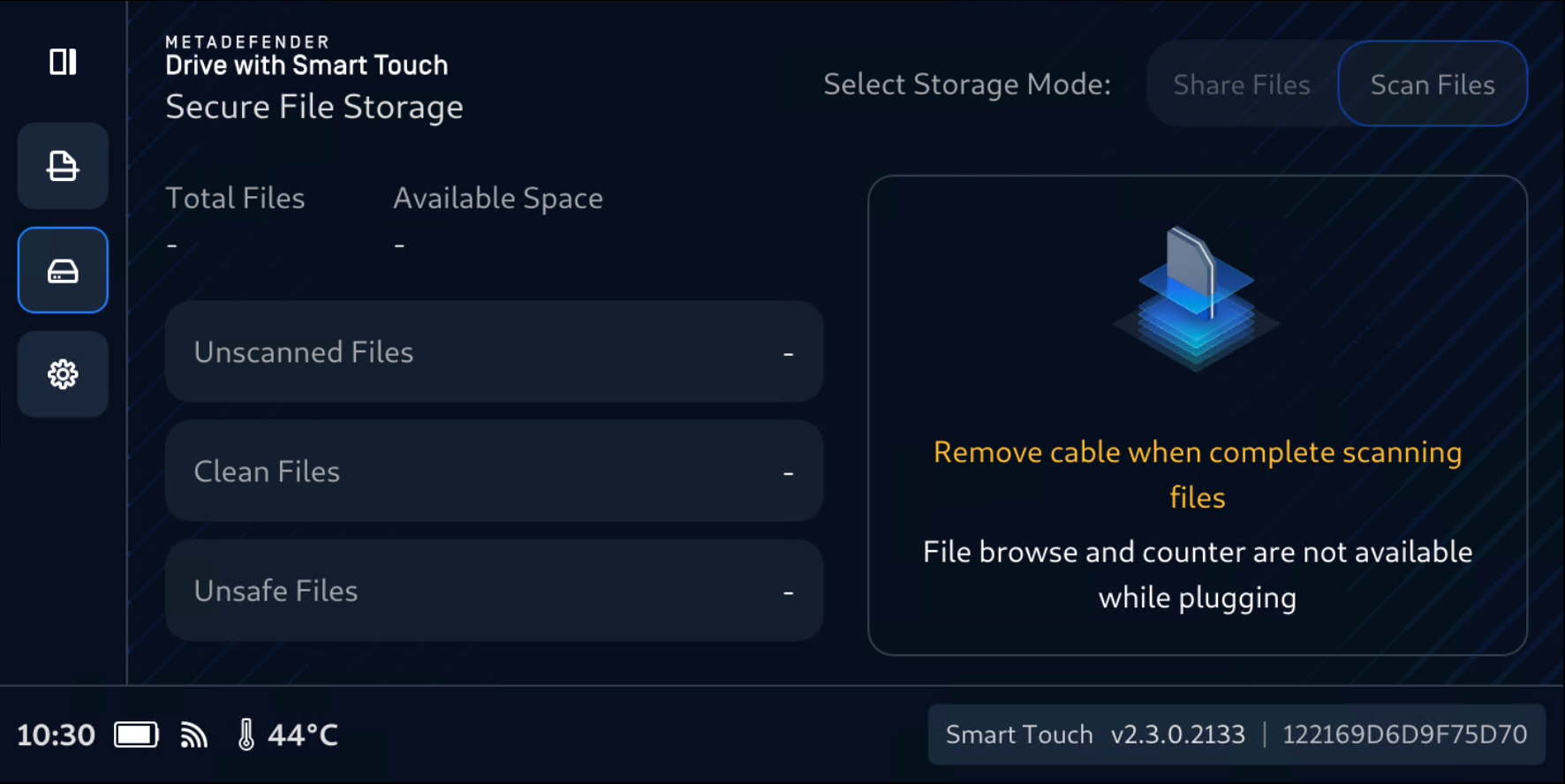
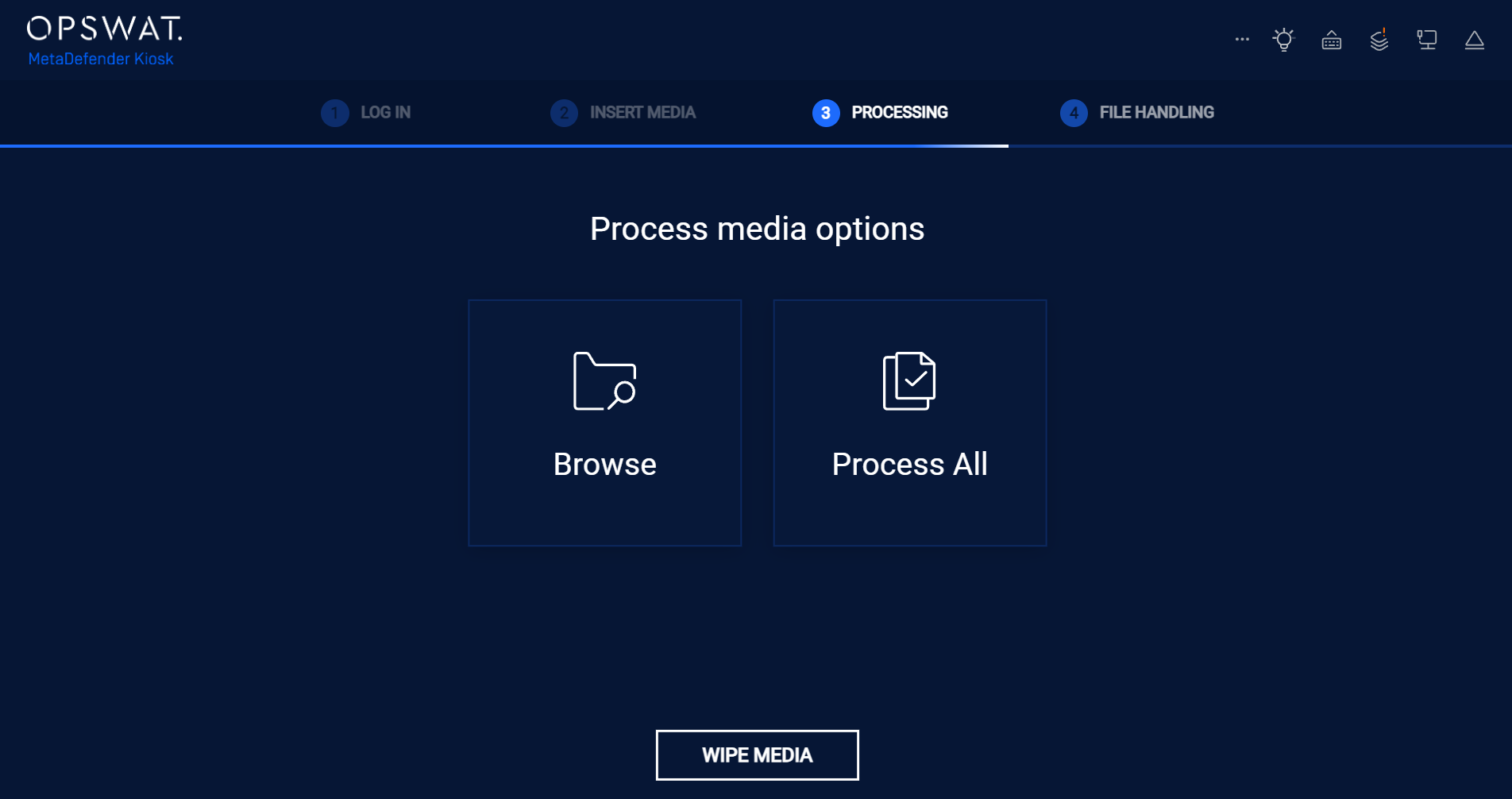
Follow the steps on MetaDefender Kiosk to scan the files
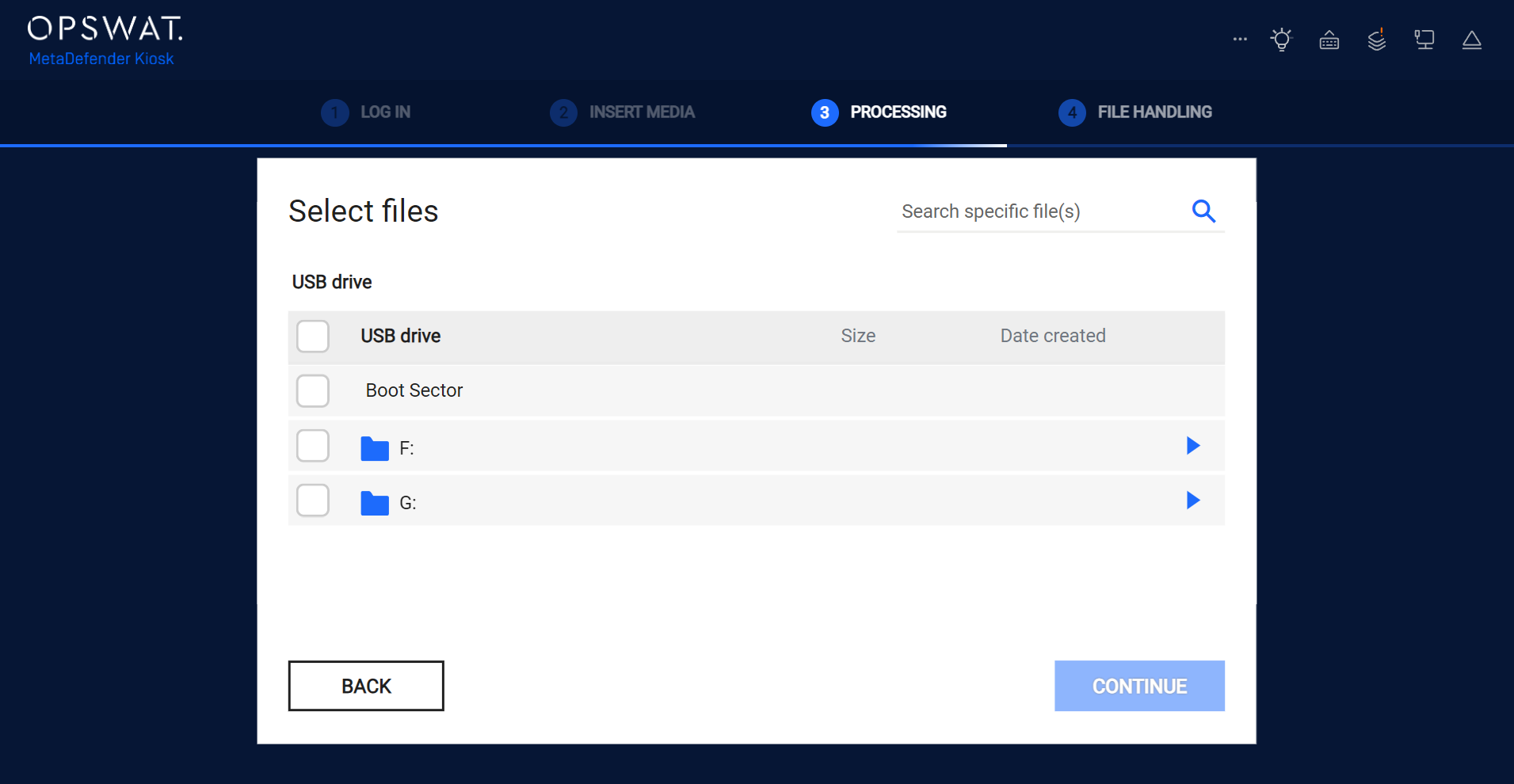
During MetaDefender Kiosk processing steps, you will see 2 storage partitions.
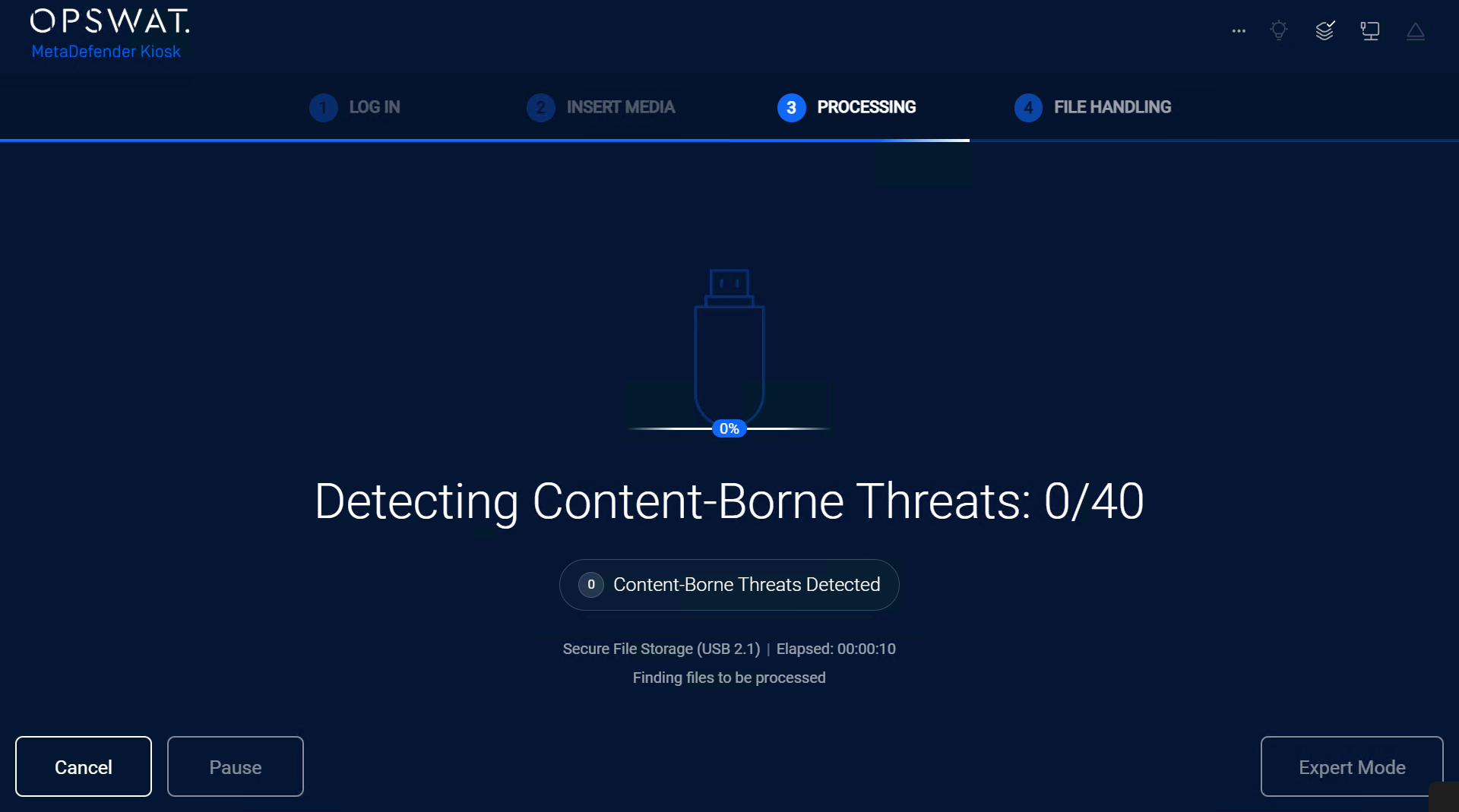
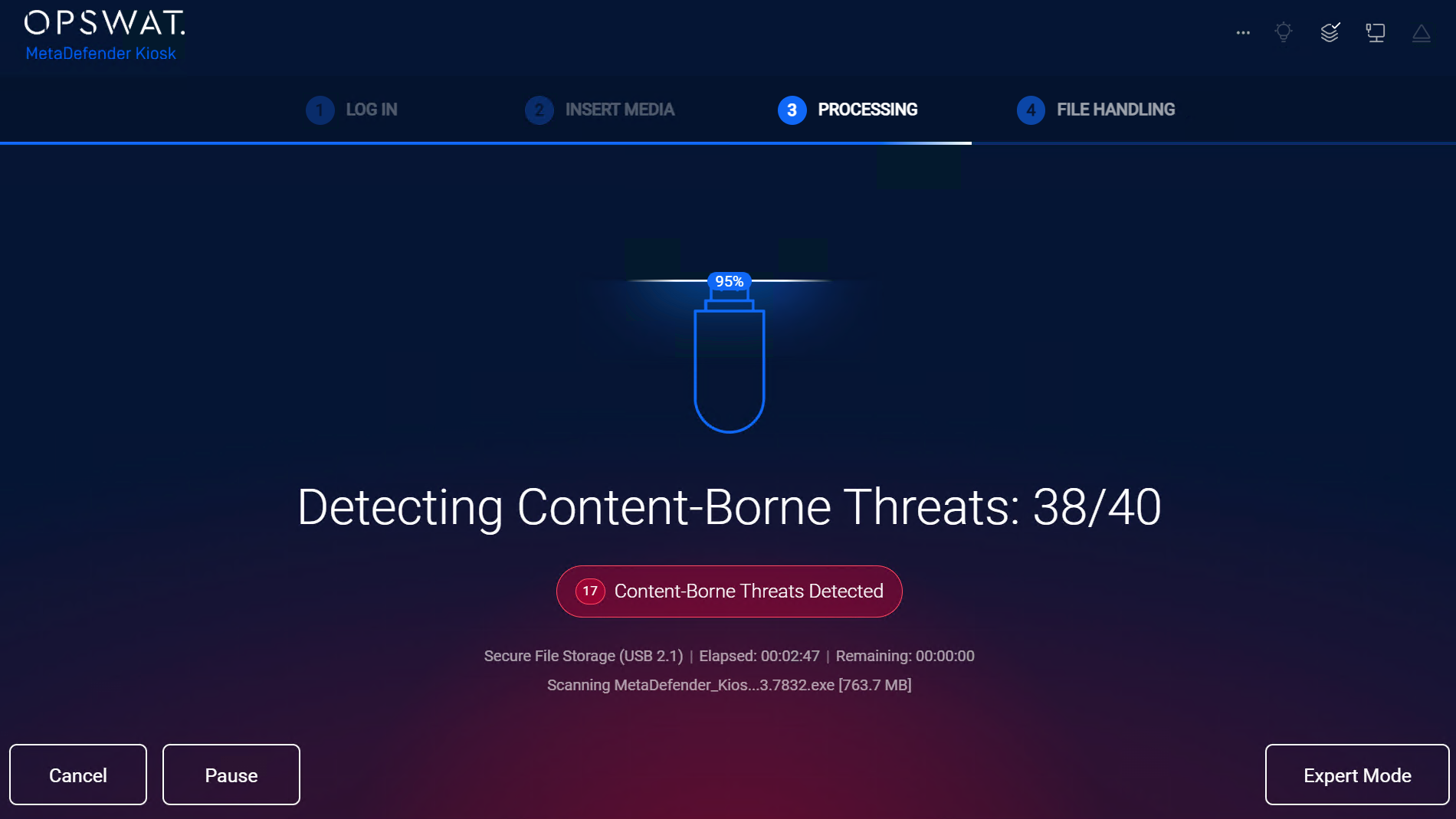
Wait until the MetaDefender Kiosk scan is completed, and view the on-screen report showing how many files are Allowed or Blocked.
Choose to Print the scan report or not.
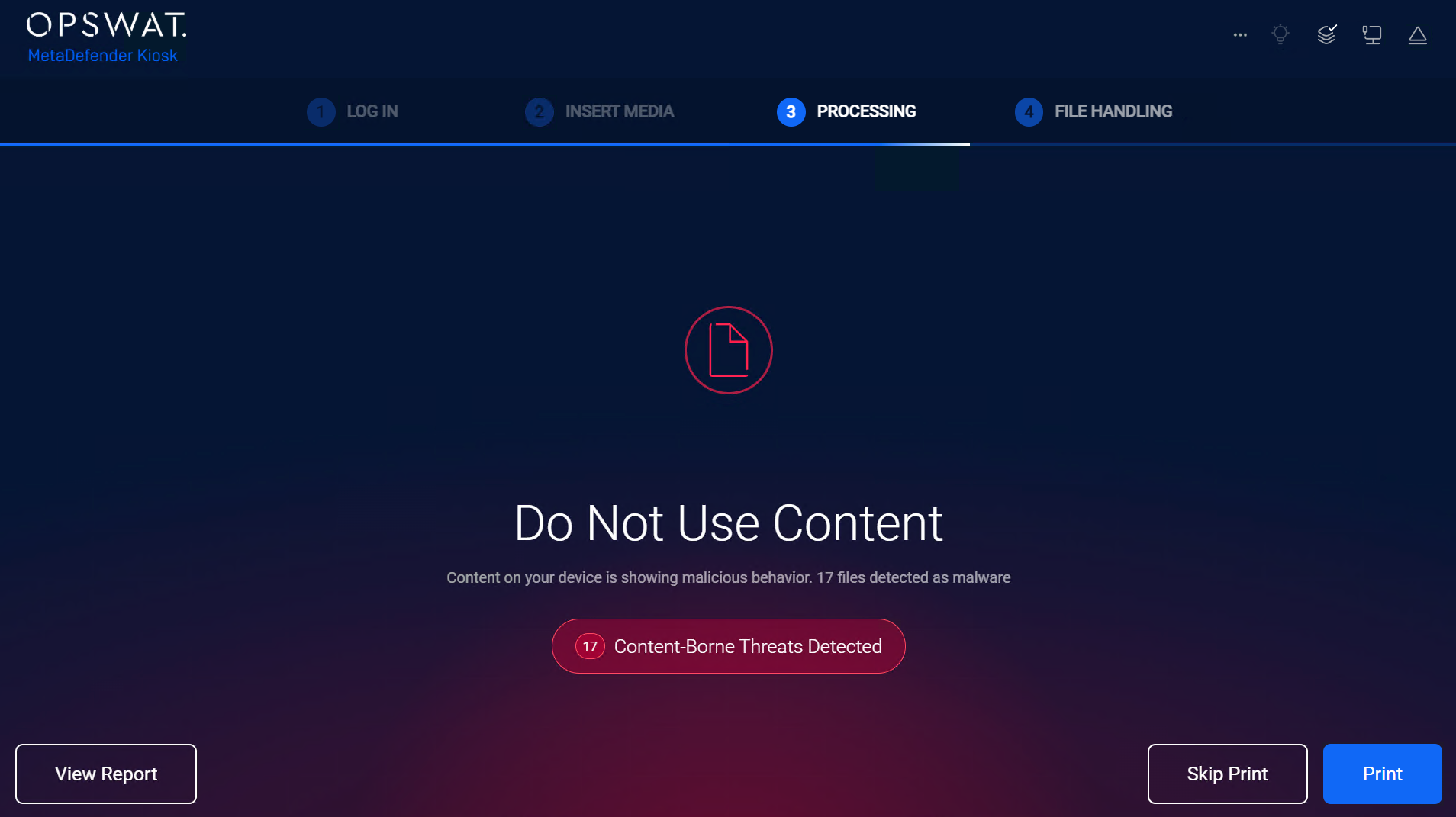
Safely unplug the USB cable once you are ready. The files will be recalculated again display the correct numbers of Clean Files, Unsafe Files, and Unscanned Files.
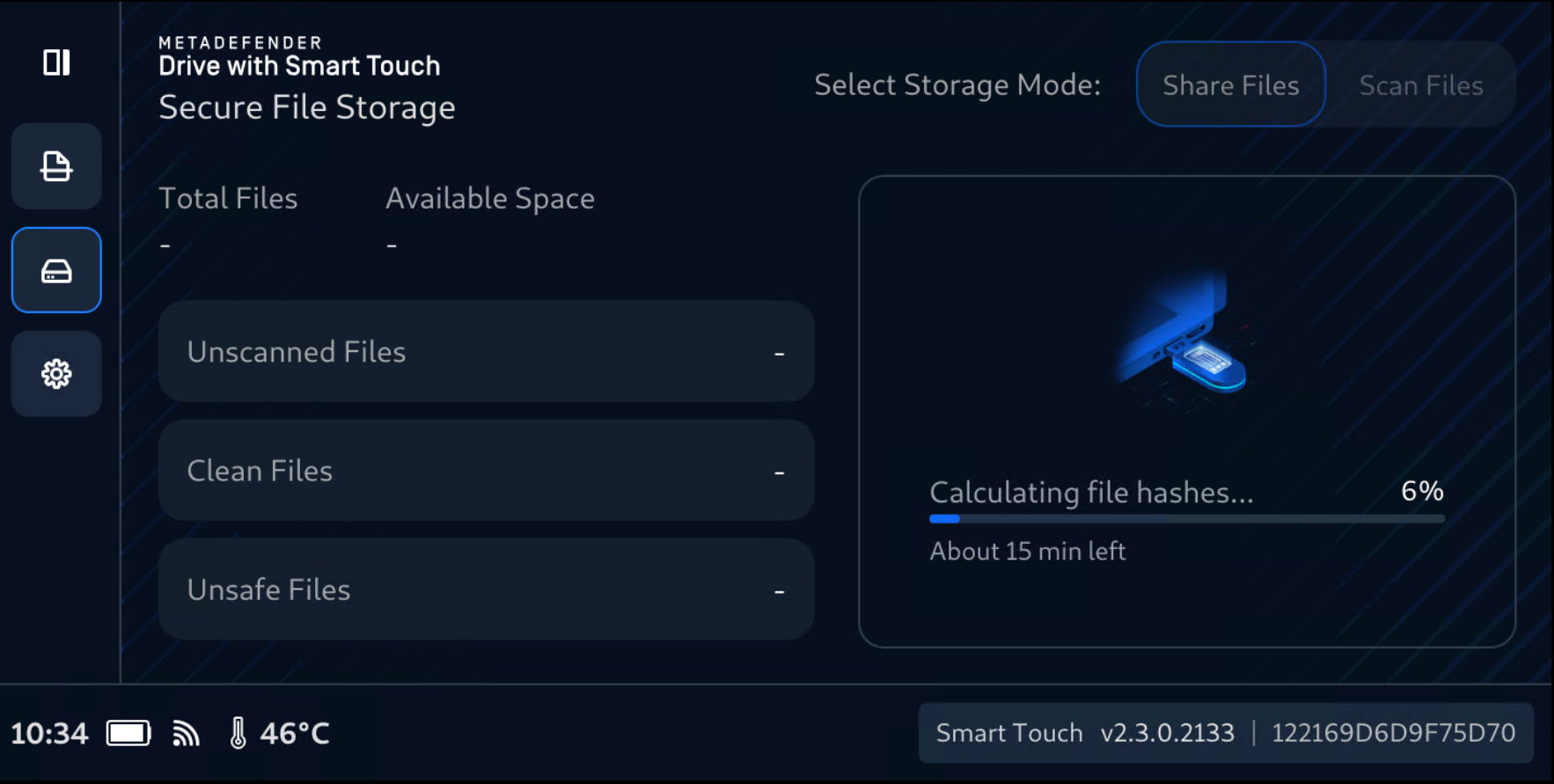
After calculated, if newly copied files are unsafe, they will be moved to Unsafe Files tab

On the MetaDefender Drive with Smart Touch screen, Allowed files will be considered as Clean by Secure Storage, and Blocked files are considered as Unsafe Files. Skipped files will be considered as Unscanned Files.
To manage files in Secure File Storage, follow the instructions in Manage Files in Secure File Storage.