Quarantine Records
After being quarantined, by either Bare Metal or In-Session, each quarantined file is:
Moved to
\OPSWAT_Quarantine\on the same source volume as the original file.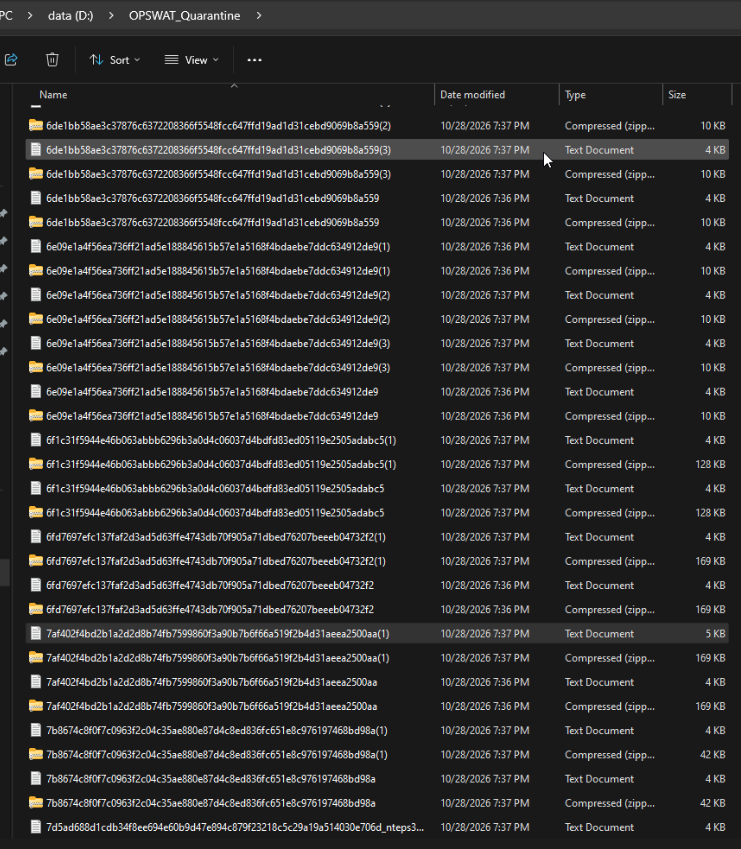
Stored as a ZipCrypto-encrypted ZIP.
Accompanied by a plain-text Quarantine Record that identifies the original file, with details about scan results as well as ZIP password.
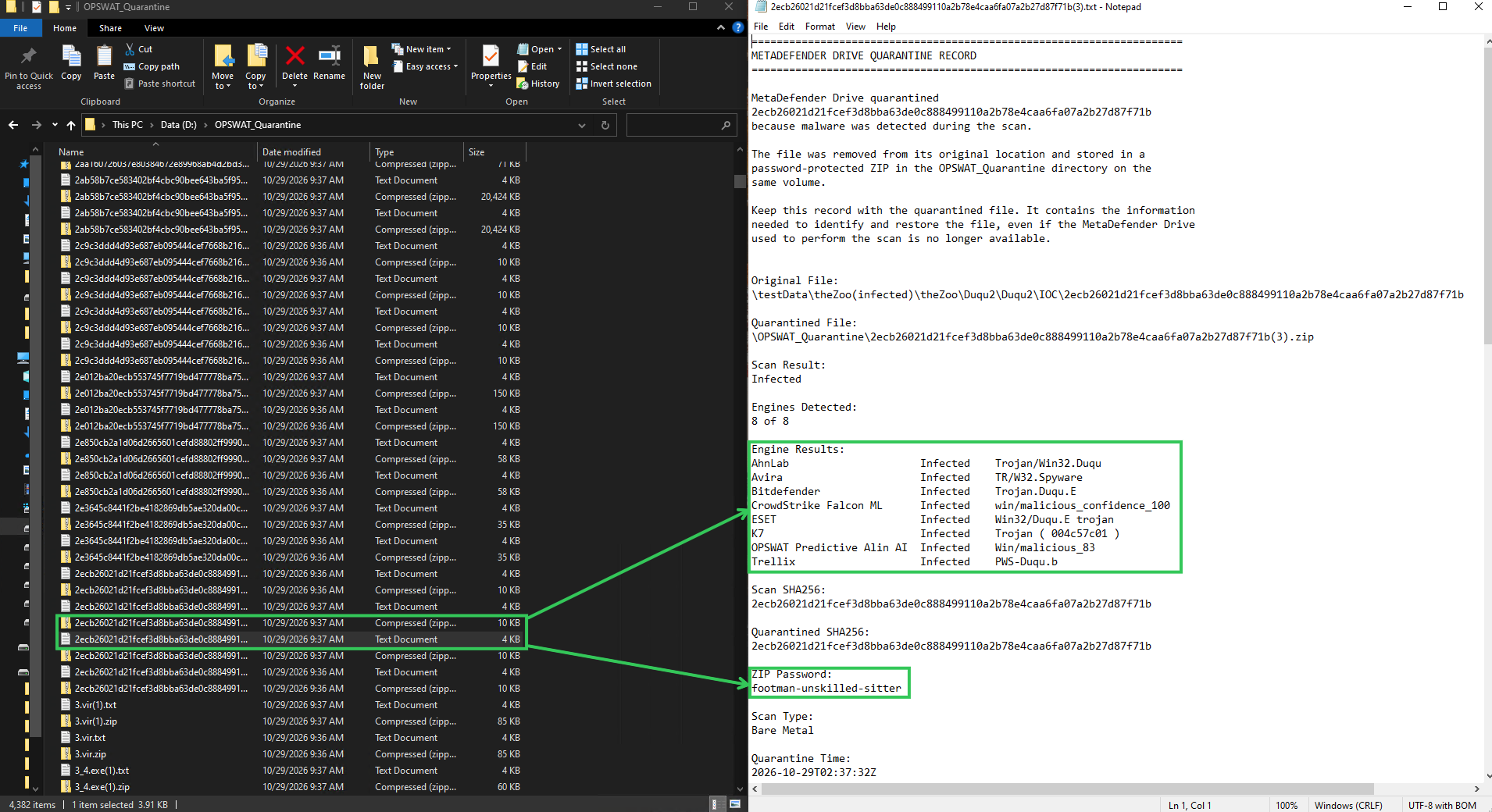
Sample content of a quarantine record
=====================================================================METADEFENDER DRIVE QUARANTINE RECORD=====================================================================MetaDefender Drive quarantined2ecb26021d21fcef3d8bba63de0c888499110a2b78e4caa6fa07a2b27d87f71bbecause malware was detected during the scan.The file was removed from its original location and stored in apassword-protected ZIP in the OPSWAT_Quarantine directory on thesame volume.Keep this record with the quarantined file. It contains the informationneeded to identify and restore the file, even if the MetaDefender Driveused to perform the scan is no longer available.Original File:\testData\theZoo(infected)\theZoo\Duqu2\Duqu2\IOC\2ecb26021d21fcef3d8bba63de0c888499110a2b78e4caa6fa07a2b27d87f71b
User can chose to restore the quarantined files from within the same boot bare metal session or from the same working session. The follow instructions are applicable for files that are quarantined by Bare Metal and In-Session.
Restoring a file moves a detected threat back to the source volume. Verify that the file poses no risk before restoring it.
Restore Quarantined Files from within Bare Metal session
To return a quarantined file to its original location, use the restore workflow in Settings.
Open Settings and navigate to the In-Place Quarantine section.
Click Open. The dialogue appears calculating for quarantine files exist on local disks.
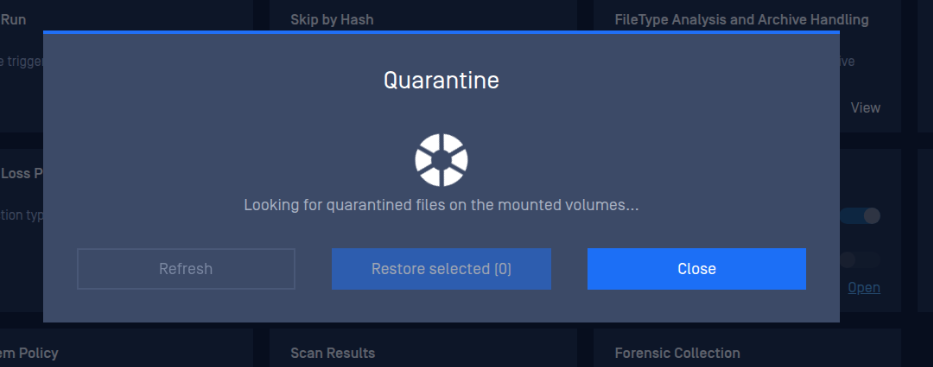
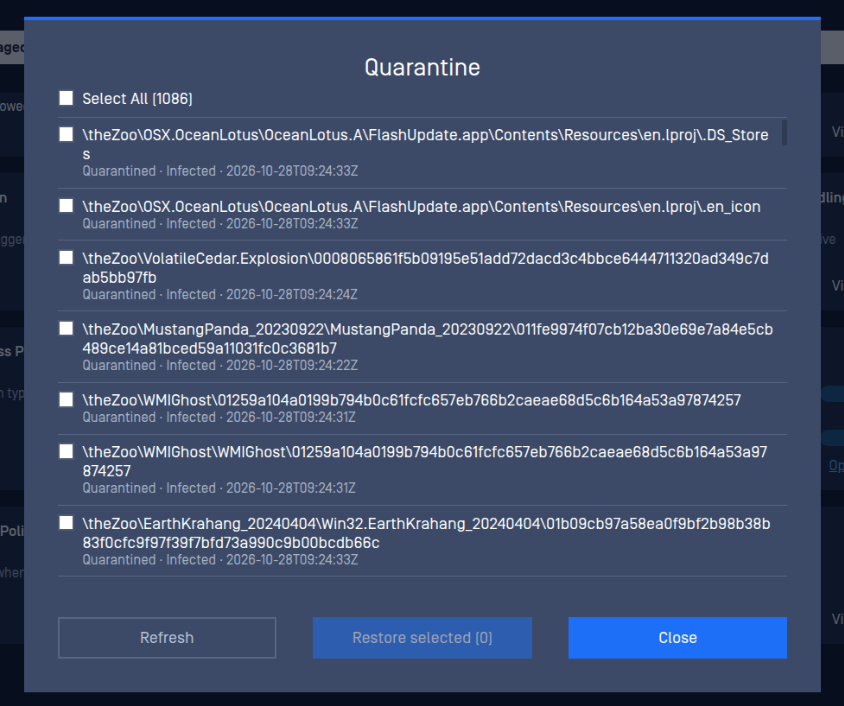
Select the files to restore using the checkboxes, then click Restore selected button if you want to restore the files. Please note that the total files counted here including all of the quarantined files from all previous scan sessions too.
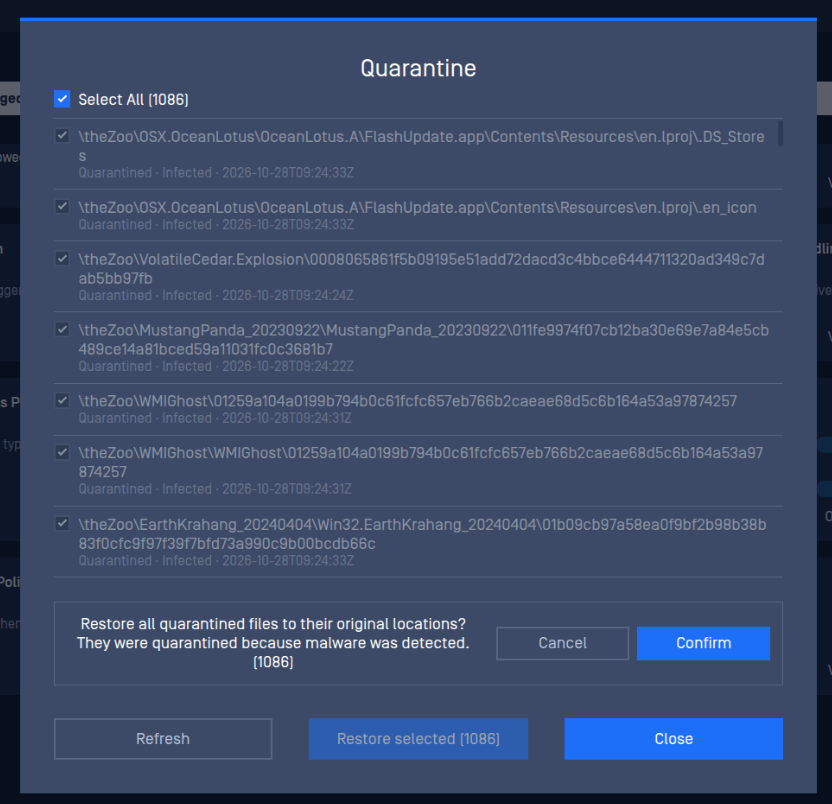
Confirm the restore with clicking Confirm button.
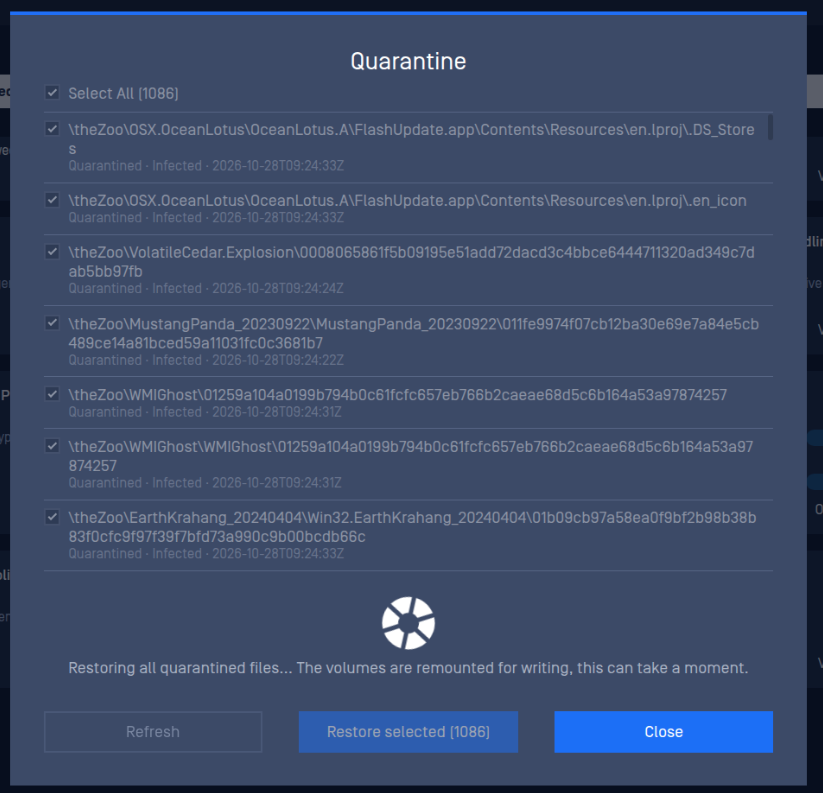
Wait for restoration...
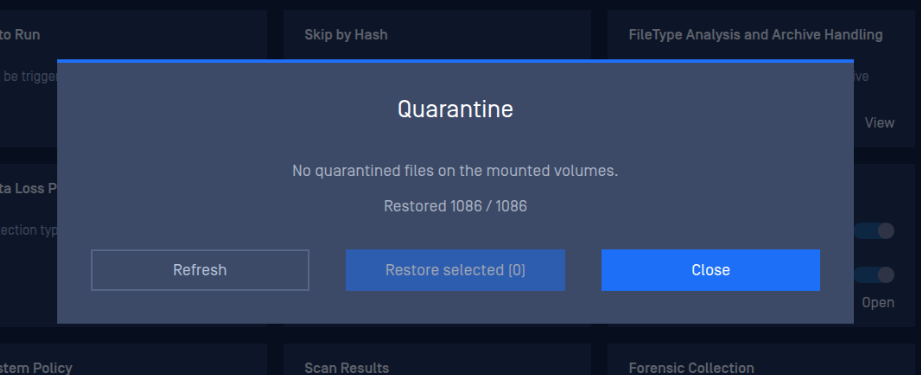
And when restoration finishes, you can close it
Restore Quarantined Files with In-Session
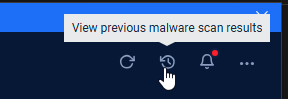
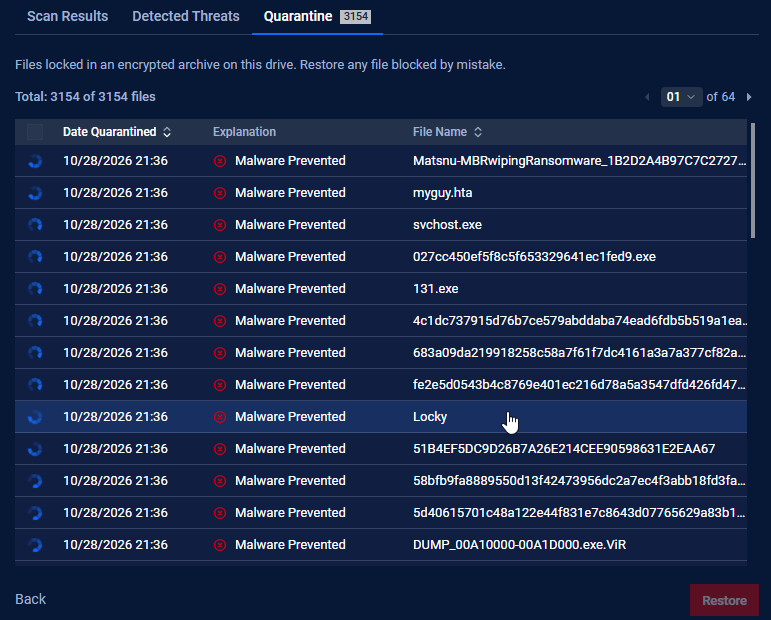
From main screen of In-Session, click Malware Scan, click the History icon to view previous malware scan results
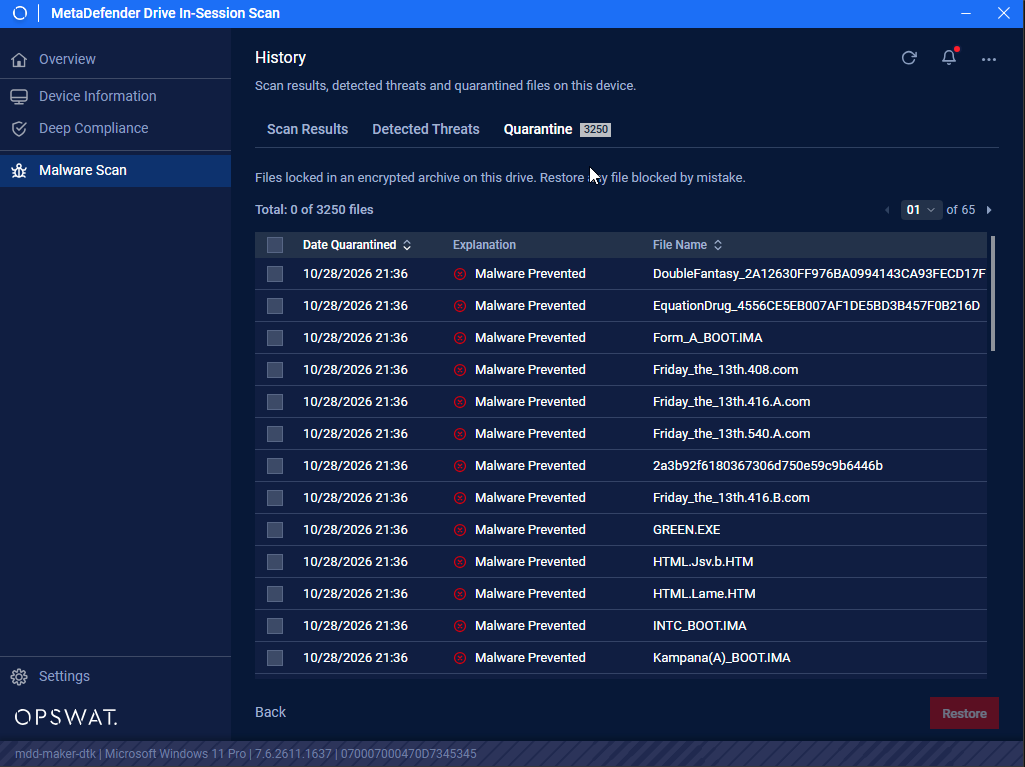
Click Quarantine tab
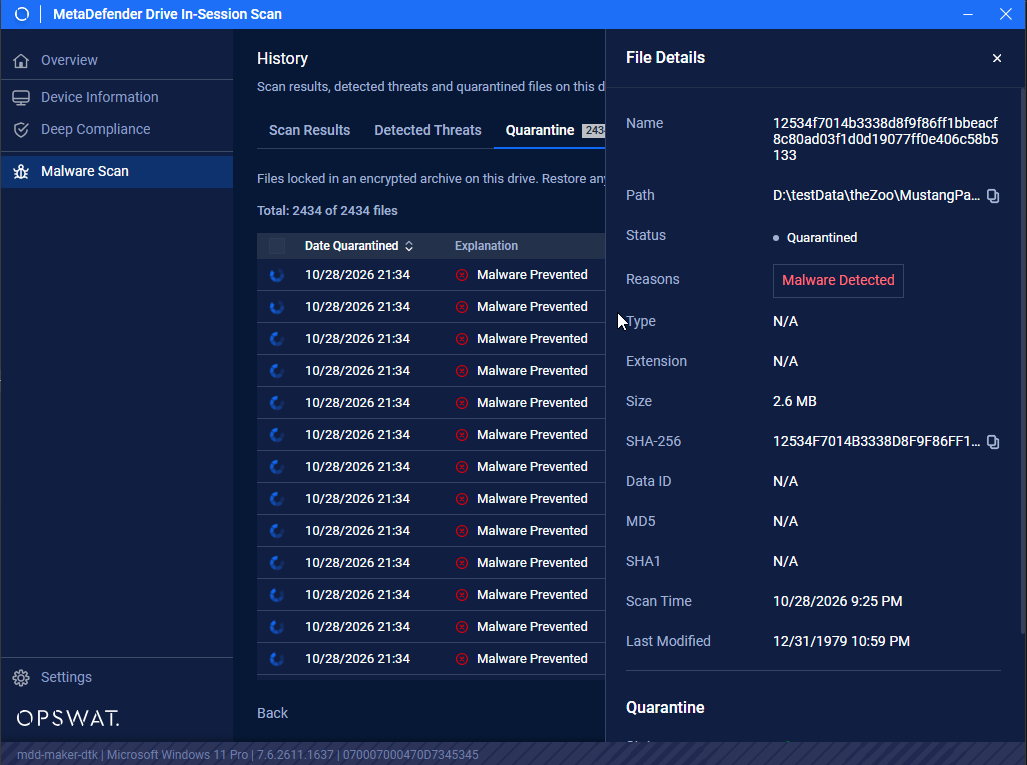
Click a file to view the details
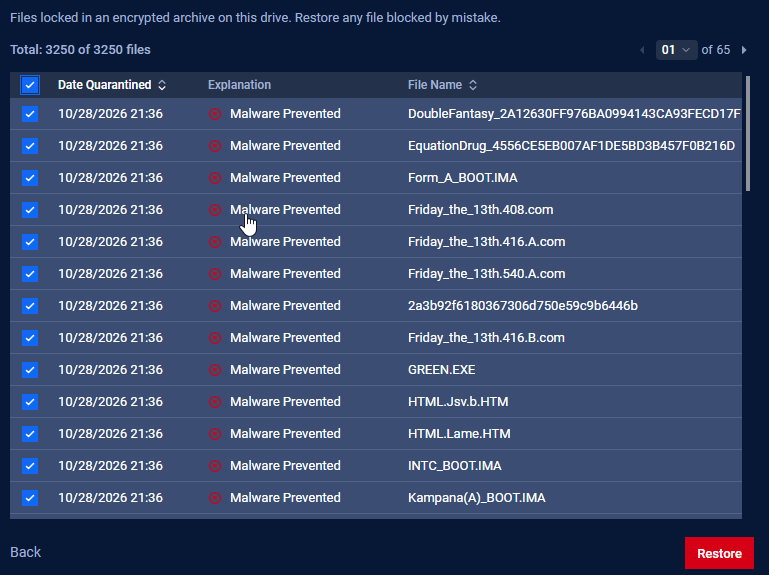
Select file/files to restore by the checkboxes and click red Restore button
Acknowledge and confirm the warning
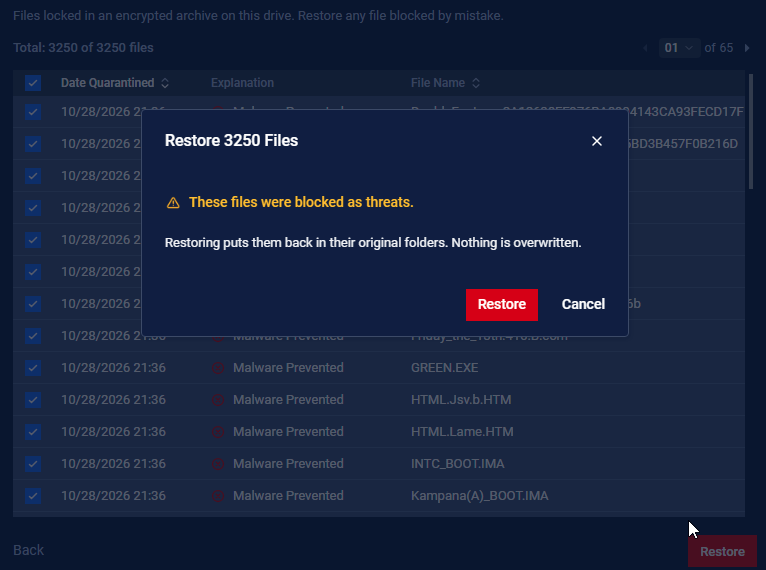
Quarantined files will be restored back, wait for the process to be done
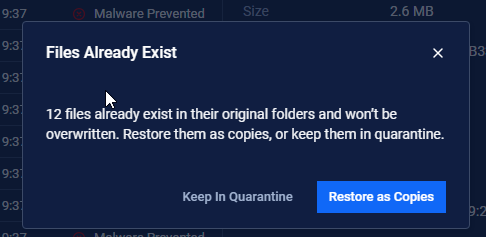
 In case File Already Exists
The message will appear when for any reason the extractor finds that files are still there in the original path. Chose Restore as Copies or Keep In Quarantine.
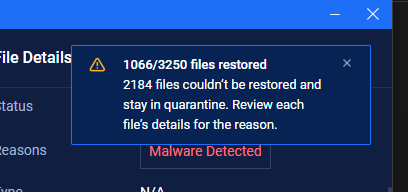
The Restoration finishes
Restore Quarantined Files from working Windows session
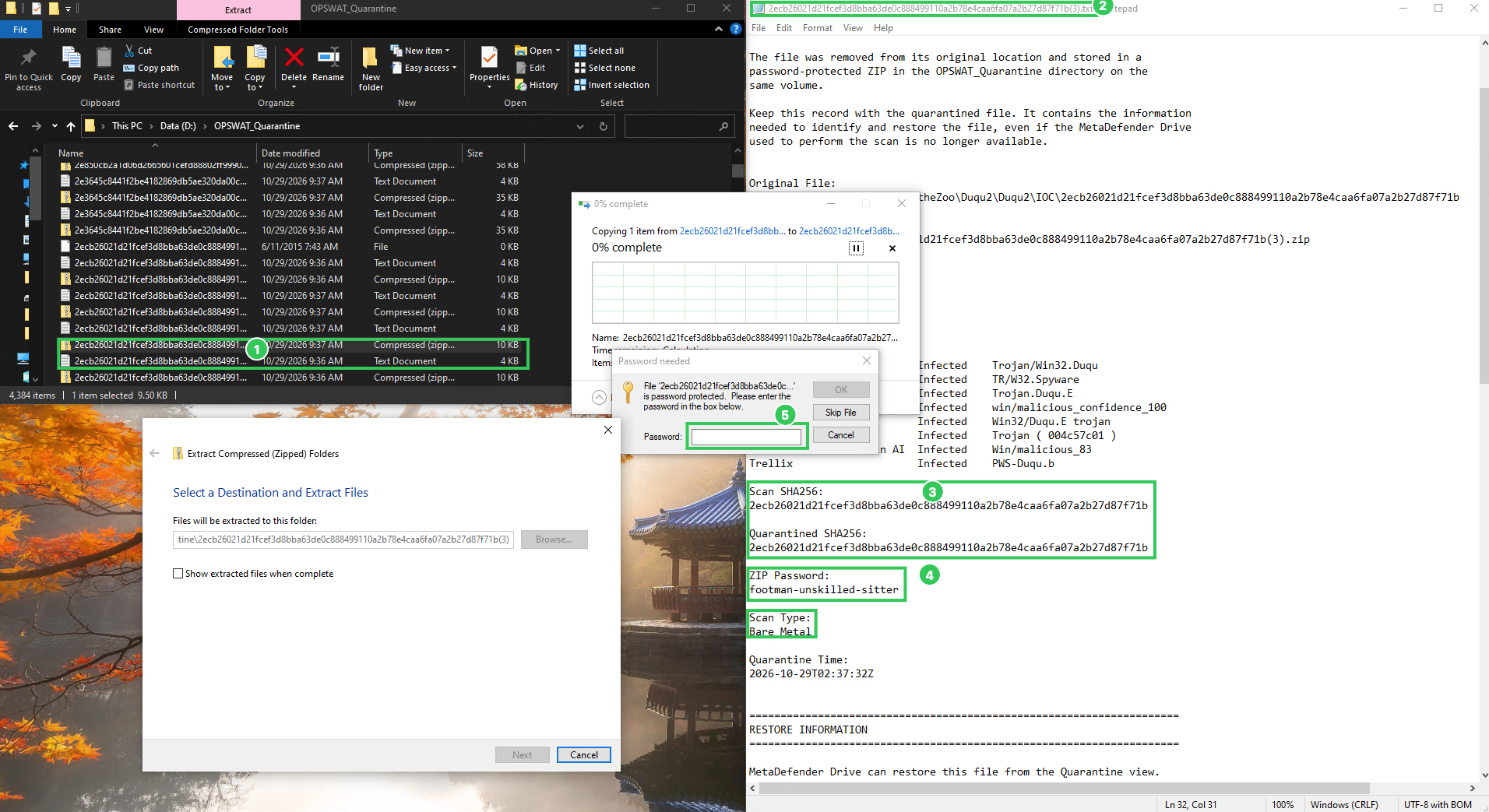
From the OPSWAT_Quarantine folder, navigate to find the quarantined file.
Find the associated quarantine record
Make sure the SHA256 are matching
Look for the ZIP password
Right click the quarantined file, choose to extract with any unarchiver utility available, then fill in the password got from step 4 and hit OK