
After a scan completes, MetaDefender Drive can move detected threats to an encrypted quarantine area on the same source volume. This page describes how to enable quarantine, what happens during the quarantine step, how to interpret quarantine results, and how to restore quarantined files.
Configure Quarantine Settings
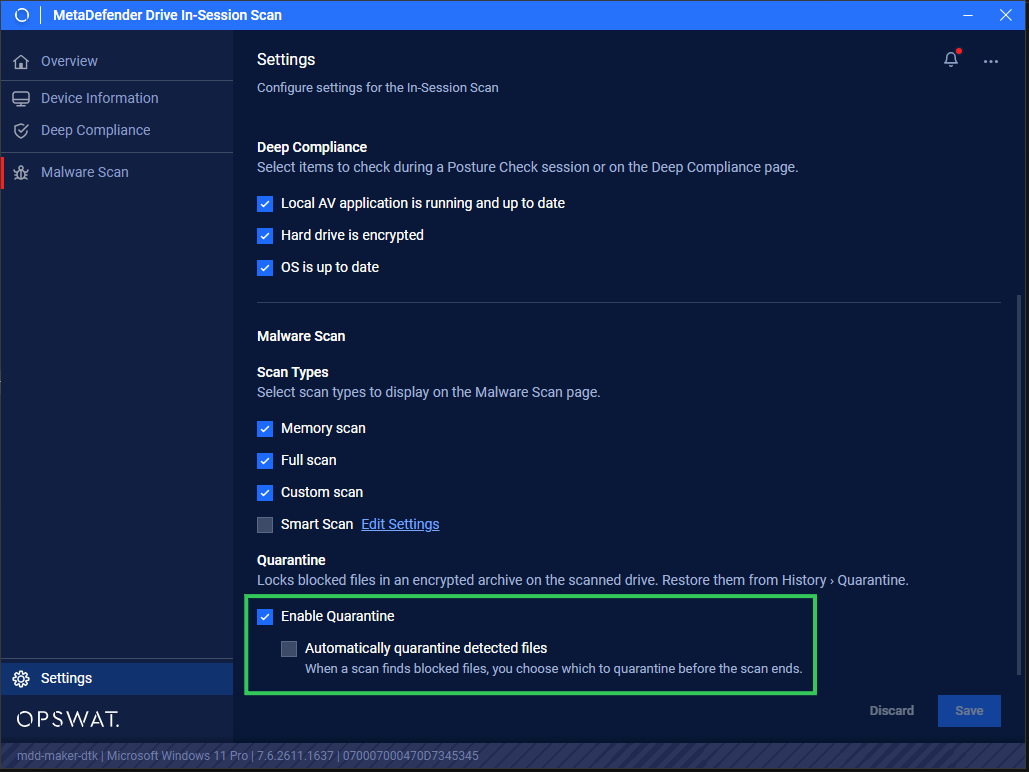
Quarantine behavior is controlled by two checkboxes in Settings → Enable Quarantine. Both are unchecked by default. These settings sync from Central Management and persist across reboots.
Open Settings → Enable Quarantine.
Check Enable Quarantine to activate the quarantine step after each scan. While this checkbox is off, Automatically quarantine detected files is greyed out and cannot be changed.
Check Automatically quarantine detected files to quarantine all detected threats without a manual confirmation step.
Save your changes.
Quarantine Process
When Enable Quarantine is ON and Automatically quarantine detected files is OFF, a Quarantine detected files pop up runs right after the scan finish, before the report is generated, confirming if user wants to quarantine the infected files.
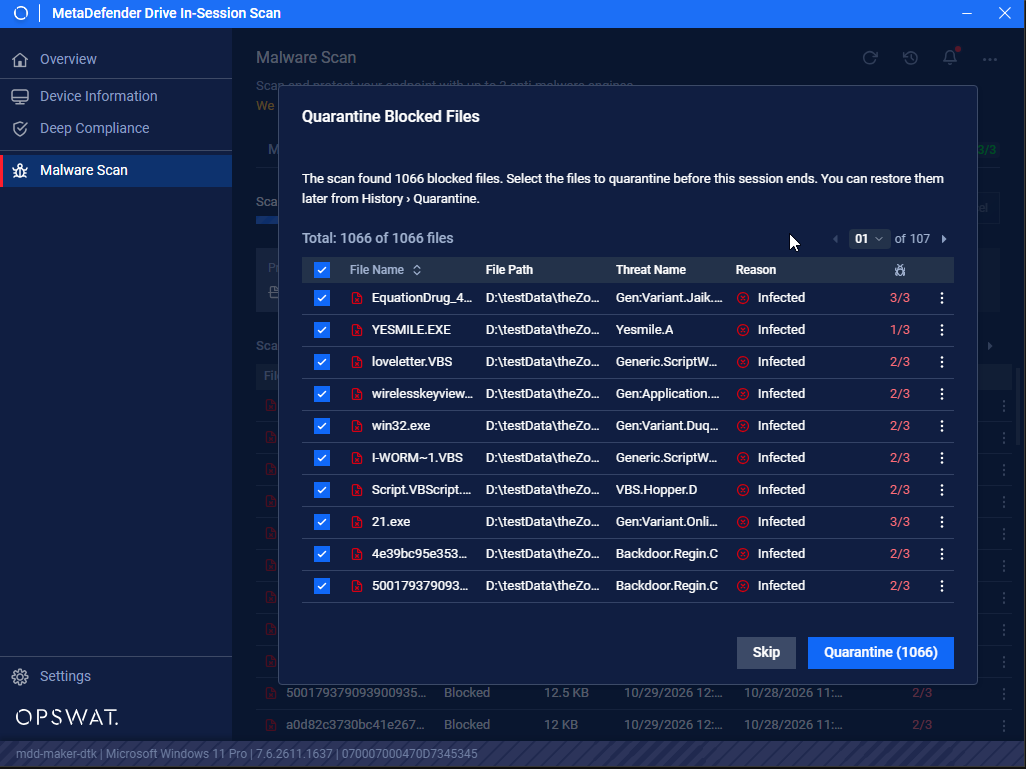
User will
Leave the detected threats as they are by selecting nothing and clicking Skip button, ending up threats will not be quarantined and result into a normal scan report.
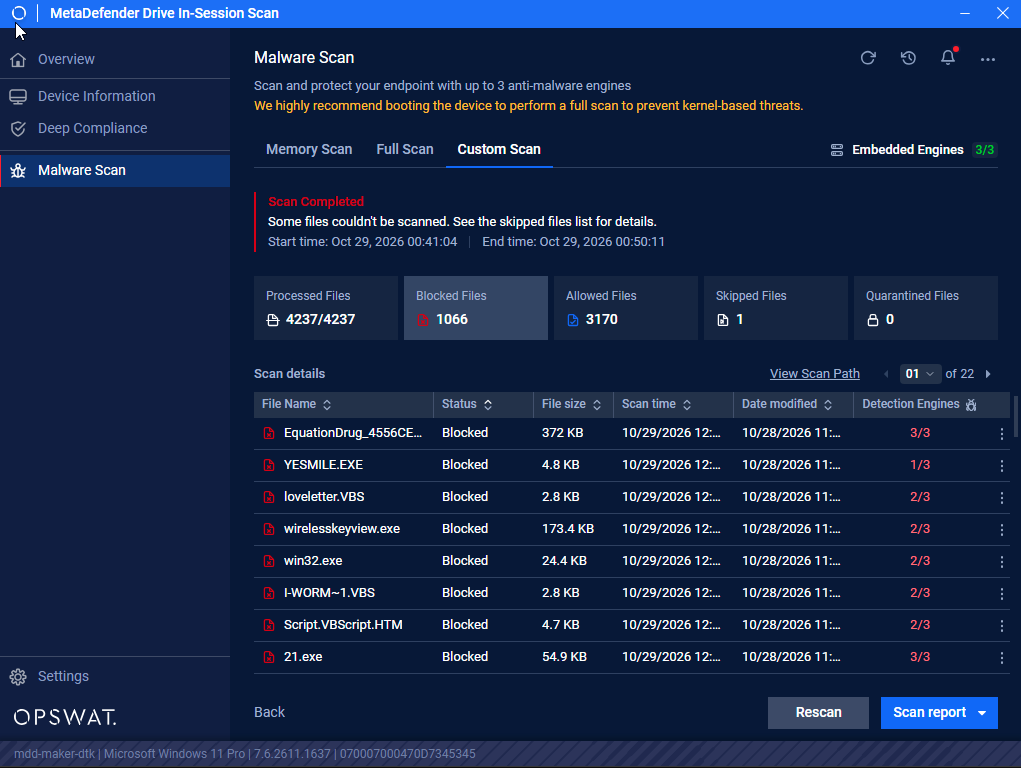
Or Agree with quarantine process by selecting detected files or select them all, then clicking Quarantine (x) button.
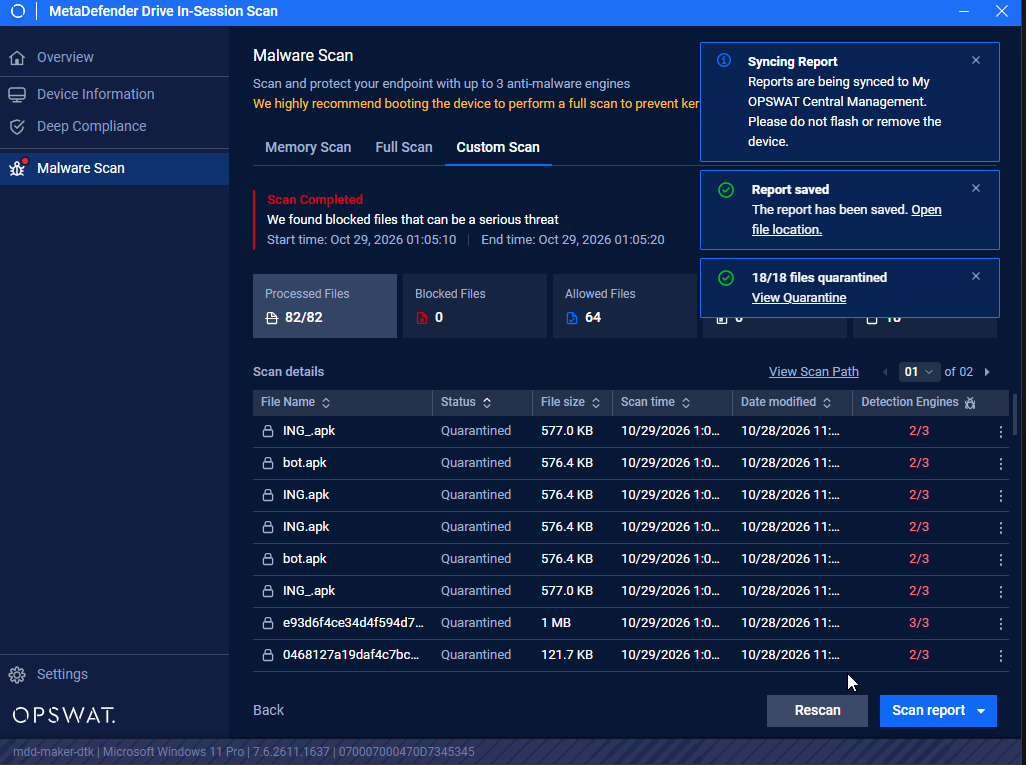
The Quarantine detected files pop up will not appear if Enable Quarantine is ON and Automatically quarantine detected files is ON, and the Quarantine process will be run automatically after any threats detection.
The scan screen replaces the processing status with Quarantining x (counter) blocked files displays a separate progress bar, and shows the path of the file currently being processed.
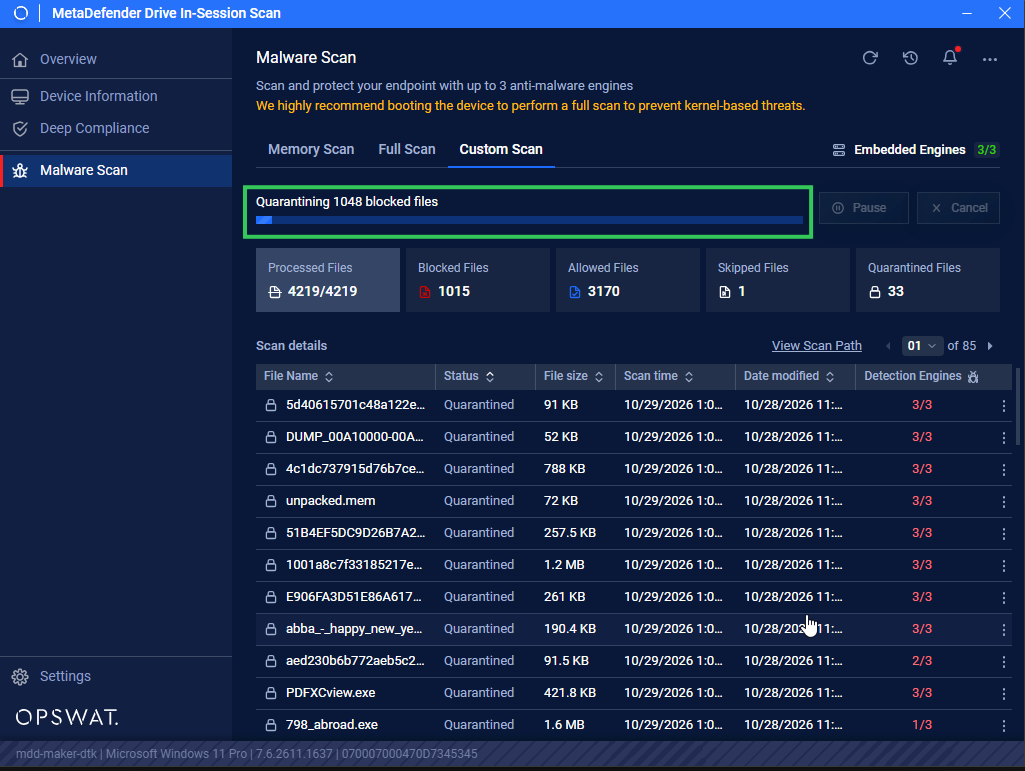
When Automatically quarantine detected files is OFF (manual mode), if you cancel while the quarantine step is running, the file currently being processed either completes normally or is rolled back. Files already quarantined before the cancel are kept.
Quarantine Results
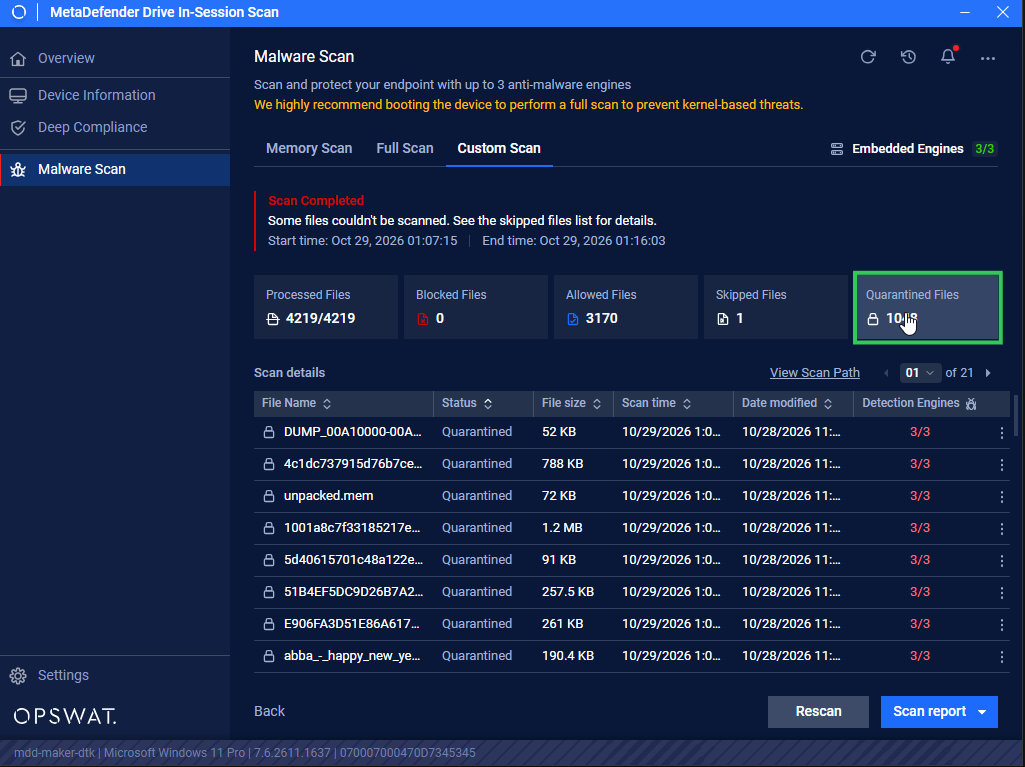
When quarantine process finishes, a quarantine results shows up with Quarantine Files tab filtering the files have been successfully quarantined.
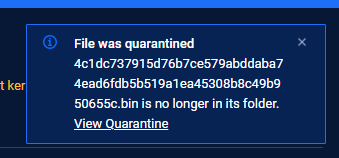
If you click Open folder of a quarantined file a message shows up explaining the reason why file is not accessible.
Reopen Quarantine Reports
To review quarantine reports from previous sessions, navigate to Malware Scan, click History to View previous malware scan results.
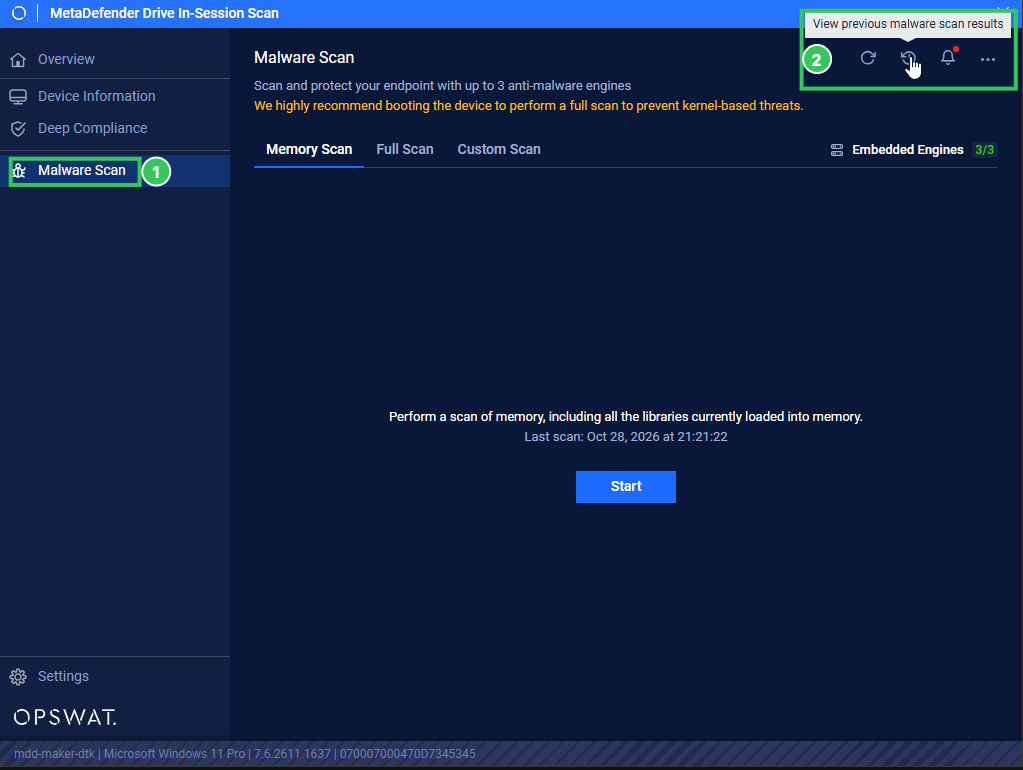
Click Quarantine tab to view all of the quarantined throughout the history.
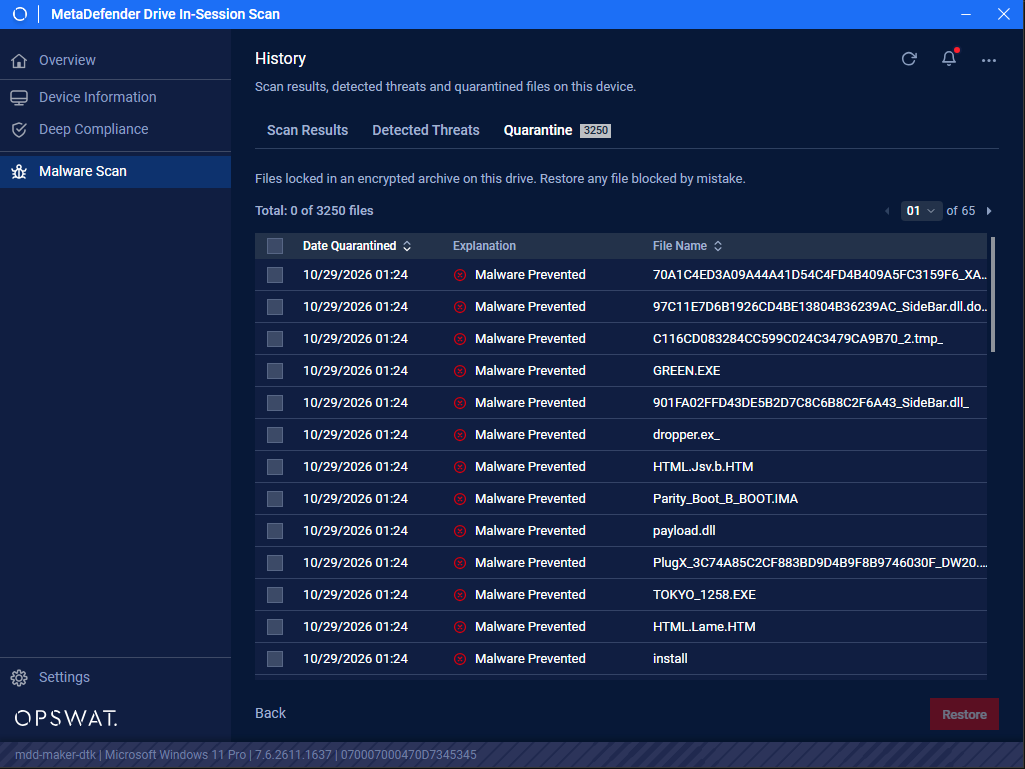
From this screen you can restore the quarantined files, follow Restore Quarantined Threats for more.
Rescan Behavior
When MetaDefender Drive scans a volume that already contains quarantined files, valid quarantine ZIPs in \OPSWAT_Quarantine\ are skipped and are not reported as threats.