
When a scan detects a problematic file buried inside an archive, isolating that specific file can be difficult. Archive Forensic solves this by automatically capturing flagged sub-files during archive processing and storing them in a dedicated, secure location for later retrieval.
How it works
When turned on, MetaDefender Core selectively preserves child files that match configurable trigger verdicts during archive extraction — up to a configurable limit per archive, selected on a first-come-first-served basis.
Office documents like DOCX and XLSX are internally structured as ZIP archives containing XML parts, media, and metadata. When the parent file is an Office document, all child files are intentionally skipped by Archive Forensics to avoid flooding the forensic store with document internals.
Archive Forensic vs. Quarantine
Archive Forensics and Quarantine are both storage features in MetaDefender Core, but they serve different purposes and operate at different levels. The table below highlights the key differences.
Aspect | Archive Forensic | Quarantine |
|---|---|---|
What gets stored | Only the individual subfiles inside an archive that triggered a configured verdict — not the full archive. | The entire original file (including the whole archive if the archive is blocked). |
Scope | Archives only (ZIP, RAR, 7z, ISO, etc.). Standalone files that aren't part of an archive are not captured, and child files within office documents are skipped. | Any file type — such as archives, emails, documents, and others. |
Encryption at rest | Always encrypted with AES-256-GCM before writing to disk. | Configurable; by default, files are stored with a salt. |
Download | Always a password-protected ZIP. No plain download is available. | Direct download or password-protected ZIP. |
How to use
Enabling the feature may introduce additional resource consumption on the MetaDefender Core, and increased storage usage that grows with scan volume and retention window. In high-throughput environments, it may lead to noticeable performance degradation.
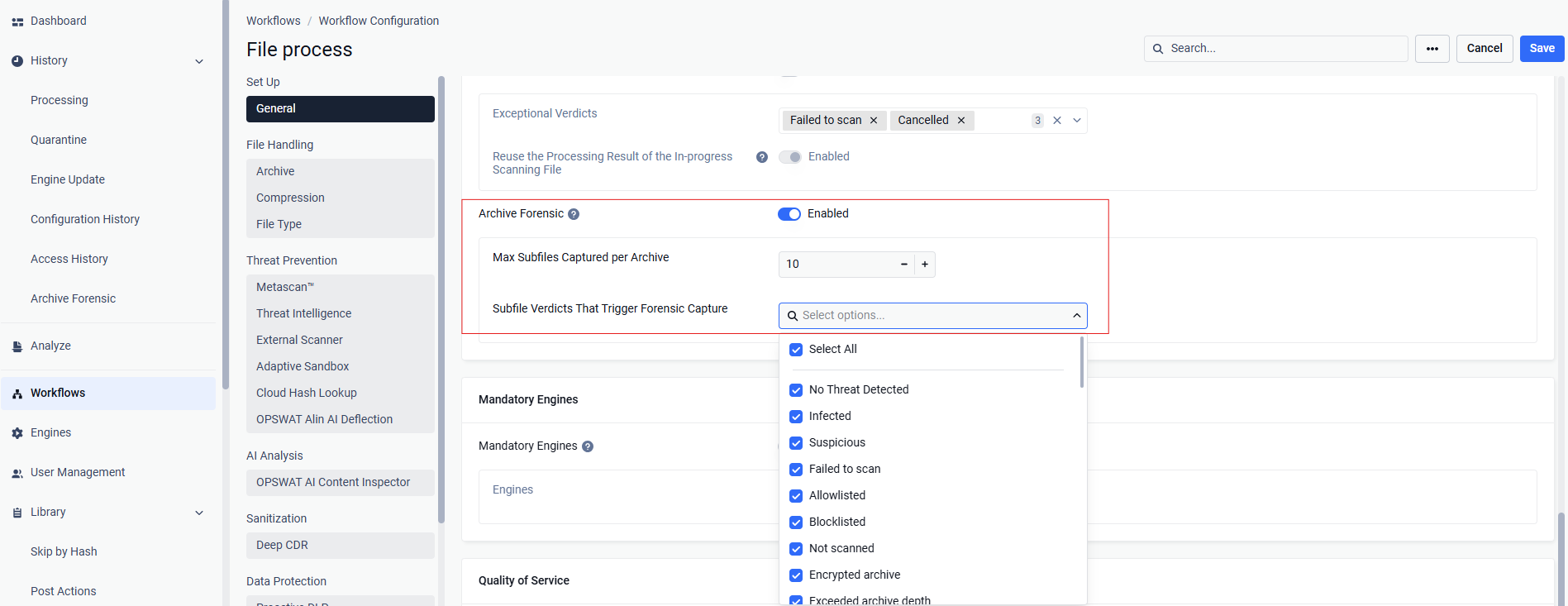
Enable Archive Forensic:
This feature is disabled by default. You can enable it per scanning rule by selecting the Archive forensic checkbox under the General tab.
View the forensic captures
Navigate to History > Archive Forensic to view the list of captured root archives, along with it's data ID, scan result, workflow rule, and the user who triggered the scan. Actions support for this page:
Search for a root archive by name.
Search for a root archive or captured child file by data ID.
Download all captured child files of a root archive.
Trigger an on-demand cleanup action.
Export results.
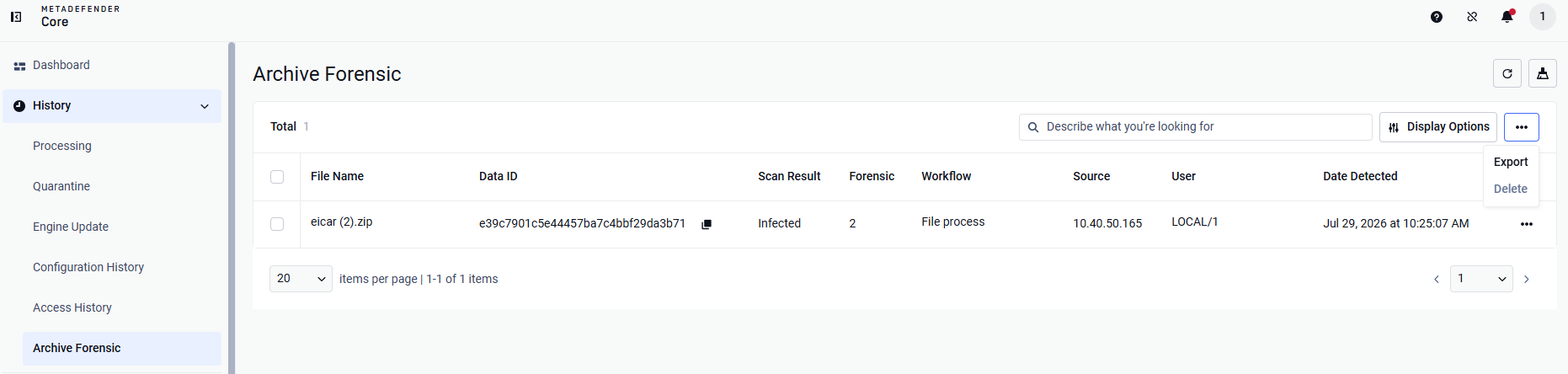
To view the contents of a root archive, hover over and click the archive's row. A new page will appear, listing all files captured inside that archive. Actions support for this page:
Search for a child file by name or data ID.
Download all captured child files.
Download a single captured child file.
Delete all data for the current archive.
Export results.
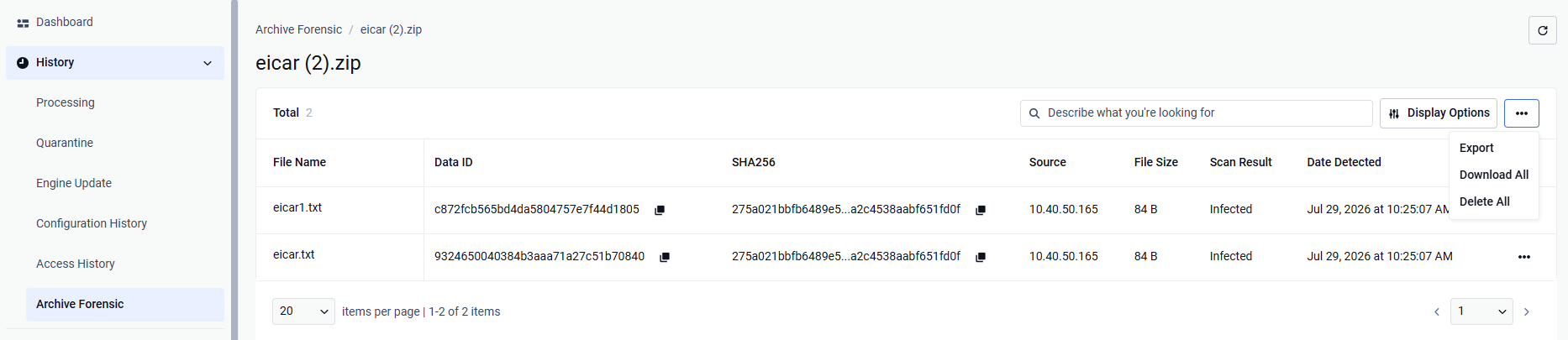
Downloading a file always requires a password. The file is compressed into a password-protected ZIP, which prevents local antivirus software from accidentally removing it.