Below you can find a step by step tutorial on how to integrate Okta with MetaDefender Aether using the OpenID Connect protocol.
Prepare the MetaDefender Sandbox for the OAuth integration
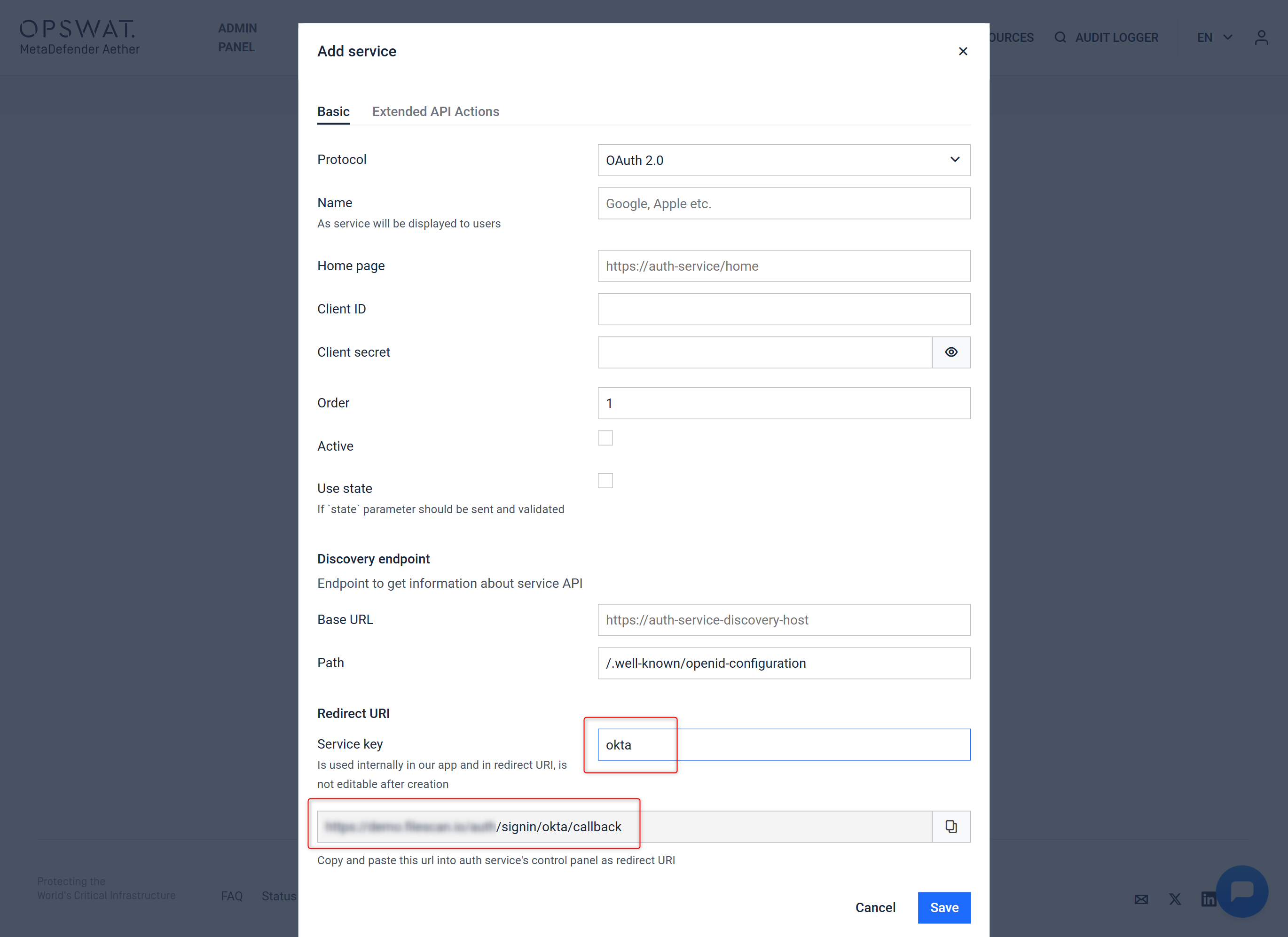
Let’s prepare the SSO settings in MetaDefender Aether as follows:
Go to Admin panel > Settings > Authentication on MetaDefender Aether page.
Click on + Add Service button
Fill in the Name (e.g. "Okta") and Service key (should be "okta") values
Do NOT click Save yet; the remaining values will be filled in later
Please note down the Redirect URI at the bottom of the form
Register application in Okta
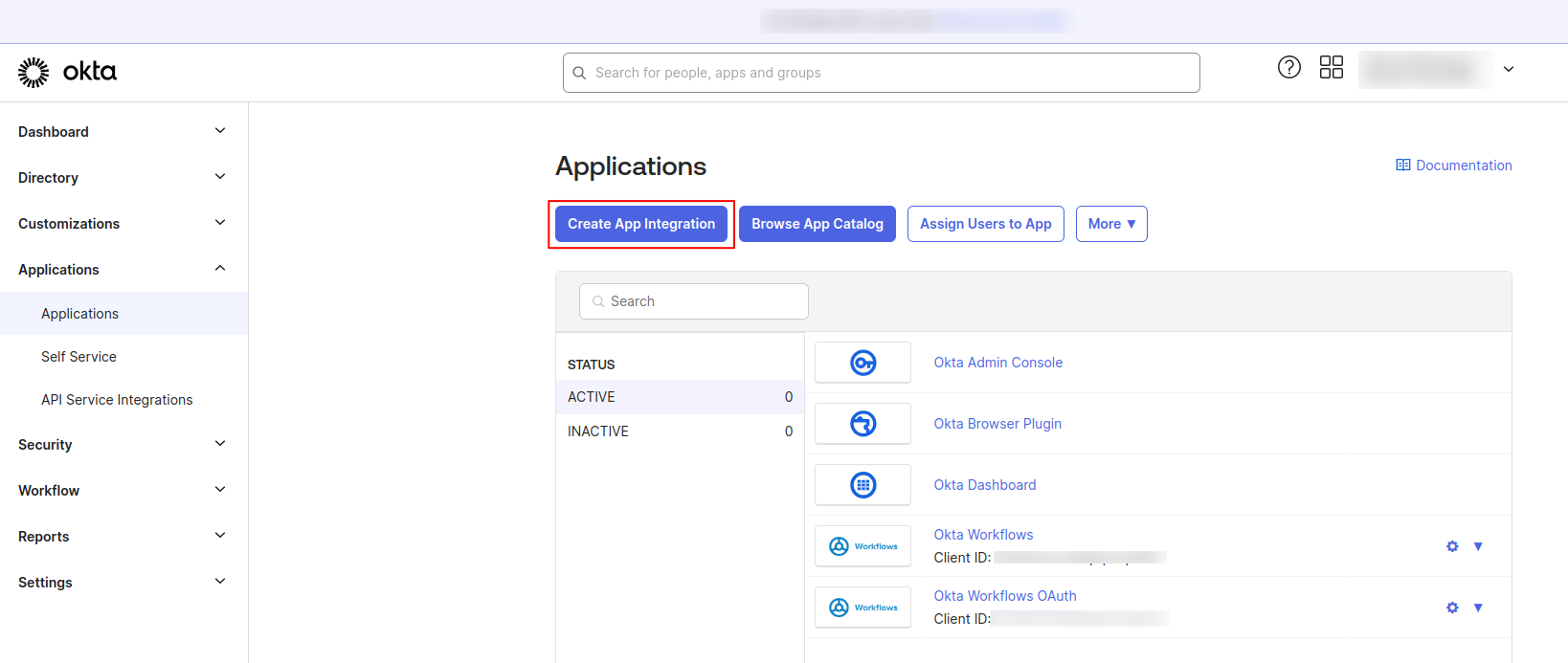
Sign into Okta and navigate to admin dashboard
Go to Applications and select Create App Integration
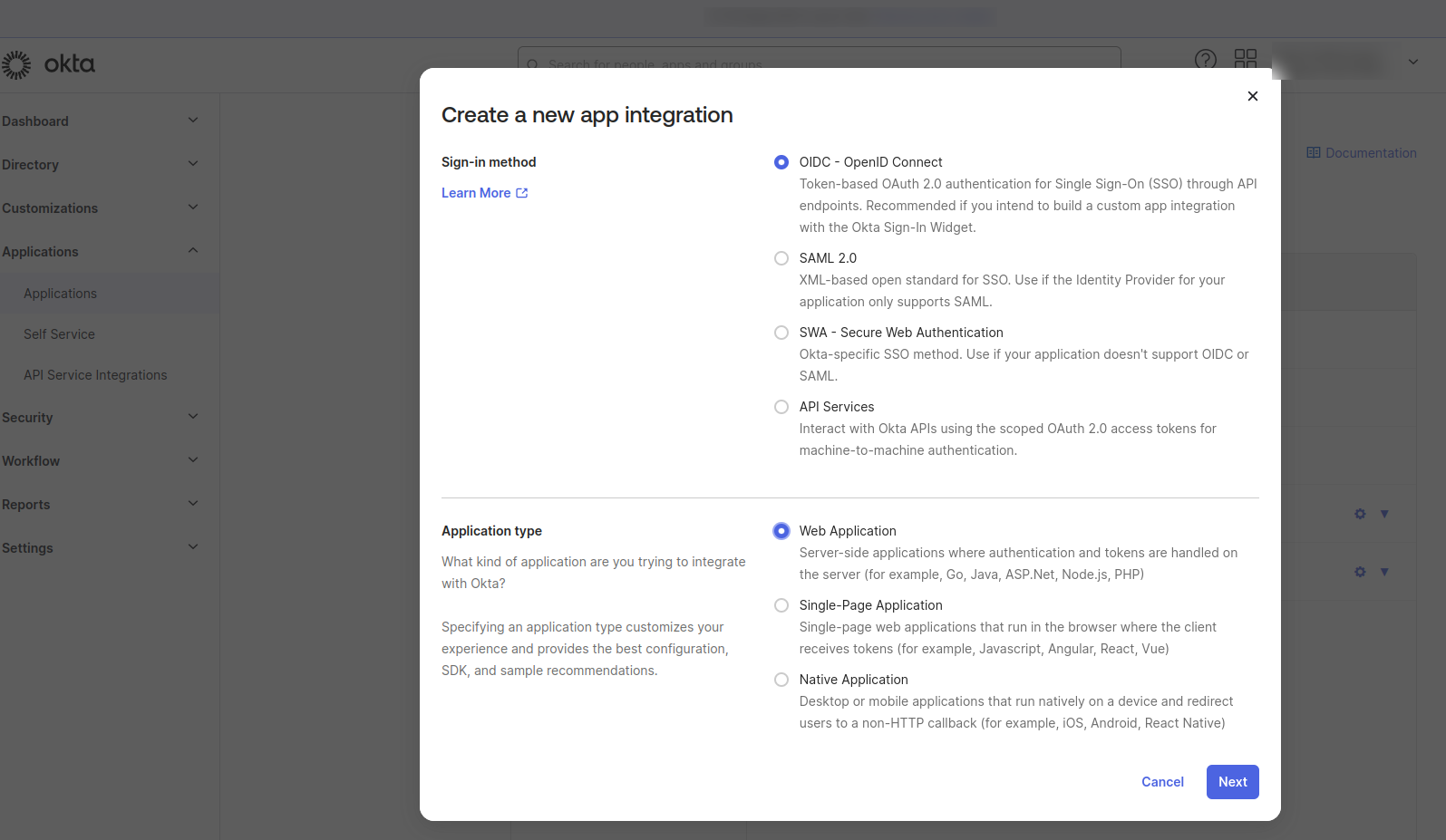
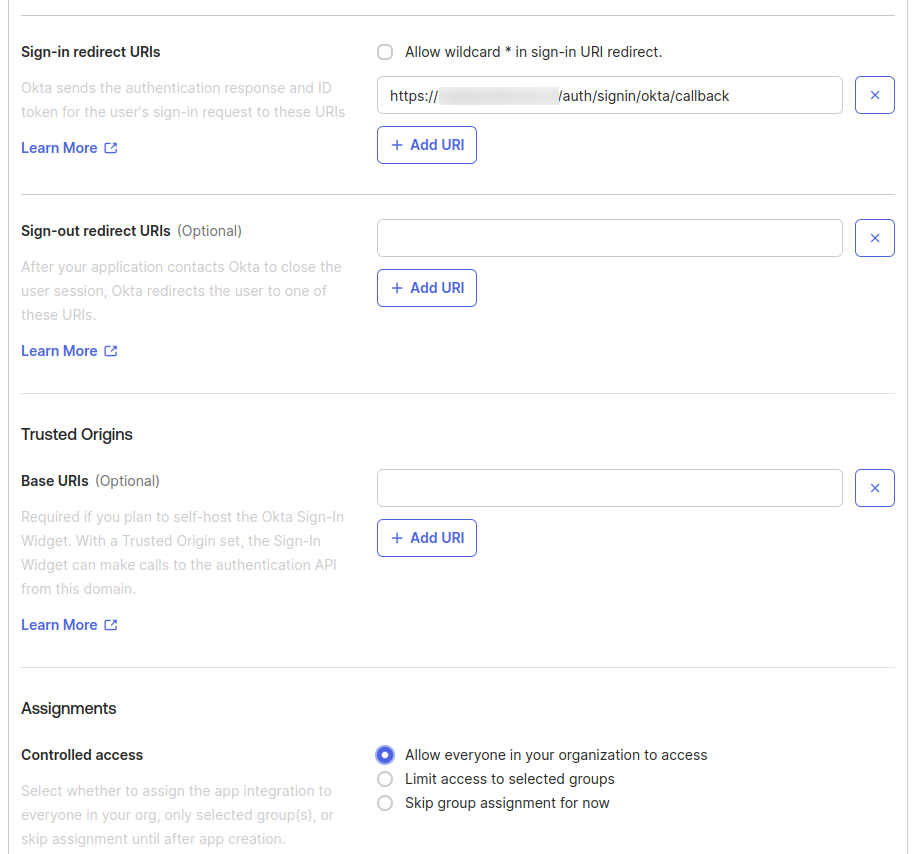
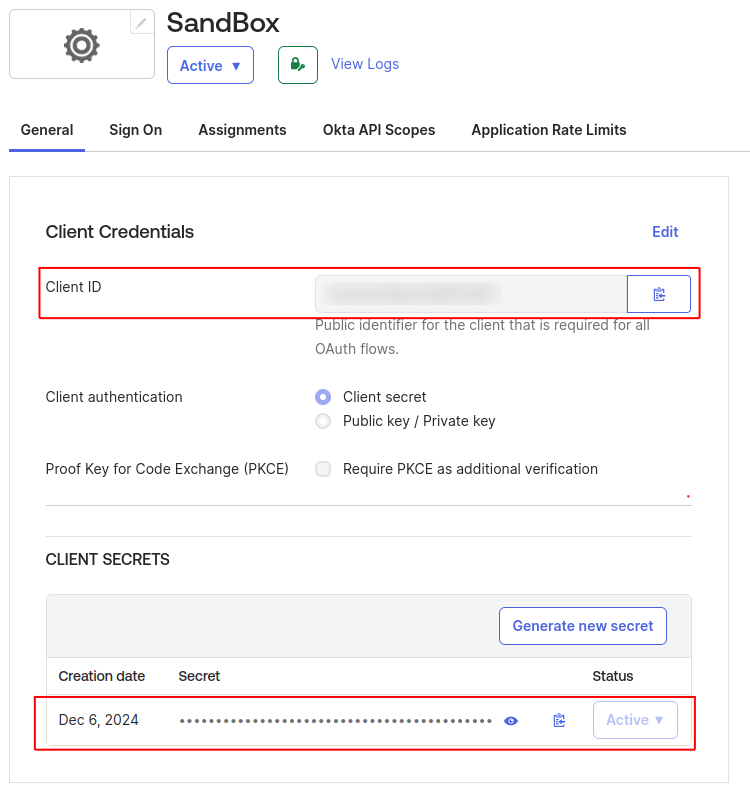
Please copy the Client ID and client secrets from the newly created application.
Configure MetaDefender Aether for Okta SSO
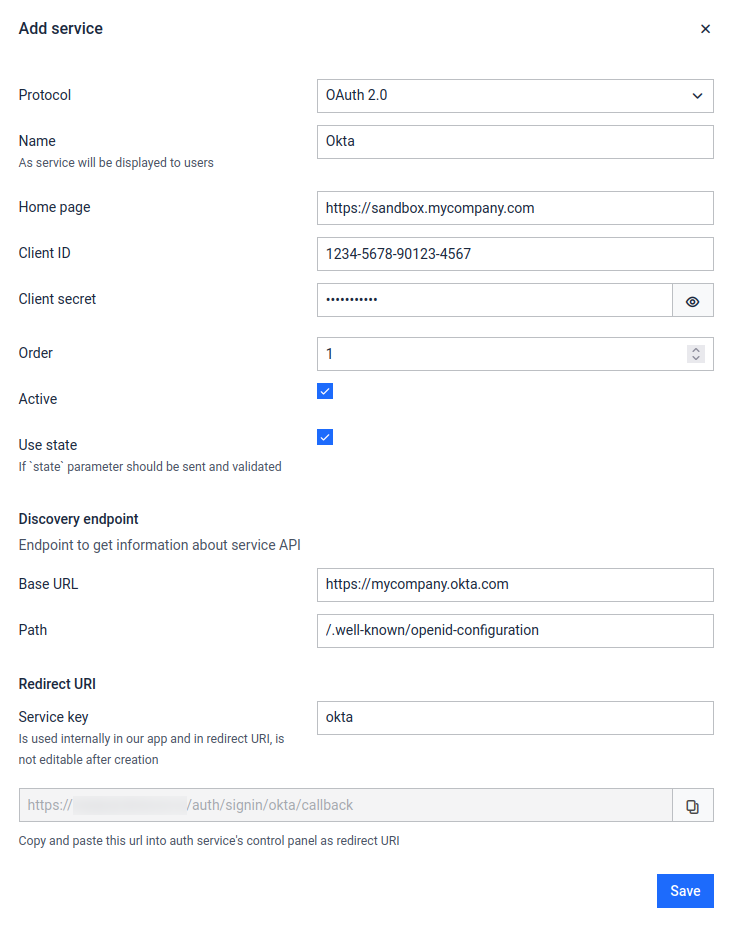
Let’s finish the configuration of the MetaDefender Aether SSO settings using the information collected above:
Go back to the MetaDefender Aether UI
Fill in the form details for the newly created service using the reference below
Save the form
Field | Description | Example |
|---|---|---|
Name | Integration name | Okta |
Home page | First page after log in | |
Client ID | Application (client) ID , comes from Okta | 1234-5678-90123-4567 |
Client secret | Comes from Okta | abcd1234!%# |
Order | The order of authentication can be specified | 1 |
Active | Enable or disable the authentication | on |
Use state | Generate and validate OIDC state parameter - must be enabled for Okta | on |
Base URL | Service base url | |
Path | Service URL postfix. Format should be: | /.well-known/openid-configuration |
Service Key | Is used internally in our app and in redirect URI | okta |
Testing the integration
Log out of MetaDefender Aether
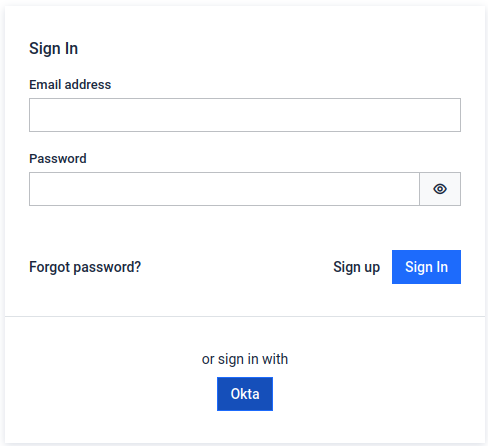
You will notice that there is a new Sign In with Okta button on the login page